- Expand the folder XML List Request and select the file HTTPInboundXMLBindService.properties. Using the context menu select Send To / Integrator Folder. This dialog will be displayed:
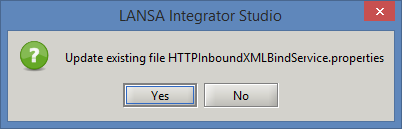
- Click Yes and the file in folder Integrator/Properties will be updated.
- Repeat steps a. and b. to update the properties file in Integrator/Properties folder from the file HTTPInboundXMLBindService.properties file in Solutions/XML List Response.
- If you open the HTTPInboundXMLBindService.properties file in folder Integrator/Properties it should now look like this:
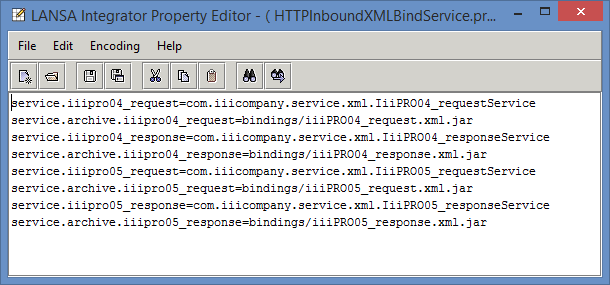
- Close the Properties Editor.
- Your JSM Server instance is probably already open on the right hand side from a previous step. If not, open it by double clicking on the server in your Project tab.
- In the Integrator / Properties folder, right click on your local HTTPInboundXMLBindService.properties file and select the Publish Section option from the context menu.
- A message will ask you to confirm publish. Press Yes.
The HTTPInboundXMLBindService.properties file on the server now defines what resource to use for this exercise.
You must copy the jar files from your PC into the appropriate JSM server directory. You will send the jar files to the directory \instance\bindings.
- In the XML List Response solution, right click on iiiPRO05_response.xml.jar and select Send To /, Integrator Folder from the context menu. Select Yes when asked if you want to copy the file over. Note that alternatively, you could simply drag and drop the iiiPRO05_response.jar file into the Integrator/bindings folder.
- In the XML List Request folder, repeat step a. for iiiPRO05_request.xml.jar.
- In the left panel, expand the Integrator / bindings folder. One at a time, right click on each jar file and select Publish File. Select Yes when prompted.
- You will not need to reboot your JSM server since the JSM will retrieve the XMLBinding jar files from the /bindings folder...