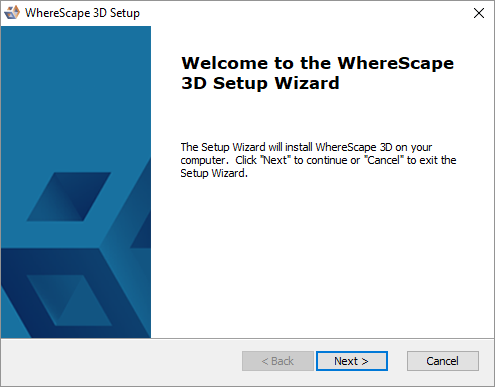
1. After installing and configuring WhereScape Metadata Server, the WhereScape 3D Setup wizard is displayed, as shown in the following screenshot:
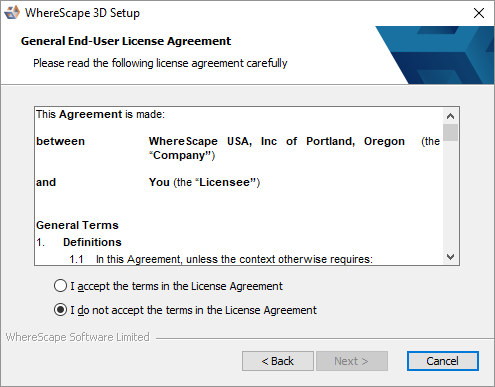
  2. On the welcome screen, click Next to continue.The General End-User License Agreement screen is displayed, as shown in the following screenshot:
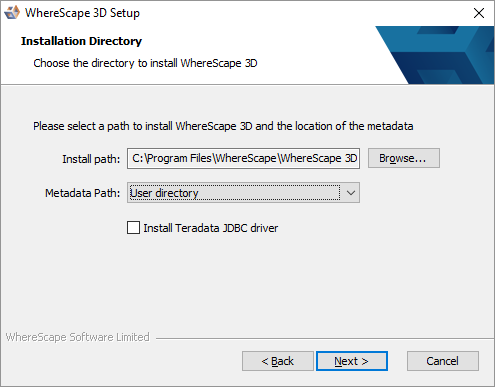
  3. Read the license agreement, select the I accept the terms in the License Agreement radio button and click Next. The Installation Directory screen is displayed, as shown in the following screenshot:
  4. On the Installation Directory screen...
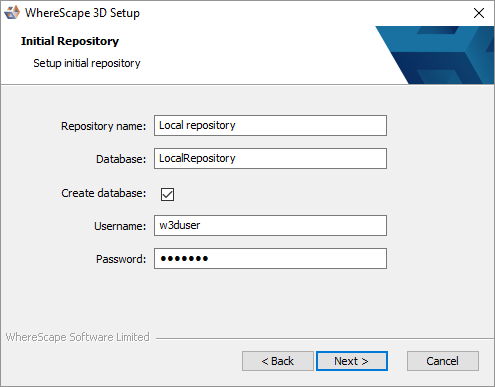
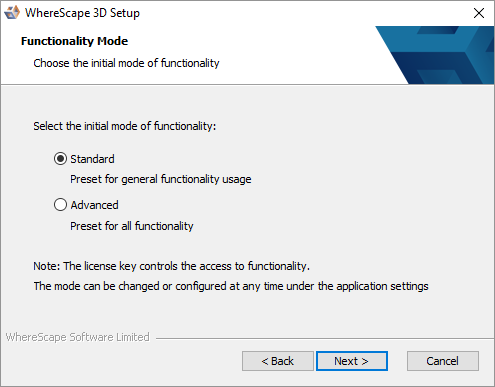
  5. On the Functionality Mode screen, select the initial mode of functionality and click Next. The Initial Repository screen is displayed, as shown in the following screenshot:
    Note

    The Initial Repository screen is only displayed if the WhereScape Metadata Server has been installed on the same machine.

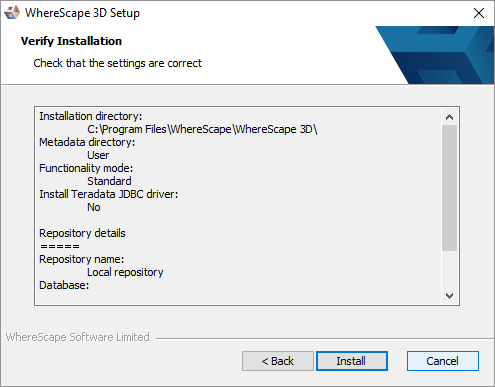
  6. On the Initial Repository screen...
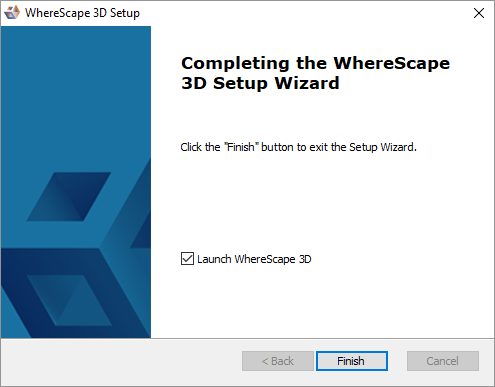
  7. Click Install. The installation may take several minutes. Once the installation is complete, the Completing the WhereScape 3D Setup Wizard screen is displayed, as shown in the following screenshot:
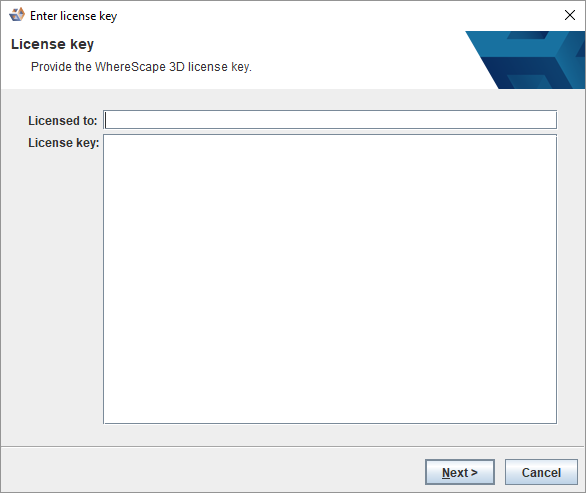
  8. Click Finish.The WhereScape 3D application is displayed (only if the Launch WhereScape 3D checkbox is selected in the previous screen) and you will be asked to enter your License key information.
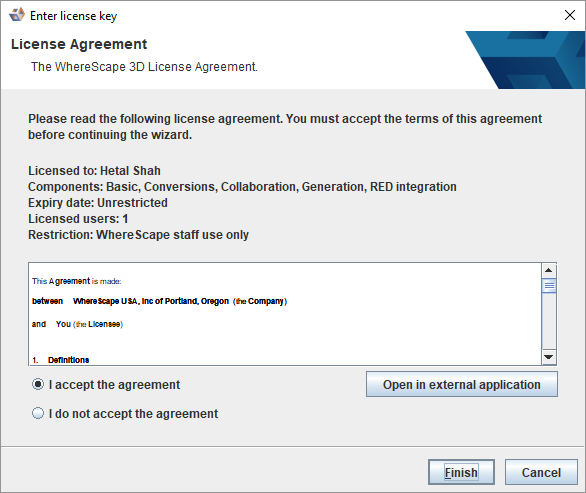
  9. Enter the Licensed to user name, the License key and click Next. The License Agreement screen is displayed, as shown in the following screenshot:
  10. Read the License Agreement, select the I accept the agreement radio button and click Next or Finish.
    • You can also click Open in external application to view the license agreement for Teradata JDBC Driver. Read the License Agreement and complete one of the following:
    • Select the I accept the agreement radio button and click Next.
      OR 
    • Select the I reject the agreement and do not wish to install the driver radio button and click Next.
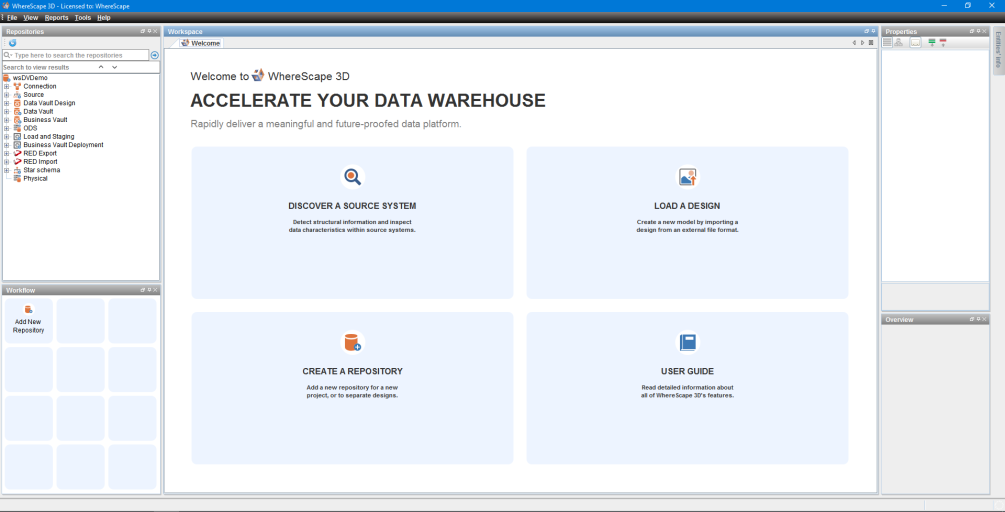
    The WhereScape 3D Welcome screen is displayed.