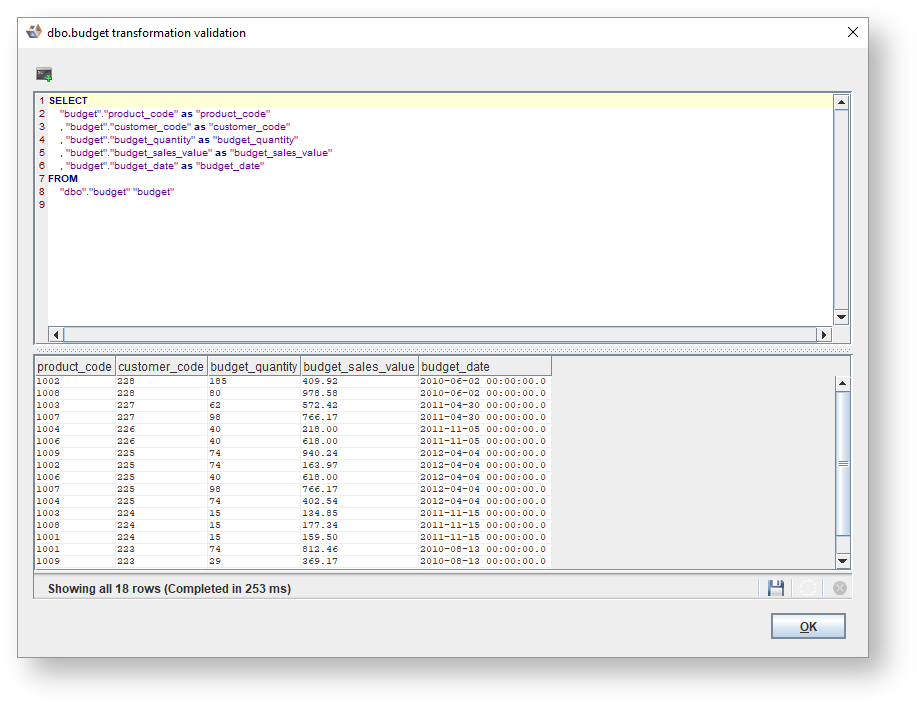
or by right-clicking on the entity in the repository tree and choosing Properties:

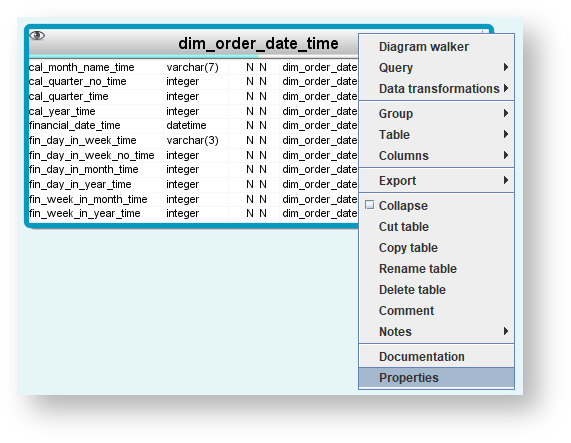
To enter a transformation on an entity, select the Properties screen for that entity, either by right-clicking on the entity in the diagram and choosing Properties:
or by right-clicking on the entity in the repository tree and choosing Properties:
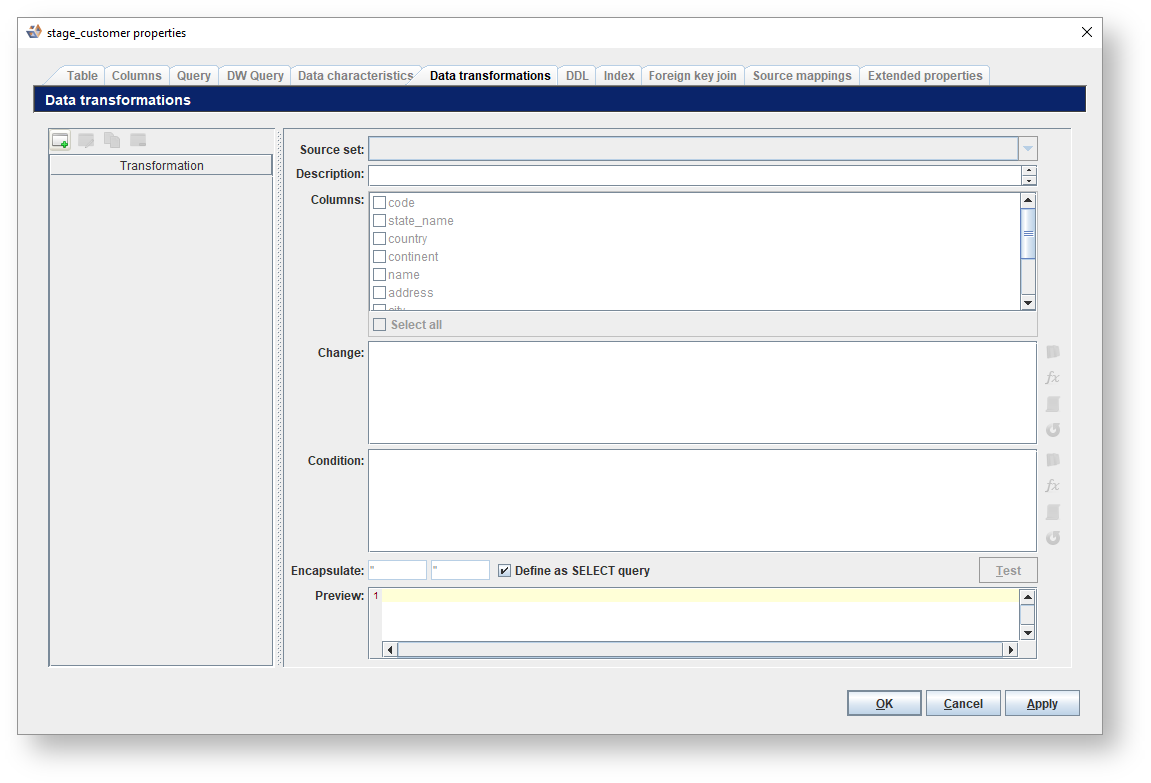
| The Data Transformation tab is only visible if data transformations are enabled in the category settings, refer to Entity/ General Settings for details. |
Icons | Description |
|---|---|
| Click to Add a transformation. |
| Click to Edit the selected transformation. |
| Click to make a Copy of the selected transformation. |
| Click to Delete the selected transformation. |
Icons | Description |
|---|---|
| Click Highlight attribute to highlight some text in the change/condition field, which will then be replaced by the columns selected in the Columns field. |
| Click Insert function to select a database function to be inserted. |
| Click Clear highlight to clear the highlights (all or by user selection). |
| Click Refresh highlights to refresh the text field to check the highlighting. |
If multiple columns are selected in the Columns field, the Preview section will contain multiple queries, separated by semicolons. |