 Prepare for RED from the Workflow pane.
The Prepare for RED dialog is displayed.

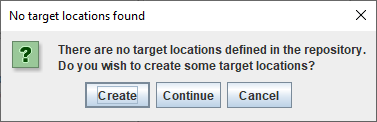
If you DO NOT have any target locations configured, the No target locations found dialog is displayed. |
If you select a Model then you only need to enter a Version. |

The Manual type mapping dialog is displayed.

The Manual type mapping dialog is ONLY displayed if you have modified entity types. |
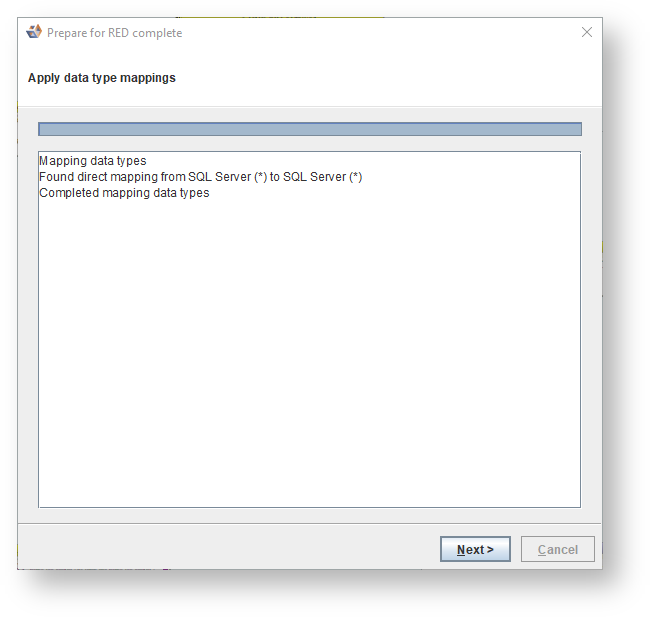
The Prepare for RED complete dialog is displayed.

The Prepare for RED - Manage target locations dialog is displayed. From this dialog you can manage the target locations for all the entities in this model version.

Complete the following:
- Entities - Select a filter to first filter on certain entities and then to select the checkboxes to select relevant entities.
- Target locations - Select a target location from the drop-down list and click Move to move the selected entities to the selected location.
The Prepare for RED - Manage groups dialog is displayed.

 to define a group to correlate with a WhereScape RED project, select all the tables you want to include in the group and click Update.
The Prepare for RED - Apply data type mappings dialog is displayed.

- Select the source database type from the From list (if required).
- Select the Letter case from the drop-down list to be used for the data type names.
- Select an entity type from Add data transformations to. The data transformation will be added, if it has been defined in the data type mapping definition and only to entities of the selected entity type. By default, the Load entity type is selected.
The Prepare for RED - Apply data type mappings dialog is displayed.
The Prepare for RED - Apply model conversion dialog is displayed.

- Click to add a new model conversion entry.
- Select a new rule from the drop-down list.
- Click
 to reset to the default settings.
 - Drag the handle to reorder the model conversions.
The Prepare for RED - Applying model conversion dialog is displayed.

The diagram is displayed.
