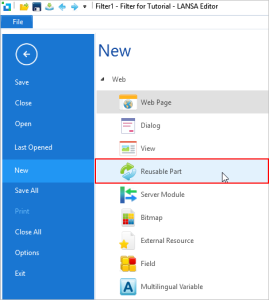
Visual LANSA エディターで、[ファイル] > [作成] > [再利用可能パーツ] を選択します。
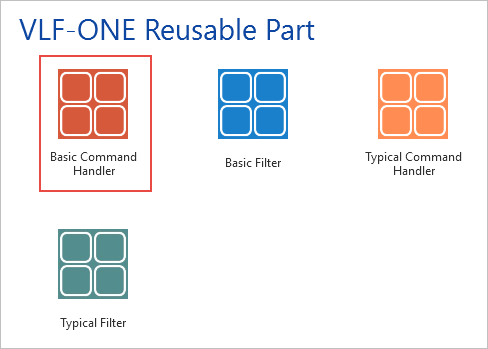
[VLF-ONE 再利用可能パーツ] の [基本コマンド・ハンドラー] を選択します。
コマンド・ハンドラーの名前と記述を入力し、ターゲット プラットフォームは Web ブラウザにします。
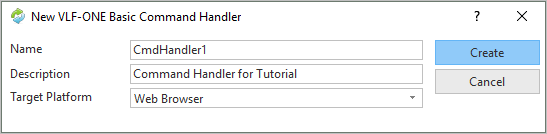
[作成] をクリックします。
コマンド・ハンドラーがエディターで開かれたら、これをダブルクリックして詳細を表示します。祖先が、すべての VLF-ONE コマンドの共通祖先である #VF_AC010O になっていることに注意してください。
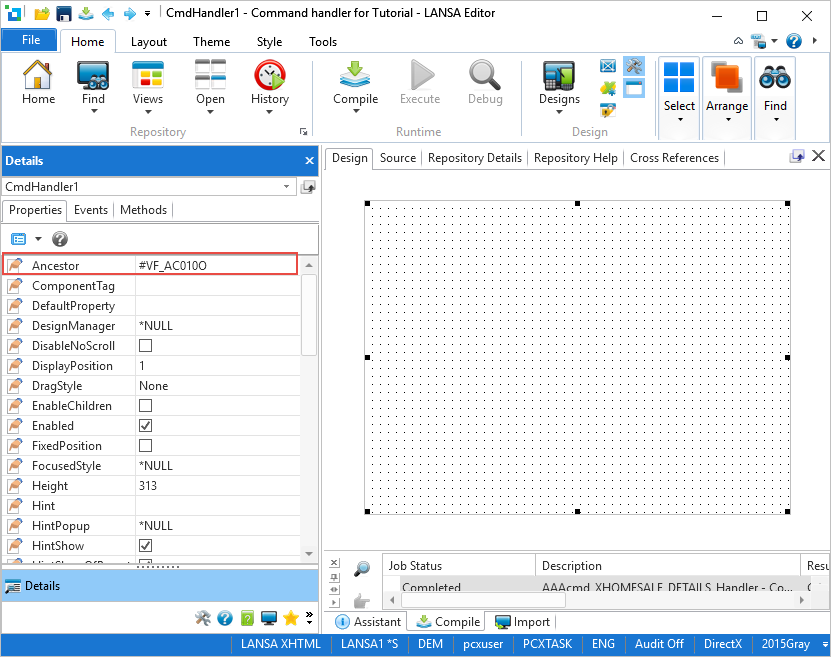
[ソース] タブに切り替えて、コードを次のコードに置き換えます。
Begin_Com Role(*EXTENDS #VF_AC010O) Height(281) Width(513)
Define_Com Class(#xEmployeeIdentification.Visual) Name(#xEmployeeIdentification) Displayposition(1) Height(21) Left(23) Parent(#COM_OWNER) Tabposition(1) Top(42) Width(237) Readonly(True)
Define_Com Class(#xEmployeeSurname.Visual) Name(#xEmployeeSurname) Displayposition(2) Left(23) Parent(#COM_OWNER) Tabposition(2) Top(64)
Define_Com Class(#xEmployeeGivenNames.Visual) Name(#xEmployeeGivenNames) Displayposition(3) Left(23) Parent(#COM_OWNER) Tabposition(3) Top(86)
Define_Com Class(#xEmployeeStreet.Visual) Name(#xEmployeeStreet) Displayposition(4) Height(21) Left(23) Parent(#COM_OWNER) Tabposition(4) Top(108) Width(479)
Define_Com Class(#xEmployeeCity.Visual) Name(#xEmployeeCity) Displayposition(5) Height(21) Left(23) Parent(#COM_OWNER) Tabposition(5) Top(130) Width(479)
Define_Com Class(#xEmployeeState.Visual) Name(#xEmployeeState) Displayposition(6) Height(21) Left(23) Parent(#COM_OWNER) Tabposition(6) Top(152) Width(479)
Define_Com Class(#xEmployeePostalCode.Visual) Name(#xEmployeePostalCode) Displayposition(7) Height(21) Left(23) Parent(#COM_OWNER) Tabposition(7) Top(174) Width(249)
Define_Com Class(#PRIM_PHBN) Name(#Button_Save) Caption('Save') Displayposition(8) Left(376) Parent(#COM_OWNER) Tabposition(8) Top(216) Width(129) Enabled(False)
- Make pressing the enter key the same as pressing the search button
Define_Com Class(#prim_stpg) Name(#Enter) Shortcut(Enter) Parent(#COM_OWNER)
- The employee currently being viewed and edited
Define_Com Class(#vf_lm003O) Name(#DisplayedEmployeeDataItem) Reference(*DYNAMIC)
- ------------------------------------------------------------------------------
Define_Com Class(#Prim_ACol<#prim_evp>) Name(#PanelFields)
- ------------------------------------------------------------------------------
- Handle initialization
Mthroutine Name(uInitialize) Options(*Redefine)
Define_Com Class(#prim_evp) Name(#TempField) Reference(*DYNAMIC)
- Build collection of Editable fields
For Each(#Control) In(#Com_Owner.ComponentControls)
If_Ref Com(#Control) Is(*INSTANCE_OF #prim_evp)
#TempField <= #Control *As #prim_evp
#PanelFields.Insert( #TempField )
Endif
Endfor
Endroutine
- ------------------------------------------------------------------------------
- Handle termination
Mthroutine Name(uTerminate) Options(*Redefine)
- Clean out any reference to the last item (very important)
#DisplayedEmployeeDataItem <= *null
- Clean up the collection of fields on the panel
Invoke Method(#PanelFields.RemoveAll)
- Do any termination defined in the ancestor
Invoke Method(#Com_Ancestor.uTerminate)
Endroutine
- ------------------------------------------------------------------------------
- This runs when the Details command handler is shown for an employee
Mthroutine Name(uExecute) Options(*REDEFINE)
- Do the ancestor thing
#Com_Ancestor.uExecute Gotofreestate(#GotoFreeState) Switchcallerreference(#SwitchCallerReference)
- Check for any unsaved chanegs from previous displays and
- only proceed is their is nothing that needs to be saved
If (#COM_OWNER.CheckForUnsavedChanges( False )) - This is going to be the employee we are working with
#DisplayedEmployeeDataItem <= #AVLISTMANAGER.CurrentInstance - Clear any messages from the previous employee
#AVFRAMEWORKMANAGER.avClearMessages Requester(#COM_OWNER) - Get the employee data from the server
#Com_Owner.GetDataFromServer - GetDataFromServer will release the Busy State itself
#GotoFreeState := False
Endif
Endroutine
- ------------------------------------------------------------------------------
- Get the Data for an employee
Mthroutine Name(GetDataFromServer) - The locally scoped return code
Define_Com Class(#IO$STS) Name(#IOStatusReturnCode) - Define the Server Module method routine used to get data from the server
Define_Com Class(#SModule1.Find) Name(#Find)
- Group of fields
Group_By Name(#DataFields) Fields(#xEmployeeSurname #xEmployeeGivenNames #xEmployeeStreet #xEmployeeCity #xEmployeeState #xEmployeePostalCode #xEmployeeHomeTelephone #xEmployeeBusinessTelephone #xEmployeeStartDate #xEmployeeTerminationDate #xDepartmentCode #xEmployeeSalary)
- Clear any messages
#AVFRAMEWORKMANAGER.avClearMessages Requester(#COM_OWNER)
- Get the data from the server by doing an asynchronous call to the Server Module DF_T42DSO
- The data is returned as the #DataFields Group of fields
#xEmployeeIdentification := #DisplayedEmployeeDataItem.avAKey1
#Find.Execute Status(#IOStatusReturnCode) Xemployee(#DataFields) Xemployeeidentification(#xEmployeeIdentification)
- Handle asynchronous completion of the server operation
Evtroutine Handling(#Find.Completed)
If (#IOStatusReturnCode *EQ OK) - The data from the #datafields Group_by is displayed in the fields on the screen
Else
#AVFRAMEWORKMANAGER.avIssueMessage Text('Data not found on the Server') Requester(#Com_Owner)
Endif - Employee has not been changed yet and is freshly display
#Button_Save.Enabled := False - Go back to display free state
#com_Owner.avGotoFreeState
Endroutine
Endroutine
- ------------------------------------------------------------------------------
- Start the save
Evtroutine Handling(#Button_Save.Click #Enter.Pressed)
If (#Button_Save.Enabled)
#COM_OWNER.SaveEmployee
Endif
Endroutine
- ------------------------------------------------------------------------------
Mthroutine Name(SaveEmployee) - The locally scoped return code
Define_Com Class(#IO$STS) Name(#IOStatusReturnCode) - Define the Server Module method routine used to save data to the server
Define_Com Class(#SModule1.Save) Name(#Save) - Fields to be passed to Server Module DF_T42DSO
Group_By Name(#SaveFields) Fields(#xEmployeeIdentification #xEmployeeSurname #xEmployeeGivenNames #xEmployeeStreet #xEmployeeCity #xEmployeeState #xEmployeePostalCode #xEmployeeHomeTelephone #xEmployeeBusinessTelephone #xEmployeeStartDate #xEmployeeTerminationDate #xDepartmentCode #xEmployeeSalary)
- Note: Clear messages in status bar otherwise old messages are too confusing
#AVFRAMEWORKMANAGER.avClearMessages Requester(#COM_OWNER) - Indicate to the user that a save is occuring
#COM_OWNER.avGotoBusyState Showbusytext('Saving') Animated(False)
- Now initiate the save asynchronously
#Save.ExecuteAsync Status(#IOStatusReturnCode) Xemployee(#SaveFields)
- Handle the asynchronous result
Evtroutine Handling(#Save.Completed) - Get server messages and issue them in the Framework
#avFrameworkManager.avReceiveSystemMessageQueue Requester(#Com_owner)
If (#IOStatusReturnCode = OK) - Message indicating successful update
#avFrameworkManager.avIssueMessage Text('Save was successful') Requester(#COM_OWNER) - Update the instancelist entry if required and if it still viable exists
If (#DisplayedEmployeeDataItem.avVisualID2 *IsNot *Null)
#DisplayedEmployeeDataItem.avVisualid2 := #xEmployeeSurname + ', ' + #xEmployeeGivenNames
#DisplayedEmployeeDataItem.avUpdateDisplay
Endif - Data has been saved so no need to allows save button now
#Button_Save.Enabled := False
Else
#avFrameworkManager.avIssueMessage Text('Save was NOT successful') Requester(#COM_OWNER) Type(WARN)
Endif - Go back to display free state
#com_Owner.avGotoFreeState
Endroutine
Endroutine
- ------------------------------------------------------------------------------
- Enable the save button when the user changes something
Evtroutine Handling(#PanelFields<>.Changed)
#Button_Save.Enabled := True
Endroutine
- ------------------------------------------------------------------------------
- Indicate back to framework whether a close operation is currently allowed
Mthroutine Name(uQueryCanClose) Options(*REDEFINE)
#COM_OWNER.CheckForUnsavedChanges Timeoutinprogress(#TimeOutinProgress) Allowtoproceed(#Allow)
Endroutine
- --------------------------------------------------------------------------
- Returns True (Go ahead) or False (there are changes AND the user wants to save them)
Mthroutine Name(CheckForUnsavedChanges)
Define_Map For(*INPUT) Class(#prim_boln) Name(#TimeOutinProgress)
Define_Map For(*result) Class(#prim_boln) Name(#AllowtoProceed)
- If a save operation is pending and not timed out
If (#Button_Save.Enabled And #TimeOutinProgress.Not)
#AllowtoProceed := (#SYS_WEB.Confirm( ('Changed details of ' + #xEmployeeGivenNames + ' ' + #xEmployeeSurname + ' have not been saved. Do you want to save them first?') ) = Cancel)
Else
#AllowtoProceed := True /* Default */
Endif
Endroutine
End_Com
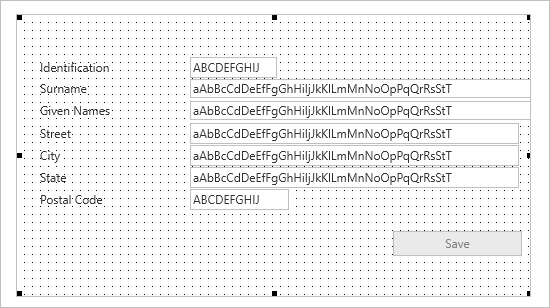
[デザイン] タブに切り替えて、自分のコマンド・ハンドラーのユーザー・インターフェースを確認します。
コマンド・ハンドラーをコンパイルします。