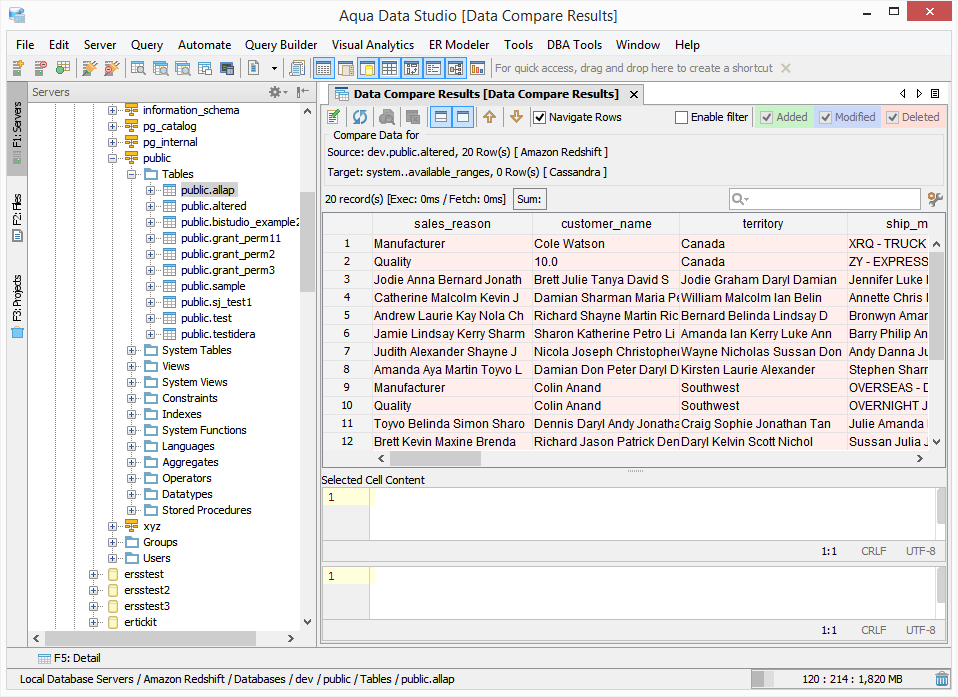
The Data Compare tool offers features that let users specify the primary key, selected and sorted columns, table query comparison, and let users create delta scripts for table synchronization. The tool has a comprehensive GUI interface, giving users an easy process to have a graphical representation of the differences between their data.
Aqua Data Studio has a comprehensive Data Compare Tool with an easy-to-use Graphical User Interface (GUI). This GUI offers many ways to gather and view the differences. It allows the users to specify the primary key; select and sort columns; table to query comparison, and lets users create delta scripts for easy-to-use table synchronization.
Aqua Data Studio has made it easy to use our Data Compare Tool. Users can select the Data Compare feature by selecting it under the Tools main application menu. Tools > Compare Tools > Data Compare or from the Schema right-click Tools menu. 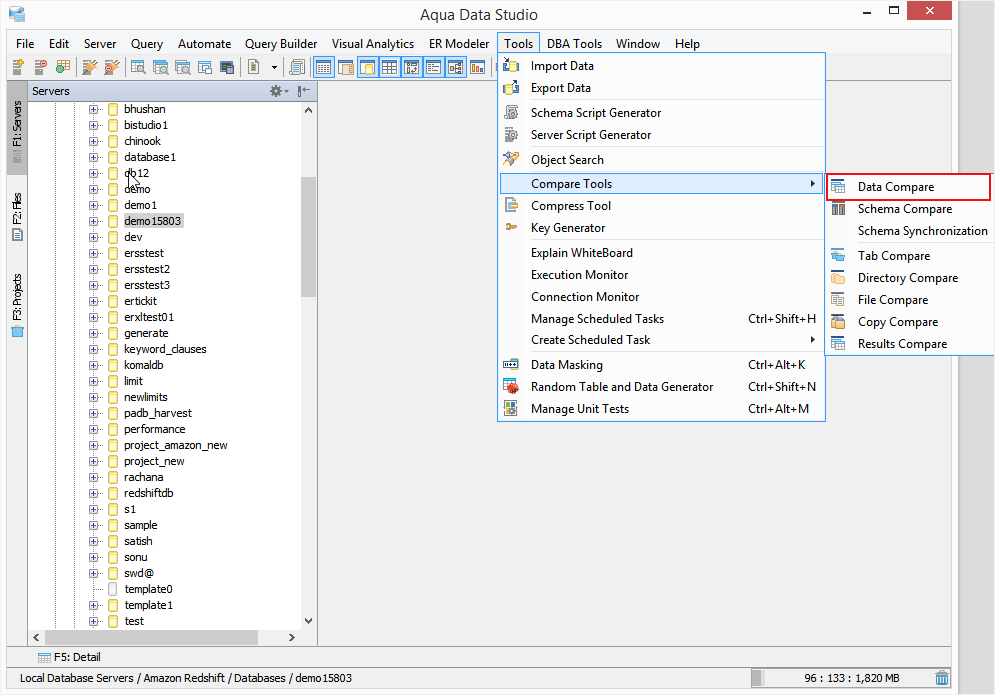
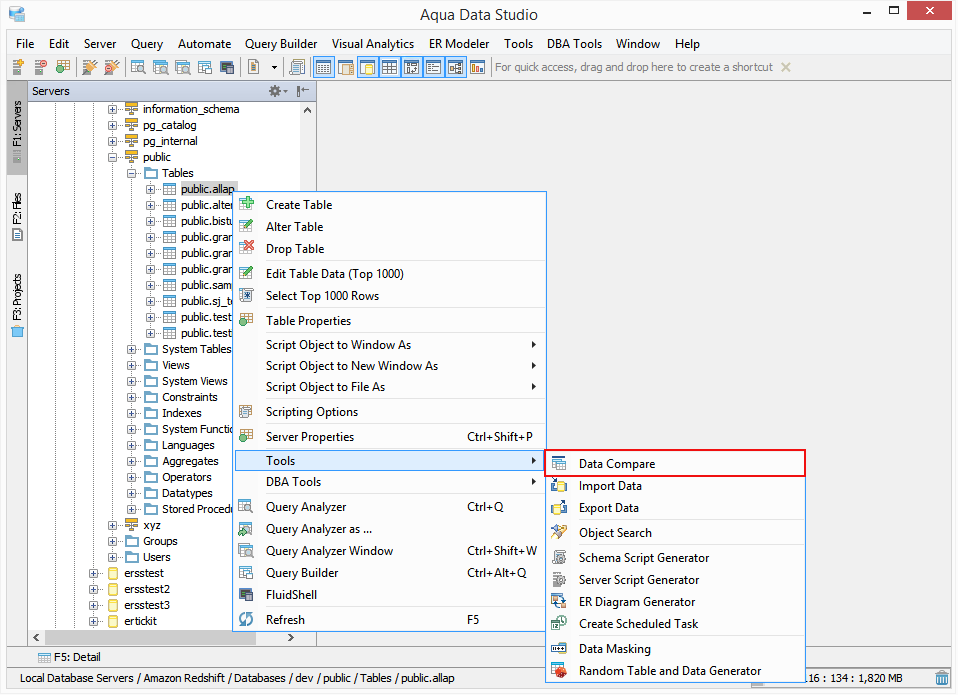
Select the query or the table for the source and target connections, select the compare options and then use our existing results set compare engine to do the comparison.
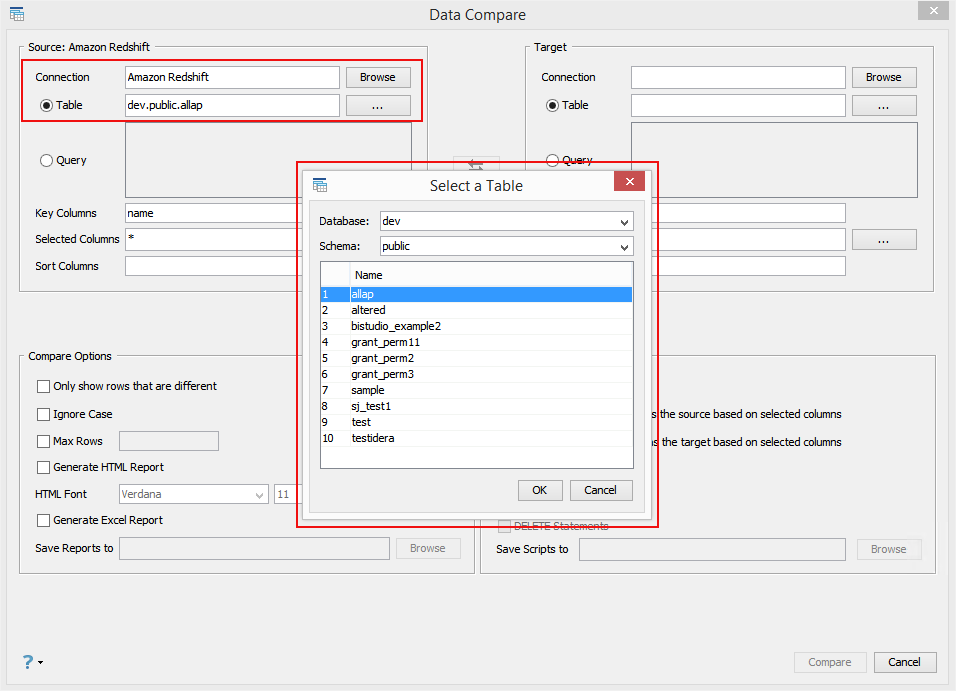
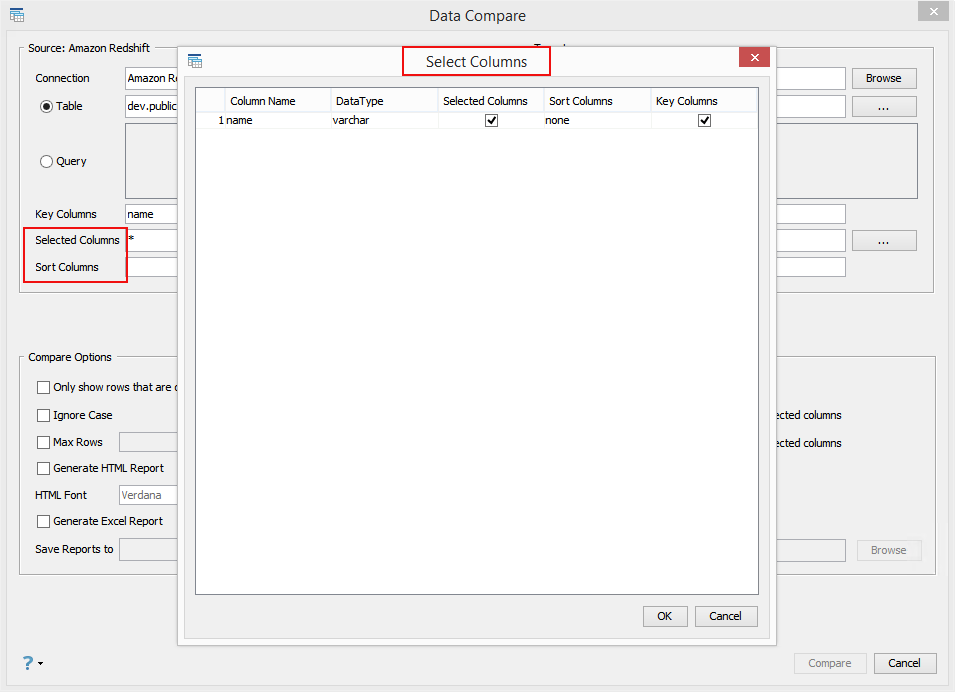
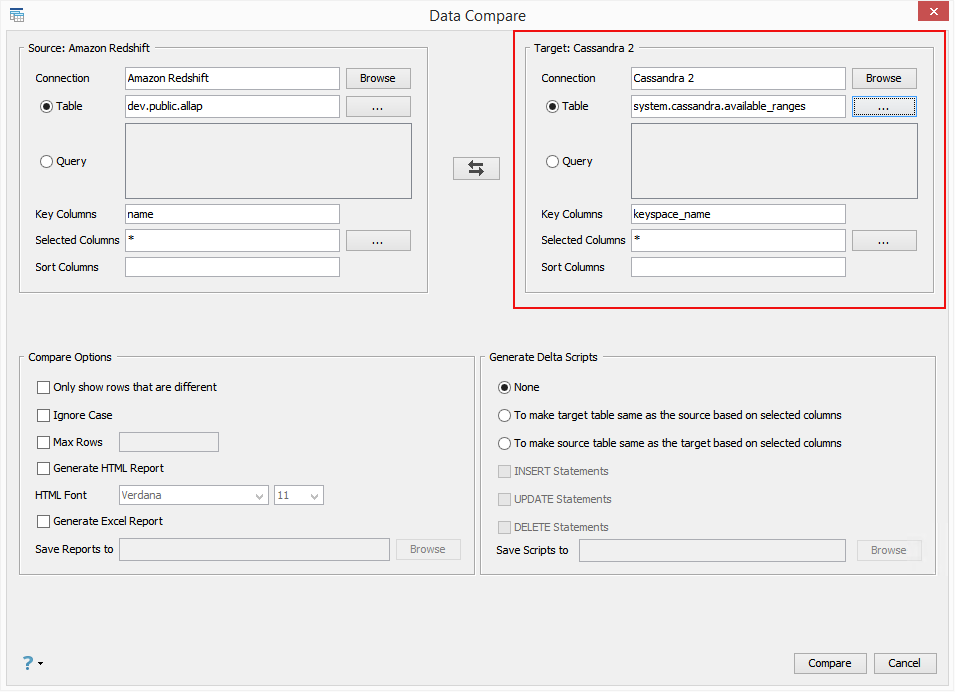
The Data Compare dialog is divided into four parts.
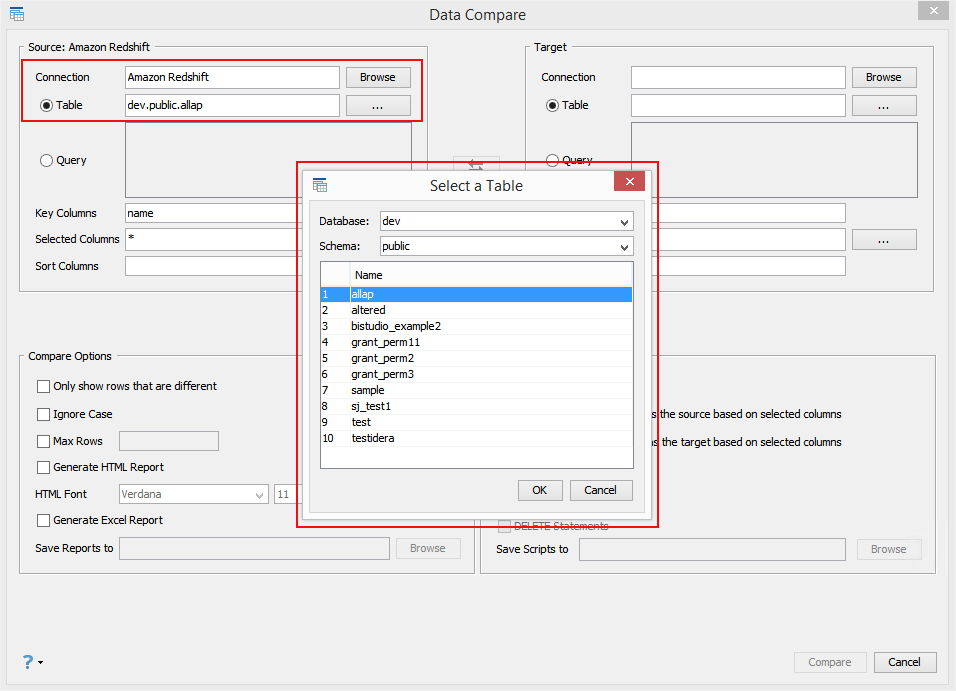
Source: Database (users selection before dialog opens)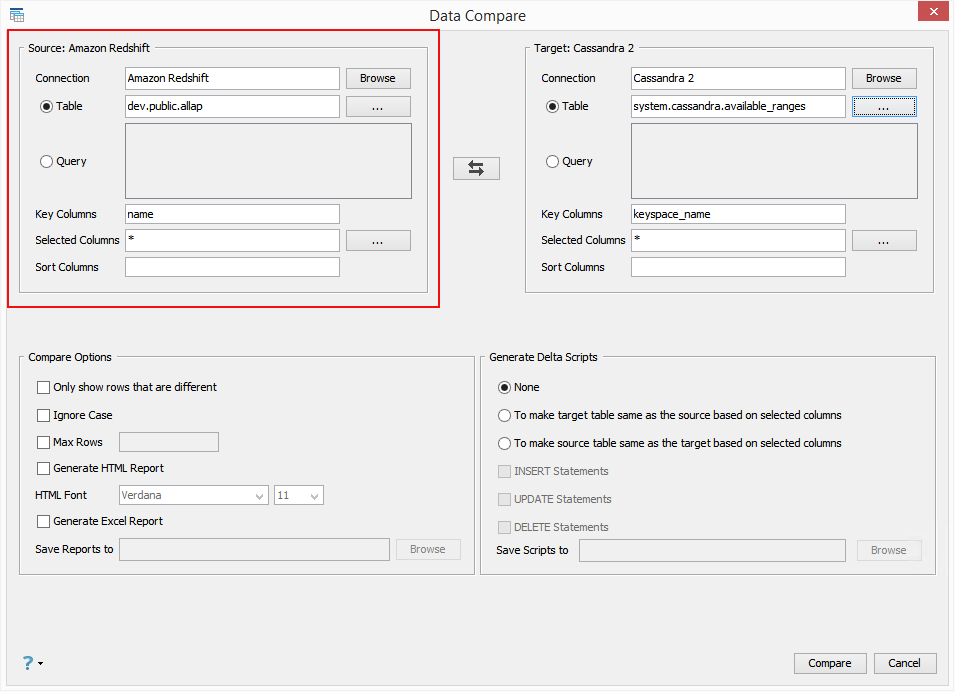
Target: Database to be compared with
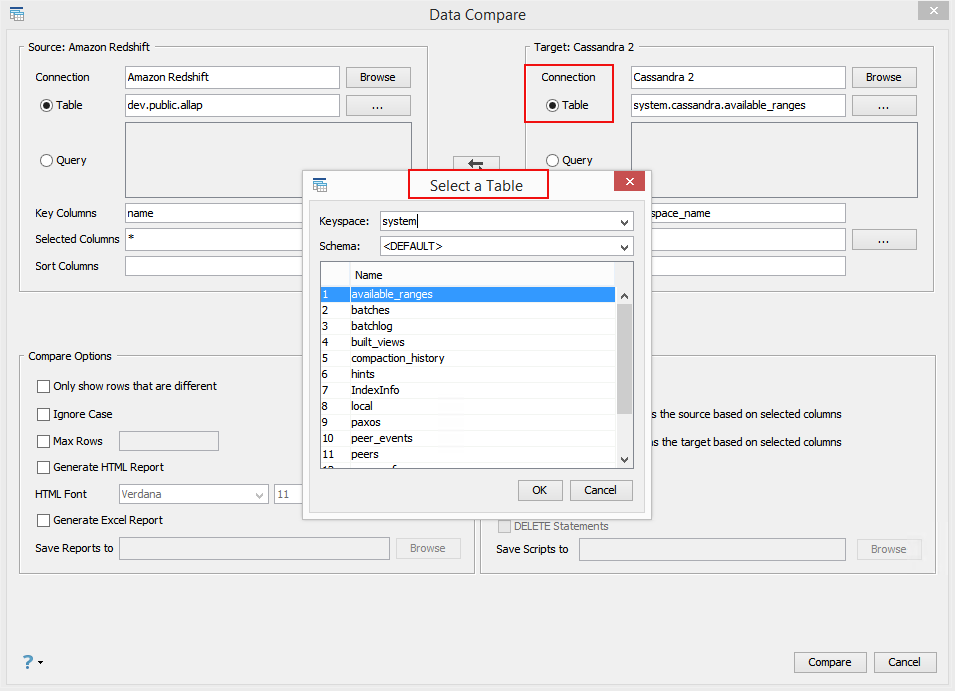
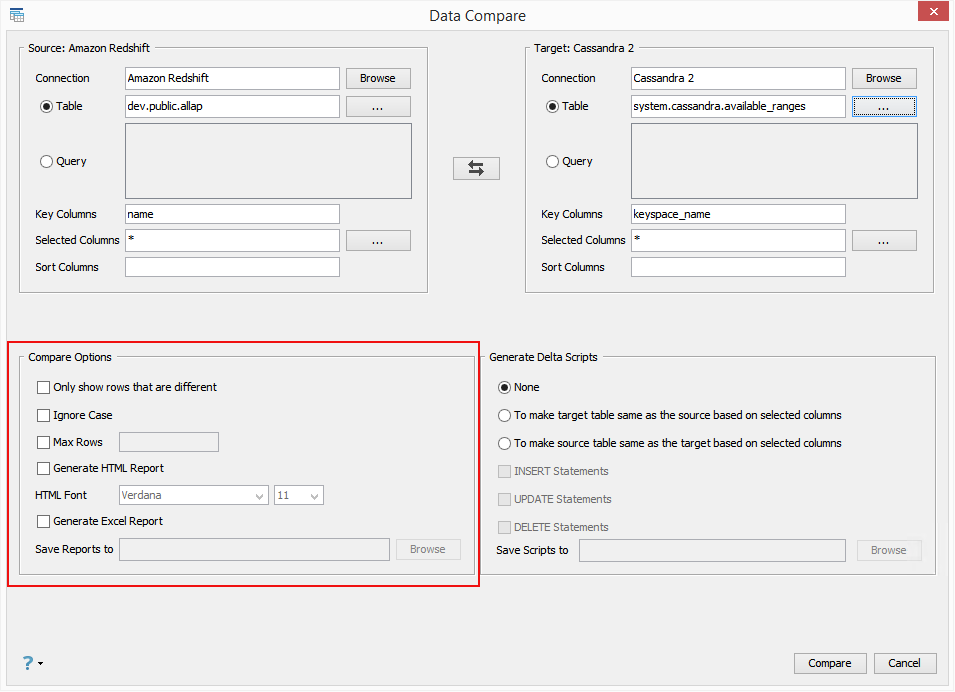
Compare Options:
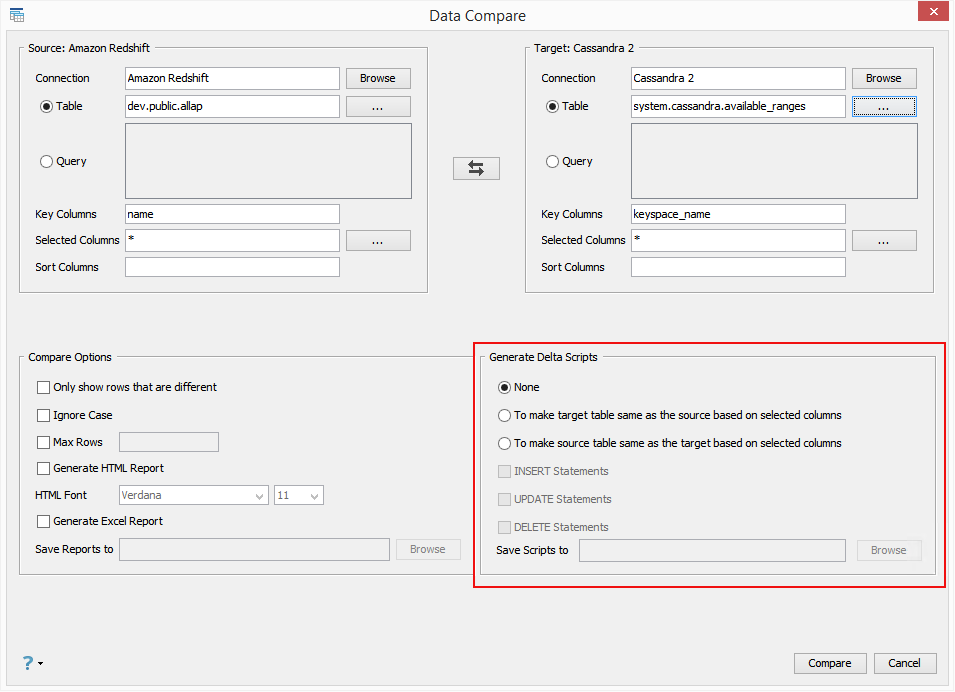
Generate Delta Script:
Verify the information and click Compare.You will see an status window while the comparison is in process.
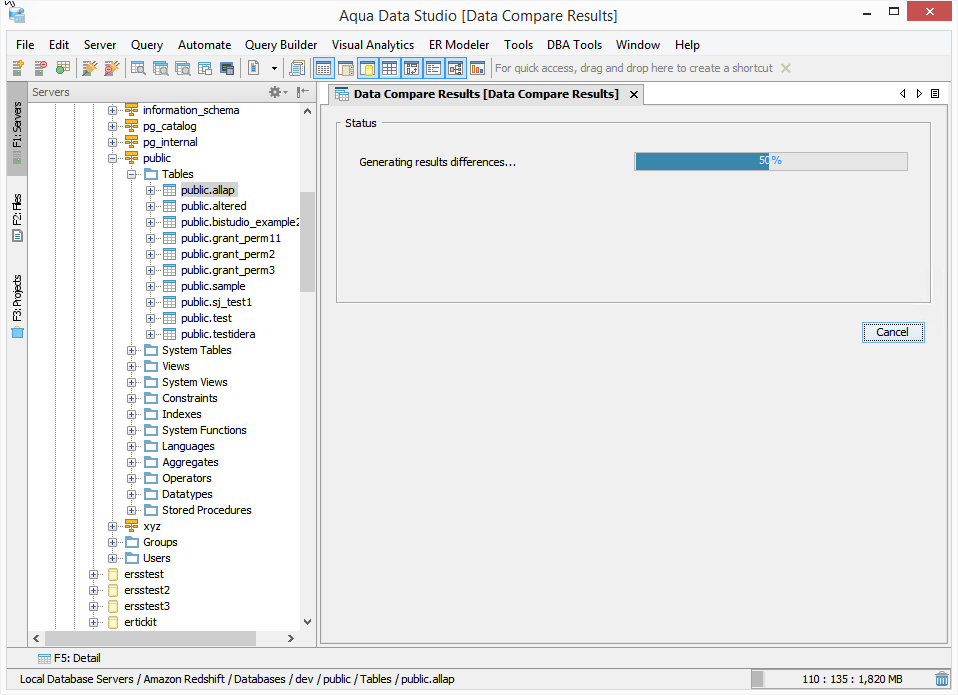
When users click Compare, it will generate a query based on the user's options and run against the source and target connection. Then, it will use existing results set/compare engines to complete the comparison.
The Data Compare Results window gives users precise information so they have immediate results.
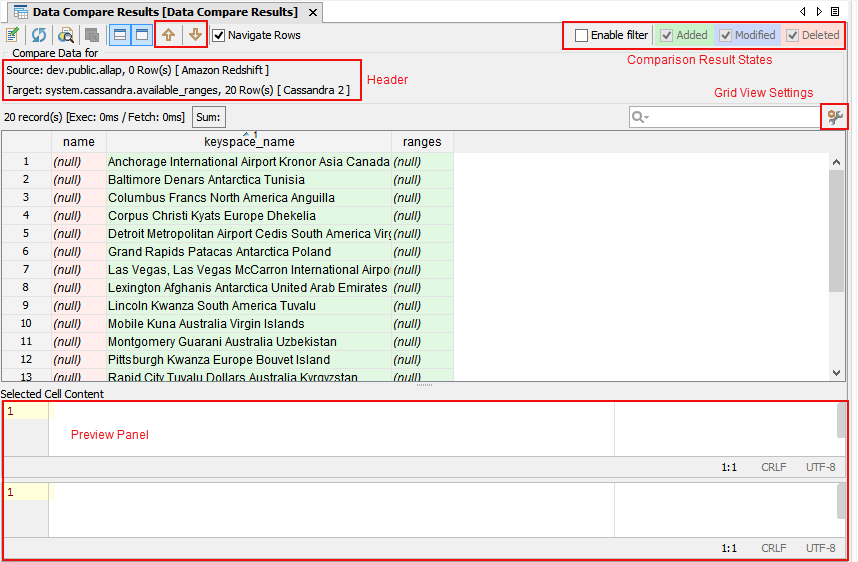
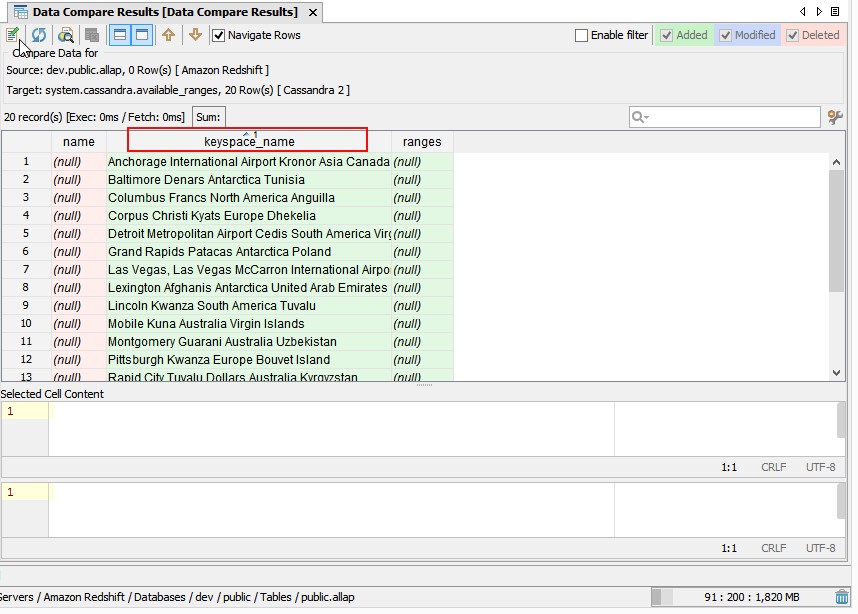
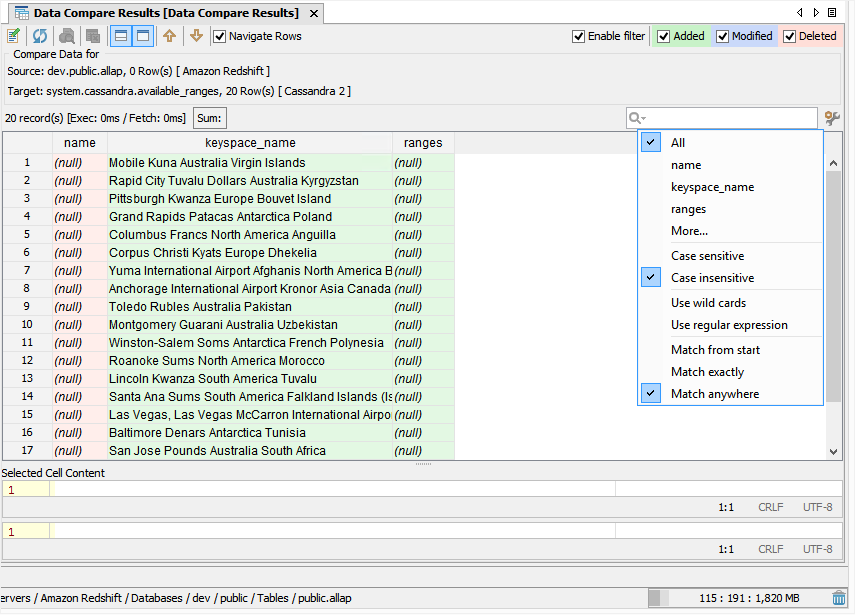
The result sets you have selected in the Select Result Sets dialog are displayed together according to their state. This table describes the color code and results for each state.
| State | Description |
|---|---|
| The records exist in result set 1 but not in result set 2. | |
| The records exist in both result sets but are different. | |
| The records exist in result set 2 but not in result set 1. | |
| The records in both result sets are equal. |
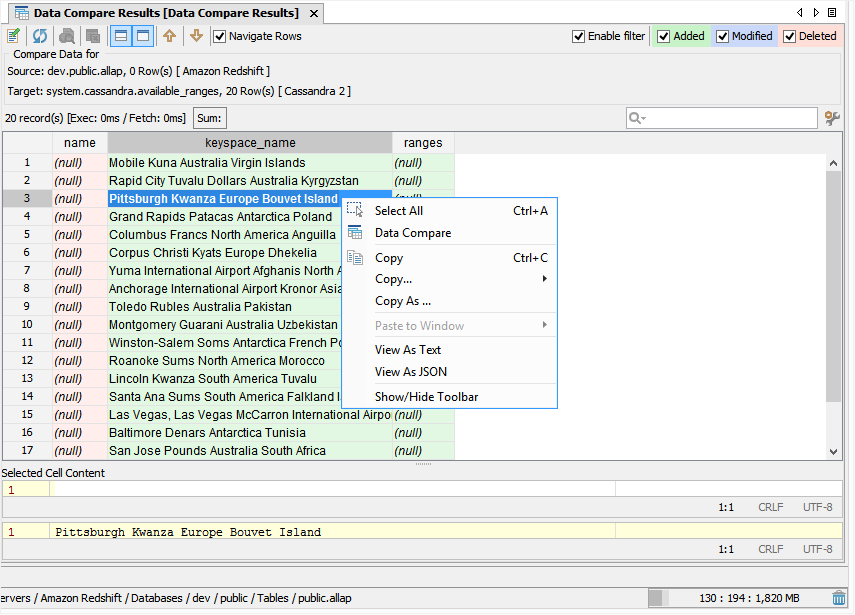
| Right-Click Action | Description |
| Select All (CTRL/Command+A) | Selects all records in the grid view. |
| Results Compare (CTRL/Command+Shift+K) | Opens the Select Results Sets dialog. |
| Copy (CTRL/Command+C) | Copies the selected records in the grid view. |
| Copy... | Shows additional options when you point to this option. |
| Copy As... | Opens the Copy to Clipboard dialog. |
| Paste to Window | This option is disabled and not applicable to Results Compare. |
| View As Text | Displays the selected record in the View dialog. |
| Show/Hide Toolbar | Shows/Hides the toolbar in the grid view. |
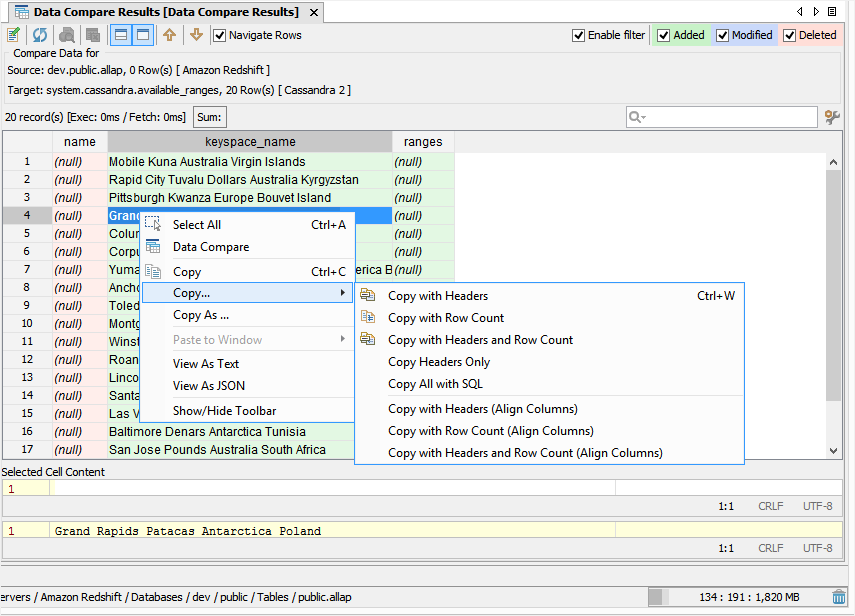
| Option | Description |
Copy With Headers | By default, Results Compare copies data without the column headers. This option copies the headers, along with the data. |
| Copy with Row Count | Copies the row count, along with the data. |
| Copy with Headers and Row Count | Copies column headers and row count, along with data. |
| Copy Headers Only | Copies only column headers. |
| Copy All with SQL | Copies the row count and column headers, along with the query from which the result set is obtained. |
| Copy with Headers (Align Columns) | By default, Results Compare copies data without the column headers. This option copies the headers, along with the data, and align columns. |
| Copy with Row Count (Align Columns) | Copies the row count, along with the data, and align columns. |
| Copy with Headers and Row Count (Align Columns) | Copies column headers and row counts along with data and aligns columns. |
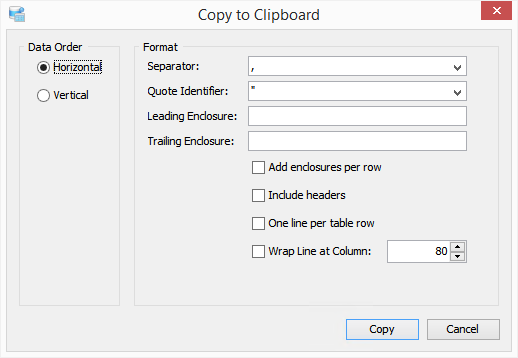
| Option | Description |
|---|---|
| Data Order | Retains the data presentation for horizontal data order. In Vertical data order, displays columns as rows and rows as columns. |
| Separator | Adds a separator between 2 cell values. |
| Quote Identifier | Adds quotes across cell value. |
| Leading Enclosure | Inserts user-specified characters at the start of copied data. |
| Trailing Enclosure | Insert user-specified characters at the end of copied data. |
| Add enclosures per row | |
| Include Headers | |
| One line per table row | Inserts complete data in one line. |
| Wrap Line at Column | Wraps line at a user-specified value and then displays data in the next row. |