SQL Editor
Autocompletion
Autocompletion functionality provides suggestions while you type. The autocompletion list displays table names, views, synonyms, and abbreviations for the current schema or all schemas of the connected database. If the auto-popup setting is turned off, you can manually invoke the autocompletion list by using CTRL/Command+Space keystroke. By default, the autocompletion list is sorted by relevance (). You can change this order to alphabetical/lexicographical (
).
Sort by relevance option will work as follows:
- For the table autocompletion pop-up, the list of tables and views is in alphabetical order.
- For the column autocompletion pop-up, the list of columns is in schema order.
Sort lexicographically option will sort the list in alphabetical order for both the table and column autocompletion pop-ups.
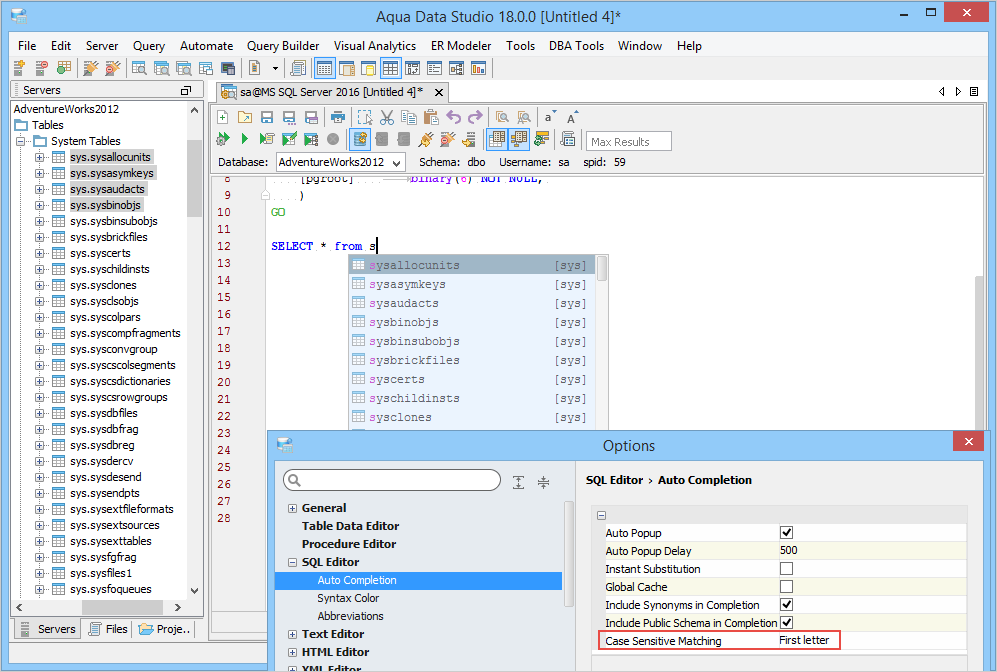
Aqua Data Studio shows entries based on your case sensitivity selection when suggesting matches for code completion. By default, the SQL Editor displays all entries regardless of their case. Other available options include a case-sensitive match on all letters and case-sensitive match on the first letter only. 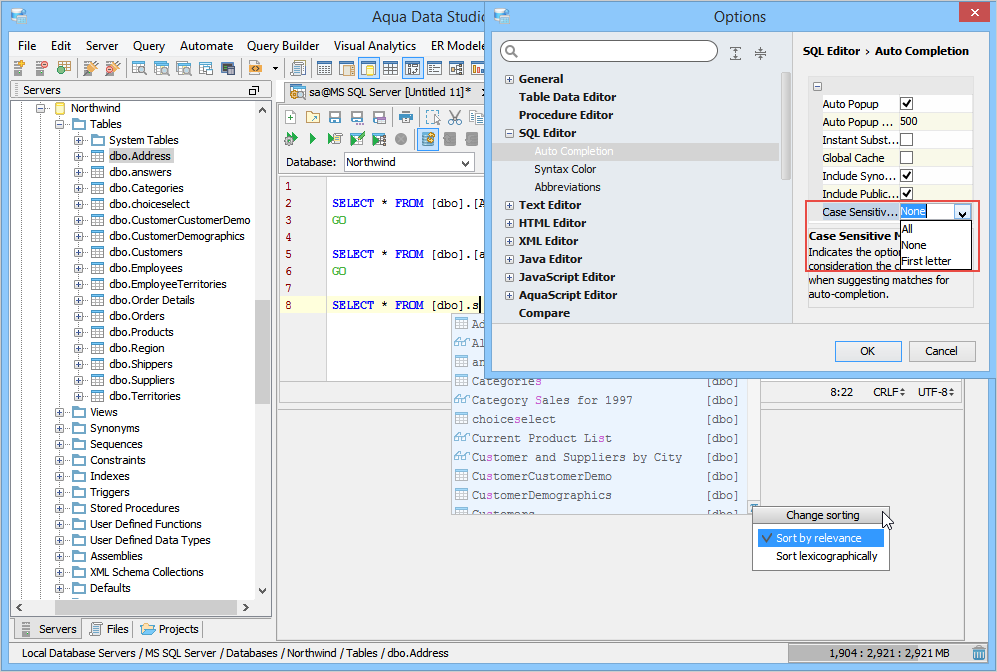
Change Autocompletion Setting
To change this setting
- On the Aqua Data Studio menu bar, click File > Options > expand SQL editor > click Auto Completion.
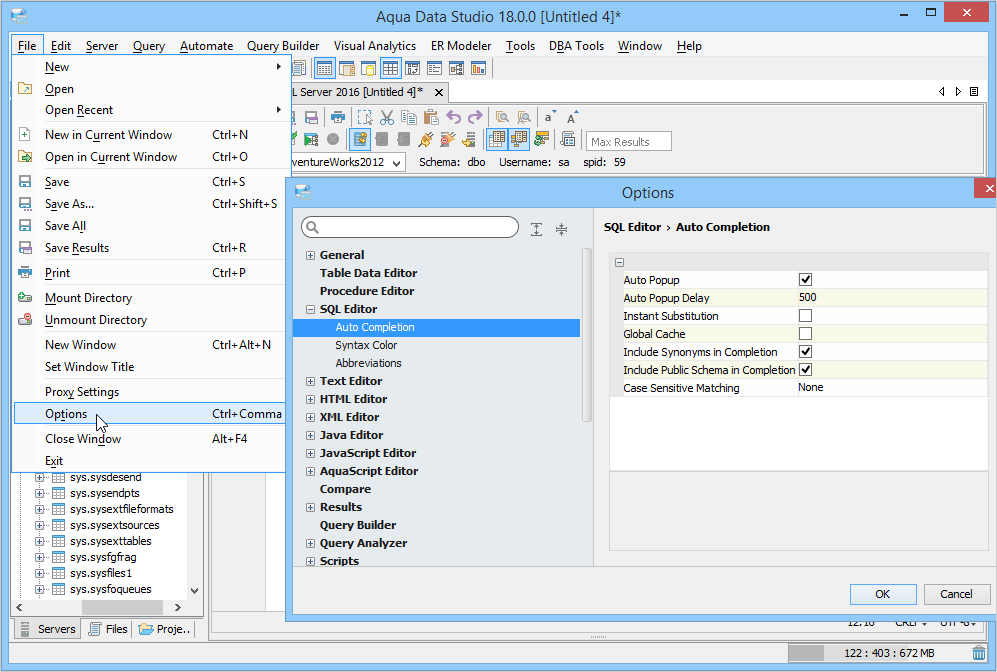
- Perform the desired actions on the following settings and then click OK.
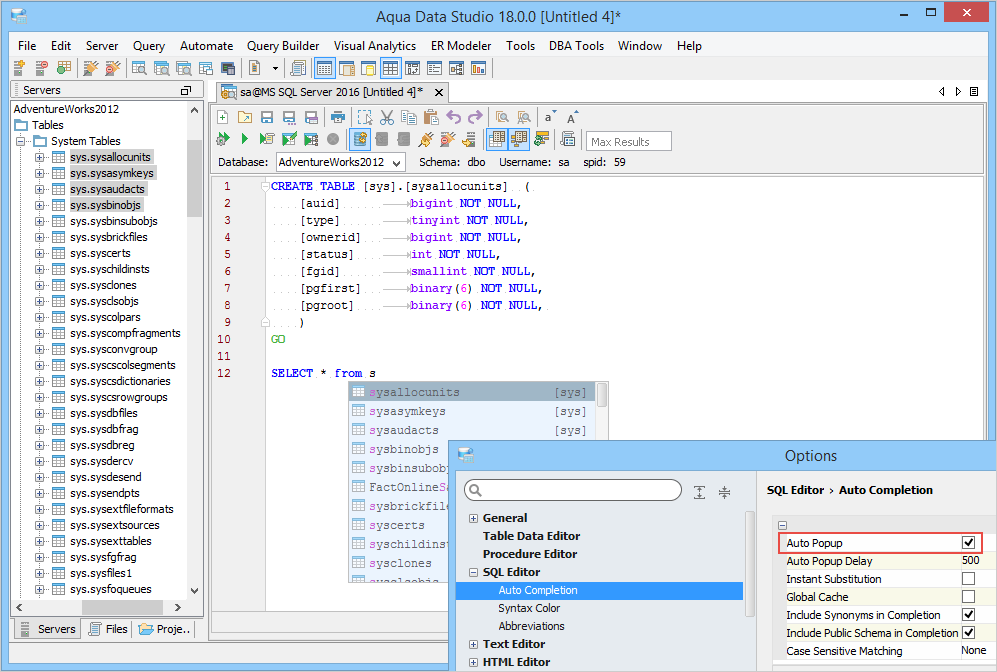
- Auto Popup: Select this check box to have Aqua Data Studio automatically show a code completion pop-up when appropriate. If this check box is not selected, then users can invoke the code completion pop-up window by pressing CTRL/Command+Space keystroke.
- Auto Popup Delay: Specify the delay (in milliseconds) to have Aqua Data Studio pop up the completion window.
- Instant Substitution: Select this check box to have code completion perform instant substitution if the search result contains only one item.
- Global Cache: Select this check box to have Aqua Data Studio to cache completion information globally.
- Include Synonyms in Completion: Select this check box to have Aqua Data Studio show synonyms in autocompletion.
- Include Public Schema in Completion: Select this check box to include the tables in the "PUBLIC" schema when the Auto Complete On All Schemas option is off.
- Case Sensitive Matching: Select an option from the drop-down list to have Aqua Data Studio consider the case sensitivity when suggesting matches for autocompletion.
All: Case for all letters is considered.
None: Case is never considered.
First letter: Only the case of the first letter is considered.
Change Case Sensitive Matching
To change this setting
- On the ADS menu bar, click File > Options > expand SQL Editor > click Auto Completion.
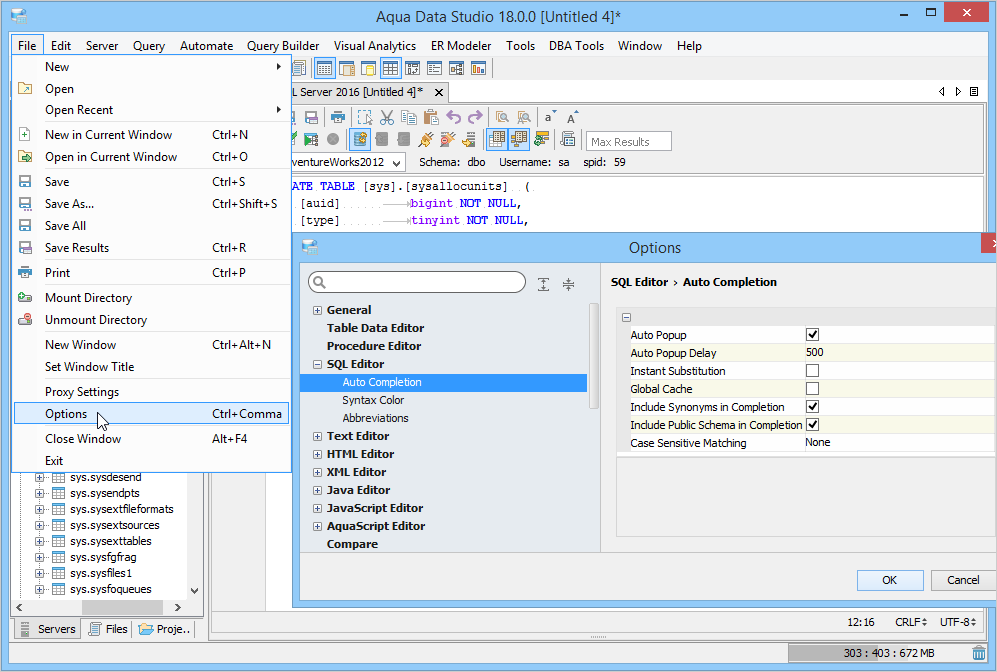
- Select the desired option from the Case Sensitive Matching drop-down list > Click OK.
Navigate to Next/Previous Highlighted Error
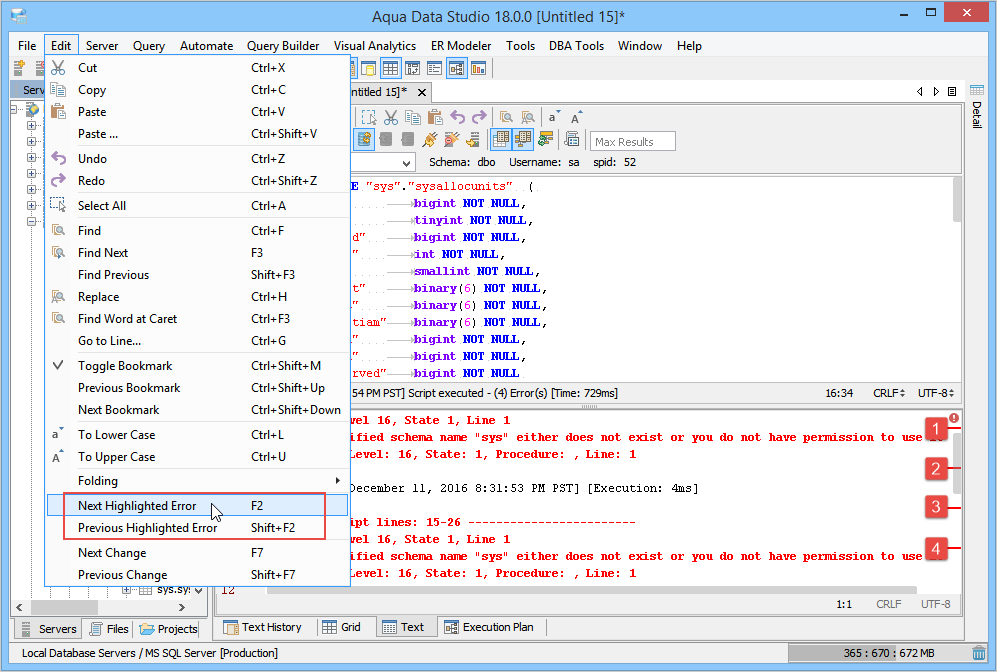
You can navigate through all errors in the Text/Text History Tabs for the executed query by using the Next Highlighted Error (F2) and Previous Highlighted Error (Shift + F2) commands of the Edit menu.
AquaScript Editor
Autocompletion
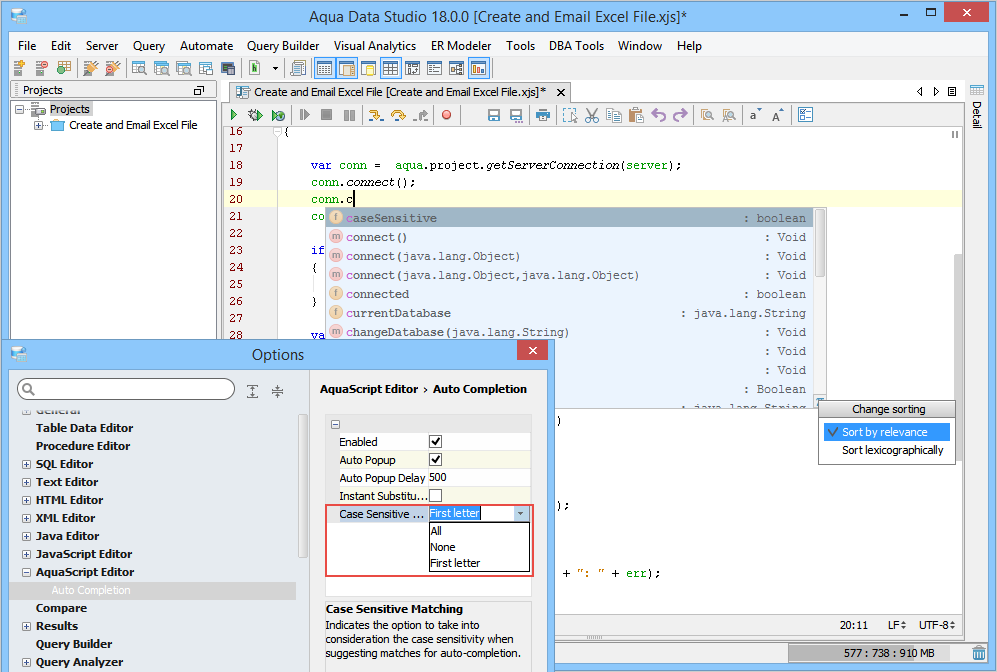
Autocompletion functionality provides suggestions while you type. The autocompletion list displays the object names of packages, variables, classes, and methods used in the AquaScript. If the auto-popup setting is turned off, you can manually invoke the autocompletion list by using CTRL/Command+Space keystroke. By default, the autocompletion list is sorted by relevance (), meaning, the most recently used entries are shown on top. You can change this sorting order to alphabetical (lexicographical
), as shown in the screenshot. Aqua Data Studio shows entries based on your case sensitivity selection when suggesting matches for code completion. By default, the AquaScript Editor displays all entries matching the case-sensitivity of the first letter. Other available options include a case-sensitive match on all letters and ignore the case sensitivity.
Change Autocompletion
To change this setting
- On the Aqua Data Studio menu bar, click File > Options > expand AquaScript Editor > click Auto Completion.
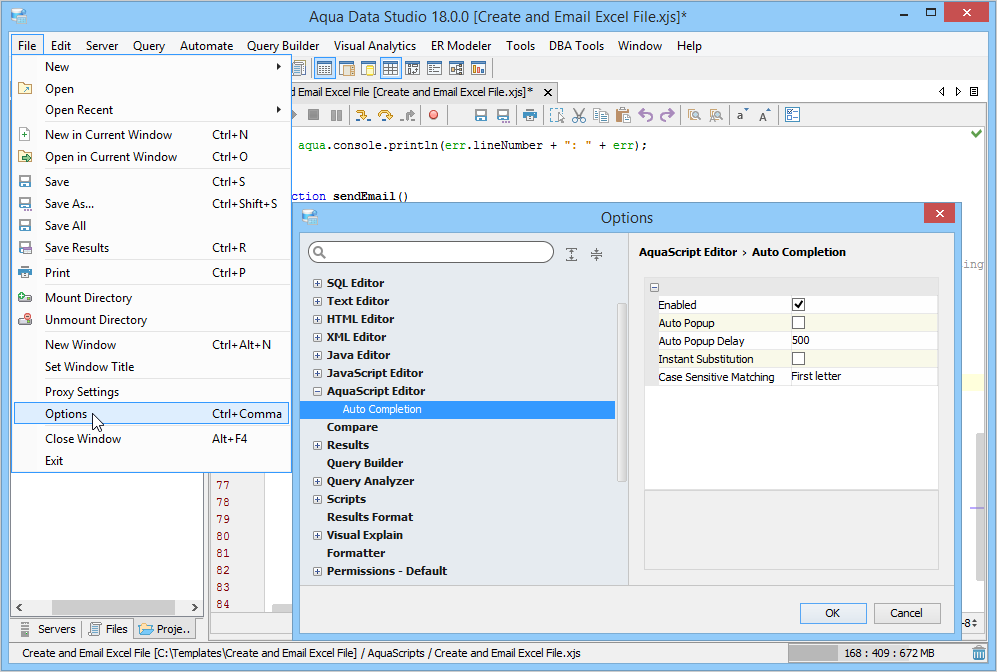
- Perform the desired actions on the following settings and then click OK.
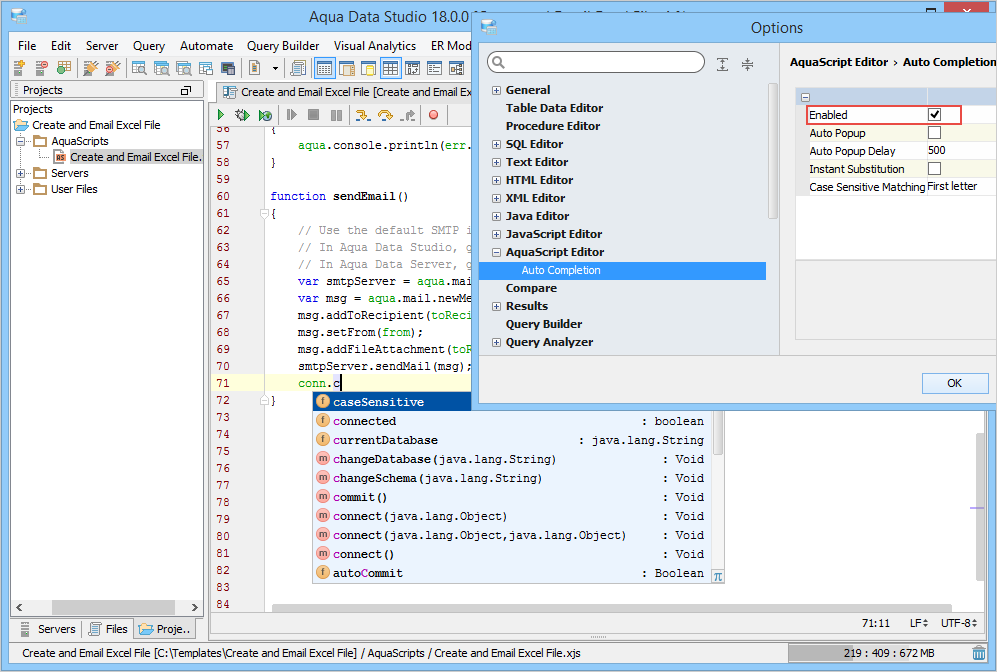
- Enabled: This check box determines whether auto-completion is enabled.
- Auto Popup: Select this check box to have Aqua Data Studio automatically show a code completion pop-up when appropriate. If this check box is not selected, then users can invoke the code completion pop-up window by pressing CTRL/Command+Space keystroke.
- Auto Popup Delay: Specify the delay (in milliseconds) to have Aqua Data Studio pop up the code completion window.
- Instant Substitution: Select this check box to have code completion perform instant substitution if the search result contains only one item.
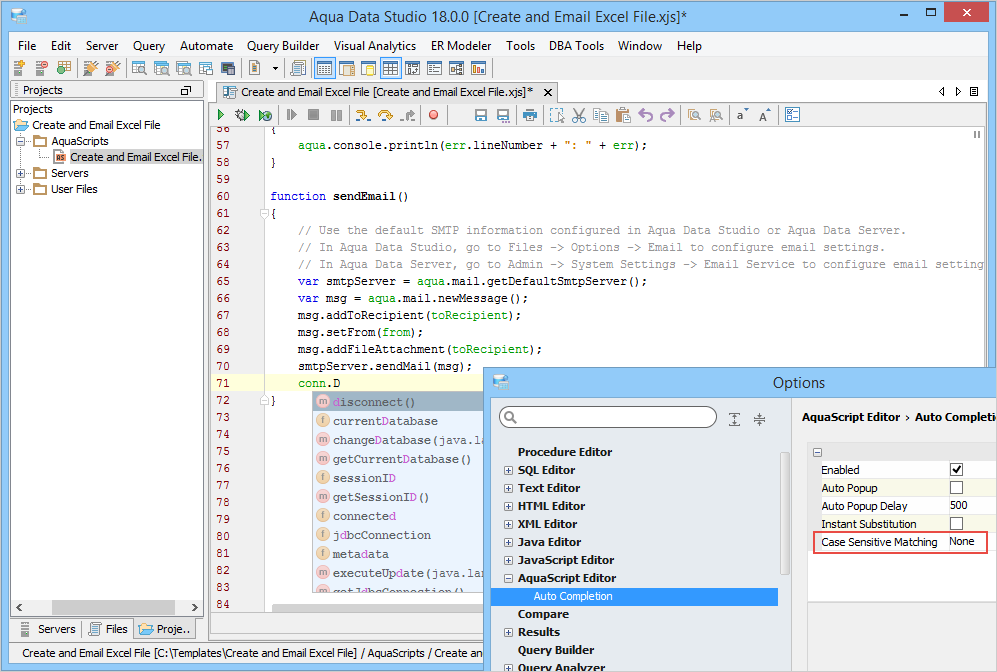
- Case Sensitive Matching: Select an option from the drop-down list to have Aqua Data Studio consider the case sensitivity when suggesting matches for auto-completion.
- All: Case for all letters is considered.
- None: Case is never considered.
- First letter: Only the case of the first letter is considered.
Change Case Sensitive Matching
To change this setting
- On the Aqua Data Studio menu bar, click File > Options > expand AquaScript Editor > click Auto Completion.
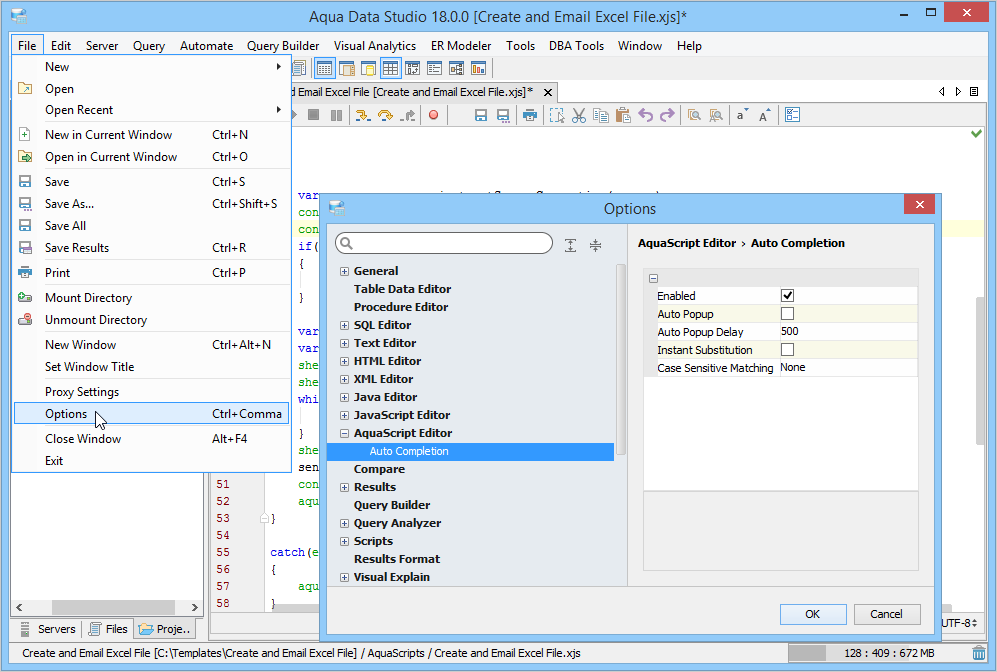
- Select the desired option from the Case Sensitive Matching drop-down list > Click OK.
Parameter Hint
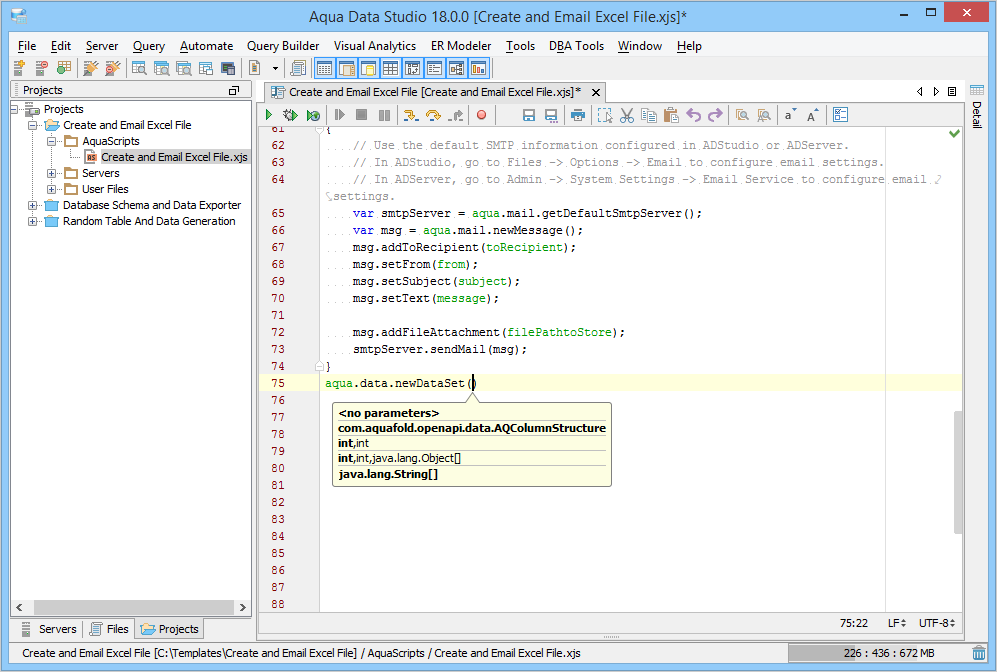
Aqua Data Studio displays a list of parameter hints for the method you are calling in a tooltip. The parameter hint is highlighted based on the cursor position. You can also invoke this list by using CTRL/Command+SHIFT+SPACE keystroke inside the brackets of a method.
Variable Highlighting
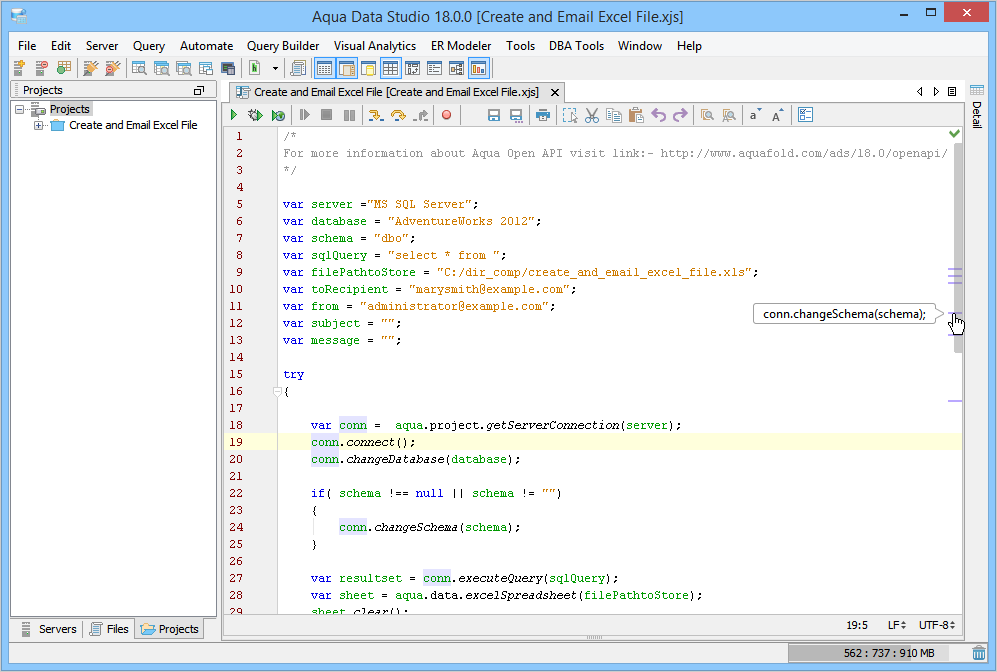
You can view usages of variable, function name or object in the current file when you place your cursor on any of these in the editor. All occurrences of the found usage will be highlighted, and marker bars will be displayed on the editor’s scroll bar. You can use these marker bars to navigate among the found usages. Hover on the marker bar to view the location of the highlighted usage.
Annotator
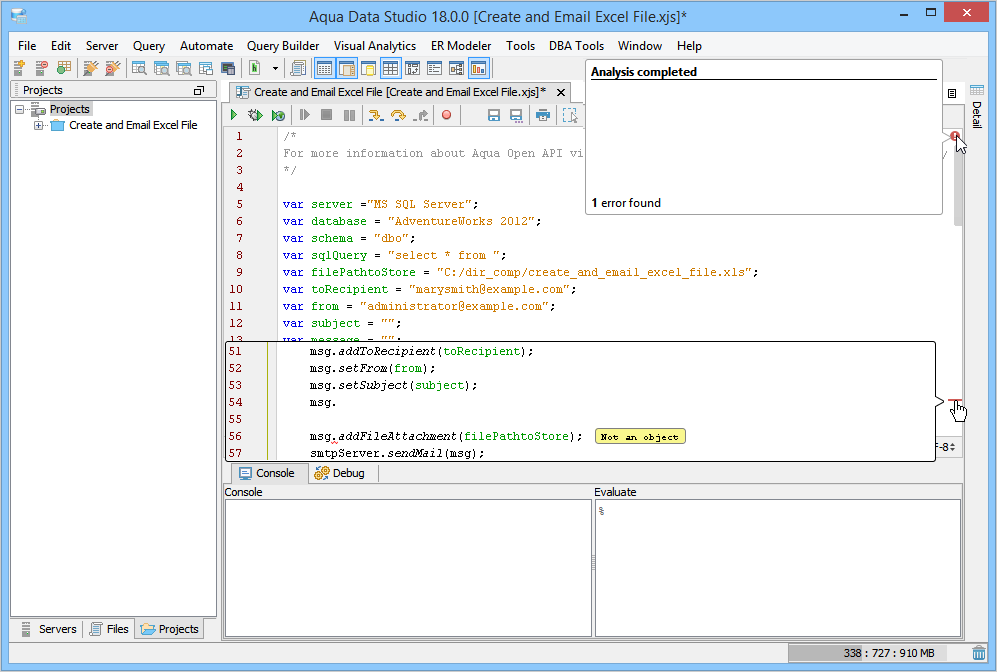
Annotator, also known as the status indicator, shows the status of the script as you type.
indicates your script has errors. You can see the error count on mouse-hover and use marker bars for navigating between the errors.
indicates your script is error-free.
indicates your script is being analyzed.
Navigate to Next/Previous Highlighted Error
You can navigate through all errors displayed at runtime by using the Next Highlighted Error (F2) and Previous Highlighted Error (Shift + F2) commands of the Edit menu. 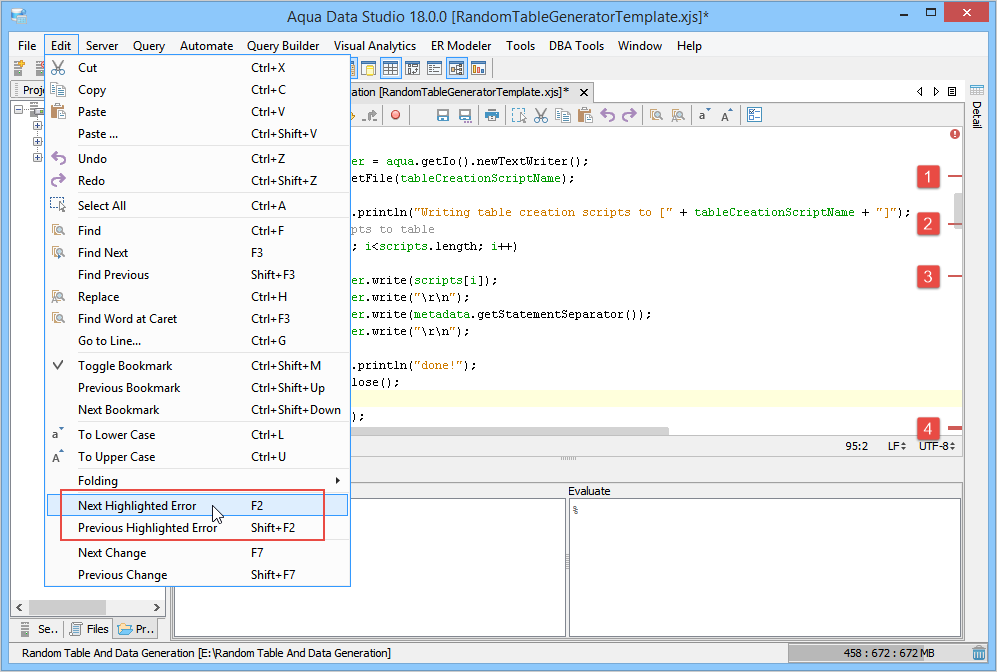
HTML and XML Editors
Automatic Tag Closure
Aqua Data Studio supports a built-in auto-tag closure. After you type a start tag, the end tag is automatically inserted, and the cursor is placed between the tags. For example, type <div> tag and its corresponding end tag </div> is automatically inserted, with the cursor blinking between the tags. In the case of accidental deletion of the closing tag, the editor auto-closes the tag on typing “</.”
Auto-Update Tag Attributes
Aqua Data Studio supports auto-updating tag attributes. On updating the opening tag attribute, the corresponding closing tag attribute is automatically updated. For example, if you update <p> to <div>, the corresponding </p> tag attribute is updated to </div>.
Breadcrumb Trail
Breadcrumb Trail is a navigation tool that quickly navigates you through the nested elements when you click any breadcrumb in the trail. The color coded breadcrumb trail appears right below the editor’s toolbar. 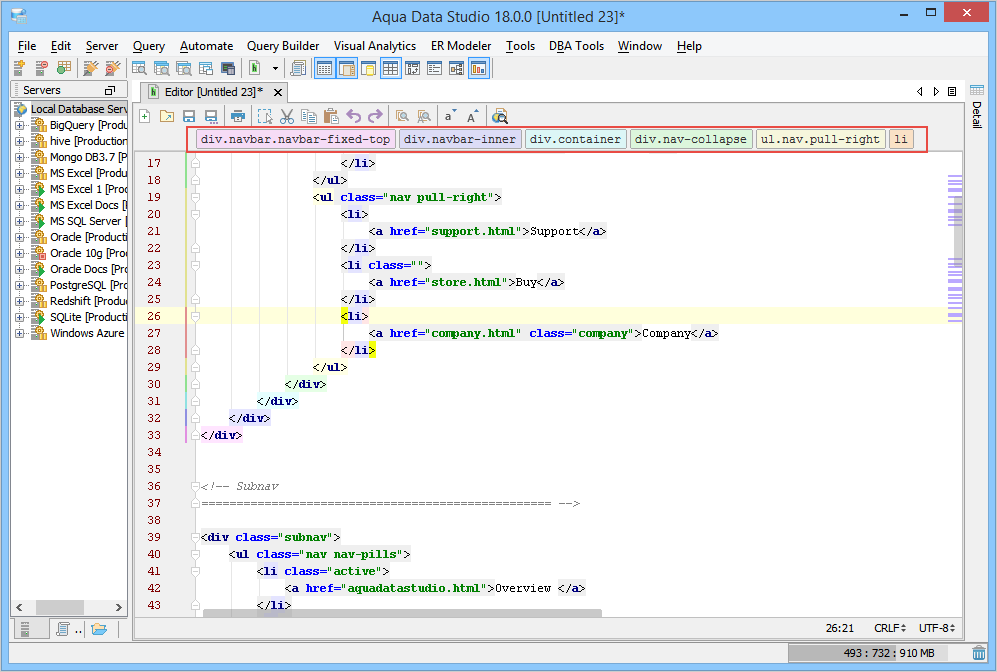
Image Viewer
The image viewer allows a user to view a list of images in a preview pane and operate on any selected image.
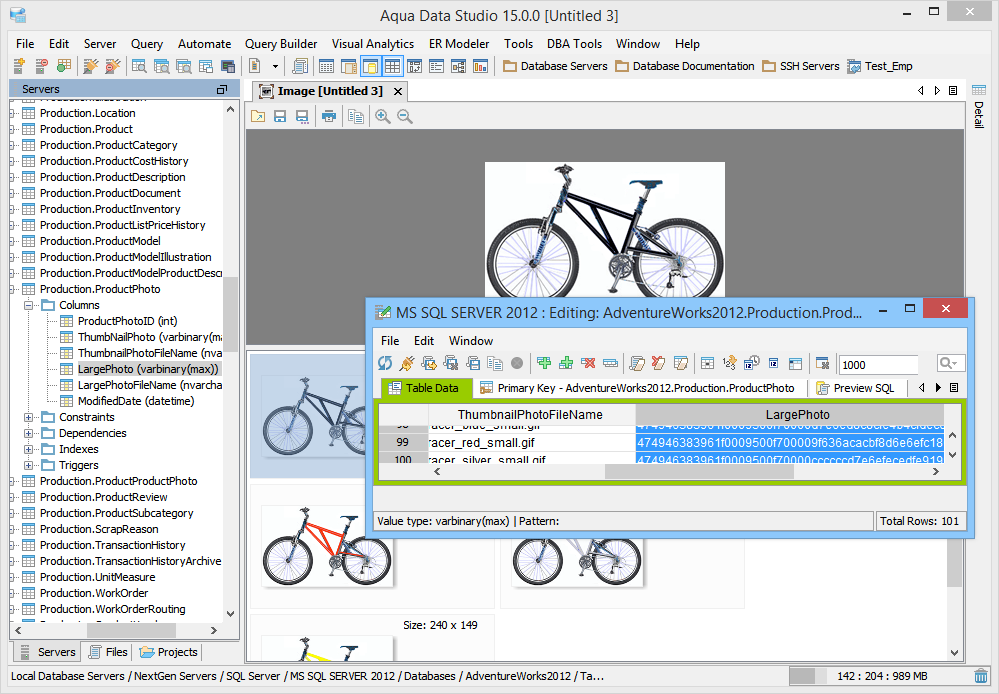
You can invoke the image viewer from the Grid Results of the Query Window. When the Convert Binary to hex option is unselected, you can view from within the Table Data Editor. You can unselect this option from File > Options > Results > Data Retrieval. A user may query a database for binary/image data and then load it into the image viewer. The image viewer supports GIF, JPG, and PNG file formats.
See Also
Code Insight and Code Completion Limits