This is a guide to installing the WhereScape Enablement Pack for Oracle for WhereScape RED10
Before you begin the following prerequisites must be met:
Get-Host|Select-Object Version
powershell $psversiontable
\[Net.ServicePointManager\]::SecurityProtocol = \[Net.ServicePointManager\]::SecurityProtocol -bor \[Net.SecurityProtocolType\]::Tls12 Register-PSRepository -Default -Verbose Set-PSRepository -Name "PSGallery" -InstallationPolicy Trusted |
Install-Module -Name PoshProgressBar -SkipPublisherCheck -Force
Before you begin the following prerequisites must be met:
odbc_install.exe from the Instant Client directory.python -m pip install --upgrade pipRun Setup Wizard as administrator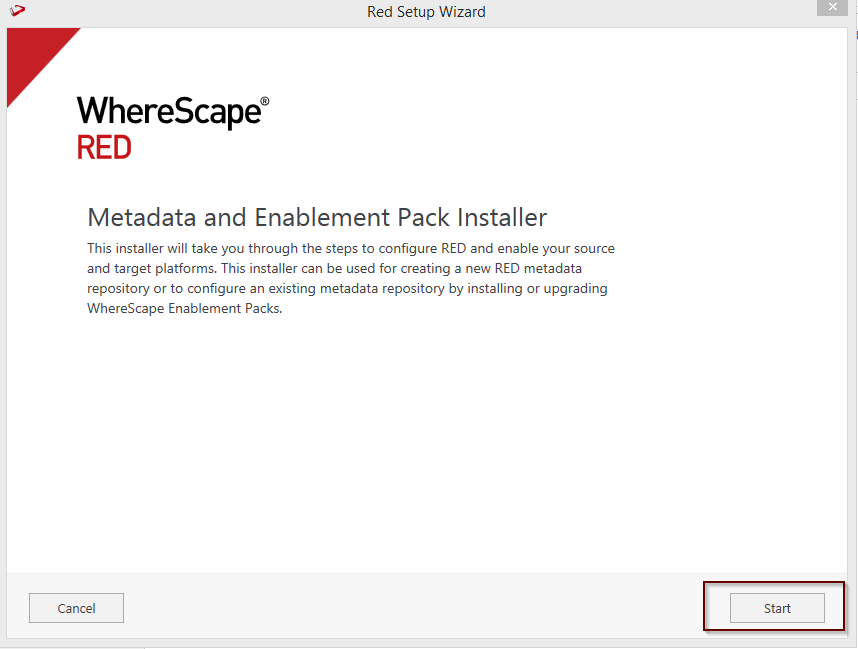
Create a new repository or upgrade the existing repository.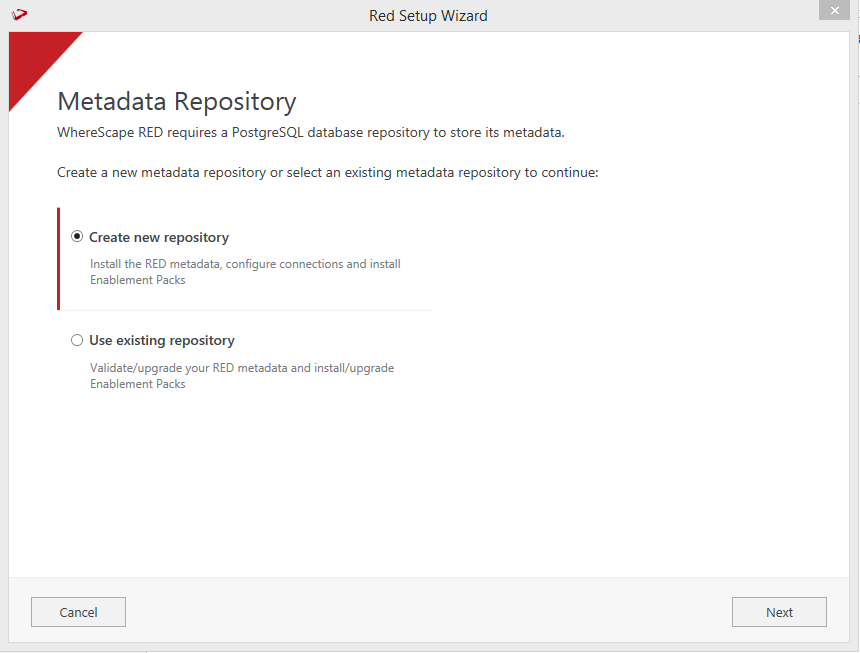
Select the created ODBC DSN, input login details, and then select Validate. Click Next.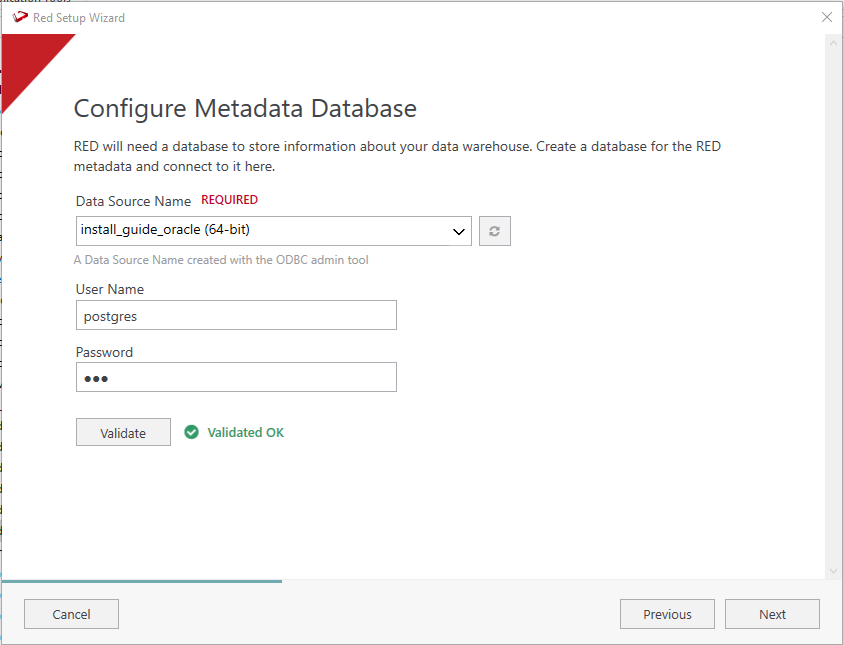
Select the directory that contains the unzipped Enablement Pack for installation. Click Next. 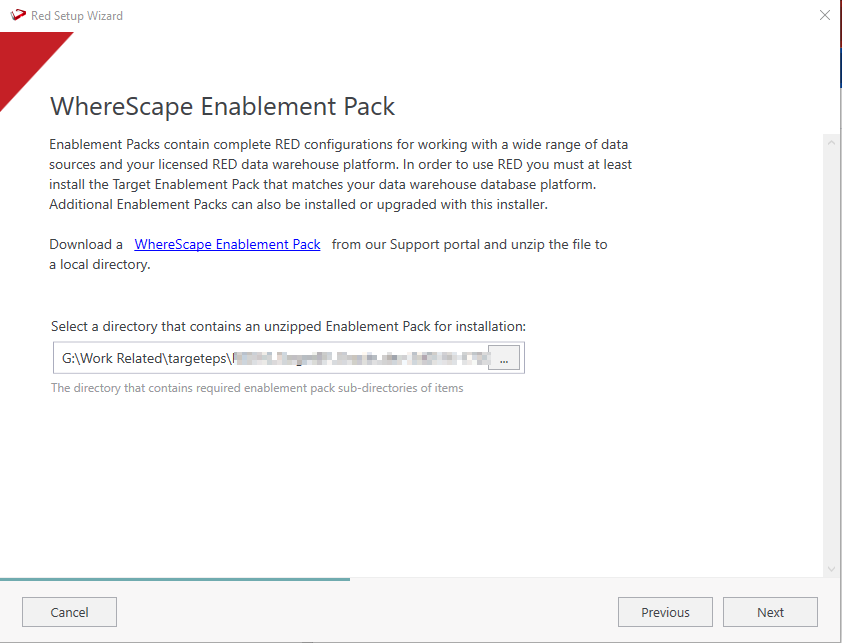
Using the checkboxed list, include or exclude the components that are to be installed. Click Next.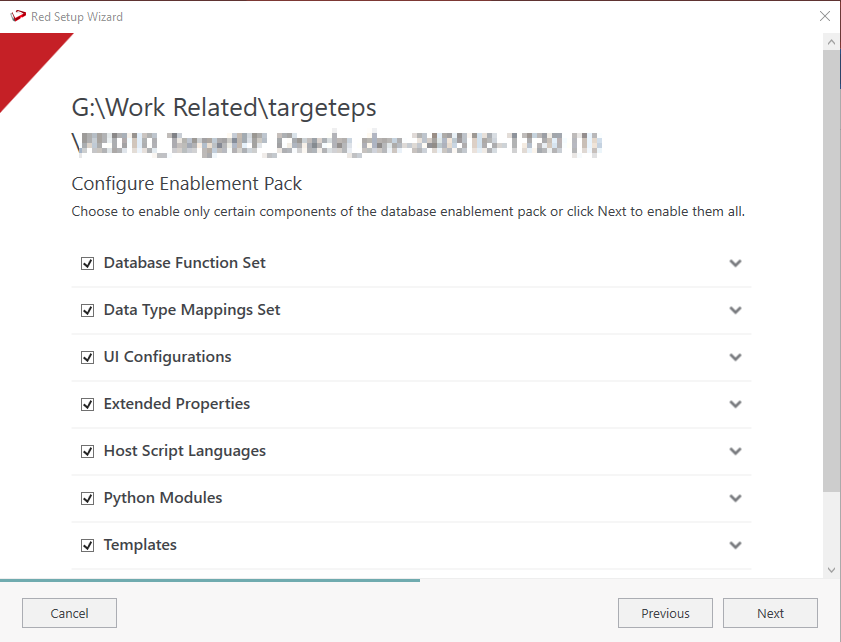
Configure a target connection (for example, a Data Warehouse) and its target locations. Validate and click Add.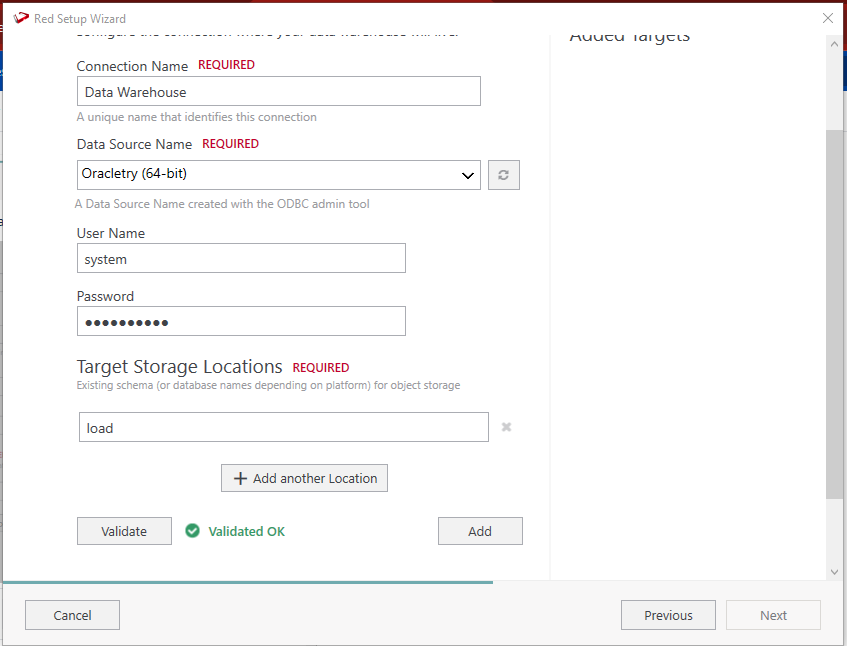
When done, click Add and then Next to continue.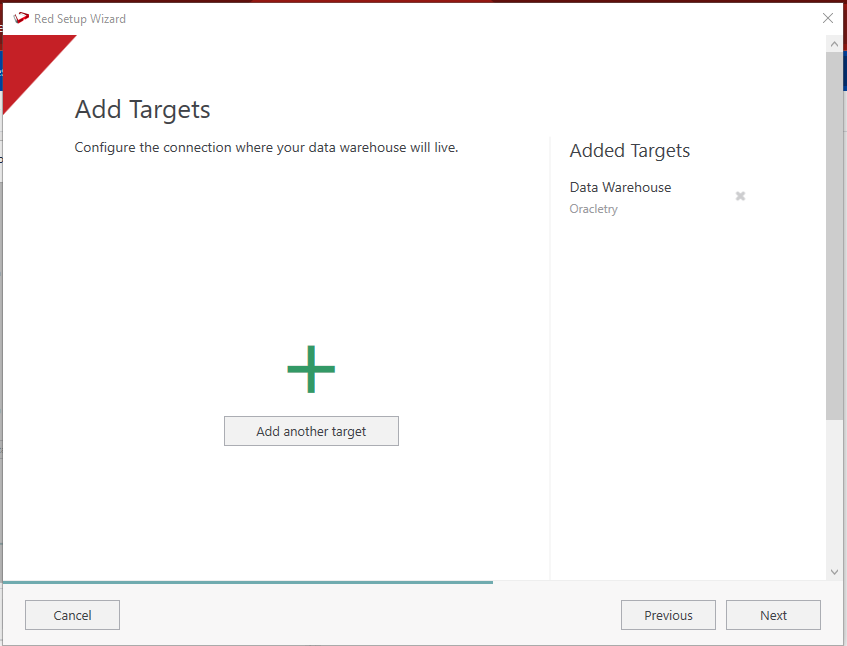
Configure a data source connection (optional) and its target locations. Validate and click Add. Click Next to continue.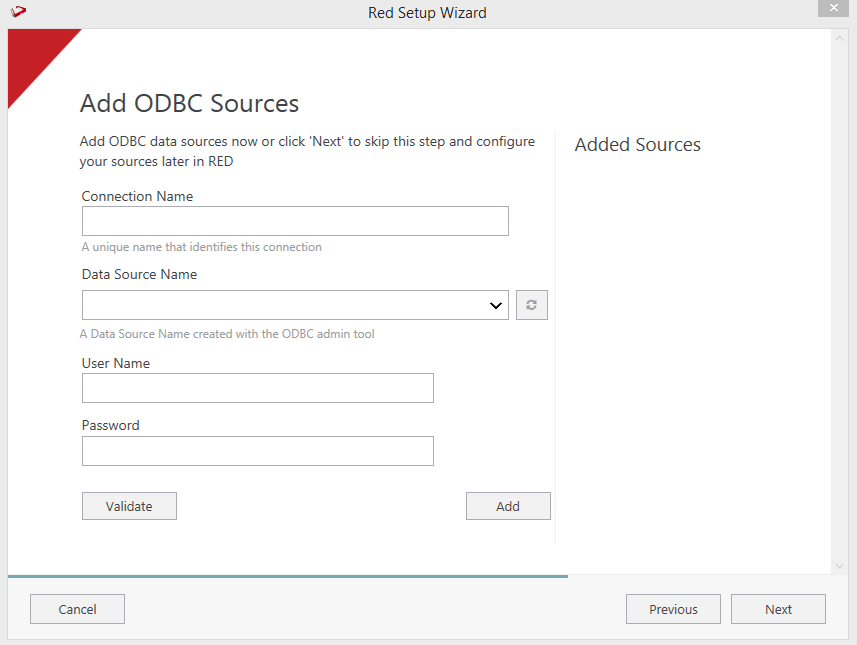
Review the installation summary and click Install.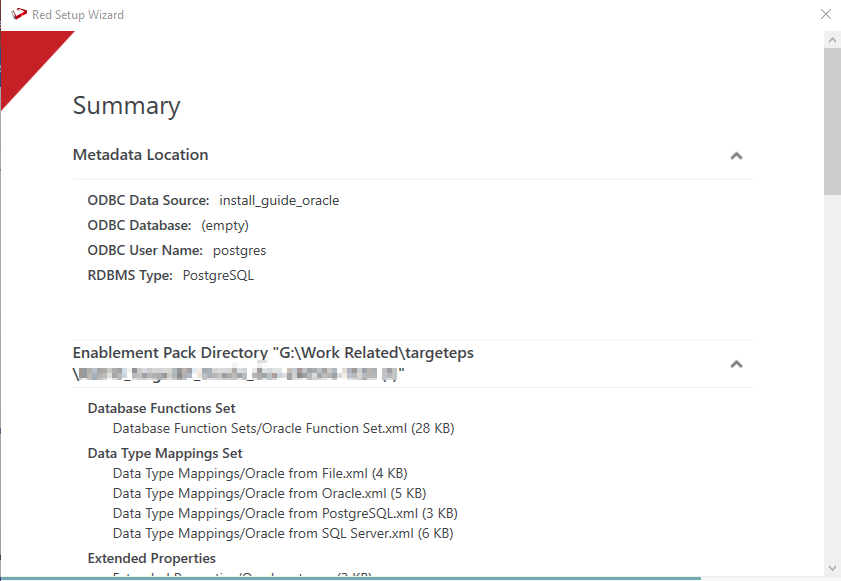
Click View Logs to open the installation log. Click Finish once the installation is completed successfully.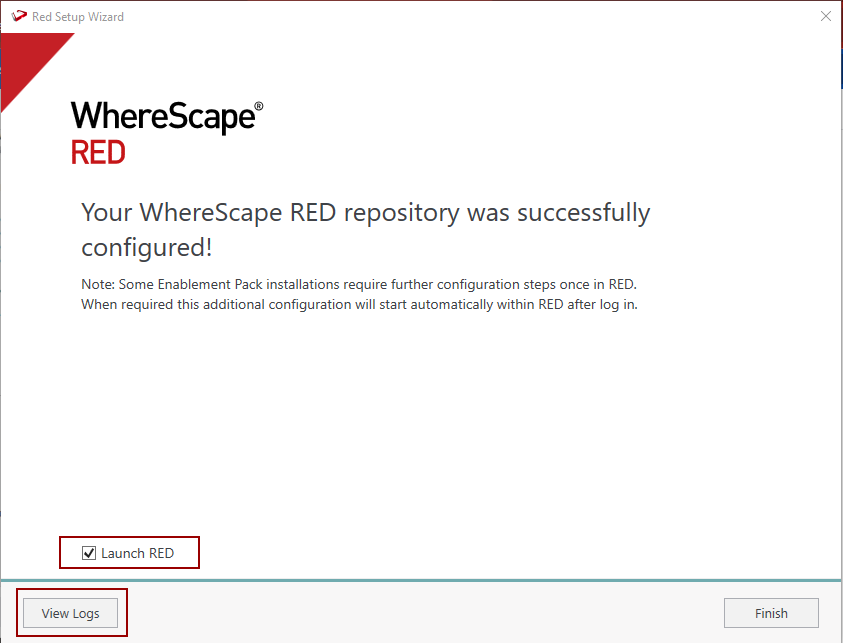
Login to WhereScape RED.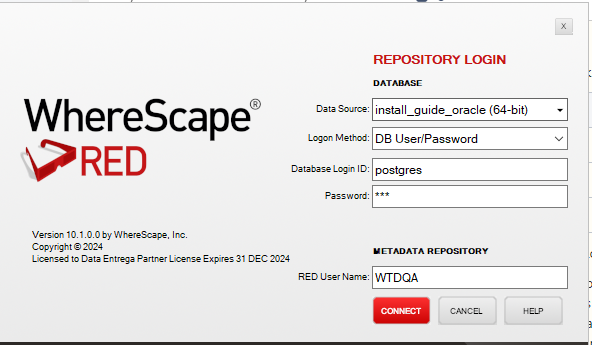
There is a post-install script that will run at the first login to RED10 to complete the post-setup wizard installation process. |
You will be directed to the below PowerShell window which will give a brief explanation of the post-installation process.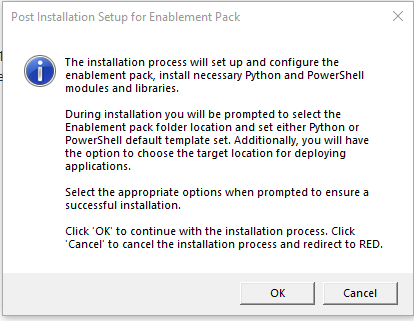
Click OK to start the post-installation. If you click Cancel, the installation will stop and the user will be directed to RED.
The user will be directed to the window below, where they have to select the target connection to be configured. Additionally, by deselecting the provided options, the user can choose not to install a particular option.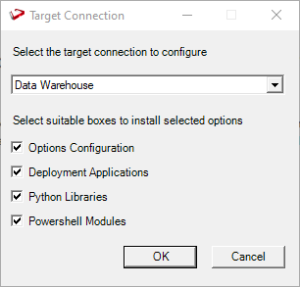
You will be directed to the PowerShell window below. Provide the directory that contains the unzipped Enablement Pack.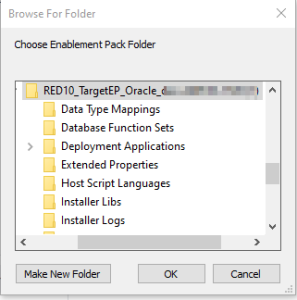
Click OK
The progress bar will show the post-installation progress.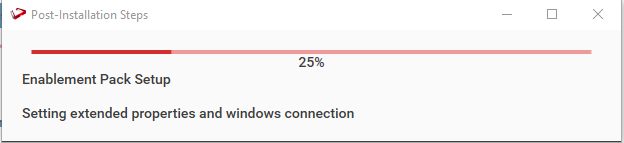
Users will have to choose the schema for the target setting that were provided. One pop-up will come for setting the default target for Date Dimension.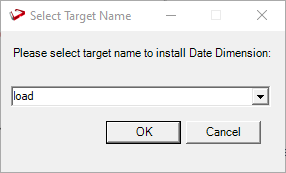
After selecting the target progress bar will show the progress for the installation and once it's completed, you will get the below pop-up.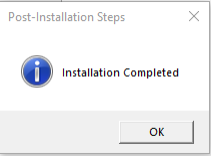
After clicking OK RED10 opens automatically. The user will need to restart RED once.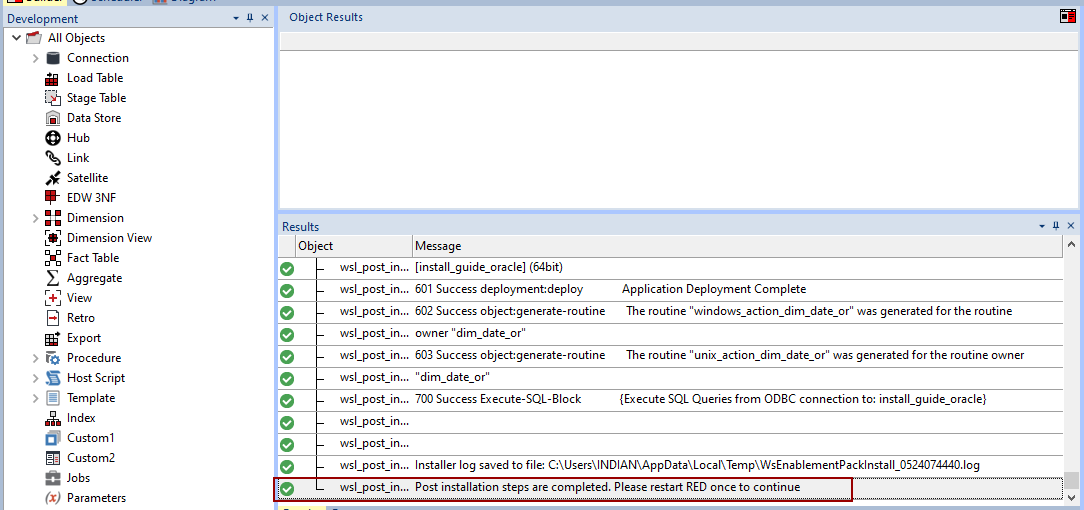
For upgrade of an existing repository
wsl_post_install_enablement_pack as Auto Execute - PowerShell Script 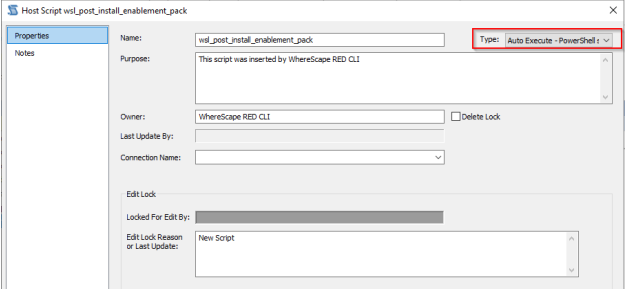
Important Upgrade Notes
If RED upgrades the repository option is chosen.
This enablement pack will overwrite any existing Source Enablement Pack UI Configs:
Connection UI Config | Load UI Config |
Amazon S3 | Load From Amazon S3 |
Azure Data Lake Storage Gen2 | Load From Azure Data Lake Storage Gen2 |
Google Cloud | Load From Google Cloud |
To ensure existing Source Enablement Pack connections and associated Load Tables continue to browse and load:
Go into UI Configuration Maintenance in RED before installing this Enablement Pack and rename the affected UI Configurations. While the updated Load Template will work with the previous Source Enablement Pack we recommend moving these earlier versions of Load Tables to newly created Parser-based connections following this install. The earlier versions of the Source Enablement Pack will be deprecated following this release.
If you used the script Setup Wizard for installation then the following optional post-install steps are available.
Configure Connections
There were two connections added that will optionally require your attention:
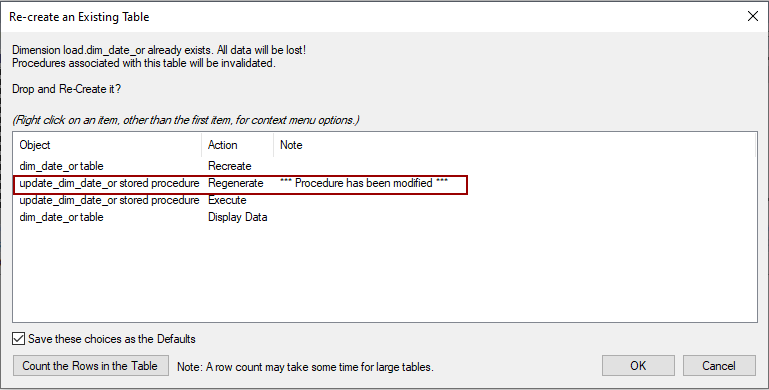
Please avoid regenerating the procedure update_dim_date_or as it is a custom procedure. |
Source Pack Name | Supported By Oracle | Supported Features | Prerequisites |
Windows Parser | 1. CSV | Load Template, Source Properties will have the option to select parser type to load the files. | Refer to Windows Parser Guide |
Press the Windows Key on your keyboard and start typing cmd.exe, when the cmd.exe icon shows up in the search list right click it to bring up the context menu, select Run As Administrator
Now you have an admin prompt navigate to to the folder where you have unpacked your WhereScape Red Enablement Pack using the cd command:C:\Windows\system32> cd <full path to the unpacked folder>
Run Powershell (.ps1) scripts from the administrator prompt by typing the Powershell run script command, for example:C:\temp\EnablementPack>Powershell -ExecutionPolicy Bypass -File .\Setup_Enablement_Pack.ps1
In the event you can not bypass the Powershell execution policy due to group policies you can instead try "-ExecutionPolicy RemoteSigned" which should allow unsigned local scripts. |
On some systems, Windows Powershell script execution is disabled by default. There are several workarounds for this which can be found by searching the term "Powershell Execution Policy".
Here is the most common workaround that WhereScape suggests, which does not permanently change the execution rights:
Start a Windows CMD prompt as Administrator, change the directory to your script directory, and run the WhereScape Powershell scripts with this command:
>Powershell -ExecutionPolicy Bypass -File .\<script_file_name.ps1>Some of the setup scripts will track each step and output the step number when there is a failure. To restart from the failed step (or to skip the step) provide the parameter -startAtStep <step number> to the script.
Example: Powershell -ExecutionPolicy Bypass -File .\<script_file_name.ps1> -startAtStep 123
To avoid having to provide all the parameters again you can copy the full command line with parameters from the first "INFO" message from the beginning of the console output. |
Python requirements for offline install
Additionally to the base Python installation being required, the WhereScape Python Template set also requires certain additional Python libraries. The install scripts use the PIP (package manager) to download these libraries, however, for offline installs, you need to install the required libraries yourself.
Required Python libraries/add-ons:
If you have RED 10.x or higher installed but the script (Setup_Enablement_Pack.ps1) fails to find it on your system then you are most likely running the PowerShell (x86) version which does not show installed 64-bit apps by default. Please open a 64-bit version of Powershell instead and re-run the script.