- Open the list WebRoutine in the Design view.
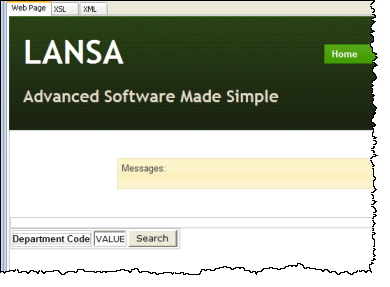
- Add a column to the table containing the department code.
- Drop a Push button into the new cell and set up its properties:
Property | Value |
|---|
Caption | Search
|
On_click_wrname | list
|
submitExtraFields
| Field name: STDRENTRY
|
Literal Value: S
|
- Save your changes.
Your page should look like the following:
- On the Favorites / Weblet Templates tab, select Custom Weblets in the top combo box. Drop the Training List Row Weblet onto the page. Your page should look like the following:
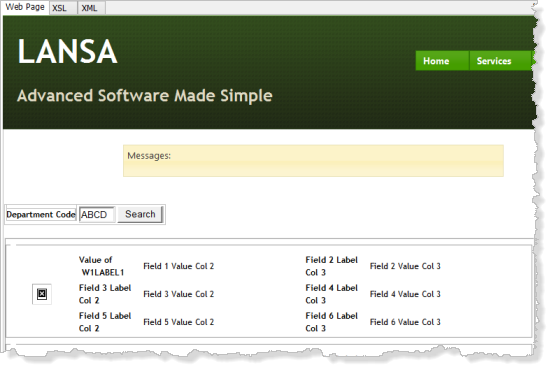
- Select the List Row Weblet, Select the Details tab and set up its properties as follows:
Property | Value |
|---|
Listname | EMPLIST
|
List_field_label_1 | DESC1
|
List_field_value_1 | FULLNAME
|
List_field_label_2 | DESC2
|
List_field_value_2 | LOCATION
|
List_field_label_3 | DESC3
|
List_field_value_3 | FULLADDR
|
List_field_label_4 | DESC4
|
List_field_value_4 | STARTDTE
|
List_field_label_5 | DESC5
|
List_field_value_5 | MNTHSAL
|
List_field_label_6 | DESC6
|
List_field_value_6 | SALARY
|
List_field_label_7 | DESC7
|
List_field_value_7 | EMPNO
|
List_image_field | STD_TEXTL
|
- Save your changes.
Your design should look like the following:

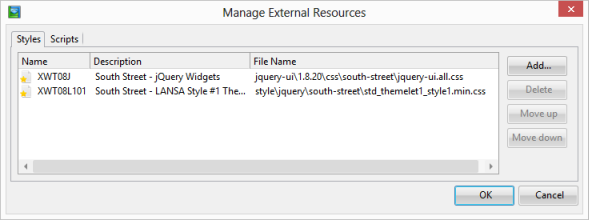
- This step will give the list row weblet the correct External Resources to match your selected page layout theme. See WAM060 – Employee Maintenance, Step 4. Define the Details WebRoutine where you used Cross References for your layout weblet to find the External Resources used by your chosen theme.
- With the Design view open, select the Design ribbon / External Resources button. Knowing your external resources (the cascading style sheets) used by your theme, delete the default files used by the weblet code provided and add the files for your theme.
- Save your changes.
- This step requires a set of small images for employees. If you haven't already done so, you can download these now following the instructions in Before You Begin at the beginning of this exercise.
- Test your WAM and list employees for department code ADM. At the moment your list will be displayed on the left hand side of the page.
- In the Design view select the List Row weblet and use the context menu to Insert / Div. With the div selected, change its align property to center. Save your changes.
- Test your WAM. The list will now be displayed in the center of the web page.