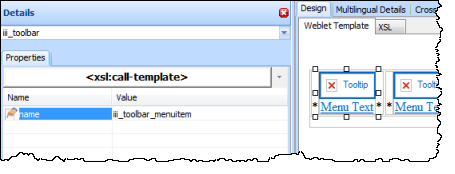
In this step you will create a second weblet to build your Toolbar weblet. This will simply consist of a single row table with 4 cells.
- As before, create a new weblet using New / Weblet, Name = iii_toolbar, Description = Toolbar, Group = Custom Weblets. Replace iii with your initials.
- On the Details tab change the weblet name to iii_toolbar.
- In the Design view use the context menu to Insert HTML / Table with 1 row and 4 columns.
- Save your changes.
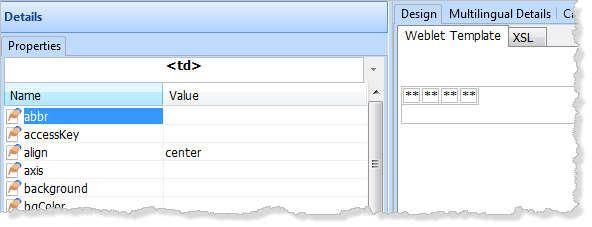
- Select each cell in the toolbar table and use the Details tab to set it's align property to center.
- Switch to the Favorites tab, find your iii_toolbar_menuitem weblet. Drag and drop a iii_toolbar_menuitem into each of the four cells in the toolbar. Your toolbar should now look like the following in the Weblet Template design view.
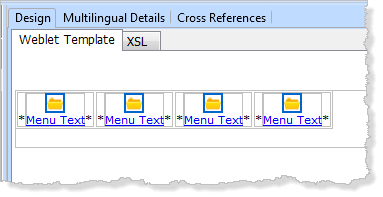
- Use the cursor keys to position into each cell (<td> tag) and delete the * place holder characters.
Save your changes.
- Select one of the toolbar menu items and select the Details tab. Notice that at present, the menu items have no properties that can be set.