To create a new model version:
- Right click on a schema and select Add star schema to display the Add a new star schema dialog.
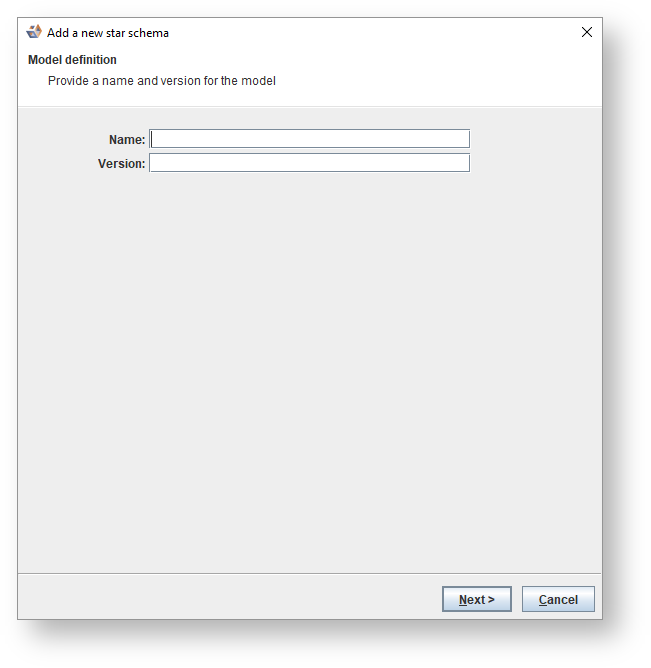
- Enter the following information:
Field | Description |
|---|
Name | Enter a name for the Model if the model was not already selected on the previous dialog. If the Model was previously selected the name will already be filled in by default. |
Version | Enter the Version number for the model. This field will not be shown if versions are disabled. |
- Click Next > to create the model.
Some models, such as Source system models, have a connection associated with them which can be discovered and profiled to populate the model with the structure of, and information about, an existing database. These models require extra information when they are created.
In addition to the fields above, there are also some connection specific fields that need to be set.
- For categories that have Connections enabled, right click and select Add Source to display the Add a new source dialog.
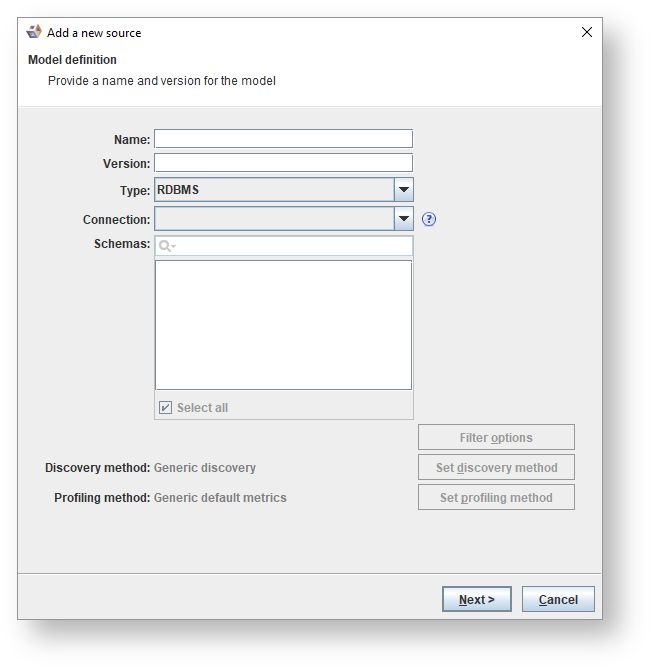
- Enter the following information:
Some screen options will only be enabled when a Connection has been selected from the drop-down list. |
Fields | Description |
|---|
Name | Enter a name for the model. |
Version | Enter a version number for the model. |
Type | Select the connection type - RDBMS (Relational Database Management System) or File type connection from the drop-down list. |
Connection | Select a connection to be discovered into this model from the drop-down list. |
Schema | Select the relevant schema or schemas (this is disabled if a file type connection was selected) |
Filter options | To set filter options for the discovery click Filter options. This opens the Setting Discovery Filter Options dialog. |
Set discovery method | Click to set the profiling method. Refer to Profiling and Setting the Profiling Method for details.. Refer to Discovery details and Setting Discovery Method for details. If a file connection was selected customizing the discovery method is disabled. |
|
Set profiling method | Click to set the profiling method. Refer to Profiling and Setting the Profiling Method for details. |
- Click Next > to create the model. The Running Discovery and Running Profiling wizards are run automatically to populate the model.