 Create data vault design from the Workflow pane.
The Create data vault design - Category configuration dialog is displayed.
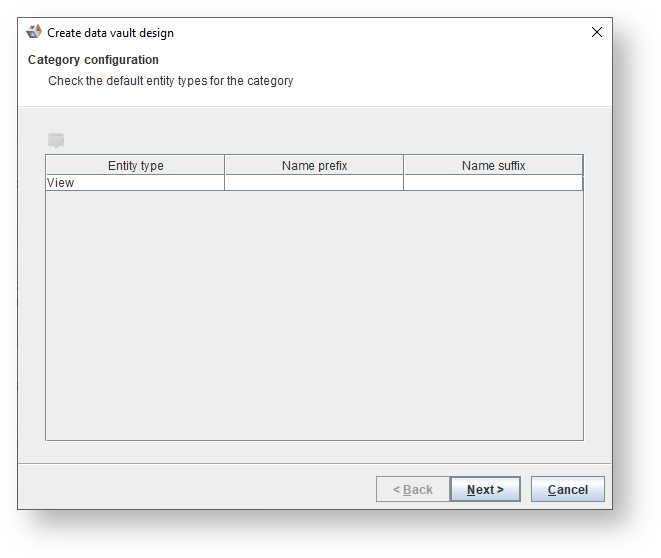
| This dialog is ONLY displayed when creating a data vault for the first time. Refer to Default Category Naming Standards for details. |
 to configure the Prefix and Suffix and click Next.
The Create data vault design- Model definition dialog is displayed.

If you select a Model then you only need to enter a Version. |

 to create additional attribute types to be assigned to an attribute for splitting entities into different satellites and click Next. Refer to Manage attribute types for details.
The Create data vault design- Create hub structures dialog is displayed. On this dialog you can create the business attributes that define the core business entity of a hub.
From the Create data vault design- Create hub structures dialog, you can:
|

- Click to add a hub entity.
- Enter a Hub name and fill in the required fields.
The wizard requires you to create a minimum of two Hubs. The name of the Hub DOES NOT need to follow any naming conventions; for example, h_customers.
The Create data vault design- Create link structures dialog is displayed. On this screen you can create the entities that defines the core business relationship between multiple hub entities.
The wizard will design the link's business attributes based on the hub's business attributes. This includes names and sources. |
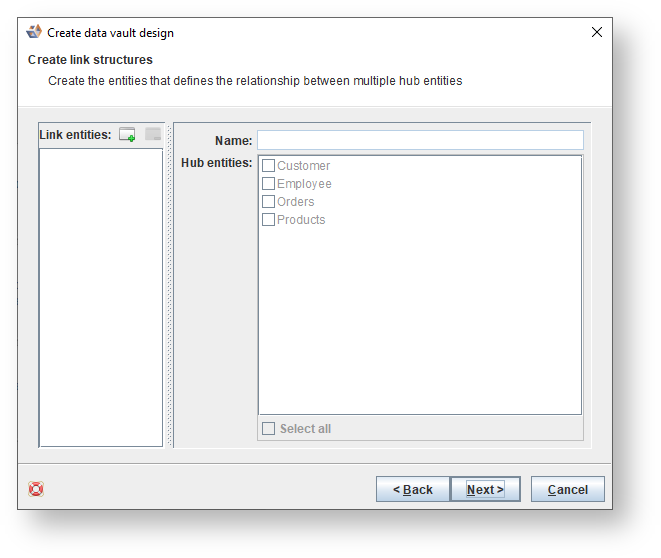
- Click to create link entities between hubs created on the Create data vault design- Create hub structures dialog.
- Enter a Name for the Link entity and select the checkbox for the Hub entities you want to link.
The Create data vault design- Add source mappings to hub entities dialog is displayed.

The Create data vault design- Add link dependent children dialog is displayed.

The Create data vault design- Add satellite attributes dialog is displayed.
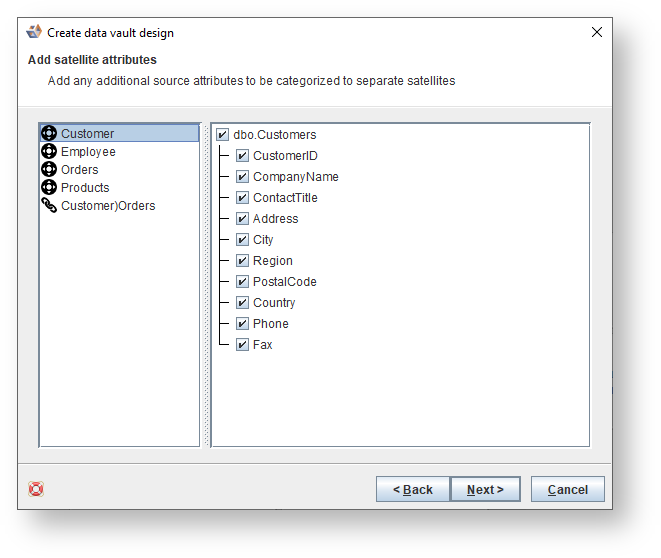
A model is created and the Create data vault design- Define assigning definition, dialog is displayed.
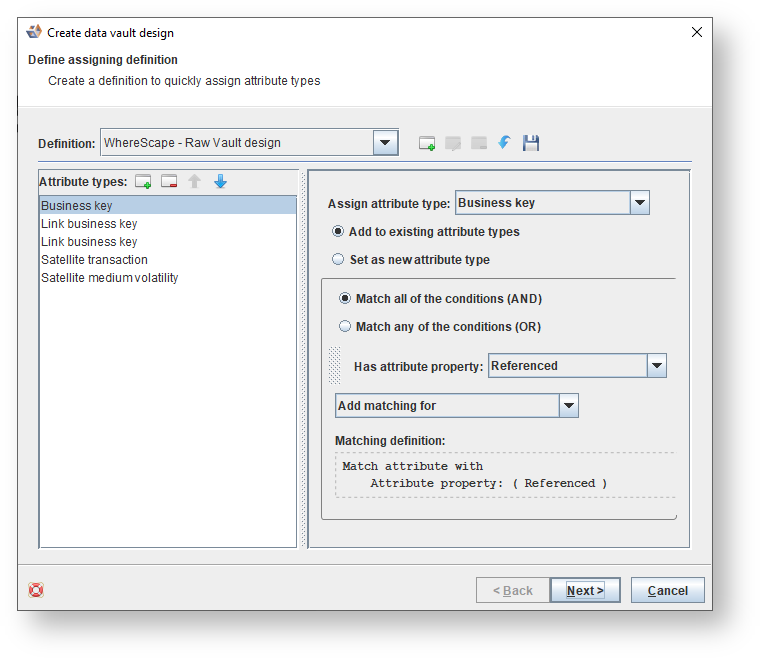
- The WhereScape - Raw Vault design definition is selected by default enabling you to mark-up model with correct attribute types to drive how the model conversions generate the raw data vault.
- Define additional satellite attribute types with matching criteria and click Next. Each new satellite attribute type assigned will result in a separate satellite generated for the Hub or Link after you run the Data Vault Wizard.
The Create data vault design- Locating attributes for assigning types dialog is displayed.
The Create data vault design- Review attribute type dialog is displayed.
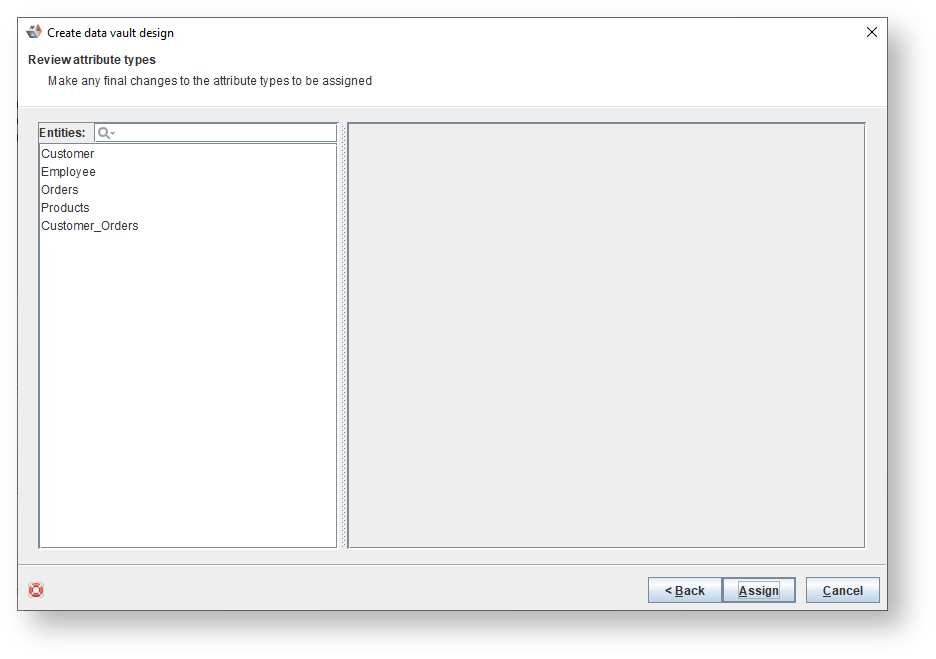
You can navigate to step 12 to adjust the matching definition. |

The model is displayed. All attributes types have been assigned and all relationships have been created.
