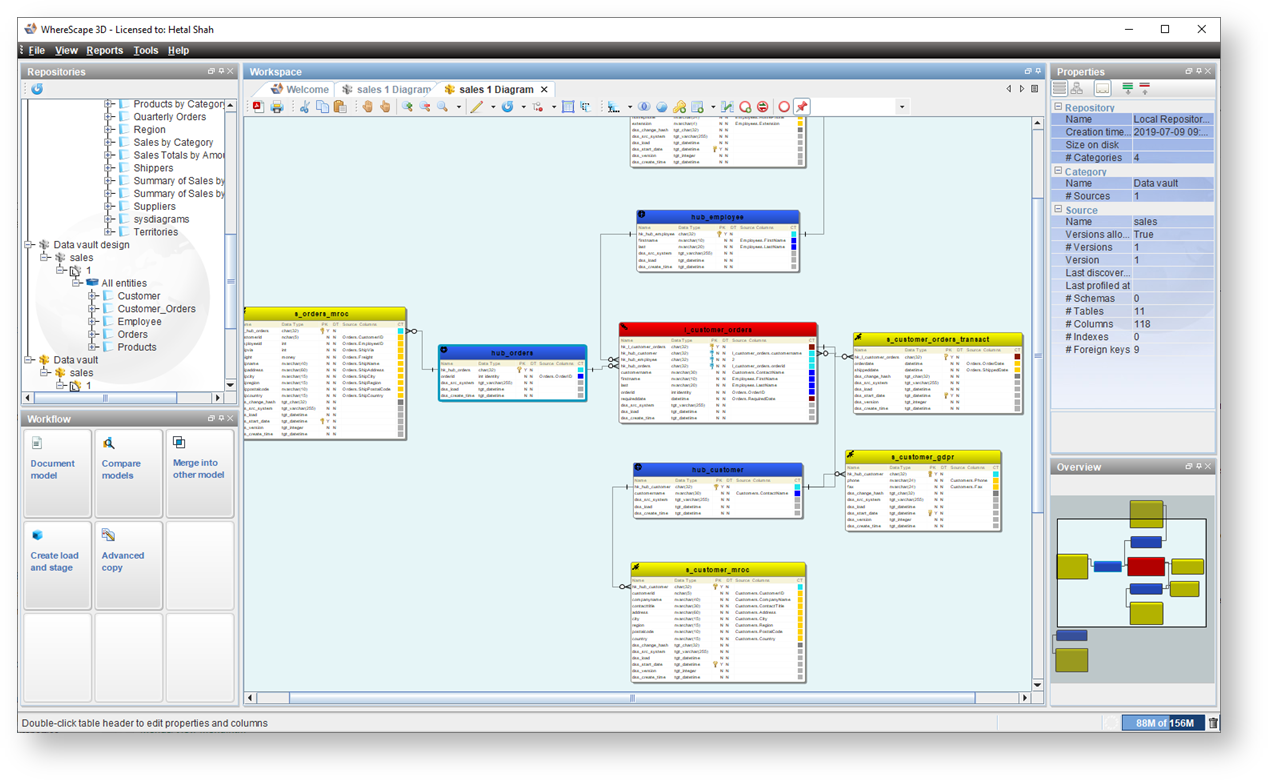
Generate data vault from the Workflow pane.
The Generate data vault-Category configuration dialog is displayed.
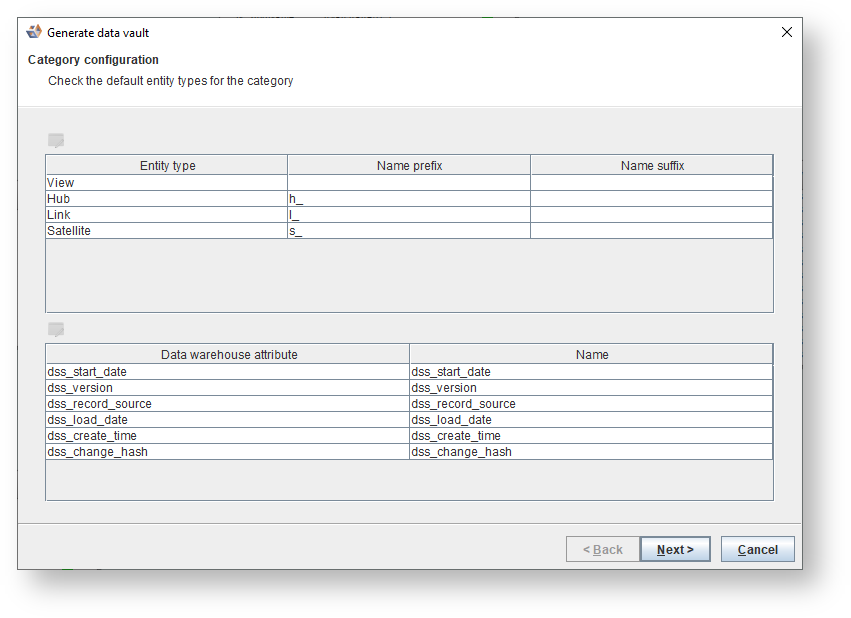
This dialog is ONLY displayed when creating a data vault for the first time. Refer to Default Category Naming Standards for details. |
- Click on an entity type, click
 and modify the Name Prefix and Name suffix for the selected entity type.
 - Click on an attribute, click and modify the name for the selected attribute.
The Generate data vault - Model definition dialog is displayed.
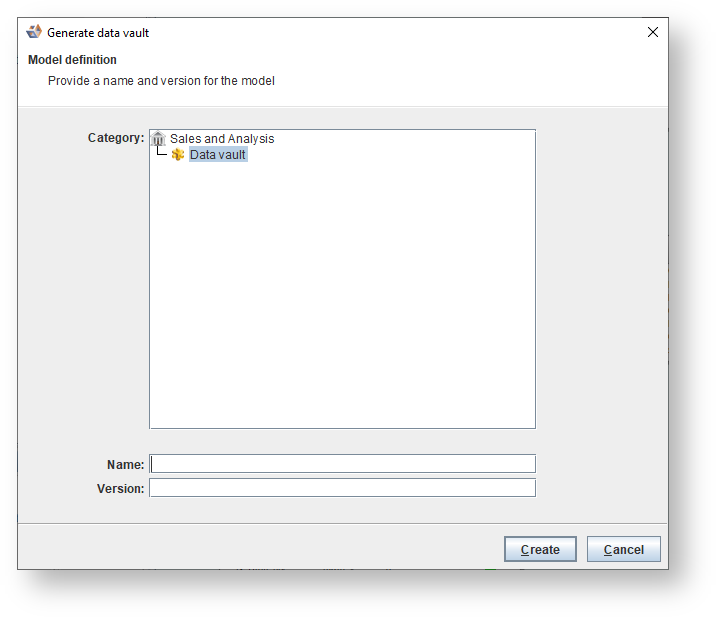
If you select a Model then you only need to enter a Version. |
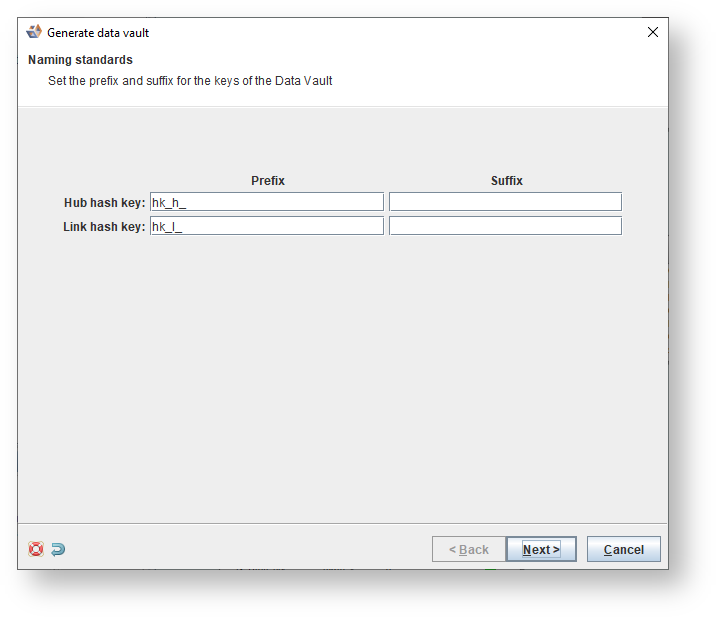
Click |

- Click
 to add an new attribute type entry and configure the Prefix and Suffix for the generated satellite.
 - Click
 to remove an attribute type entry.
 - Click
 to reset to the default settings.
 - Click the Save the model conversion created by managing the Satellites checkbox if you choose to reuse it or debug.
The Generate data vault - Apply model conversion dialog is displayed. This screen generates model conversions based on information supplied on the Generate data vault - Define the Satellites to be generated dialog
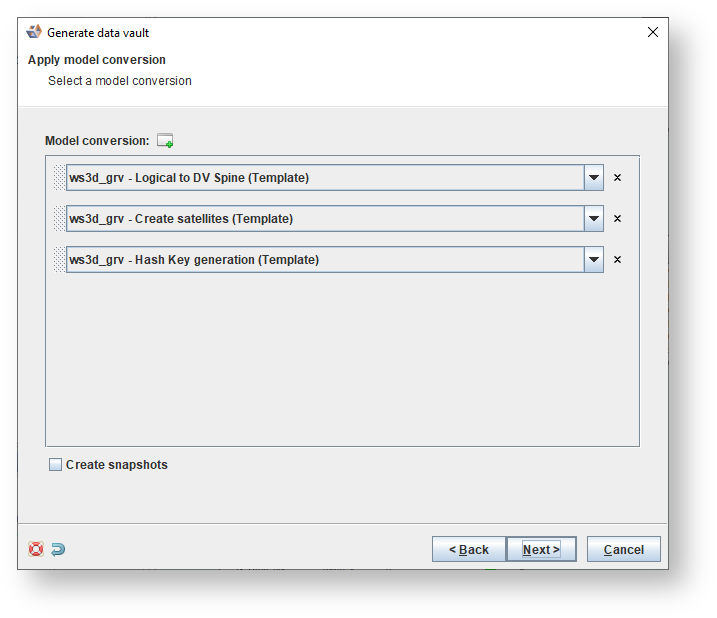
- Click to add a new model conversion entry.
- Select a new rule from the drop-down list.
- Click to reset to the default settings.
- Drag the handle to reorder the model conversions.
The Generate data vault - copy model dialog is displayed.

The diagram is displayed.