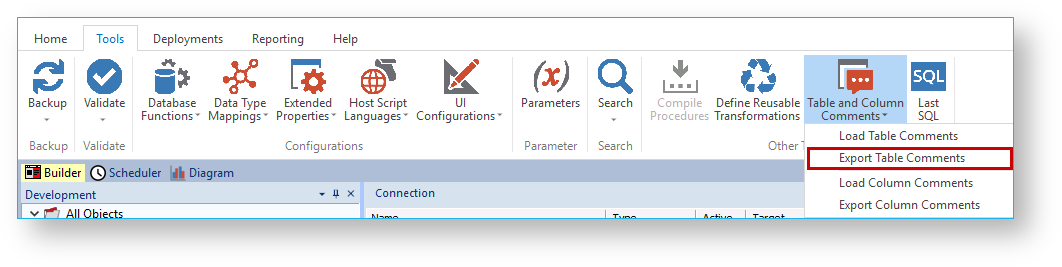
To export table comments from RED, select Tools > Table and Column Comments > Export Table Comments.

The Table Comments Export pop-up window is displayed:

  1. Type in the directory and file name of the export file or click the folder icon to navigate to the required directory.
  2. Select or de-select the required export options.

    All the above options are selected by default.
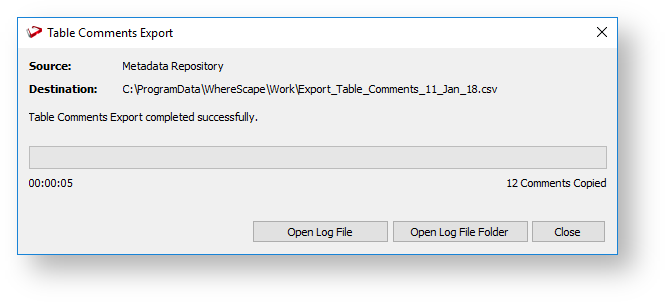
  3. Click OK to proceed with the export. The Table Comments Export pop-up window displays the progress of your export. You can click Cancel to abort the process.


  4. Once the export process is completed, the pop-window displays the processing time and the number of comments copied to the export file.
  5. Click Close to exit the pop-up window. The Results pane displays a summary of the comments exported and confirms the successful completion of the export.

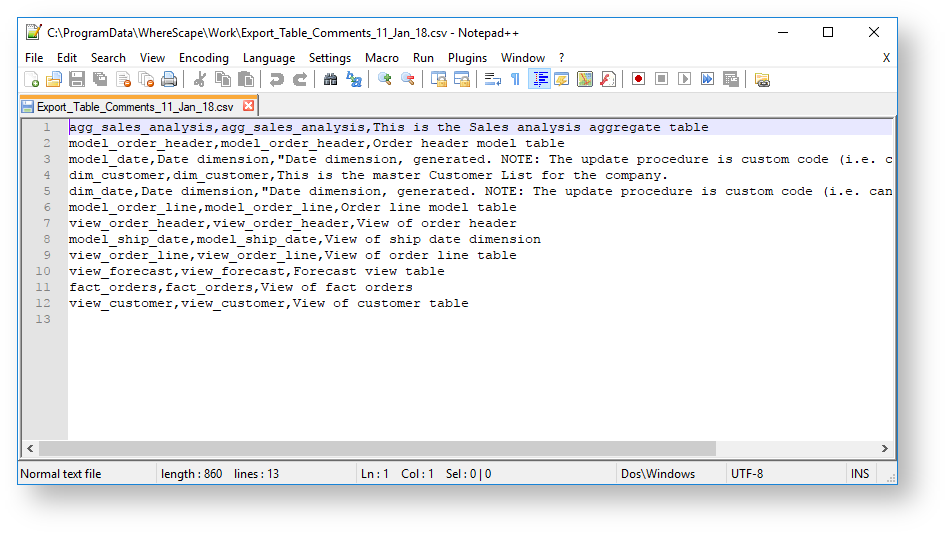
  6. Use Microsoft Excel 2013 or Notepad to view/edit the exported comments.

The table and column comments import/export only supports UTF-8 character encoded files.

You also need to be aware of the following points, if you are going to use another tool other than Microsoft Excel 2013 to edit the comments:

  • The comment portion can be surrounded by double quotes.
  • Double quotes can be escaped within the comment by prefixing the quote with another quote.
  • Comma characters can be used within the comment, but only if the comment is inside double quotes.
  • Comments can span multiple lines, but only if the comment is inside double quotes.

Refer to Importing Comments from an External Source for details.