Although Uptime Infrastructure Monitor has powerful reporting features, you may want to generate reports in a custom format with a specific set of user-defined data. Microsoft Reporting Services allows you to take data from an MS SQL Server DataStore and use that data to create a report that addresses your specific needs.
This article assumes that you have installed Microsoft Reporting Services and its prerequisites:
Please also refer to Running UIM with an Oracle database.
To set up a database connection

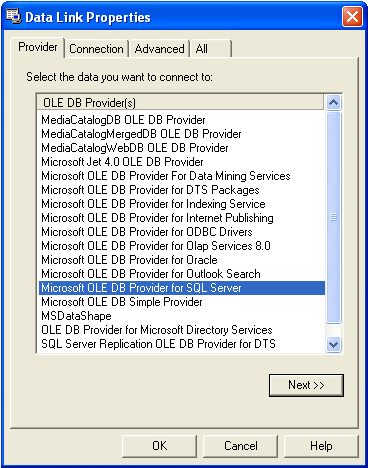
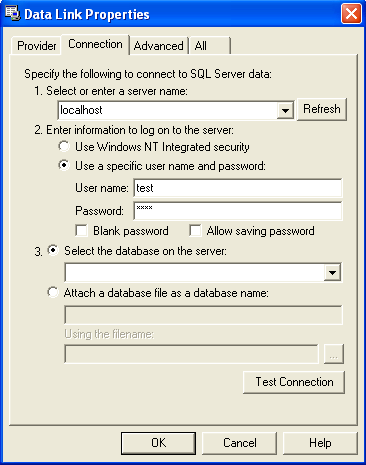
To configure a report in Microsoft Reporting Services
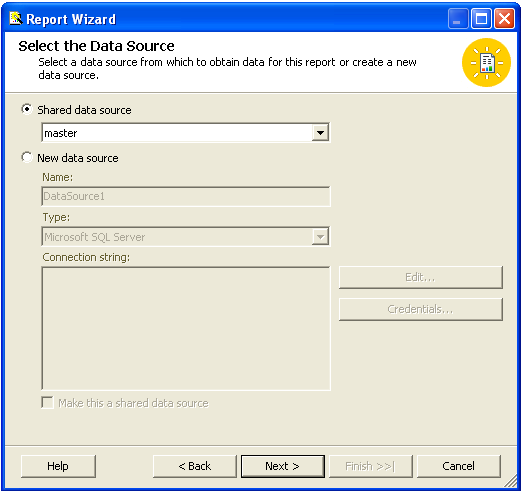
SELECT e.display_name AS 'Description', AVG(p.cpu_usr + p.cpu_sys + p.cpu_wio) AS 'CPU Workload Average',(CONVERT(char(10),s.sample_time,102)) AS 'Date' FROM performance_sample s, performance_aggregate p, entity e WHERE s.id = p.sample_id AND e.entity_id = s.uptimehost_id AND s.sample_time > '2023.11.29' AND s.sample_time < DATEADD(day,5,'2023.11.29') GROUP BY (convert(char(10),s.sample_time,102)), e.display_name ORDER BY (convert(char(10),s.sample_time,102)), e.display_name; |


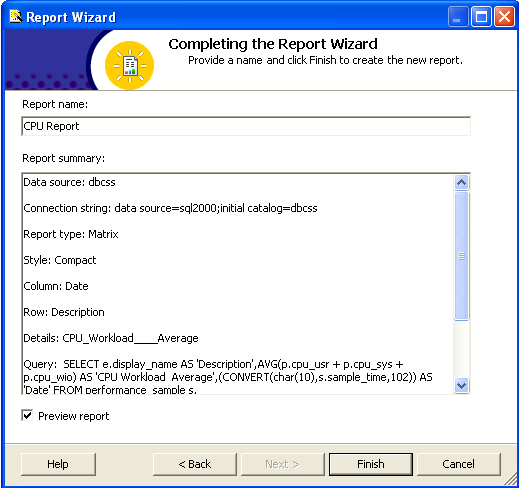
When you are satisfied with your report, you can publish it to IIS (Internet Information Server, a Web server that runs under Windows) by completing the following steps:
In Microsoft Visual Studio .NET, access the Solutions Explorer to open Solution Explorer.
Right click the current project and select Properties.
In the Properties window, change the value of TargetServerURL to the URL where Reporting Services has been installed. For example, http:
//localhost/ReportServer.
Click OK.
In the Solutions Explorer, click Debug / Start to publish the report.
After the report has been published, your default Web browser will automatically open in the directory in which the report was published. Click on the file name of the report to open it.
You can also export the report from your web browser by selecting a format from the dropdown list, as shown below:
Published reports may not render properly in web browsers other than Internet Explorer. If, for example, you have set your default browser to Firefox and the report does not open properly after you have published it, copy and paste the URL of the report into Internet Explorer. You can also view the report by navigating to the Report Manager URL in Internet Explorer. By default, the URL is http://localhost/Reports/Pages/Folder.aspx.