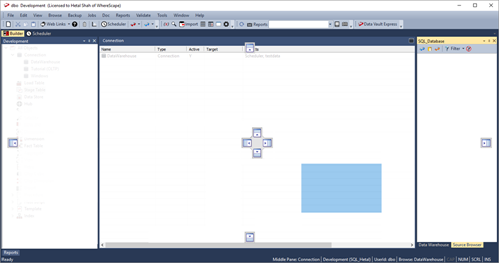
The Builder window has four panes.
Panes | Description |
|---|---|
Object Pane | This pane contains all the objects in the metadata repository. These objects are stored in object groups (e.g. Dimension, Fact, etc.). The object groups in turn can optionally be stored in Projects, and the Projects can optionally be stored within Project Groups. |
Drop Target Pane | This pane is used to display the results of various queries on both the metadata and the underlying source and database tables. The middle pane is also used as the drop target in drag and drop operations. The status line at the bottom of the screen displays the current contents of the middle pane. To send the middle pane output to a file or to clipboard, refer to Export Middle Pane Output for details. |
Results Pane | This pane is used to display the results of various queries on both the metadata and the underlying source and database tables. |
Browser Pane | This pane displays both Source and Data Warehouse systems. There are two browser panes available at any one time. The source may be the data warehouse itself. The Browser Pane can be filtered:
|
|

Icon | Description | |
|---|---|---|
| Create a New Object (Ctrl+N) - Click to create a new object. | |
| Web Links - Click to display the online WhereScape forum in a new tab. To select or enter other web links, click the down arrow beside the Web Links button and select an URL from the list.
| |
| View application documentation - Click to display WhereScape RED help file. | |
| Open the ToDo List - Click to open a free form text to do list. | |
| Open the Diagram View - Click to switch to the Diagram view window which provides a graphical representation of the star schema and track back diagrams. | |
| Open the Scheduler View - Click to switch to the Scheduler control window. Refer to Scheduler Window for details. | |
| Browse source tables/ files in the right pane (normally Data Warehouse) - Click to invoke the source browser which populates the Browser pane.
| |
| Browse tables/ files in the right pane (normally Source system) - Click to invoke the source browser which populates the Browser pane.
| |
| Display parameters Click to display all parameters (variables). | |
| Search - Click to search for a string in the metadata. | |
| Import - Click to import objects from another repository. | |
| Create a version of all objects - Click to create a version (copy) of all objects. | |
| Validate tables - Click to compare metadata to database tables. | |
| Build Deployment Application - Click to build the objects required to load a Deployment Application via the RED Setup Administrator. | |
| Options - Click to change repository settings. | |
| Refresh the last ran report and update output in the Reports pane | |
| Run report against the data in the Data Warehouse | |
| Create documentation based on the Data Warehouse - Click to create HTML documentation. | |
| Display the current documentation for the Data Warehouse | |
| Open the Data Vault Express web page within this application. |