Java Runtime Environment installed and on the path - only Open JDK 11 is supported and tested with Azkaban and RED
PuTTY or equivalent tools for Windows (for remote installation and interactive task execution)
Currently, there is no interactive install wizard for WhereScape Azkaban on Linux but the azkaban-installer.jar file in the RED install directory under <install_dir>\Azkaban\ can be transferred to Linux and run directly using Java. This process requires a pre-prepared response file to be supplied with the parameters for the installation.
Install the Azkaban Metadata
Install the Azkaban Web Server
Install one or more Azkaban Executor Servers
Perform the Azkaban metadata install by executing the below commands in your command shell in Linux or Windows.
AZ_DB_USER=myuserAZ_DB_PWD=mypwdazkaban-installer.jar with the upgrade-schema command:java.exe -jar "azkaban-installer.jar" upgrade-schema --database=AZ_REPO --host=PG_HOST --port=5432 --schema=white --username-var=AZ_DB_USER --password-var=AZ_DB_PWD |
Copy the scheduler .jar file from <RED_install_dir>\Azkaban\azkaban-installer.jar to the Linux machine that will host the main Web Server and run the following commands (see example response files later in this section):
java -jar azkaban-installer.jar --log-file=./install.log install-server --response-file=web_server_response_file.xml |
Copy the scheduler .jar file from <RED_install_dir>\Azkaban\azkaban-installer.jar to the Linux machine that will host each Executor Server and run the following commands (see example response files later in this section):
java -jar azkaban-installer.jar --log-file=./install.log install-server --response-file=executor_server_response_file.xml |
The same installer can be run from Windows or Linux using the following command to output the installer command line help:
java -jar azkaban-installer.jar --help |
Which outputs:
Usage: azkaban-installer [-hV] [--log-file=FILE] [COMMAND] --log-file=FILE File name (including path) for the log file (default: C: \Users\Red1\AppData\Local\Temp\WsSchedulerInstaller_2023050 2_201952_803.log) -h, --help Show this help message and exit. -V, --version Print version information and exit. Commands: example-response-file Generates an example well-formed XML response file to standard output install-server Installs or upgrades an Azkaban server as described in the response file mandatory-executor-tags Outputs the executor tags that should always be added to executors running on the current machine. response-file-schema Writes the XML schema for the response file to standard output test-connection Tests that a JDBC connection to the specified database can be established. upgrade-schema Upgrades or installs the Scheduler metadata schema. |
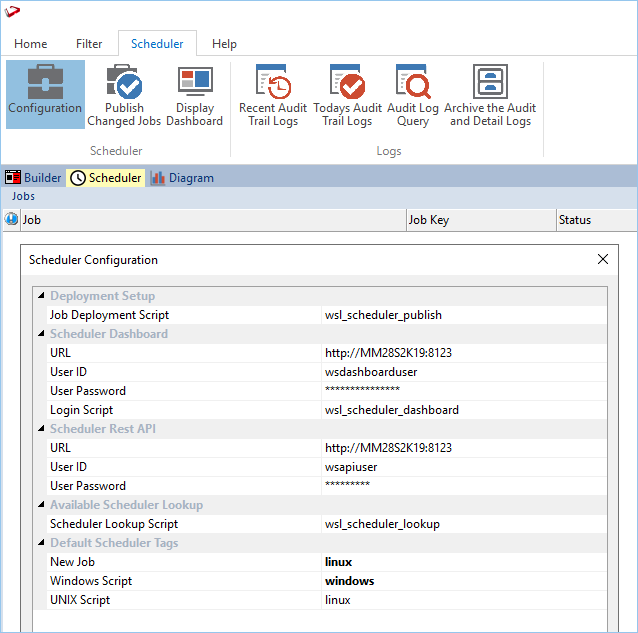
To start using this scheduler in RED first, the Scheduler Configuration needs to be added to RED via the Scheduler tab.
Once in RED, navigate to the Scheduler tab and select the menu item Scheduler→Configuration, this will open the configuration for the attached scheduler.
You must install the Azkaban Web Server first before installing any Executor Servers. The Web Server and Executor Servers can be installed on Windows or Linux, or some combination of both. It is important to ensure that connectivity between your Web and Executor Servers is open on the ports you assign to them. |
<?xml version="1.0" encoding="UTF-8" standalone="yes"?>
<installServerResponse>
    <serverType>WEB_SERVER</serverType>
    <serverName>WEB_SERVER</serverName>
    <destination>
        <destinationDirectory>\home\AzkabanSchedulerUser\WhereScape\</destinationDirectory>
    </destination>
    <metadataDatabase>
        <databaseName>schedmeta</databaseName>
        <hostName>pgserver</hostName>
        <password>schedpassword</password>
        <port>5432</port>
        <schema>white</schema>
        <userName>scheduser</userName>
    </metadataDatabase>
    <redMetadataDatabase>
        <databaseName>redmeta</databaseName>
        <hostName>pgserver</hostName>
        <password>redpassword</password>
        <port>5432</port>
        <schema>red</schema>
        <userName>reduser</userName>
    </redMetadataDatabase>
    <serverConfig>
        <executorTags></executorTags>
        <port>8001</port>
        <timeZone>Pacific/Auckland</timeZone>
        <webServerExternalHostName>AzkabanServer</webServerExternalHostName>
        <webServerExternalPort>8001</webServerExternalPort>
        <adminUserName></adminUserName>
        <adminPassword></adminPassword>
        <dashboardUserName>wsdashboarduser</dashboardUserName>
        <dashboardPassword>wsdashboardpass</dashboardPassword>
        <publishUserName>wsapiuser</publishUserName>
        <publishPassword>wsapipass</publishPassword>
    </serverConfig>
    <emailConfig>
        <host>emailhost</host>
        <port>587</port>
        <user>emailuser</user>
        <password>emailpassword</password>
        <sender>senderemail</sender>
        <tls>true</tls>
        <useAuth>true</useAuth>
    </emailConfig>
    <redBindir>\home\AzkabanSchedulerUser\WhereScape\</redBindir>
	<azkabanPasswordEncryption>NONE</azkabanPasswordEncryption>
	<azkabanWalletCmd></azkabanWalletCmd>
	<redProfilePassword>redprofilepass</redProfilePassword>
	<wherescapeJobWorkdir>/tmp</wherescapeJobWorkdir>
</installServerResponse> |
<?xml version="1.0" encoding="UTF-8" standalone="yes"?> <installServerResponse> <serverType>EXEC_SERVER</serverType> <serverName>EXEC_SERVER</serverName> <destination> <destinationDirectory>\home\AzkabanSchedulerUser\WhereScape\</destinationDirectory> </destination> <metadataDatabase> <databaseName>schedmeta</databaseName> <hostName>pgserver</hostName> <password>schedpassword</password> <port>5432</port> <schema>white</schema> <userName>scheduser</userName> </metadataDatabase> <redMetadataDatabase> <databaseName>redmeta</databaseName> <hostName>pgserver</hostName> <password>redpassword</password> <port>5432</port> <schema>red</schema> <userName>reduser</userName> </redMetadataDatabase> <serverConfig> <executorTags> <tag>linux</tag> </executorTags> <port>8002</port> <timeZone>Pacific/Auckland</timeZone> <webServerExternalHostName>AzkabanServer</webServerExternalHostName> <webServerExternalPort>8001</webServerExternalPort> <adminUserName></adminUserName> <adminPassword></adminPassword> <dashboardUserName></dashboardUserName> <dashboardPassword></dashboardPassword> <publishUserName></publishUserName> <publishPassword></publishPassword> </serverConfig> <emailConfig> <host>emailhost</host> <port>587</port> <user>emailuser</user> <password>emailpassword</password> <sender>senderemail</sender> <tls>true</tls> <useAuth>true</useAuth> </emailConfig> <redBindir>\home\AzkabanSchedulerUser\WhereScape\</redBindir> <azkabanPasswordEncryption>NONE</azkabanPasswordEncryption> <azkabanWalletCmd></azkabanWalletCmd> <redProfilePassword>redprofilepass</redProfilePassword> <wherescapeJobWorkdir>/tmp</wherescapeJobWorkdir> </installServerResponse> |
RED has implemented two password values for the azkabanPasswordEncryption property for Linux: WALLET and NONE
WALLET and set a value for azkaban.walletCmd which is used as a system command to retrieve the password from the wallet. For more information on Wallet configuration using a standard Linux password manager, visit https://www.passwordstore.org/NONE For more information about wherescapeJobWorkdir property, refer to RED Scheduler Configuration.
Typical installation command assuming the azkaban-installer.jar has been copied to the home directory for the running user on Linux:
java -jar ~/azkaban-installer.jar --log-file=~/install.log install-server --response-file=~/response.xml |
On Linux, the Azkaban Servers are not started automatically after installation to run the startup script.
<azkaban_install_dir>/<web_server_name>/azkaban-web-server/bin/start-web.sh
<azkaban_install_dir>/<exec_server_name>/azkaban-exec-server/bin/start-exec.sh
There are various ways to have these servers start when Linux starts. The simplest is to add it via crontab with the @reboot keyword.
For example:
crontab -e Opens crontab editor for the current user
Add a line for each server, save, and close the editor:
@reboot <azkaban_install_dir>/<web_server_name>/azkaban-web-server/bin/start-web.sh
@reboot <azkaban_install_dir>/<exec_server_name>/azkaban-exec-server/bin/start-exec.sh
crontab -l Lists the current users' cron jobs.