Typical upgrade steps
For each Azkaban Web and Executor Server instance:
Stop the Windows services and/or Linux processes for each Web and Exec server.
Perform backups of the following:
Your Azkaban metadata repository
azkaban.local.properties
for each Web and Exec server
Any other configuration files if you have customized them
Run the installer targeting the existing Azkaban install locations:
- Step 1 - upgrade the Azkaban metadata
- Step 2 - upgrade the Azkaban Web Server
- Step 3 - upgrade each Azkaban Executor
Merge any customizations back in from your earlier backups.
Start the Azkaban Web and Executor services and/or Linux processes.
- Upgrade or merge changes to the Scheduler Integration Scripts as required.
- Create scheduler authentication profiles as required. See Scheduler Profile Maintenance for details.
Backup your Azkaban Properties and Configuration files
The installer for Azkaban overwrites the properties and configuration files during the upgrade process. The first step is to make a copy of any properties and configuration files to merge your custom settings back in after the upgrade.
Backup these files (or the entire folder) for each Web Server and Executor Server being upgraded
azkaban.local.properties
azkaban-users.xml
log4j.properties
The backup of the
azkaban.local.properties
file will be useful to open while you run the installer so you can apply the correct settings to the installer fields.
Upgrade on Windows
Run
RedSchedulerInstaller.exe
to start the upgrade process follow the interactive installer wizard
For scripted upgrades, the Linux upgrade method described later can also be used on Windows. |
- To upgrade the Azkaban metadata and Web Server on this machine, select Install Scheduler and un-check Add scheduler configuration to RED as this configuration has already been added to RED during the original install. If you want to upgrade an Executor on this machine, select Install Executor, as required.

- Choose the existing Azkaban installation location to upgrade.
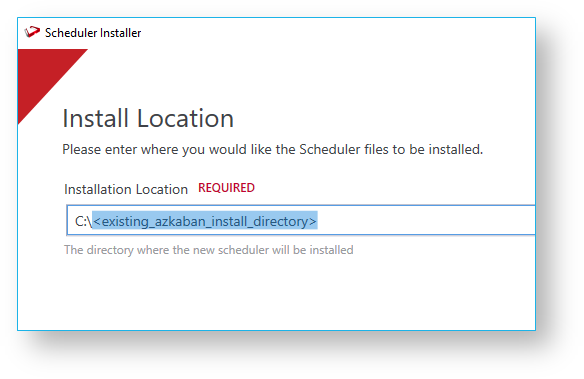
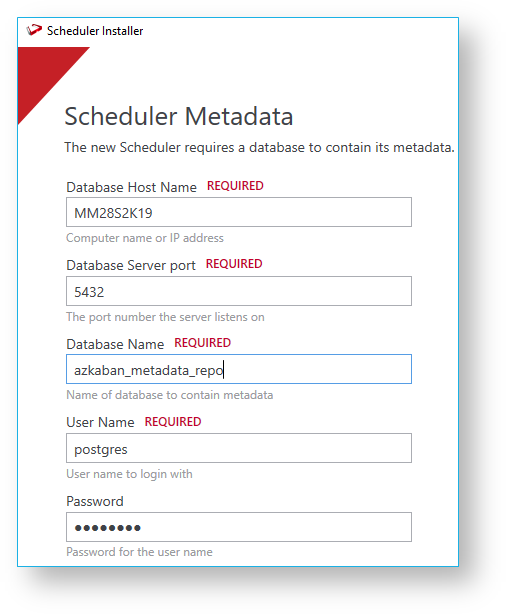
- Provide the existing RED and Azkaban metadata databases. If you are unsure of the ports and users of your existing servers you can open the azkaban.local.properties file you backed up earlier and extract those details from it.
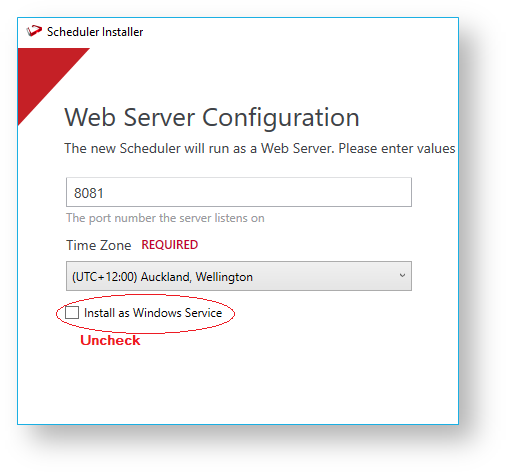
- Enter your existing server details into the Web Server Configuration and Exec Server Configuration screens ensure you have unchecked the options Install as Windows service as these were already put in place in the original installation.
- Proceed through the rest of the installation wizard and click Install at the end to complete the upgrade of the Azkaban metadata and the Web and Exec Servers.
- Post install you need to manually merge any customizations to the
azkaban.local.properties
and users file as required before starting up your services again.
Command-line Upgrades for Linux or Windows
Like RED, Azkaban is comprised of two distinct parts, the application and the metadata. Some releases may only require one or the other to be upgraded so please refer to the important upgrade messages in the release notes to determine the upgrade requirements.
Azkaban Upgrade Steps
Upgrade the Azkaban Metadata
Upgrade the Azkaban Web Server
Upgrade one or more Azkaban Executor Servers
- Merge any Customizations
- Startup the Services or Processes
Before you begin
It is recommended you perform backups of the following so that any customizations can be merged back in after the upgrade:
Your Azkaban metadata repository
azkaban.local.properties
for each Web and Exec server
Any other configuration files if you have customized them
1. Upgrade the Azkaban Metadata
Ensure the Web Server service or process is stopped.
Perform the Azkaban metadata install by executing the below commands in your command shell in Linux or Windows.
- Stop the Web Server service or process
- Set the environment variables for your Azkaban metadata user and pwd:
AZ_DB_USER=myuser
AZ_DB_PWD=mypwd
- Then, run the azkaban-installer.jar with the ‘upgrade-schema’ command:
java.exe -jar
"azkaban-installer.jar" upgrade-schema --database=AZ_REPO --host=PG_HOST --port= 5432 --schema=white --username-var=AZ_DB_USER --password-var=AZ_DB_PWD
|
2. Upgrade the Azkaban Web Server
Ensure the Web Server service or process is stopped.
The original response file for each Web and Executor server should still exist in each server's install directory, this can be reused to reapply the same settings as before. If reusing this response file it is important to compare this with the latest version as occasionally new fields are added to the response file for new features, a change in response file fields should be signaled by the important upgrade messages in the release notes. If you have removed or deleted this file then a new one will need to be reconstructed. See the Azkaban Installation section for answer file examples. |
- For Linux: Copy the scheduler .jar file from <RED_install_dir>\Azkaban\azkaban-installer.jar to the host machine and run the following command (with Java 11 JRE):
java -jar azkaban-installer.jar --log-file=./install.log install-server --response-file=web_server_response_file.xml
|
- For Windows: Open a command prompt and run the following command, replacing the directory location placeholders:
<RED_install_dir>\jre\bin\java -jar <RED_install_dir>\Azkaban\azkaban-installer.jar --log-file=c:\temp\install.log install-server --response-file=<WEB_install_dir>\web_server_response_file.xml
|
3. Upgrade one or more Azkaban Executor Servers
Ensure the Executor Server service or process is stopped.
- For Linux: Copy the scheduler .jar file from <RED_install_dir>\Azkaban\azkaban-installer.jar to the host machine and run the following command (with Java 11 JRE):
java -jar azkaban-installer.jar --log-file=./install.log install-server --response-file=executor_server_response_file.xml
|
- For Windows: Open a command prompt and run the following command, replacing the directory location placeholders:
<RED_install_dir>\jre\bin\java -jar <RED_install_dir>\Azkaban\azkaban-installer.jar --log-file=c:\temp\install.log install-server --response-file=<EXEC_install_dir>\executor_server_response_file.xml
|
4. Merge any Customizations
Post-install you need to manually merge any customizations to the azkaban.local.properties and users file as required before starting up your services again.
5. Startup the Services or Processes
 Upgrade the Scheduler Integration Scripts
Some releases add improvements to the shipped Azkaban integration scripts, any such changes will be signaled in the release notes.
Due to specific environmental customizations users may have made to these scripts they are not upgraded automatically, instead you need to extract them from the installation folder and review and merge the changes to your existing scripts as required.
The shipped scheduler integration scripts are described below:
wsl_scheduler_publish
- publishes job metadata to Azkaban
wsl_scheduler_lookup
- retrieves the tags of all active Azkaban Executors
wsl_scheduler_dashboard
- opens the Azkaban Web Server dashboard
wsl_scheduler_profile_maintenance - script for maintaining the scheduler profile
To upgrade any of these scripts follow this process:
- In RED, open the Azkaban integration script in the script editor such as
wsl_scheduler_publish
under your Host Script objects. - In notepad open the matching script located in the RED installation directory under
<RED install directory>\Administrator\Scripts\ - Copy the contents of the updated script into the RED script editor to overwrite the existing script and save.
- It is a good idea to version the script before the manual upgrade process, right click on the script in RED and select Version Control->New Version
- If you have made any customizations to your
wsl_scheduler_publish script these will need to be merged manually with the updated script changes. - Any changes to the Azkaban integration scripts will only take effect for new jobs or when editing an existing job causing a re-publish to Azkaban.
|
Upgrade Troubleshooting
Upgraded RED and now Azkaban doesn't start?
If you installed RED to a different folder than when the Windows Azkaban Web Server or Executors were created, then you need to update the ImagePath key in the registry for each Azkaban service.
For example:
Registry location:
Computer\HKEY_LOCAL_MACHINE\SYSTEM\ControlSet001\Services\WsAzkabanExec
Key: ImagePath
Value: C:\Program Files\WhereScape\RED\10001-230606-005456\WslSchedulerService.exe" --type="Exec" --scheduler-dir="C:\temp\azkaban\red1001_db" --start-service=true --service-name="WsAzkabanExec_red1001_db