This is a guide to installing the WhereScape Enablement Pack for Microsoft Fabric for WhereScape RED10
Before you begin the following prerequisites must be met:
Get-Host|Select-Object Version |
powershell $psversiontable |
[Net.ServicePointManager]::SecurityProtocol = [Net.ServicePointManager]::SecurityProtocol -bor [Net.SecurityProtocolType]::Tls12 Register-PSRepository -Default -Verbose Set-PSRepository -Name "PSGallery" -InstallationPolicy Trusted |
Install-Module -Name PoshProgressBar -SkipPublisherCheck -Force |
Before you begin the following prerequisites must be met:
curl -sL https://aka.ms/InstallAzureCLIDeb | bash |
az login |
python -m pip install --upgrade pip |
Run Setup Wizard as administrator
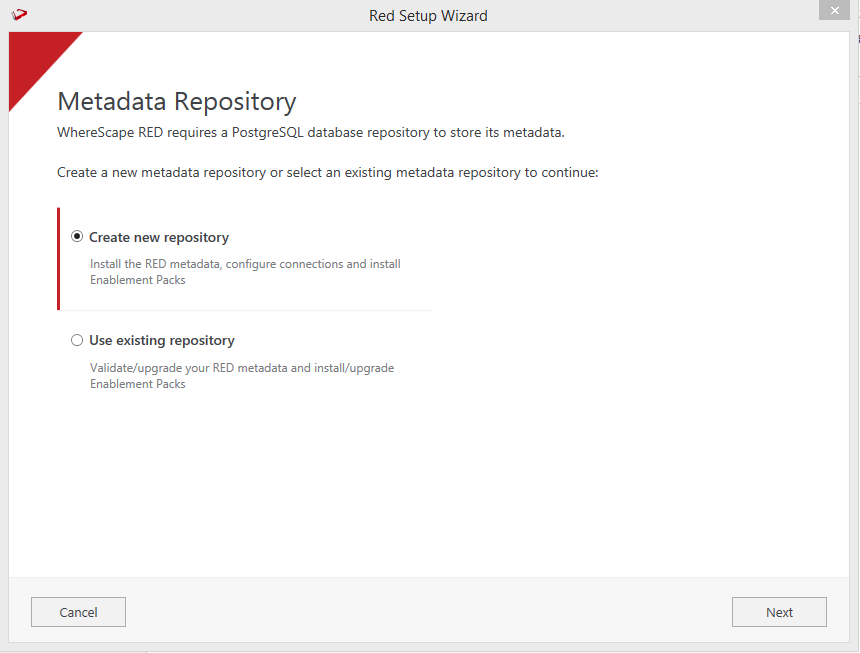
Create new repository or upgrade already existing repository.
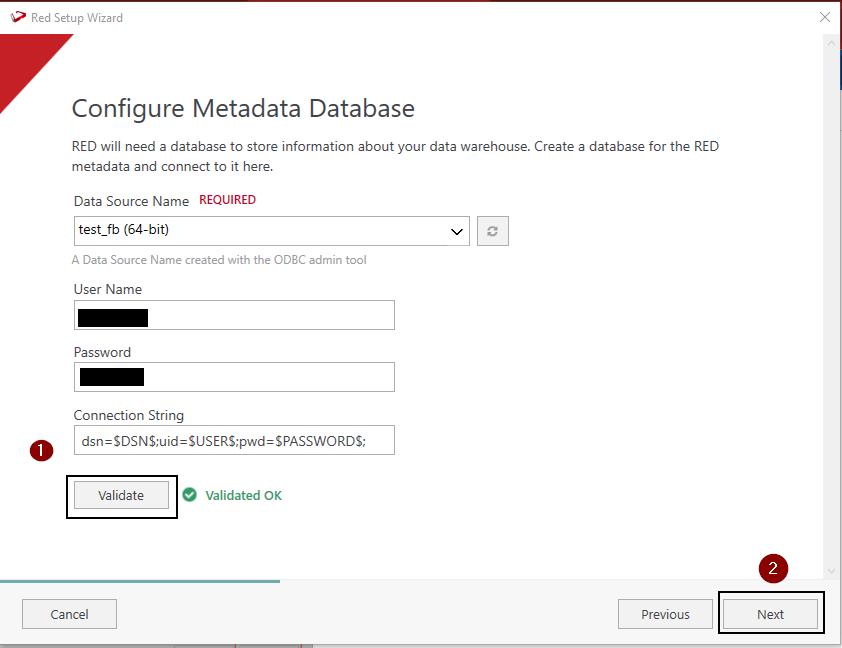
Select the created ODBC DSN, input login details with connection string and then select "Validate". Press Next
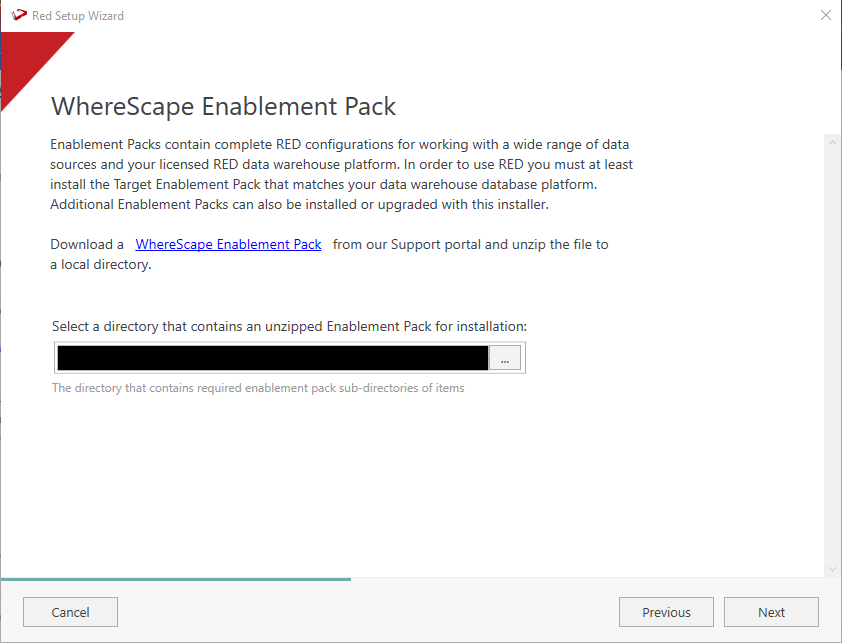
Select the directory that contains unzipped Enablement Pack for installation. Press Next
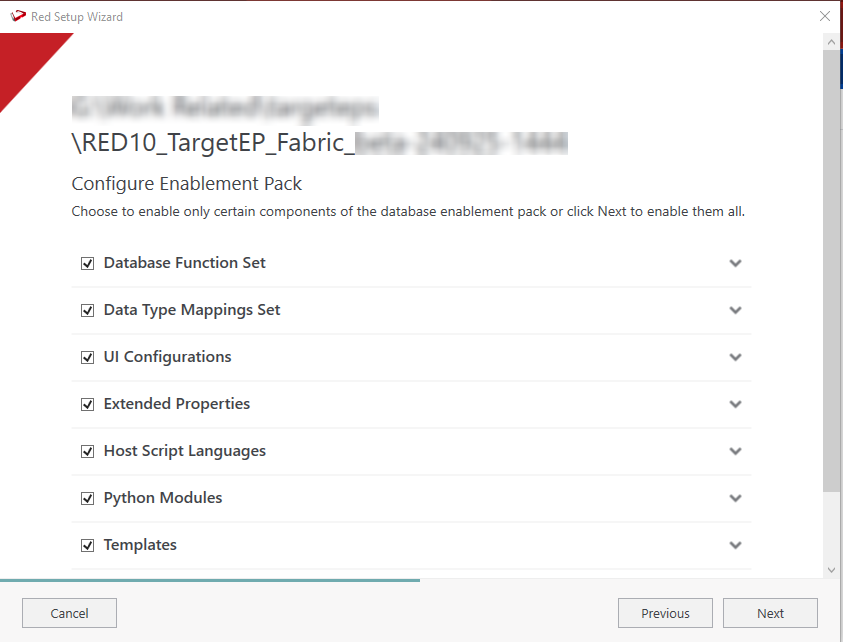
Using the check boxed list, include or exclude the components that are to be installed. Press Next
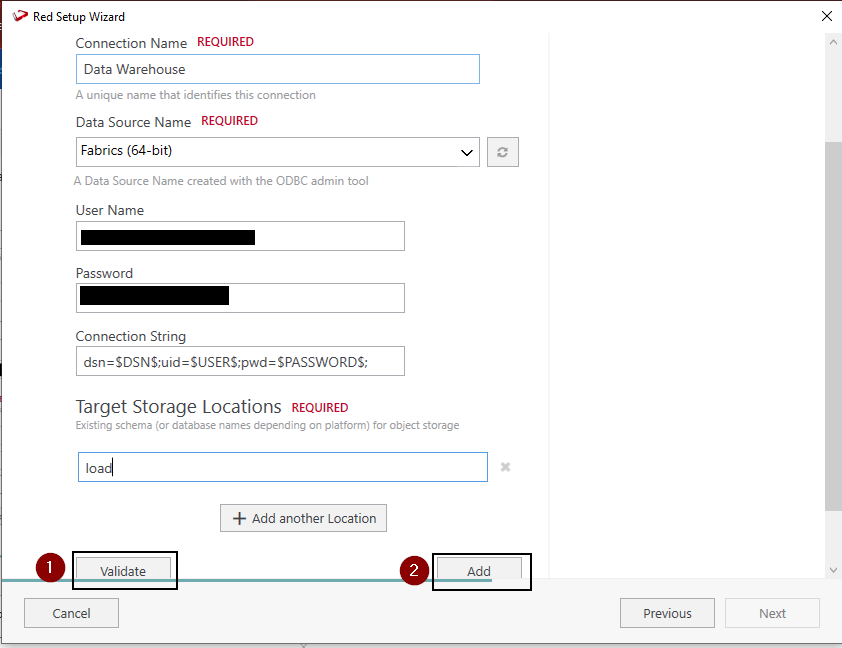
Configure a target connection (example, Data Warehouse) and its target locations.Validate and press ADD.
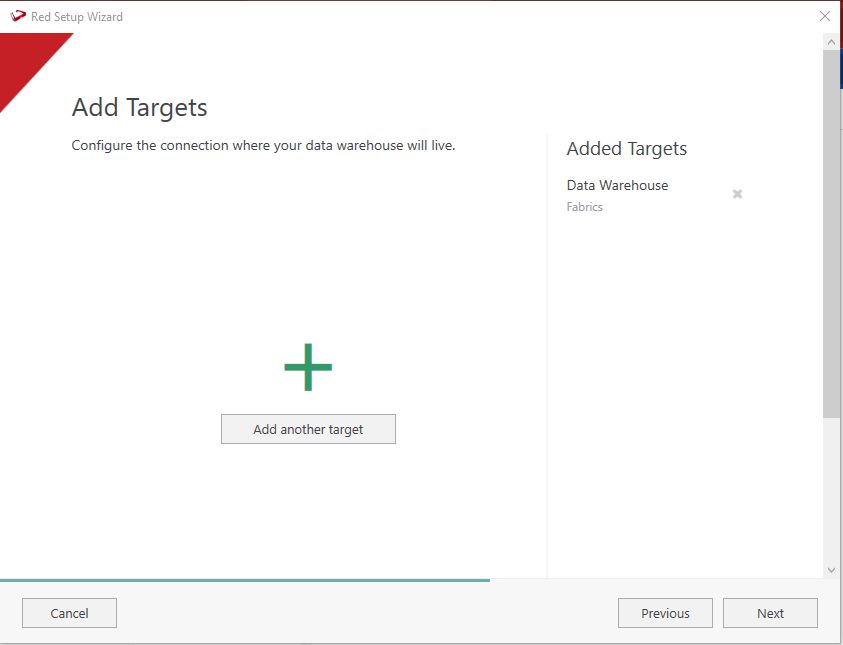
When done, press ADD and then Press Next to advance.
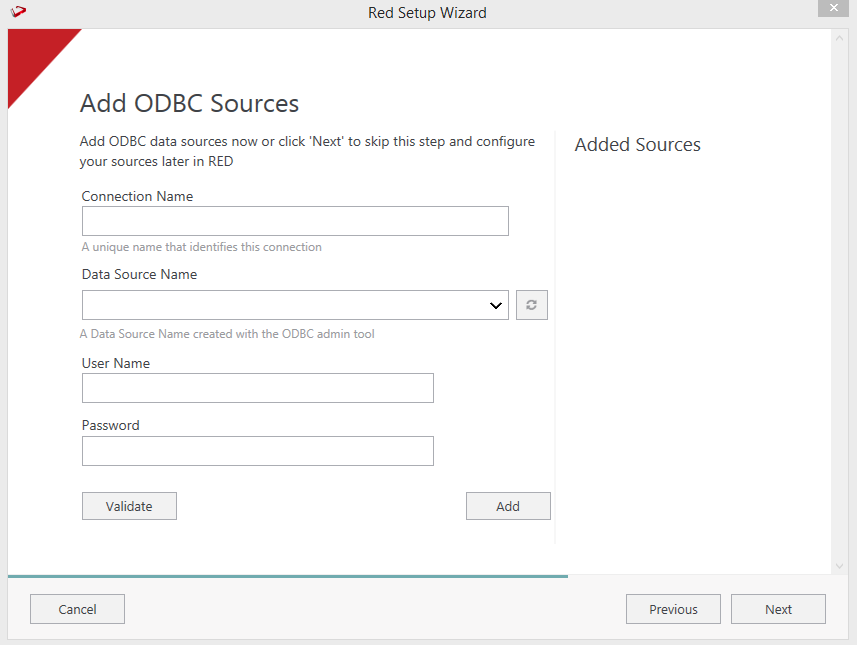
Configure a data source connection (optional) and its target locations. Validate and press ADD. Press Next to advance.
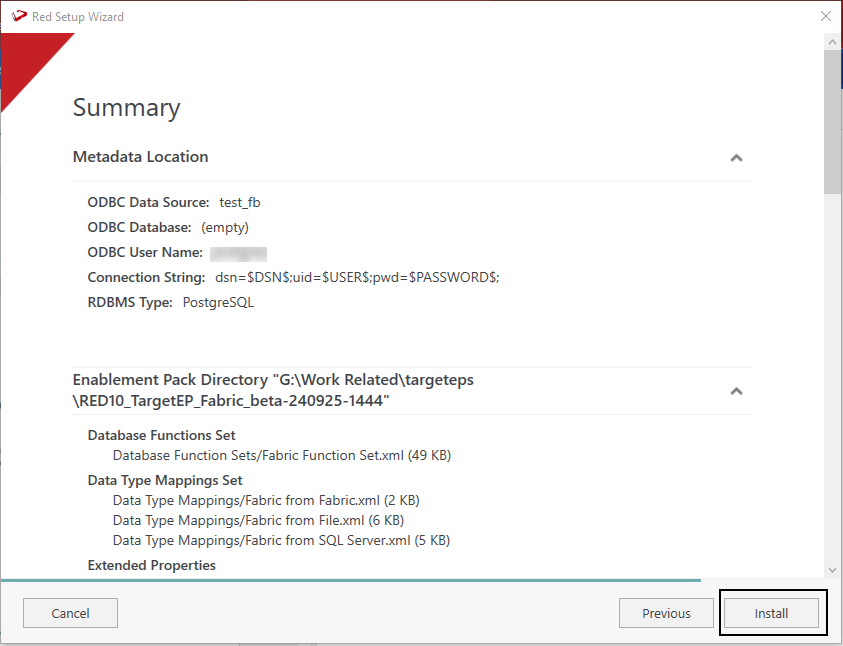
Review the installation summary and press Install
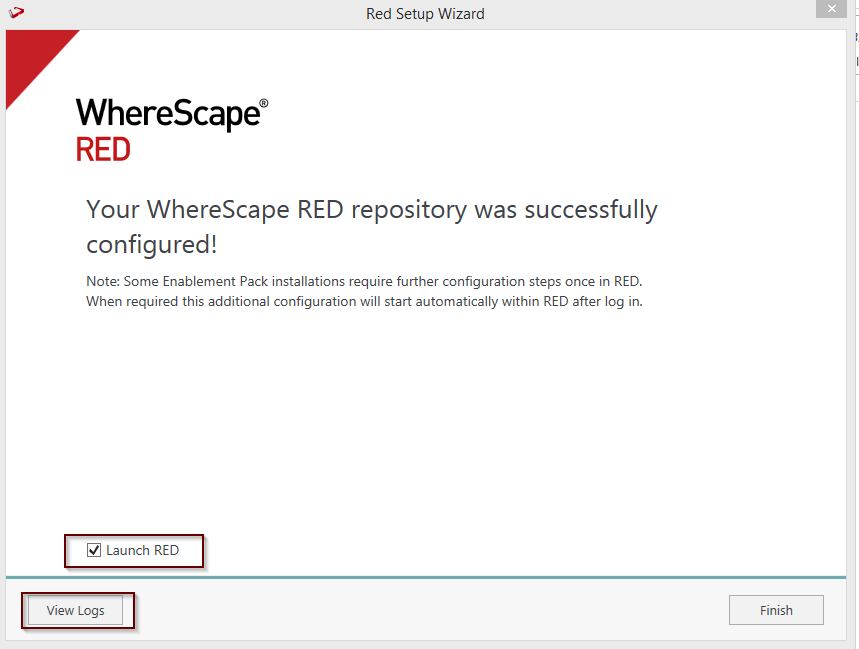
Clicking on the View Logs will take to the installation log. Click on Finish once the installation is completed successfully.
Login to WhereScape RED.
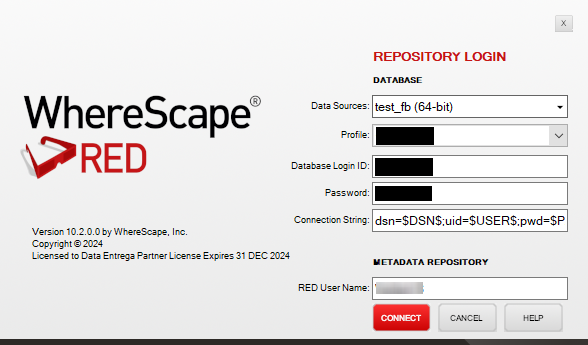
| There is a post-install script that will run at the first login to RED10 to complete the post setup wizard installation process. |
You will be directed to below PowerShell window which will give brief explanation about post installation process.
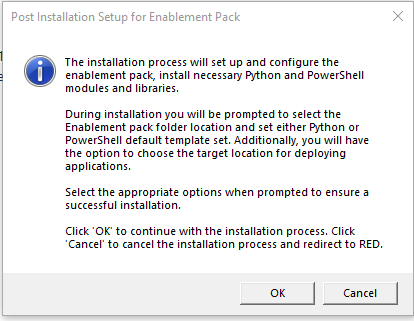
Press OK to start the post installation. If pressed Cancel installation will stop and user will be directed to RED.
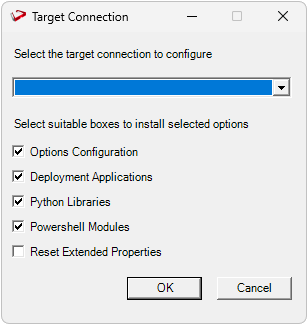
The user will be directed to the window below, where they have to select the target connection to be configured. Additionally, by deselecting the provided options, the user can choose not to install a particular option.
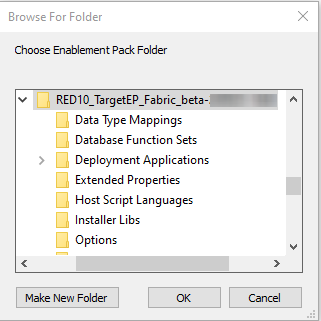
You will be directed to below PowerShell window. Provide the directory that contains unzipped Enablement Pack.
Press OK
The user will be directed to the window below, where they have to select the Create new profile or use existing one option.
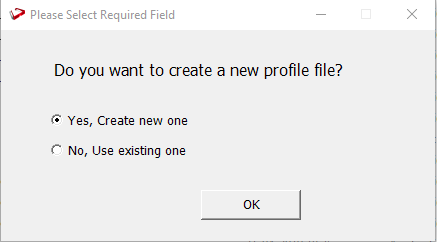
| For fresh installation RED will create profile file with same name as DSN, which the user can use or choose to create new profile file. |
Press Ok.
For "Yes, Create new one" option , user will be directed to the window below.
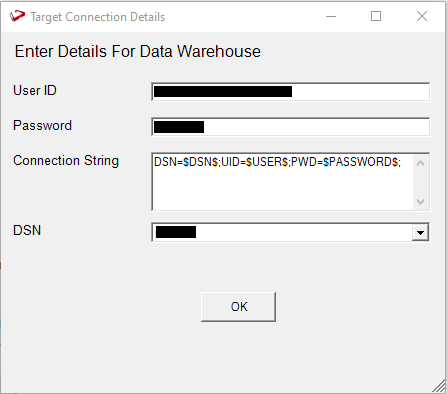
| User can use default connection string or input new one. |
Press OK
The user will be directed to the window below, where user can add profile name.
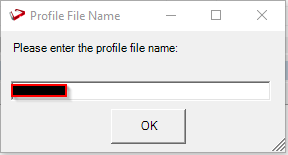
Press Ok.
The below pop up will come to confirm the user that profile is created at that location.
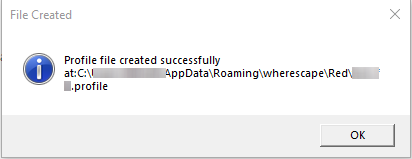
Press OK.
If the user choose "No, Use existing one" option.
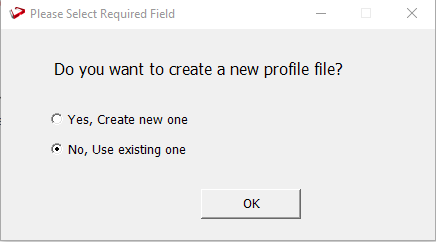
Press OK
The user will be directed to the window below ,where user can select the exiting profile file.
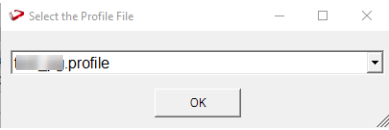
Press OK.
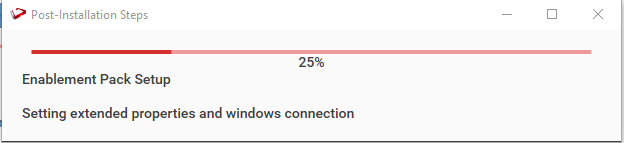
The progress bar will show the post installation progress.
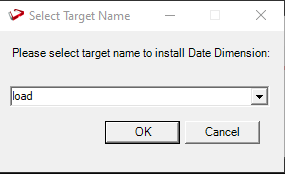
User will have to choose the schema for the target setting that were provided. One pop up will come for setting default target schema for Date Dimension.
After selecting the target schema progress bar will show the progress for the installation and once it's completed, you will get the below pop up.
After pressing OK RED10 will open automatically.
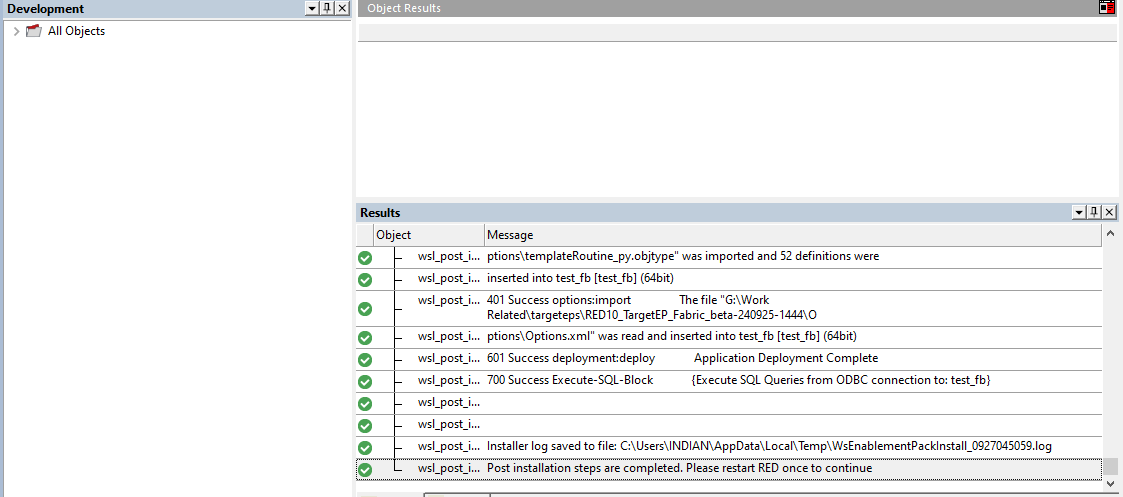
User will need to refresh the All Objects tree once.
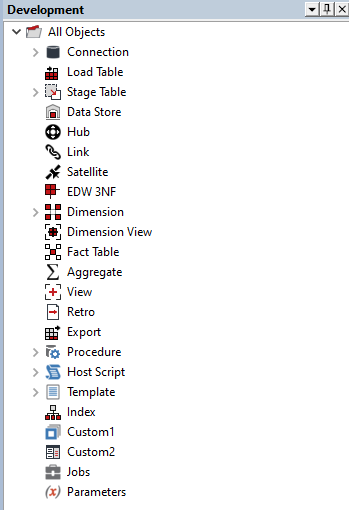
For upgrade of existing repository
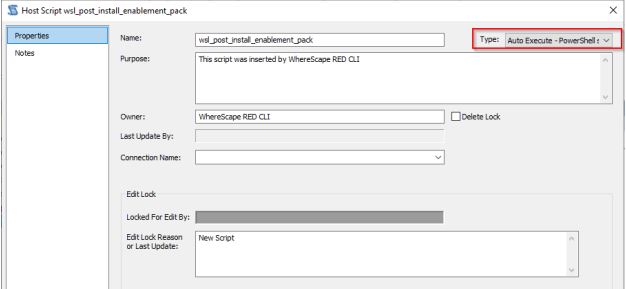
The EP contains 2 load templates:
Fabric Data Factory Guide using load_df template:
In Fabric Data Factory, currently only OneLake sources are supported. When creating a connection to browse files, the Lakehouse name must be specified in the source connection. After browsing the connection and selecting a file, dragging the table will automatically populate the source properties.
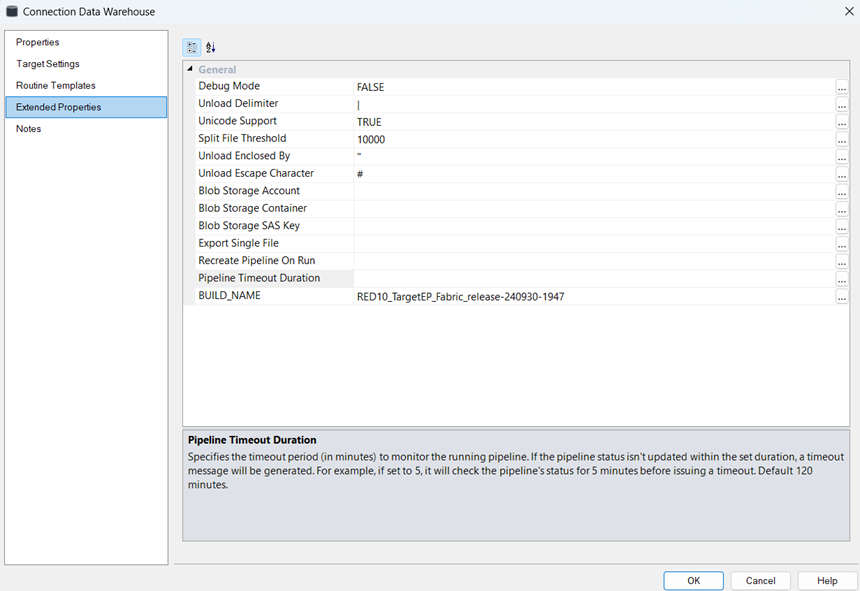
Two additional extended properties are specifically available for pipelines: “Recreate Pipeline on run” and “Pipeline Timeout Duration.”
Setting “Recreate Pipeline on run” to “True” ensures that a new pipeline is created each time the job is executed, with any existing pipeline with same name being deleted beforehand. If set to “False,” the existing pipeline remains intact, and only the execution is performed. However, if a pipeline fails due to a data type issue or any other property-related problem, the pipeline must be deleted and recreated, as the pipeline's JSON code cannot be modified when the “Recreate Pipeline on run” property is set to “False”. The default to this property is set to “True” in the script.
Whenever the Pipeline is created and data is loaded to the table, changing the Extended property to “False” will keep that existing pipeline as it is and act as a starting point for other operations which can be done.
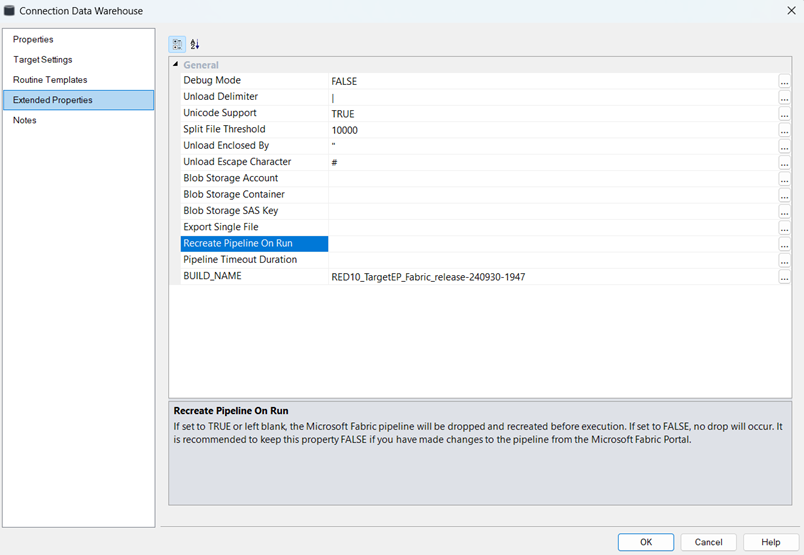
The second property, “Pipeline Timeout Duration,” is responsible for monitoring the pipeline once it is executed. By default, the timeout is set to 120 minutes in script. If the execution exceeds this duration, the pipeline will continue running in the background, but RED will notify the user that the pipeline is still in progress. At this point, the user can monitor the pipeline through the Fabric portal.
It’s important to note that even if the timeout is set to 120 minutes, if the job completes in a shorter time—such as within a minute or two—RED will mark the job as successful and display the result in the result pane accordingly
There can be issues with data types when loading data through Fabric Data Factory.In such cases, the Fabric pipeline will display an error, suggesting using varchar(8000) for the affected column (e.g., “”). The user should update the column’s data type to match the recommendation from Data Factory.After making the changes, the table should be recreated, the script regenerated,and the pipeline executed again with the extended property “Recreate Pipeline on run” set to “True” or left blank.
