The diagram toolbar is shown below:
Icon | Description |
|---|---|
| The Save as (Ctrl+S) button enables you to save the diagram in a separate location as PDF, PNG or SVG. |
| The Print (Ctrl+P) button enables you to print the diagram. |
| Click to Undo (Ctrl+Z) task. |
| Click to Redo (Ctrl+Y) task. |
| The Cut (Ctrl+X) button enables you to select a table and remove it from the diagram. |
| The Copy (Ctrl+C) button enables you to select a table and copy it. |
| The Paste (Ctrl+V) button enables you to paste a copied table into a desired location. |
| The Hand button enables panning. |
| The Select button enables you to select one table and to move that table within the diagram. |
| The Zoom in button enables you to zoom in on the diagram. |
| The Zoom out button enables you to zoom out on the diagram. |
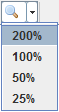
| The Zoom button enables you to select the zoom level: |
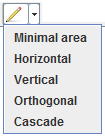
| The Layout button enables you to select an automatic layout: |
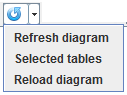
| The Refresh button enables you to refresh the entire diagram, or simply the selected tables. This refreshes all the data, table names, columns etc; but it does not move the tables around in the diagram. The option to reload the diagram removes the tables and reloads the diagram. |
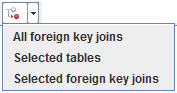
| The Route foreign key joins button redraws either all the foreign key joins, the selected joins; or the foreign key joins for the selected tables. |
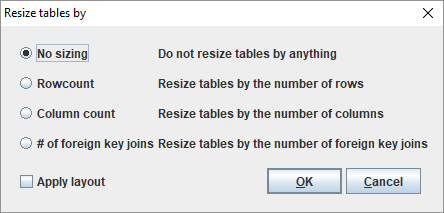
| The Display table by button enables you to choose how you wish to resize the tables. |
| The Manage hidden tables button enables you to select or de-select the tables to be hidden. Refer to Hiding and Displaying a Table for details. |
 | The Rename multiple tables button enables you to rename multiple tables. Refer to Renaming Tables for details. |
| The Derive foreign key joins button opens up the Derive Foreign Key Joins Wizard. |
| The Assign table types button opens up the Table Type Wizard. |
| The Derive primary keys button opens the Primary Key Wizard. |
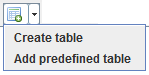
| The Create table button enables you to create a table or to add a predefined table. |
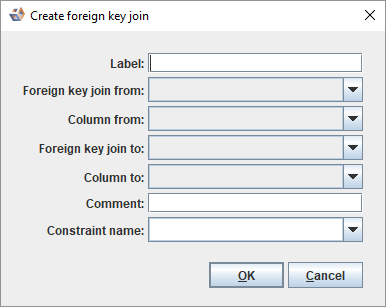
| The Create foreign key join button enables you to create a foreign key join: |
| The Add source mappings button enables you add source mappings by selecting model(s) that are the source of the current model in the diagram. |
| The Remap source mapping button enables you to remove the source mappings or to change the source mappings; for a source system this will remap source mappings pointing to it; for a model this will remap source mappings existing for the model. Refer to Remapping source mappings for details. |
| The Source mapping creation button is a toggle button for creating source mappings when you drag and drop tables and columns. |
| The Table/column creation button is a toggle button for copying tables when you drag and drop the table into the diagram area or when you drag and drop a column into a table in the diagram. |