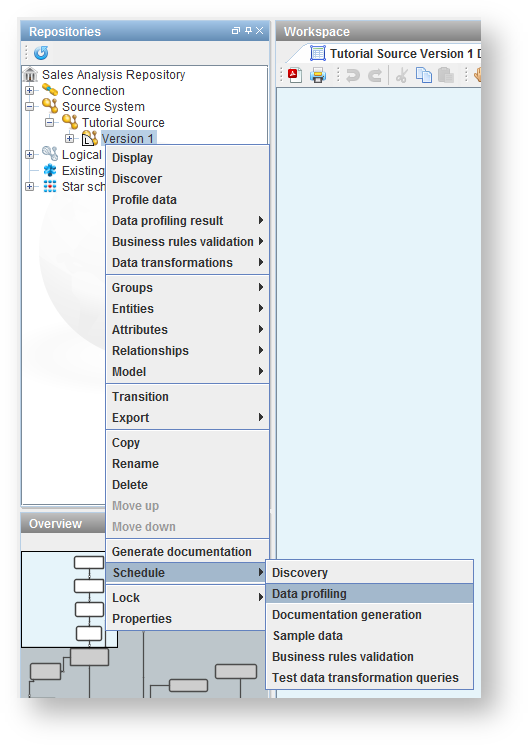
To schedule Profiling on a Source System,
- Right-click on a Source System and choose Schedule, then Data profiling.
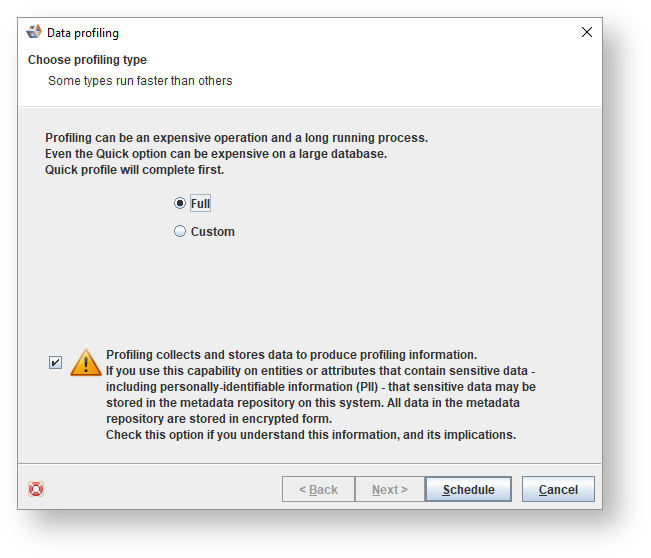
- Select the Full radio button, the warning acceptance checkbox and click Schedule.
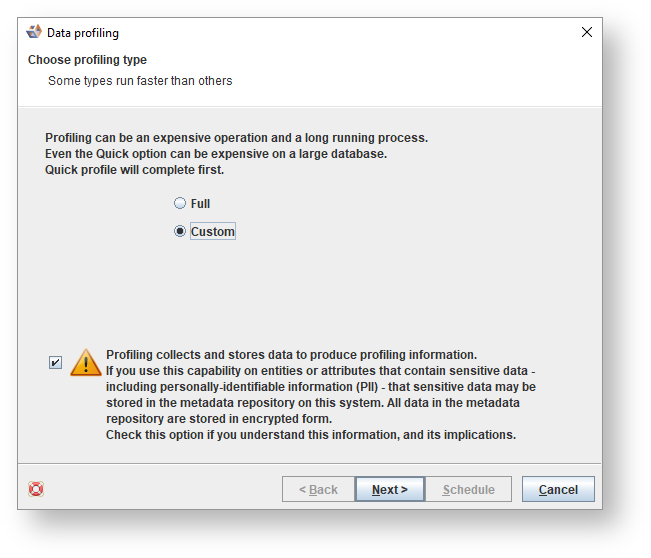
Else select the Custom checkbox, , the warning acceptance checkbox and click Next.
Select the relevant profiling options and click Schedule.

- WhereScape 3D generates the Scheduling command to be run.
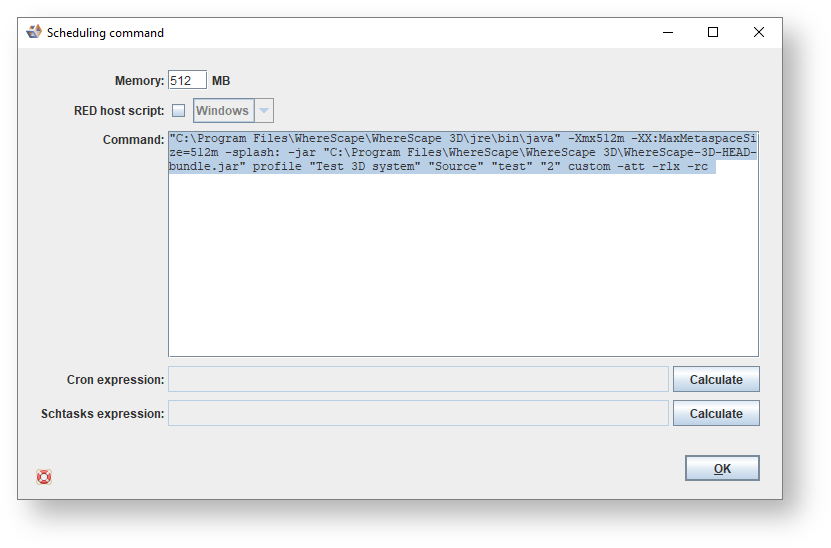
- Selecting the RED host script checkbox defines the Command as a RED host script and the drop-down list enables you to choose between a RED Windows Host Script or a RED Linux Host Script.

Using Copy and Paste, you can create a host script in RED, which can then be run via the RED Scheduler. Refer to the WhereScape RED User Guide for more details. - Use Cron expression when you are running the command on a Unix box. Click the Calculate button and select the relevant options to select the cron interval, then click OK.
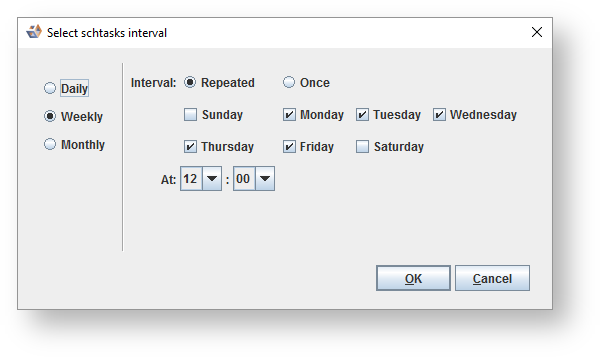
The cron expression is displayed in the dialog.
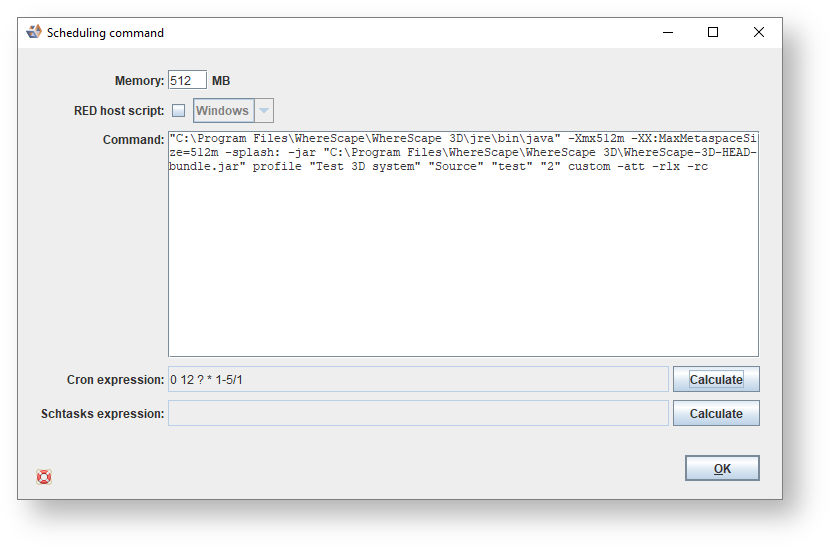
Click OK to close. - Use Schtasks expression when you are running the command in Windows. Click the Calculate button and select the relevant options to select the schtasks interval, then click OK.
The schtasks expression is displayed in the dialog.

Click OK to close.
You will need to close 3D when you run from the command line. |
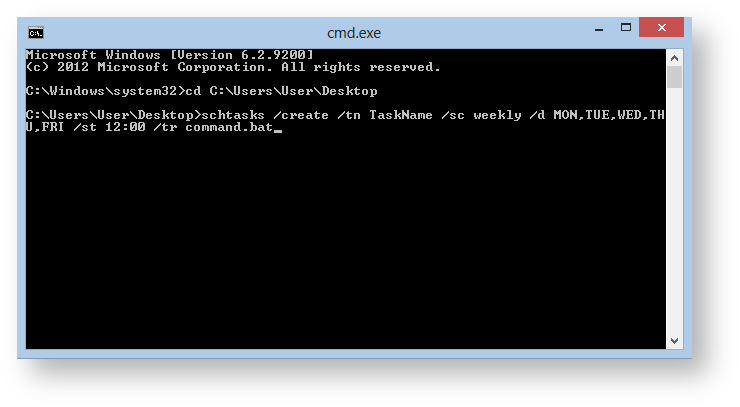
For example:
The scheduling command can be copied into Notepad and saved as command.bat.

The Schtasks expression can then be used to run command.bat from the command line.