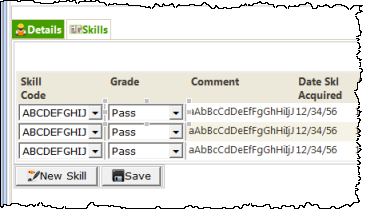
- Select the Skills tab.
- Select the Employee Skills Grid.
- On the Details tab, select the grid_col_properties value and use the Ellipsis button to display the Design of… Properties dialog.
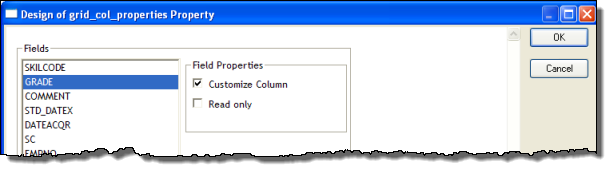
- Select the GRADE field and select the Customize Column checkbox. Click OK to close the dialog.
- On the Weblet Templates tab, select Standard Weblets in the dropdown and drag and drop a combo box weblet into the GRADE column. Increase the width of the combo box so that grade description can be displayed.
- Leave the name property as @id This is correct for identifying a field in a Grid weblet (different to a list).
- Note that the value property is . (a dot). This is correct and means value from current row/column.
- Select the items property value and click the Ellipsis button to open the Design of… dialog.
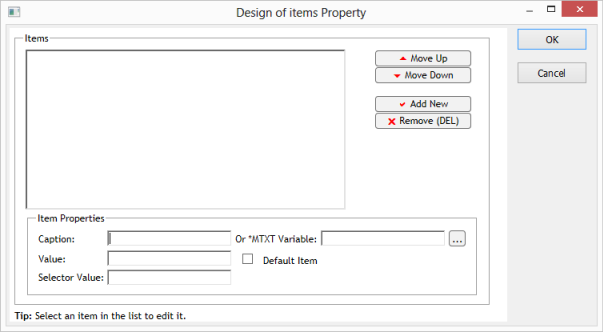
- In the Item Properties group box, set up a list of Captions and Values based on the following table:
Caption
Value
Pass
PDistinction
DMerit
MFail
F - Click Add New to add each entry to the list.
- Click the OK button to save the changes.
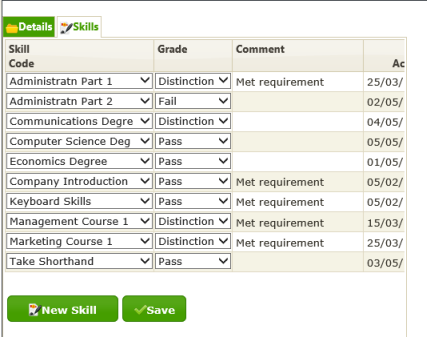
Your design should look like the following: