1. Create a new WAM:
Name: iiiTestLayout
Description: Test layout iii_layout
Layout weblet: iii_layout
2. Add the following RDMLX code after the Begin_com and compile the WAM.
Copy this code from the WAM Tutorial chm file.
Define Field(#empnow) Reffld(#empno)Def_List Name(#empskills) Fields(#SKILCODE #GRADE #COMMENT #DATEACQ #GRADEDES) Type(*Working)Web_Map For(*both) Fields((#stdrentry *hidden))Webroutine Name(begin) Desc('Employee Details and Skills')Web_Map For(*both) Fields((#EMPNO *out) #SURNAME #GIVENAME #ADDRESS1 #ADDRESS2 #ADDRESS3 #POSTCODE #PHONEHME #PHONEBUS #DEPTMENT #SECTION #SALARY #STARTDTE #TERMDATE #empskills (#empnow *hidden))Case (#stdrentry)When (= U)#empno := #empnowUpdate Fields(*all) In_File(pslmst) With_Key(#empno)OtherwiseSelect Fields(*all) From_File(pslmst)LeaveEndselect#empnow := #empnoClr_List Named(#empskills)Select Fields(#empskills) From_File(pslskl) With_Key(#empno)Add_Entry To_List(#empskills)EndselectEndcaseEndroutine
3. Open the begin WebRoutine in the Design view.
a. Add a column to the employee fields table.
b. Drop a push button into the top of the new column
c. Remove the place holder characters.
d. Select the push button and set up its properties as:
Property |
Value |
Caption |
Save |
On_click_wrname |
Begin |
submitExtraFields |
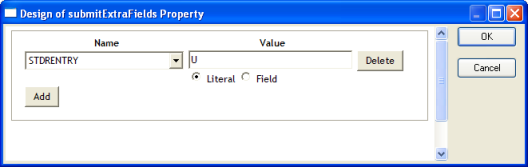
Field Name: STDRENTRY |
|
Literal Value: U |
e. Complete the submitExtraFields property using the Ellipsis button:
f. Save your changes.
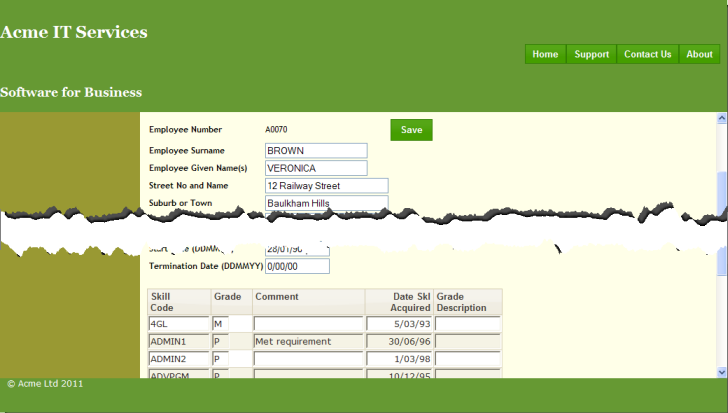
g. Execute the WAM in the browser. Your web page should look like the following:
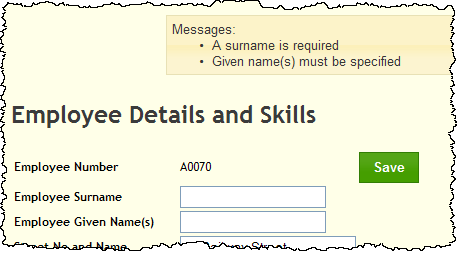
4. Clear the surname and given name fields and click the Save button. Validation errors should be displayed in the messages weblet at the top of the content area, as shown:
5. Try out the menu bar. Notice that the menu items appearance changes for hover and selection. This is controlled by the theme style sheet defined by the external resource XWT08L101.