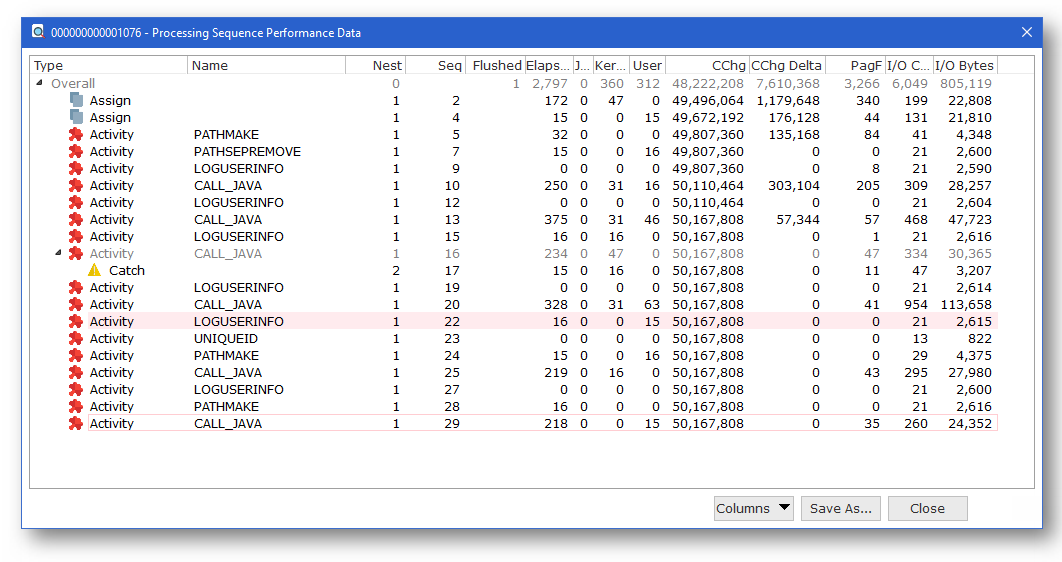
You can display the processing sequence performance data from the Processing Sequence Log window in the LANSA Composer client application. (Refer to Display the Processing Sequence Log from LANSA Composer.)
When the Processing Sequence Log window is displayed for a completed processing sequence run, you can display the collected performance data using the Show performance data option from the View menu.
| Note: You cannot display performance data until the processing sequence run has completed. This is because the performance data is cached and flushed to the database only when absolutely necessary during the processing sequence execution. The performance data will not be complete until the run has completed. |
If performance data collection was not enabled at the time of the processing sequence run, then only the line labelled Overall will be shown (this information is collected for every run and is not subject to the system setting). Note in this case, the JSM elapsed time is not measured and will always be zero.
Otherwise, the Processing Sequence Performance Data window shows a line for each processing sequence item that was executed during the run – each line shows the values of the performance metrics that were collected at that point in the run.
For an overview of the performance data items shown or available, refer to the following topic:
While reviewing the performance data shown, the Processing Sequence Performance Data window allows you to:
You can resize the performance data columns shown by clicking and dragging the edges of the column headings. You can re-arrange the order that the columns are shown by clicking on a column header and dragging it left or right to a new position.
In addition you can choose from a number of data items to show (not all available data items are shown by default). To change which columns are shown you can either:
LANSA Composer shows a popup menu of the available columns. You can select items in the menu to display or hide columns as desired.
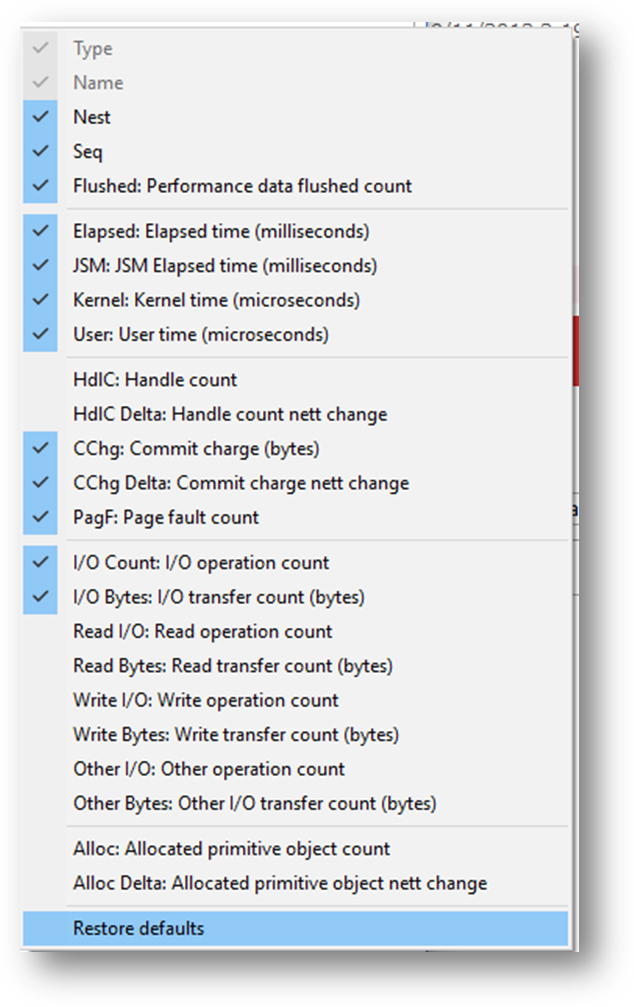
To revert to the default columns configuration, select the Restore default command from the popup menu.
In the Processing Sequence Performance Data window you can click the Save As button to save the data in a CSV (comma-separated values) file on your computer.
Once you saved the data in the CSV file, you can use the software application of your choice (for example, Microsoft Excel) to load and further analyse the data.