Property | Value |
|---|---|
Caption |
|
left_relative_image |
|
on_click_wrname |
|
submitExtraFields |
|
|
- Select the tab pages weblet. Move the cursor right and press enter. This should create a blank space above the tab pages weblet.
- Drag and drop a Messages weblet into the space immediately above the Tab Pages weblet. Your design should now look like the following:
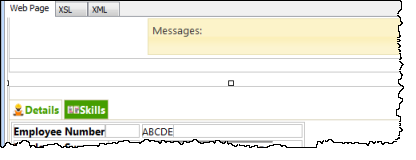
Save your changes.
● The employee skills list EMPSKLS is mapped for both. The list should be read to process updates to the employee skills file PSLSKL.
● The SKILCODE in EMPSKLS is mapped for *output. In order to update the employee skill record, this key value will need to be saved in a hidden field in the list.
● When the list is read (SELECTLIST) the key value SKILCODE will be set from the hidden field.
● The list contains a hidden field - DATEACQR. This will be used to recognize list entries for existing records. This will be important when you extend the logic to handle insert of a new employee skill.
- Define a work field SC based on field SKILCODE
- Add field SC to list EMPSKLS as a hidden field. Your code should look like the following:
Define Field(#sc) Reffld(#skilcode)
Def_List Name(#empskls) Fields((#SKILCODE *out) #GRADE #COMMENT #DATEACQ (#dateacqr *hidden) (#empno *hidden) (#sc *hidden)
) Type(*Working) Entrys(*max) - Change the existing logic which builds the employee skills list, to populate the hidden field SC. Your code should look like the following. The new code is shown in red.
Select Fields(#empskls) From_File(pslskl) With_Key(#empno)#sc := #skilcode
Add_Entry To_List(#empskls)Endselect - Add new logic to update employee skills based on the following:
- When = S
- Read list EMPSKLS using SELECTLIST/ENDSELECT
- Change SKILCODE to SC
- If DATEACQR is not *zeroes
Update fields in list EMPSKLS in file PSLSKL with key EMPNO and SKILCODE. Go to next line on validation error. - End if
- End select
- If status is OK, issue message, employee 'Skills for nnnn were changed', end if, where nnnn is employee number.
Your code should look like the following:When (= S)Selectlist Named(#empskls)#skilcode := #scIf (#dateacqr *NE *zeroes)Update Fields(#empskls) In_File(pslskl) With_Key(#empno #skilcode) Val_Error(*next)EndifUpd_Entry In_List(#empskls)EndselectIf_Status Is(*okay)Message Msgtxt('Skills for ' + #empno + ' were changed')EndifEndcase
Compile your WAM.
Open the Details WebRoutine in the Design view.
On the Skills tab, select the grid and move to the right using the cursor keys and press enter. This will position the cursor immediately below the grid.
Use the context menu, Insert HTML, Table to insert a table with one row and two columns.
Click in each cell of the new table and change the align property to left.
Drag and drop a Push Button with Image into the right hand cell and set it up as follows:
Property | Value |
|---|---|
caption |
|
left_relative_image |
|
on_click_wrname |
|
submitExtraFields |
|
|