Current version: MT 3.1 build 250714_2101
The RED Migration Tooling allows you to migrate metadata repositories from WhereScape RED 8.6 and 9.0 to WhereScape RED 10.4+. The following sections provide information on how to install and use the RED Migration Tooling.

The RED Migration Tooling requires a 'Custom Target' enabled license. This is because the tooling will use the Custom Target database type for loading into the destination PostgreSQL RED metadata database. For customers on a traditional SQL Server, Oracle or Teradata target your license may need to be temporarily upgraded to support the migration by adding a Custom Target.
| License Fields | Values | Migration Requirements |
|---|---|---|
| Licensed Metadata Database Type(s) | SQL Server, Oracle, Teradata | One or more of SQL Server, Oracle or Teradata |
| Licensed Target Database Type(s) | SQL Server, Oracle, Teradata, Custom | 'Custom' at a minimum |
| Licensed Custom Target Database Type | Any | Any Custom Target Type* |
Licensed Custom Target Database Type is the label in your license given to your Custom Target, this will be used for PostgreSQL targets during migration. This is just a display label for the underlying Custom target type, the important differentiator is that it is not one of the in-built target types SQL Server, Oracle or Teradata and can therefore be used for any other template enabled target platform. |
Source Metadata:
Data Warehouse:
To support legacy script output protocols from RED8/9, the execute script function in both PowerShell and Python templates will need updating if there is not a compatible EP version yet. This is explained in the post migration section. |
Destination Metadata:
Data Warehouse:
Migration Tooling Metadata:
Tooling:
The RED Migration Tooling is provided as an Enablement Pack which is installed, using the RED Setup Wizard, to a dedicated PostgreSQL database. Once installed you will have a RED metadata repository + the Migration Tooling Enablement Pack which provides a set of scripts and jobs to transfer RED Metadata from a Source of SQL, Oracle or Teradata to a Destination of PostgreSQL and then reconfigure the Destination to suit RED 10 and the Azkaban Scheduler.
The RED Migration Tooling will try to retain wherever possible the existing Scripts and Procedures as is rather than regenerating them in RED 10.
All Objects associated to Script based or Procedure based processing in the Source Metadata Repository will not be regenerated or recompiled in the Destination Metadata, instead it is assumed that the RED 10 Target Enablement Pack will provide a suitable Action Processing Script template that generates appropriate code to deal with the legacy script output protocols and parameters in procedures.
In RED 10 all Scheduling Actions for an Object are performed through an Action Processing Script which is built for and associated to each table, the RED Migration Tooling will generate this script for each object that requires one, or assign a generic script where appropriate, this generation process can take minutes to hours depending on the size of the metadata repository, machine resources and database performance.
Not all object types from earlier versions of RED are available in RED 10 so it is important to understand what will and won't be migrated, refer to the following table for more details:
| Object Type(s) | Migrated | Post Migration Notes |
|---|---|---|
| Connections |  | All connections are migrated, MSAS connections should be manually removed after migration. |
| MSAS, Cubes, Cube Dims, Tabular Cubes |  | Analysis Services Object Types are not migrated since RED 10 does not support them yet. |
| Aggregate Dimension Join Table Aggregate Fact Join Table Aggregate Join Table Fact Rollup Fact Work Table Permanent Stage Model View Fact View | | These legacy object sub-types are migrated but assigned an new Custom Object Type in RED 10 of the same name. Objects of these types should be checked carefully in the Destination metadata. |
| All Other Object Types | | All other object types not mentioned in the rows above are migrated as is. |
| Object Versions | | Previous object versions are not migrated. There are a few reasons for this:
|
| WhereScape Callable Procedures* | | Since the inbuilt WhereScape Callable Routines are compiled on either SQL Server, Oracle or Teradata they can not be migrated* |
| Non-Script-Based Loads | | Non-Script-based loads such as: ODBC, DB Link, SSIS and some File Load types are migrated however these load type will require a load script to be generated and therefore these types will need thorough testing post migrations. Any Load which was already script-based should function as is provided the appropriate table level Action Processing Script has been generated. |
| Non-Script-Based Exports | | Non-Script-Based Exports will require an Export script to be generated and therefore these types will need thorough testing post migrations. Any Export which was already script-based should function as is, provided the appropriate Export level Action Processing Script has been generated. |
| Parameters |  | Parameters are migrated however if you were on traditional RED8/9 SQL, Oracle or Teradata targets you should check that your RED 10 EP has a solution to synchronize parameters between old and new repositories. Additionally you will need to review Stand-alone Scripts and procedures that used parameters. |
Any Procedures/Blocks or Scripts which called these callable routines before will continue to work but the outcomes will be applied to the original Source Metadata Repository and depending on the procedure being called will have no effect. Only the WhereScape Parameter Functions will still be of use as is post migration. Most use cases, outside of Parameter read/writes, will involve a customized script or procedure, these should be reviewed to find the RED 10 equivalent and adjusted after migration. Including any Jobs they were part of. Note: Target Enablement Packs will handle legacy procedures that include the WhereScape Parameter read/write functions by synchronizing the dss_parameter table in the Target with the same table in the PostgreSQL metadata repository. In this way most procedures will continue to function as is after migration. |
You should set these up during the initial run of the RED Setup Wizard as outlined in the next section. Listed here for clarity only. |
| Connection Name | Type | Database Type | Target Storage Location | Notes |
|---|---|---|---|---|
| Target | Target | "Any Custom Type" | red | Refers to your Destination RED metadata database on PostgreSQL |
| Reports | Target | "Any Custom Type" | red | Refers to your Migration Tooling metadata database on PostgreSQL |
| Source | Source | SQL Server, Oracle or Teradata | n/a | Refers to your Source Metadata that will be migrated by the tooling |
Check that you have met the prerequisites to begin, here is a quick checklist:
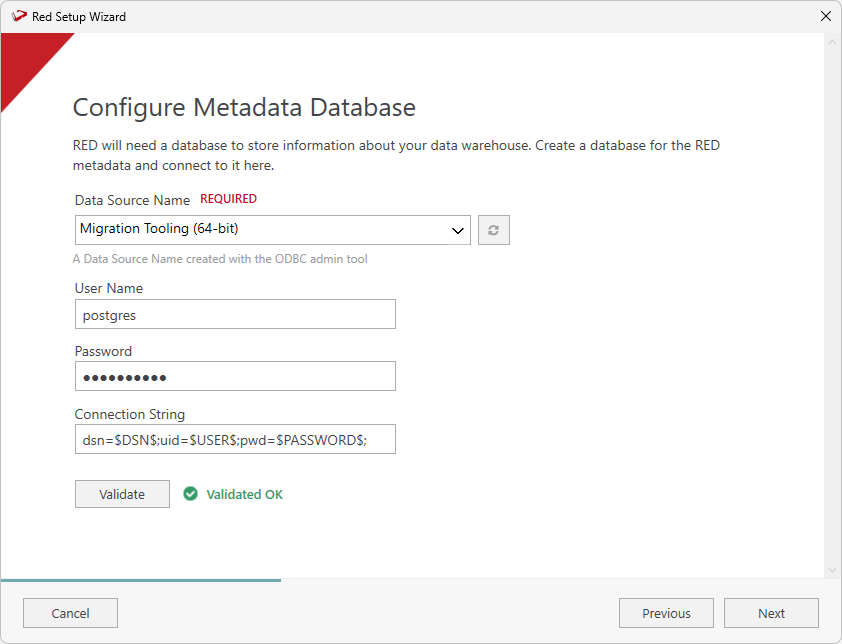
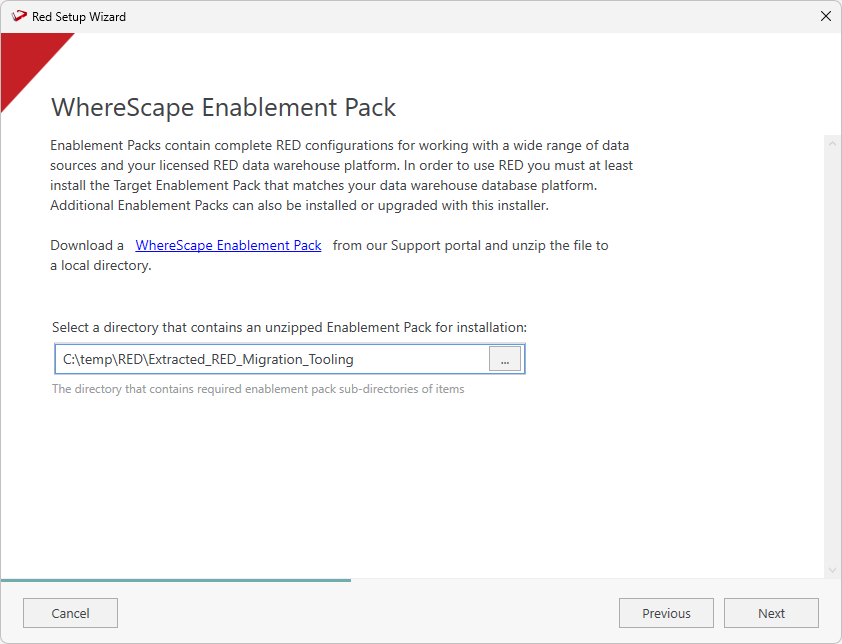
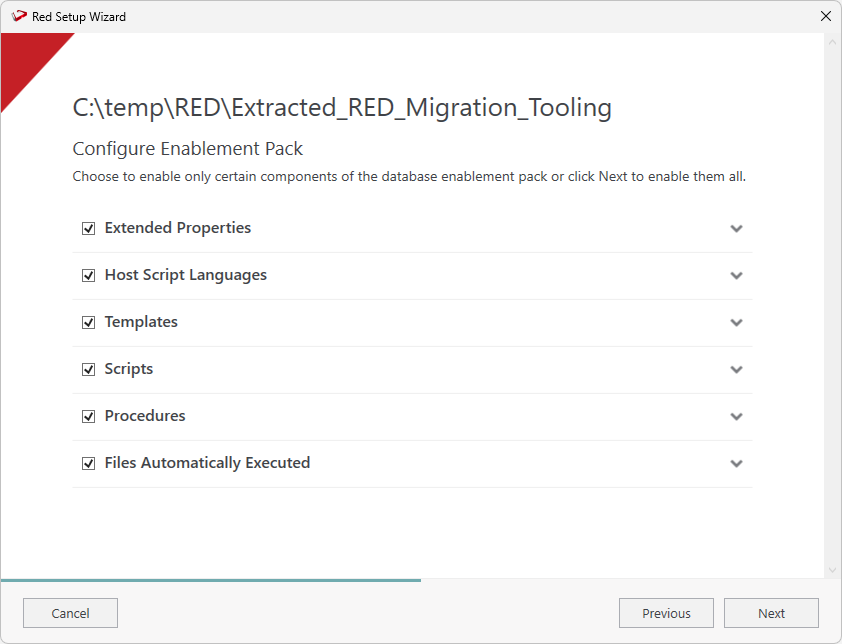
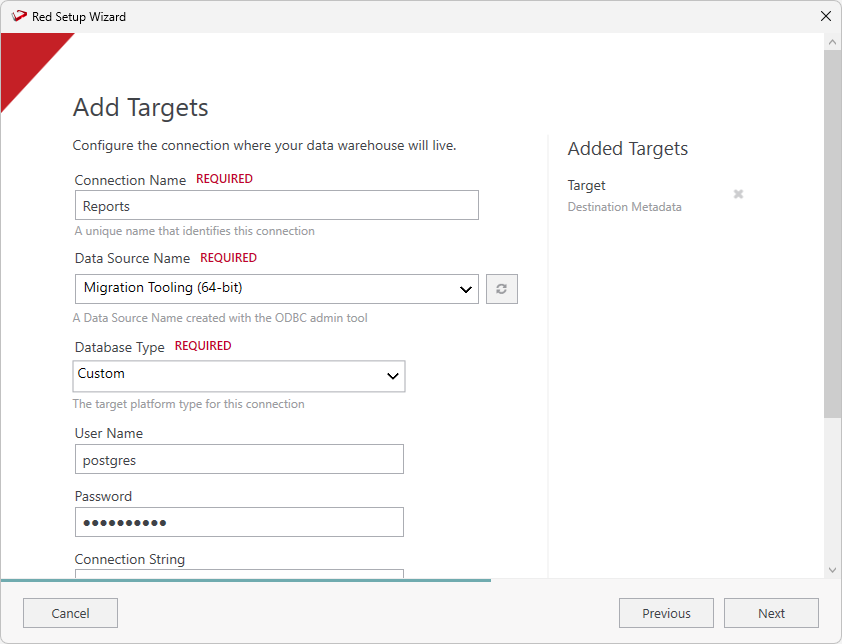
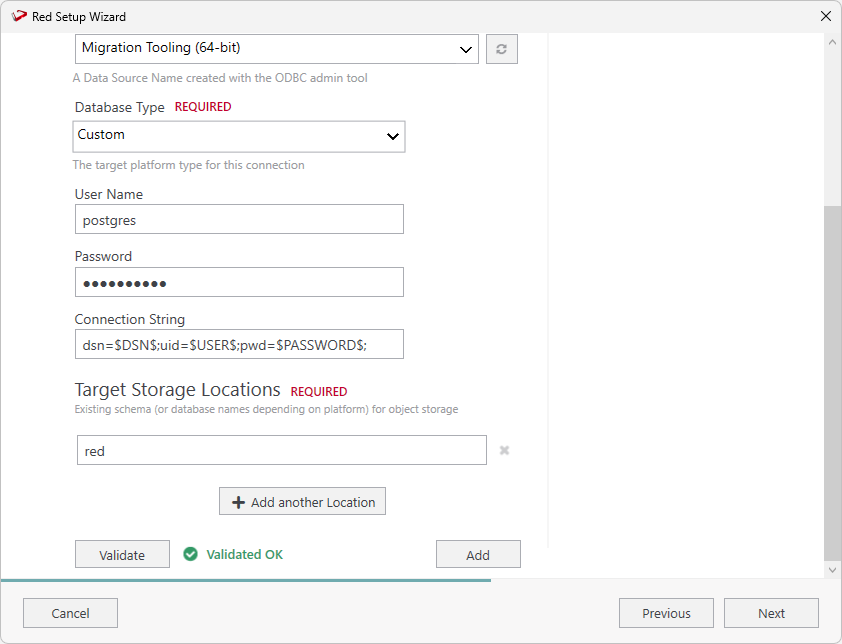
You must create two PostgreSQL connections with the following characteristics:
| Connection Name | Database Type | Target Storage Location | Notes |
|---|---|---|---|
| Target | Custom* | red | Refers to your Destination RED metadata database on PostgreSQL |
| Reports | Custom* | red | Refers to your Migration Tooling metadata database on PostgreSQL |
* Custom will be your licensed Custom Database Target type which might have a different label in the UI than 'Custom', basically for these two connections we can't use the inbuilt SQL, Oracle or Teradata target types. |
The connection named 'Target' will be your PostgreSQL connection to your database to house the migrated RED metadata repository.
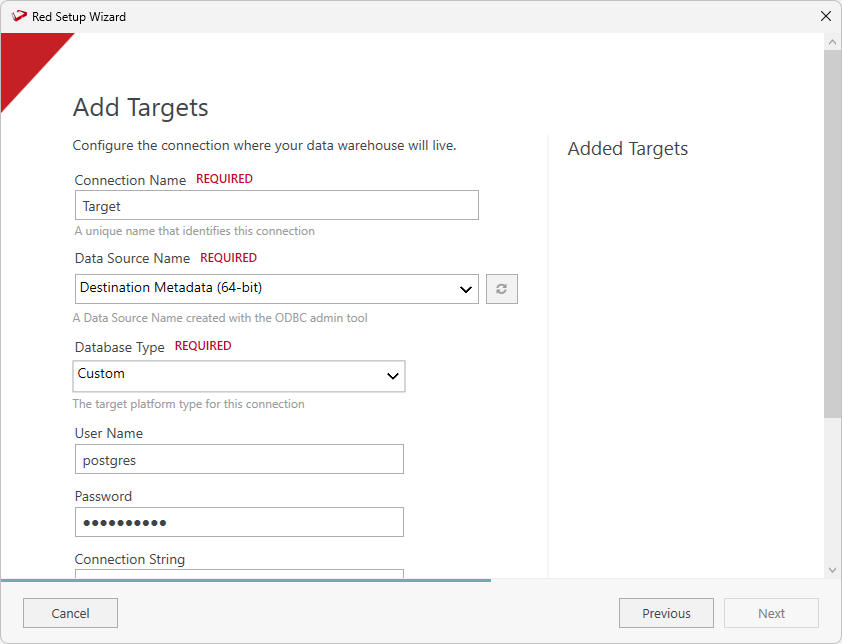
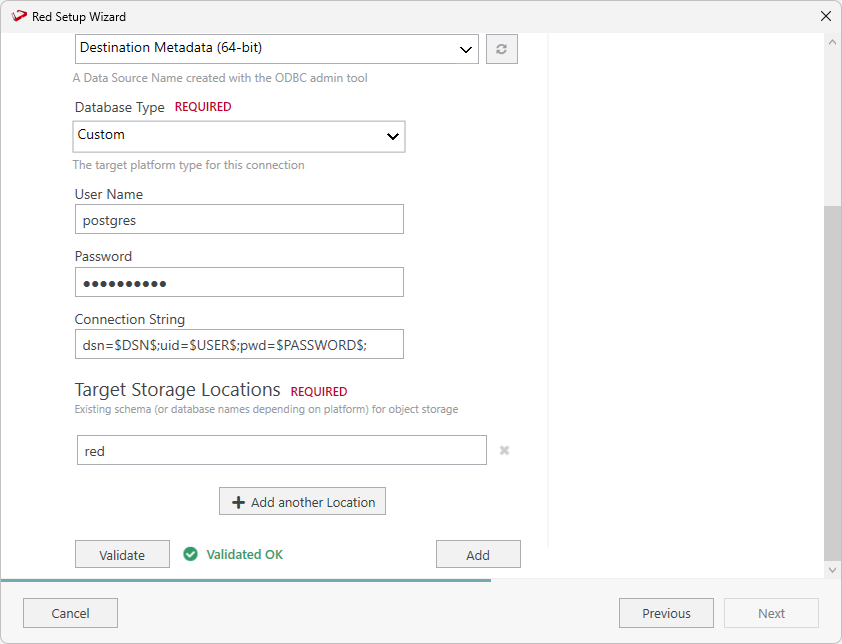
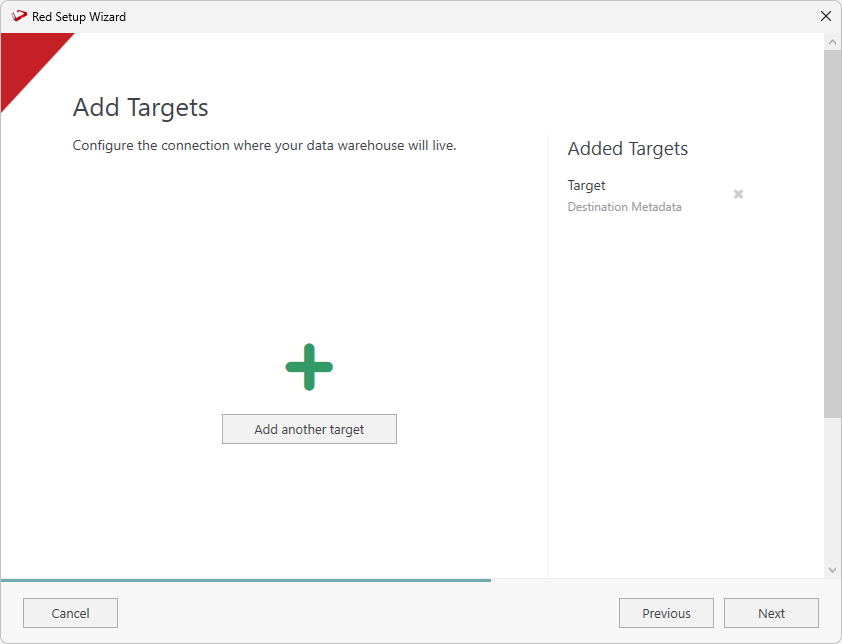
The connection named 'Reports' will be your PostgreSQL connection to your Migration Tooling metadata repository, which allows us to add targets to the tooling metadata database for reporting.
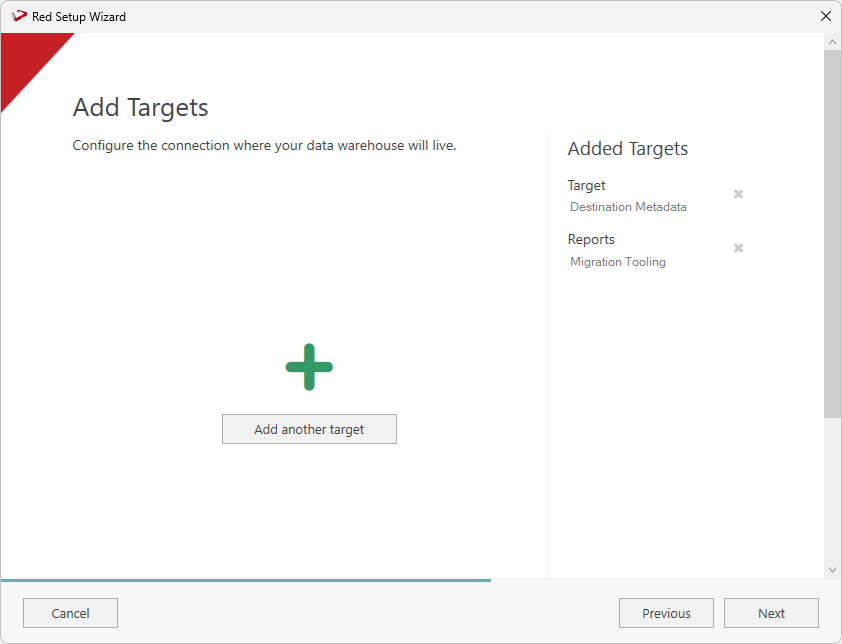
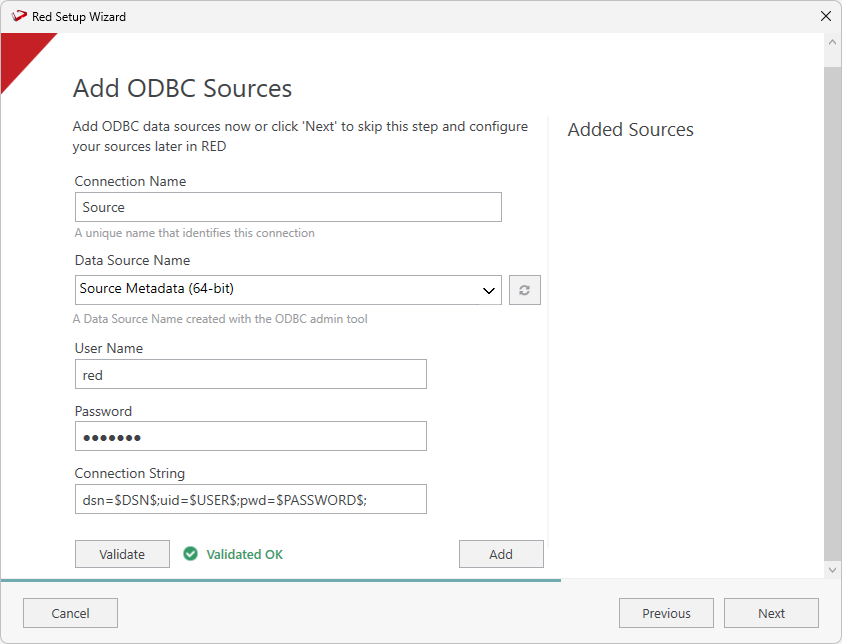
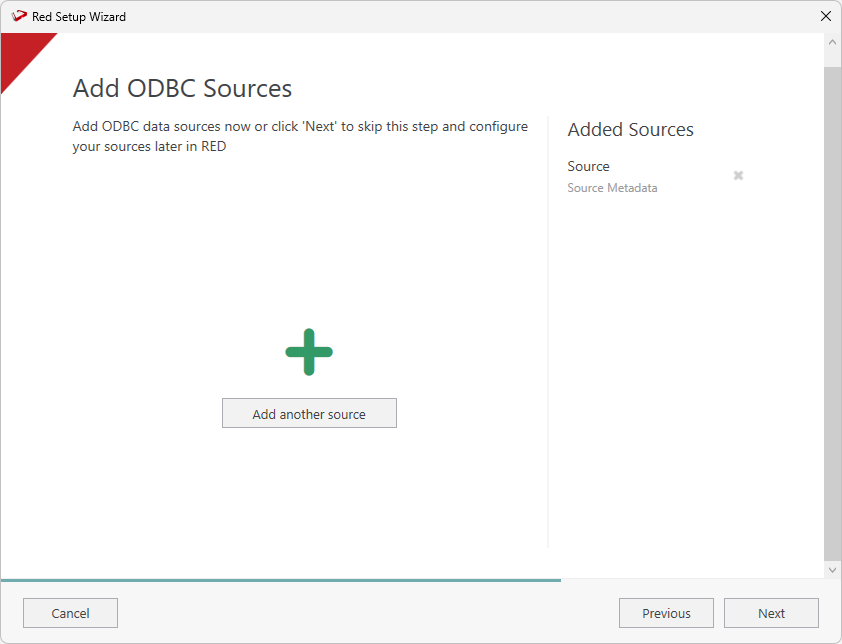
On the Summary screen review your configurations are correct, you can click Previous to make changes or click Install to continue.
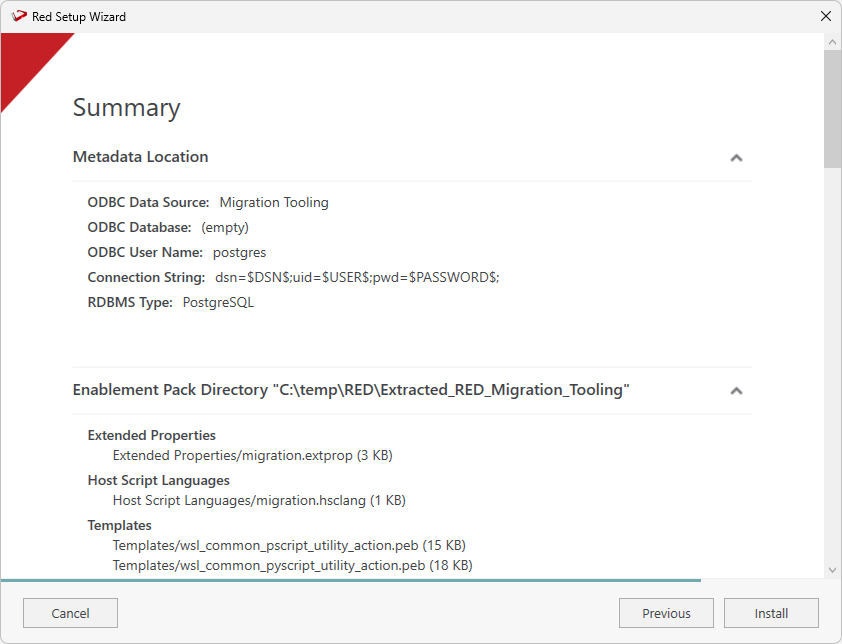
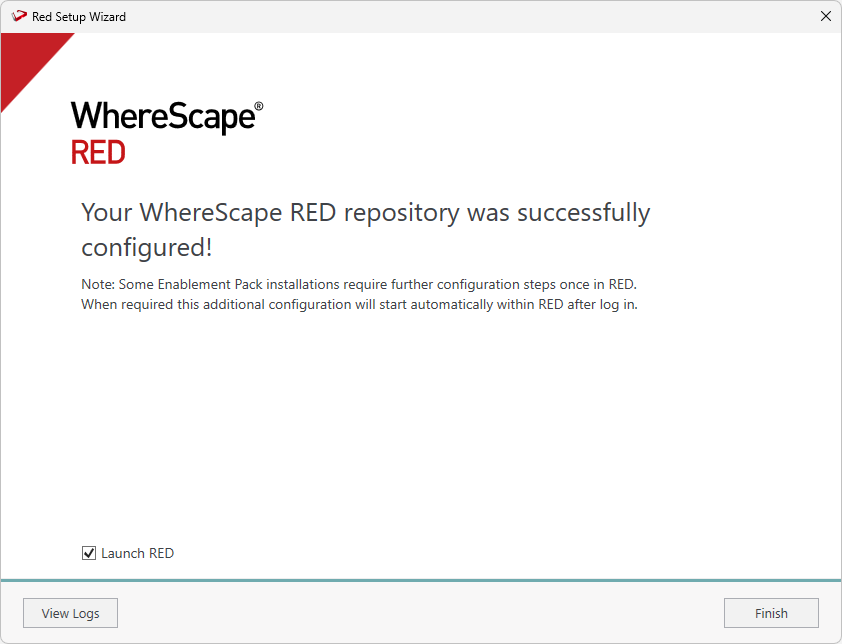
Once the installation finishes, click Finish to close the installer and launch RED.
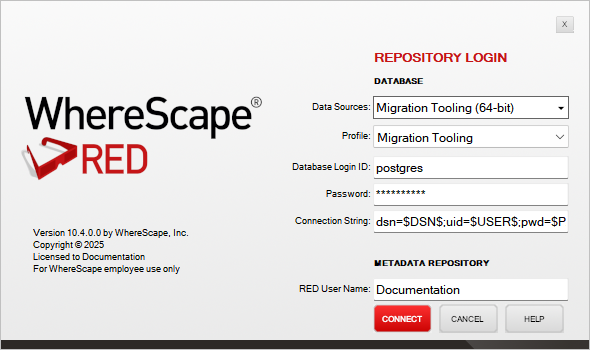
Review your login settings and click Connect.
RED Setup Wizard runs with elevated privileges, therefore when RED is launched from the final page it is also starts with the same elevation. If you you start the RED Migration Tooling manually then please run med.exe as Admin as one of the scripts in the Migration Tooling relies on this elevation. |
When WhereScape RED starts for the first time, after the installation steps described in the previous section, the script that prepares the Migration Tooling executes automatically.
The Migration Preparation Script will prompt for two items:
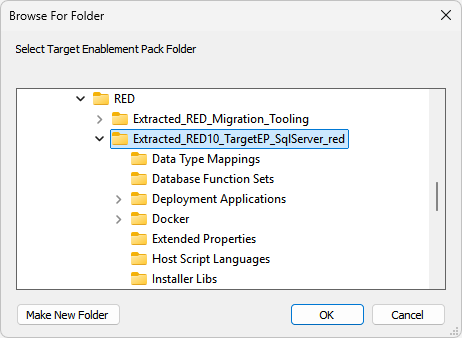
If you get failures in the Reports pane after opening WhereScape RED, then one or more of the preparation steps in the host script named '1_prepare_migration' did not succeed. For troubleshooting view the section which details each of the scripts: 1_prepare_migration Take note of the failure message and see if you can correct the issue, then rerun the script. On subsequent script runs you may get additional failures due to the earlier run having already applied a change but in general rerunning this script will not cause issues and some failures when re-run may be dismissed |
For each connection Target, Source and Reports:
These parameters are added by the start-up script, you should not need to change anything here but it's useful to know that these parameters drive many of the scripts executed during the migration process:
We'll need a Windows Scheduler installed to perform the migration tasks. Follow the Windows Scheduler Installation instructions to install a WhereScape RED Scheduler for the RED Migration Tooling metadata.
When asked for a Scheduler Metadata database use the RED Migration Tooling metadata database. When asked for a RED Metadata database also use the RED Migration Tooling metadata database. Remember your Profile Encryption Secret for later entry into the Scheduler Profile Maintenance wizard in the RED UI. If you install the Migration Tooling Scheduler with a separate service user then you may need to run the script 'wsl_mt_initialize_scheduler_user' to accept the EULA for that user. Find this script under the Host Scripts in RED and run it via the Scheduler to accept the EULA for the Scheduler user. |
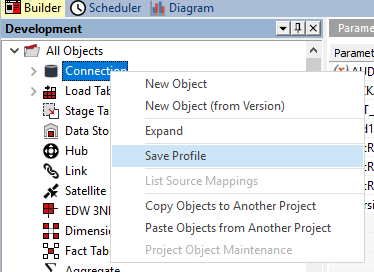
After installing the Scheduler ensure to enter your scheduler credentials into the Configuration page of the Scheduler tab in RED, then Save your Profile again to ensure your credentials are preserved between RED sessions.
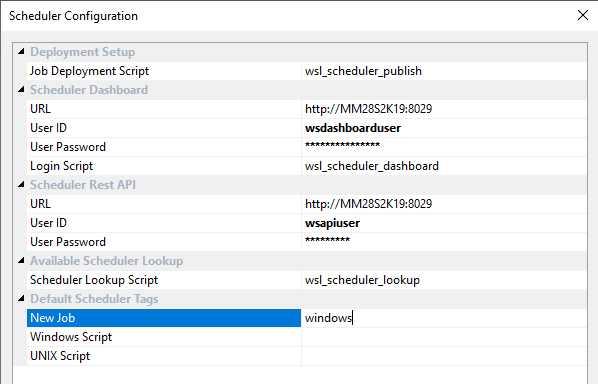
Before running any jobs, you must first setup the Scheduler Profile which adds the encrypted connection credentials rows for the connections in RED. This makes those credentials available to scheduled jobs. To do this run the script 'wsl_scheduler_profile_maintenance' found under 'Host Scripts' in the object tree in RED.
Use the same Profile Encryption Secret which you entered during the Scheduler installation. |

Run the migration Jobs one at a time. Before running a job check if it requires other jobs to be run first.
The following sections describe the jobs and any requirements they may have
1_Source_Reports
This job is optional and can be run at any time. It runs a set of queries against the source repository providing various object counts in the source. You can view the results by clicking Display Data on the View object in the UI as shown below. There is a corresponding Validation Report which compares the same report run against the destination repository, this can be populated by running the corresponding load table, after completing the migration:

2_Migrate_Current_Objects
This job has to be run for migrating to RED10. Depending on repository size and performance this job would typically finish within 10 to 30minutes. If there are any failures in Job 2, you should view the failure reason and restart the job at the point of failure from the Azkaban Scheduler Dashboard directly, by rerunning the failed execution.
Job: '2_Migrate_Current_Objects' is intended for SQL and Teradata source repositories. Job: '2_Migrate_Current_Objects_Oracle' is intended for Oracle source repositories only. Ensure you only run one of these jobs, depending on your source metadata repository type. |
3_Prepare_Target_Repository
Job 2 should be completed successfully before continuing with Job 3. If there are any failures in Job 3, you can complete the job manually from the RED UI by running the scripts in the order outlined in the Migration Scripts Explained section.
After Job 3 has completed, or you have run the scripts manually, please log in to the migrated Destination repository and allow the RED 10 Target Enablement Pack post install process to complete. This is also a good point to check the connections and save a RED Profile for your migrated Destination metadata repository.
Before continuing to Job 4 please log in to the Destination Repository to allow the Target Enablement Pack to complete it's configuration. |
4_Set_Storage_Templates
Job 4 applies the default templates which were set up by the RED 10 Target Enablement Pack, this is why it is important to have completed that install process by logging in to the Destination. This steep can be re-run if it was completed too early, or the individual scripts can be run from the Migration Tooling RED UI.
5_Generate_Windows_Action_Scripts
This job generates Windows Action Scripts for all objects. It runs a single script that can also be run from the RED UI, see the script details for the scripts prefixed with 'c' in the following section. Running this script is optional.
6_Generate_Linux_Action_Scripts
This job generates Linux Action Scripts for all objects. It runs a single script that can also be run from the RED UI, see the script details for the scripts prefixed with 'c' in the following section. Running this script is optional.
7_Generate_Load_Scripts
Generates Load routines for Load objects without an associated script. It can also be run from the RED UI, before running this job see the script details for the scripts prefixed with 'c'.
To repeat the migration process a second time you do not need to reinstall the Migration Tooling, you can simply follow these steps:
If you are also upgrading the tooling please follow the upgrade process in the release notes pertaining to your version.
Since the tooling spans many supported version of RED the Load tables in the tooling may not have newer metadata columns for some tables, therefore the only supported way to recreate the load tables of the tooling is to follow the steps above, so that the metadata creation process creates the correct metadata tables for your target RED version. |
These are the Migration Tooling Scripts, each script can be run from the RED UI or via the indicated Scheduled Job. If you choose to run these scripts manually, please follow the order carefully as listed here.

All the scripts, except for 1 and 2, can be rerun at anytime if required to address failures or if the job 2_Migrate_Current_Objects has been completely rerun.
If you have not set up the required connections, the Results pane will display a failure message similar to the image shown below. Please expand the Connections node in the left tree and add or amend connections as required before rerunning the script.

| If you do add or adjust connections at this point, then ensure you 'Save your Connection Profile' and restart RED so that the in-memory profile of connections credentials is up to date and then re-run this script manually to ensure that RED Applications containing the RED Objects and Jobs for the Migration Tooling are deployed correctly. |
The following 'b' scripts are all included in job 3_Prepare_Target_Repository
Caution: if the path to the EP is a network path then the user running the scheduler service may not have access to it, this can fail the job. To resolve this you can run this script manually from RED or copy the EP to a local directory the Scheduler service can access, adjust the parameter 'red10EPLocation' to match, then restart the job from the failed step in the Azkaban Dashboard by rerunning the failed execution.RED 10 requires each object which is processed via the Scheduler to have an Action Processing Script, for large migrated repositories generating an individual script for every object can take a very long time and can increase the metadata footprint substantially. Where possible it is more efficient to use a generic action script for most objects if they have simple scheduling requirements, this script determines those candidate objects and assigns a generic script where possible.

 Note: The sample generic action processing scripts provided in the Migration Tooling are not target specific and may need to be tweaked to work in some environments. After migration these scripts should be tested and adjusted as required. In some cases the Target EP may provide a target specific generic action processing script which you can deploy instead.
The sample action processing scripts will support the legacy script output protocol if a given Extended Property 'LEGACY_SCRIPT_SUPPORT' is set on the Target Connection or Table, or a Parameter of the same name is set. Both of these settings are set to TRUE as a part of the migration process. Note the 'Review Action Script Templates' section on manually updating earlier RED 10 templates to enable this feature. |

Before continuing to Job 4, or manually running the following 'c' scripts, please log in to the Destination Repository to allow the Target Enablement Pack to complete it's configuration. |
 If you find you were missing some default templates on one of your Destination repository Target connections, you can rerun this script to have them applied to the associated objects.
Depending on your Destination Repository's Scheduling platforms you can run either or both of these scripts. It is best to only run it for the platform you require first since this process can take a long time, you can always come back and run these scripts again at a later date.

It is important to go through your source connections and make sure they have suitable load script templates assigned prior to running this script. If you have SSIS or DBLink loads these will require specific templates set.Similar to the c2 and c3 scripts, this script runs RedCli commands in batches and progress can be viewed in the cmd window or scheduler audit trail. Some failures can be expected for the first few runs until all the configurations have been resolved.
You should follow the Scheduler Installation section of the RED User Guide to install a scheduler for your Destination Repository. Since the scheduler in RED 10 is java based the memory requirements will be greater than that of the RED8/9 scheduler. There are a few important things to consider when building out the scheduler infrastructure and some experiment and tuning will be required to get the optimum throughput for your workloads.
Some earlier versions of enablement packs, particularly Snowflake PowerShell Load templates, have specific code in them to call the the SQL Server metadata. These will require identifying and either transformations applied or regeneration of those scripts using RED 10 templates.
To identify calls to WslMetadataServiceDLL in scripts which point to SQL Sever metadata you can run this query, post migration these scripts will need an Update SQL applied (shown later) or the script regenerated using RED 10 templates.
-- RED 10 PostgreSQL Query (run post migration)
SELECT DISTINCT sl_obj_key AS key, sh_name AS name
FROM red.ws_scr_header JOIN red.ws_scr_line ON sl_obj_key = sh_obj_key
WHERE
	UPPER(sl_line) LIKE UPPER('%WslMetadataServiceClient%dbo%')
 	OR
	UPPER(sl_line) LIKE UPPER('%WslMetadataServiceClient%SQLServer%')

-- RED 8/9 SQL Server Query (run pre migration to analyze the source metadata)
SELECT DISTINCT sl_obj_key AS 'key', sh_name AS 'name'
FROM dbo.ws_scr_header JOIN dbo.ws_scr_line ON sl_obj_key = sh_obj_key
WHERE
	UPPER(sl_line) LIKE UPPER('%WslMetadataServiceClient%dbo%')
 	OR
UPPER(sl_line) LIKE UPPER('%WslMetadataServiceClient%SQLServer%') |
-- RED 10 PostgreSQL update to correct calls to the WslMetadataServiceClient in Scripts
UPDATE red.ws_scr_line
SET sl_line = REGEXP_REPLACE(
                  REGEXP_REPLACE(
                      sl_line,
                      '(WslMetadataServiceClient.*)SqlServer',
                      '\1PostgreSQL',
                      'ig'
                  ),
                  '(WslMetadataServiceClient.*)dbo'
                  ,'\1red'
                  ,'ig'
              );

-- RED 10 PostgreSQL update to correct calls to the WslMetadataServiceClient in Templates
UPDATE red.ws_tem_line
SET tl_line = REGEXP_REPLACE(
                  REGEXP_REPLACE(
                      tl_line,
                      '(WslMetadataServiceClient.*)SqlServer',
                      '\1PostgreSQL',
                      'ig'
                  ),
                  '(WslMetadataServiceClient.*)dbo'
                  ,'\1red'
                  ,'ig'
); |
The term "stand-alone" in this context means script and procedure objects that are executed independently to a Table, View or Export object. These are essentially user created routines which are not generated by RED and so some refactoring post-migration may be required.
Review any stand-alone scripts, such as High Water Mark scripts, these may have specific code in them that calls the old metadata repository directly and/or the legacy callable routines. Additionally the script output protocol of the Azkaban Scheduler is different and the script may need to be updated to conform. During refactoring consider adopting the new feature that allows scripts to be associated to Database/ODBC and Extensible Sources instead of Windows or Linux connections thus allowing secure access to that connection's credentials and settings.
SQL Blocks may have specific code in them that calls the old metadata repository directly and/or the legacy callable routines. Additionally if the associated connection was the old metadata connection then post migration the associated connection will still be that of the old metadata and so may not make sense anymore.
Review stand-alone procedures, if these operated on the old metadata connection then they will continue to operate on the old metadata connection, these should be reviewed to see if they still work as expected and refactored to operate on the PostgreSQL meta instead if required.
If the only RED 10 WhereScape Target Enablement Pack you have available was released prior to this version of the migration tooling then it will be missing code to deal with the RED8/9 legacy script output protocol required after a migration to avoid having to rebuild every script. If this is the case then you can update your Action Processing Script Template's execute script function directly. This should be performed prior to the action script generation tasks in Jobs 5 and 6 or the scripts beginning with 'c<n>_' if running the tasks manually.
You can replace the functions in each of your PowerShell and Python templates depending on what your enablement provides. After making your changes you should test by manually regenerating the Action Processing Script on a few of your objects in the Destination Repo prior to running the batch generation jobs. The updated functions are as follows:
Replace ExecuteScript function in template wsl_common_pscript_utility_action
function ExecuteScript($name){
    $prefix = [string]::Format("WSL_SCRIPT_{0}_",$name)
    $command = [Environment]::GetEnvironmentVariable("${prefix}COMMAND")
    if ([string]::IsNullOrEmpty($command) -or "$command" -like "*${PSCommandPath}*") {
      # Abort if there is no command or the command conatins this action script
      throw [string]::Format("No Script or SQL Block found for routine {0} of $OBJECT$",$name)
    }
    else {
      # Copy accross any routine specific env vars
      Get-ChildItem Env:${prefix}* | ForEach-Object {
        $unprefixedvar = $_.Name -replace $prefix, 'WSL_'
        [Environment]::SetEnvironmentVariable($unprefixedvar,$_.Value)
      }
      # Ensure the environment var WSL_WORKDIR is set and accessible, defaults to current run directory when not
      if ( -not ( (Test-Path env:WSL_WORKDIR) -and (Test-Path "${env:WSL_WORKDIR}") ) ) {
        [Environment]::SetEnvironmentVariable('WSL_WORKDIR',$PSScriptRoot)
      }
    }
    if ( Test-Path "$command" ) {
      # We have an SQL Block file
      $sqlBlockFile = Get-Item "$command"
      if ($sqlBlockFile.Extension -eq '.sql') {
        $block = Get-Content $sqlBlockFile -Raw
        $result = ExecuteSQLBlock $block
        if ( ($result -ne $null) -and ($result[1] -ne $null) -and ($result[1] -ne -1) ) {
          WriteAudit "Rows affected:$($result[1])"
        }
      }
      else {
        throw [string]::Format("SQL Block file had unexpected file extension: {0}",$command)
      }
    }
    else {
        $legacyOutputProtocol = $false
        if ( ('$WSL_EXP_LEGACY_SCRIPT_SUPPORT$' -eq 'TRUE') -or ('$PLEGACY_SCRIPT_SUPPORT$' -eq 'TRUE') ) {
          $scriptStdOut = & cmd.exe /c ${env:WSL_COMMAND}
          if ( $scriptStdOut -ne $null ) {
              $stdOutLines = $scriptStdOut -split '\r\n|\n'
              if ( $stdOutLines[0] -in ('1','-1','-2','-3') ) {
                  WriteAudit -message 'Parsing legacy script output protocol' -type "detail"
                  $legacyOutputProtocol = $true
                  if ($stdOutLines[0] -in ('-2','-3')) {
                      WriteAudit -message $stdOutLines[1] -statusCode "E"
                  }
                  elseif ($stdOutLines[0] -in ('-1')) {
                      WriteAudit -message $stdOutLines[1] -statusCode "W"
                  }
                  else {
                      WriteAudit -message $stdOutLines[1]
                  }
                  for ($i = 2; $i -lt $stdOutLines.Length; $i++){
                      WriteAudit -message $stdOutLines[$i]
                  }
              }
              else {
                # We couldn't detect legacy output protocol so assume new protocol and pass stdout through
                WriteAudit 'Using new script output protocol' -type "detail"
                $stdOutLines | Write-Host
              }
          }
      }
      else {
        & cmd.exe /c ${env:WSL_COMMAND}
      }
      if ( $LASTEXITCODE -ne 0 -or ( $legacyOutputProtocol -and $stdOutLines[0] -in ('-2','-3') ) ) {
        if ( $LASTEXITCODE -ne 0 ) {
          $exitCode = $LASTEXITCODE
        }
        else {
          $exitCode = $scriptStdOut[0]
        }
        throw [string]::Format("Script execution failed with exit code: {0}. Check both audit and detail logs.",$exitCode)
      }
    }
} |
Replace ExecuteScript function in template wsl_common_pyscript_utility_action
def ExecuteScript(name):
    env = dict(os.environ)
    # Environment variables specific to the script (e.g. WORKDIR, which comes
    # from the script's connection) are stored prefixed. We copy such variables
    # to their unprefixed name.
    prefix = 'WSL_SCRIPT_{}_'.format(name)
    command = os.getenv(prefix + 'COMMAND')
    if ( not command ) or ( sys.argv[0] in command ):
        raise Exception("No Script or SQL Block found for routine {}".format(name))
    write_detail("Executing command: {}".format(command))
    for var in os.environ:
        if var.startswith(prefix):
            unprefixedvar = 'WSL_' + var[len(prefix):]
            #write_detail("Overriding environment: {} -> {}".format(var, unprefixedvar))
            env[unprefixedvar] = os.environ[var]
    # Ensure our work directory is valid and default to script root if not
    env['WSL_WORKDIR'] = os.getenv('WSL_WORKDIR','Work_Directory_Not_Set')
    if not os.path.exists(env['WSL_WORKDIR']):
        # default to script root
        env['WSL_WORKDIR'] = os.path.dirname(sys.argv[0])
        write_detail("Overriding environment: {} -> {}".format('WSL_WORKDIR', env['WSL_WORKDIR']))
    if os.path.exists(command) and os.path.splitext(command)[1] == '.sql':
        # We have an sql block not a script
        with open(command, 'r', encoding='utf-8') as f:
            block = f.read()
            result = ExecuteSQLBlock(block)
        if result == True:
            write_detail("Executed SQL Block")
    else:
        legacy_script = False
        if '$WSL_EXP_LEGACY_SCRIPT_SUPPORT$' == 'TRUE' or '$PLEGACY_SCRIPT_SUPPORT$' == 'TRUE':
            # Parse output for LEGACY_SCRIPT_SUPPORT if the matching extended property or parameter is TRUE
            result = subprocess.run(command, shell=True, env=env, capture_output=True, text=True)
            return_code = result.returncode if result.returncode < 2**31 else result.returncode - 2**32
            if result.stdout:
                stdout_lines = result.stdout.splitlines()
                if stdout_lines[0] in ['1','-1','-2','-3']:
                    legacy_script = True
                    write_detail("Parsing legacy script output protocol.")
                    # We have legacy script output protocol
                    legacy_returncode = stdout_lines[0]
                    if legacy_returncode in ['-2','-3']:
                        # error
                        return_code = 2
                        if stdout_lines[1]:
                            write_audit(stdout_lines[1],'audit','E')
                    elif legacy_returncode == '-1':
                        # success with warning
                        return_code = 0
                        if stdout_lines[1]:
                            write_audit(stdout_lines[1],'audit','W')
                    elif legacy_returncode == '1':
                        # success
                        return_code = 0
                        if stdout_lines[1]:
                            write_audit(stdout_lines[1],'audit','I')
                    for line in stdout_lines[2:(len(stdout_lines))]:
                        write_audit(line)
                else:
                    write_detail("Using new script output protocol")
                    # First line didn't conform to legacy script output protocol
                    # so assume we have new output protocol and just pass stdout through
                    for line in stdout_lines:
                      print(line, flush=True)
        else:
            # Assume that we can just pass all the output from the script as our output
            # and the return code indicates success/failure
            result = subprocess.run(command, shell=True, env=env, stderr=subprocess.PIPE, text=True)
            return_code = result.returncode if result.returncode < 2**31 else result.returncode - 2**32
        if result.stderr != "":
            write_audit(str(result.stderr),'detail','E')
        if ( (result.stderr != "" and not legacy_script) or ( str(return_code) != "0" ) ):
            # Finally signal a failure if one occured.
raise Exception("Script execution failed with exit code: {}. Check both audit and detail logs.".format(return_code)) |