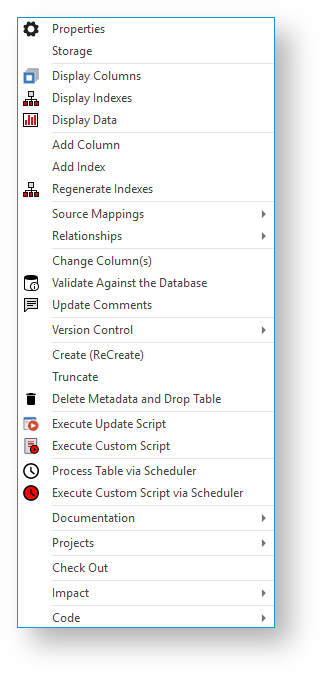
Following is an example of a standard menu for Fact Tables and KPI Fact tables:
WhereScape RED supports the use of keyboard shortcuts—the underlined letter of a menu option. For example, pressing P opens the Properties window of the selected table, pressing D displays data, etc. Ensure that the Windows > Control Panel > Ease of Access setting associated with keyboard shortcuts is enabled, to display keyboard shortcuts in RED. Refer to the relevant MS Windows documentation for details. |
The menu options available for Fact Tables are a subset of the options for Data Store Tables. KPI Fact Tables have three additional menu options as mentioned below. |
Menu Options | Description |
|---|---|
Display KPI's | Select this option to display all KPIs that have been set up for the KPI fact table in the Drop Target pane (middle pane). |
Add KPI's | Select this option to add a new KPI. |
Create Script To Test All KPI's | Select this option to generate an SQL script to test the KPI definitions for a specified time window. |