The metadata as stored and maintained by WhereScape RED does not necessarily reflect the actual tables and procedures in use in the data warehouse. For example, if a new column is added to the metadata for a table, then that change is not automatically made in the actual physical table residing in the data warehouse. Likewise, if a column is deleted from the metadata, then that column may still exist in the physical database table.
This situation may be particularly apparent after an application patch or upgrade. The menu option Validate > Validate Table Create Status, and the right-click menu options in either the left or middle panes all provide a means of comparing the metadata to the physical tables in the database. A table, range of tables, or all tables can be chosen. Each chosen table is a table in the metadata, and it is compared against the physical database table, if it exists.
The following example is the output from a validation.

In this example, we see five different scenarios.
- The metadata for table agg_sa_customer matches the physical table in the database.
- The table dim_date has the same columns in both the metadata and the physical table, but the column order is different. This is probably not an issue for most tables but may be a problem for some type of load tables, where the column order is important. This could be the result of a previous altering of the table. The table must be re-created if the order is important.
- The physical database table dim_product has additional columns not found in the metadata. The columns are 'subgroup_description' and 'line_description'. The table can be altered if desired. See the next section on Altering Tables.
- The metadata for the table load_product does not match the physical table. The metadata has an additional column called 'state'. This column was not found in the physical table. The table can be altered if desired. See Altering Tables for details.
- The table load_state is defined in the metadata but has not been physically created in the database. The table can be created in the normal manner.
Using outdated metadata in drag-and-drop
When dragging from a data warehouse table to create another data warehouse table (e.g. Load table to create Dimension table) a check is made to ensure that the metadata matches the database table.
If the two are found to be out of sync, the following message appears:
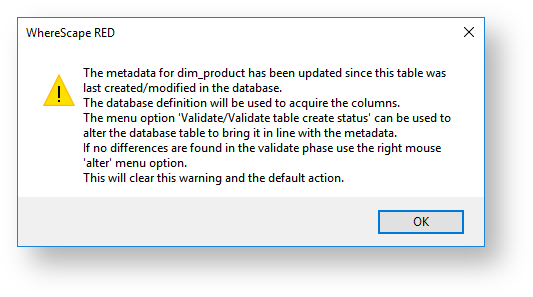
If a subsequent validation of the table in question shows that it validates, this message means that the dates are somehow out of sync. This can occur for example, after an import where the metadata has been replaced, but the underlying table still matches the metadata. Another common occurrence is where a new column is added and then deleted. To prevent the message from reoccurring in such a situation, proceed as follows.
Use the right-click menu and select Alter Table when positioned on the table name in the validate results screen (even though the table validates OK). The metadata update time is set back to that of the last database table created.