To load/import table comments to RED from an external (.csv) file, select Tools > Table and Column Comments > Load Table Comments.  

The Table Comments Import pop-up window is displayed:
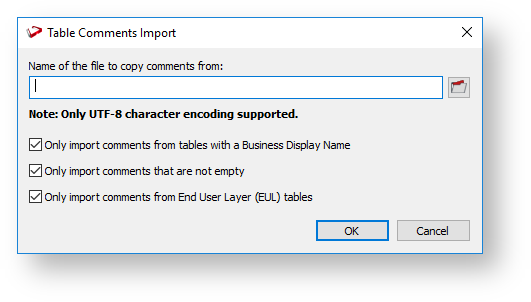
  1. Type in the directory and file name of the source file or click the folder icon to navigate to the required directory.
  2. Select or de-select the check box of the required import options.

    All the above options are selected by default.

  3. Click OK to proceed with the import. The Table Comments Import pop-up window displays the progress of your import. You can click Cancel to abort the process.

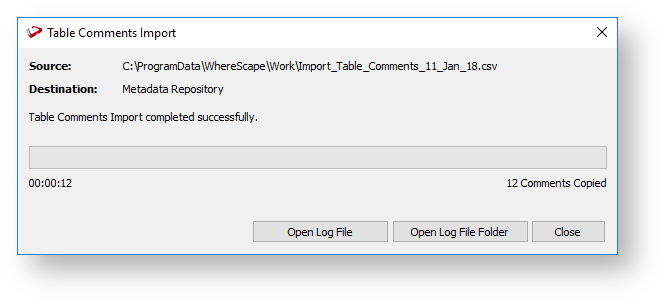
  4. Once the import process is completed, the pop-window displays the processing time and the number of comments copied to the metadata repository.


    After completing the import process, you can click Open Log File or Open Log File Folder to view the log file generated. Refer to Viewing the Import/Export Logs for details.

  5. Click Close to exit the pop-up window. The Results pane displays a summary about the comments imported and confirms successful completion of the import.

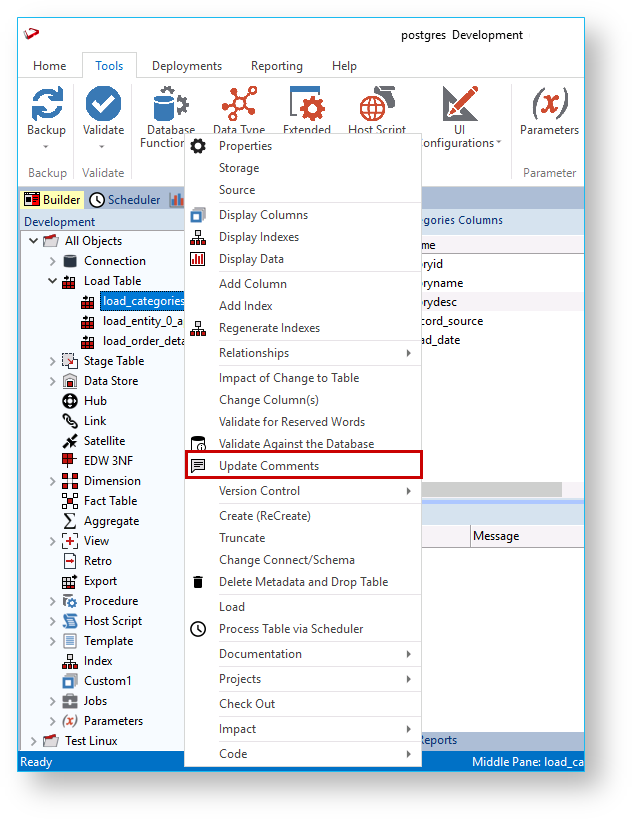
  6. Use the Update Comments command from the context menu to copy the comments from the metadata repository to the corresponding tables in the target database.

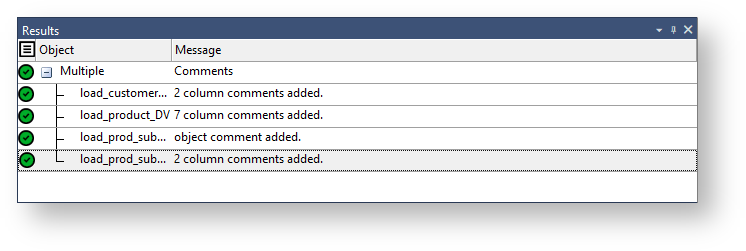
    The Results pane displays the table(s) and column(s) that have added comments.

    The table and column comments import/export only supports UTF-8 character encoded files. You also need to be aware of the following points, if you are going to use another tool other than Microsoft Excel 2013 to edit the comments:

    • The comment portion can be surrounded in double quotes.
    • Double quotes can be escaped within the comment by prefixing the quote with another quote.
    • Comma characters can be used within the comment, but only if the comment is inside double quotes.
    • Comments can span multiple lines, but only if the comment is inside double quotes.

    Refer to Importing Comments from an External Source for details.