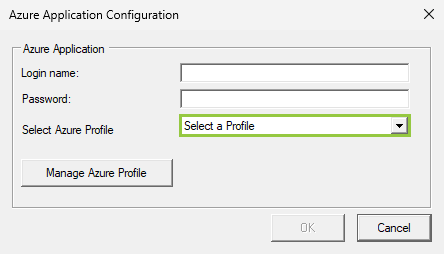
Please note that when employing Entra ID authentication while adding a new server to SQL Diagnostic Manager, you must select or configure an Azure Profile.
Components of Azure Profile are responsible for building a valid connection. |
First of all, review the following information regarding your account requirements and ensure you meet them.
The minimum permission required for Azure SQL Database is Microsoft Entra admin configured in Entra ID service principal so that full access is available for monitoring.
However, you must grant the Azure SQL Database permissions to read the Microsoft Entra ID. For more information regarding this matter, please refer to the Azure portal section of the Authorize server and database access using logins and user accounts article.
Connecting SQL Diagnostic Manager to your environment does not support service accounts requiring Multi-Factor Authentication (MFA), as continuous connection is required for service collection accounts.
It is recommended to use generalized service accounts for configuring connection credentials rather than accounts directly linked to users.
For environments that require MFA for Entra ID users, a service account can be excluded from the MFA requirement by using an exclusion for conditional access. For guidance on how to set up exclusions for MFA, review the Use access reviews to manage users excluded from Conditional Access Policies article on Microsoft Docs. |
Keep in mind that the Microsoft Azure SQL Database is protected by a firewall, safeguarding access to your data when you create a new Azure Database. For more information on Azure SQL Firewall and how to configure it, please refer to this Microsoft documentation.
That is why it is important to allowlist the IP address of the server hosting the SQL Diagnostic Manager monitoring service via the Azure Portal.
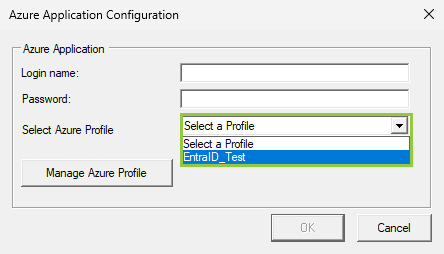
Select your Azure Profile by following the next steps:
Create a new Azure profile by clicking Manage Azure Profile from the Azure Application Configuration wizard.
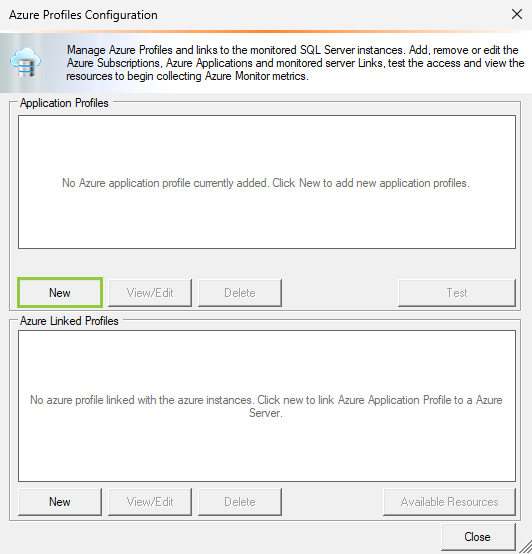
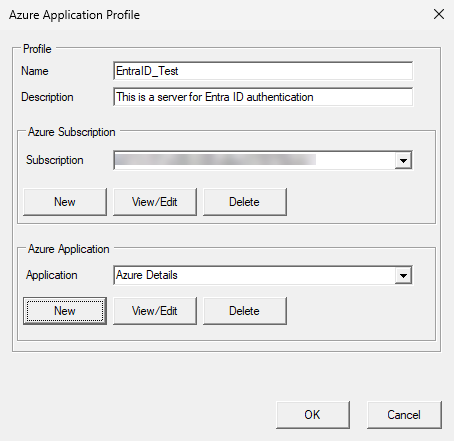
When the Azure Profiles Configuration Wizard opens, you have two sections:
To add a new Azure profile, please follow the steps below:
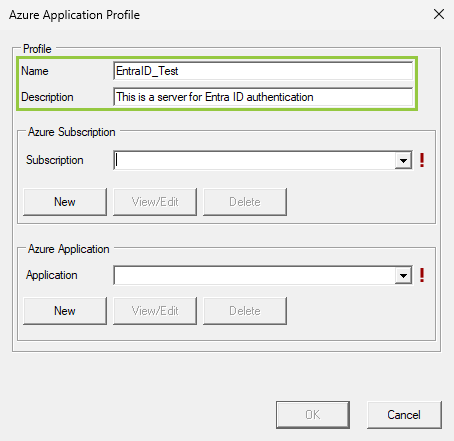
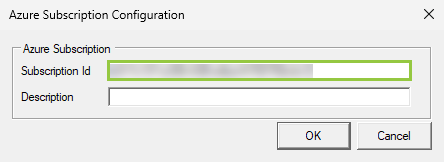
(*) This information is mandatory. To get it from your application, follow the steps outlined in the How to get Azure Profile components? section. |
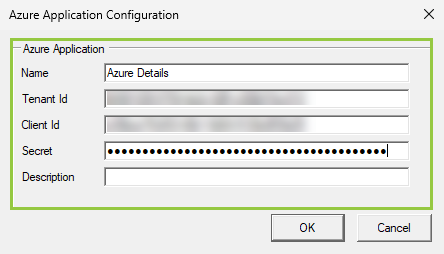
(*) This information is mandatory. To get it from your application, follow the steps outlined in the How to get Azure Profile components? section. |
If you do not know how to obtain your application information, such as your subscription ID, tenant ID, client ID, and secret value, we have outlined the following steps to get them.
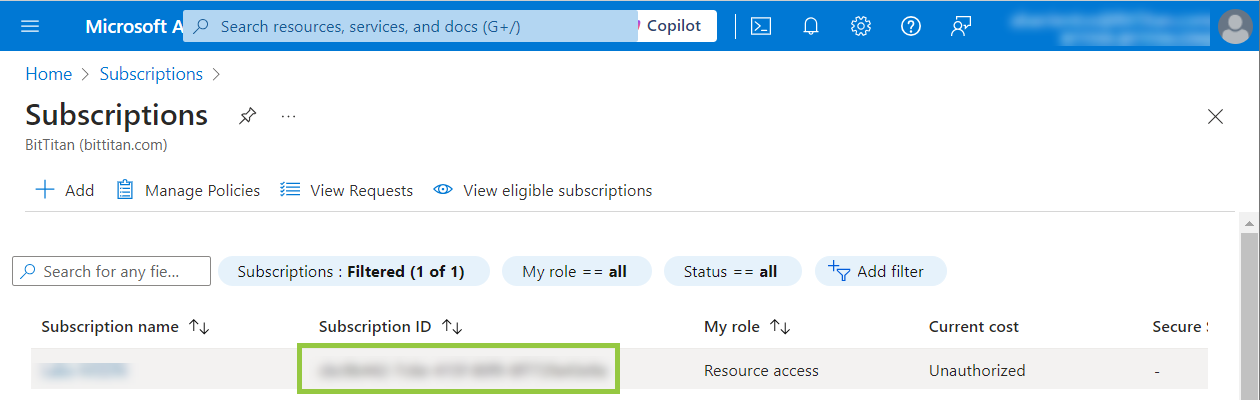
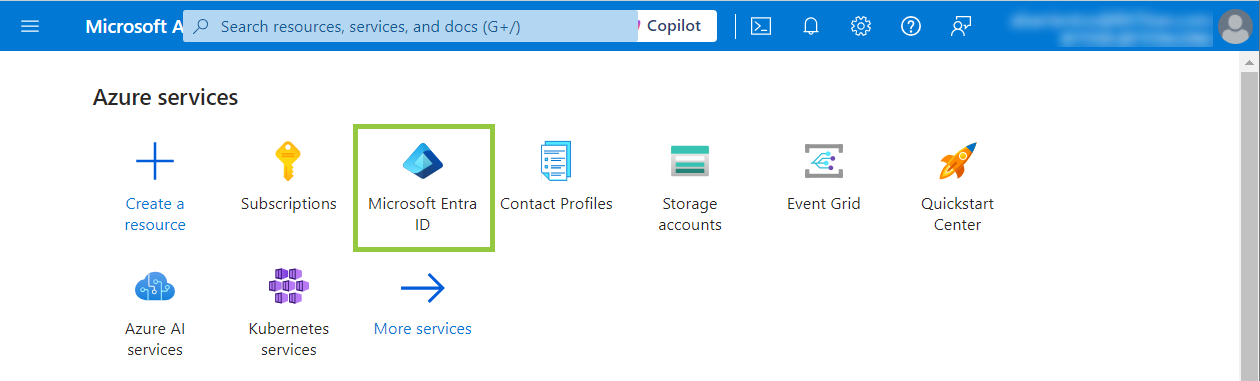
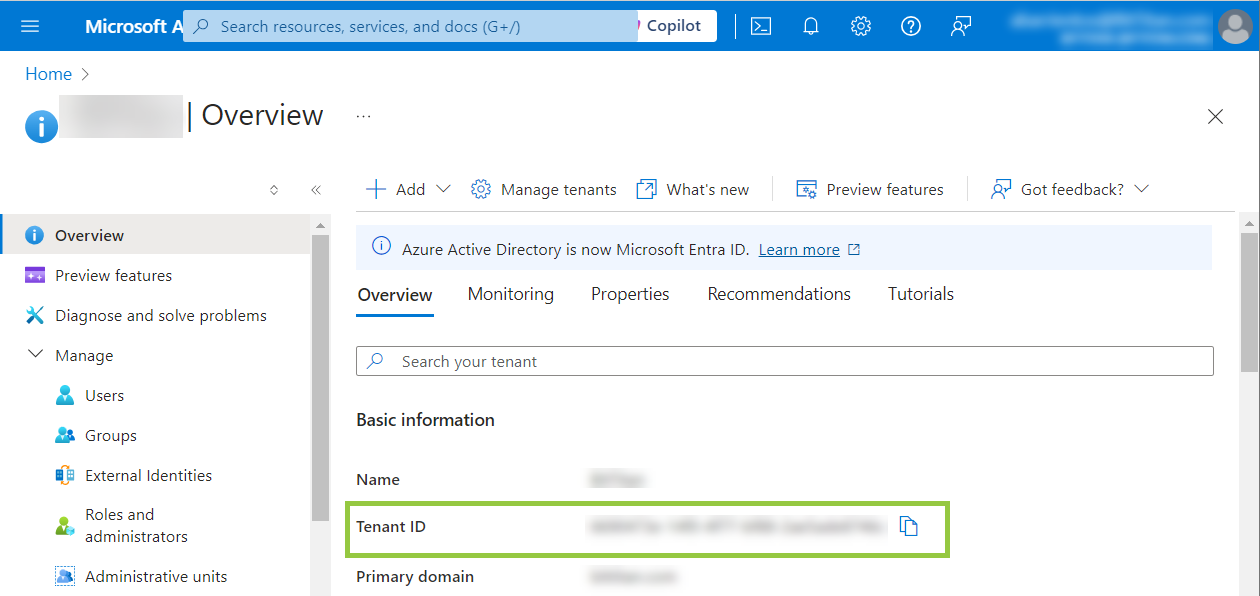
Navigate to the Manage node from the left side menu and select App Registration.
After the creation of the app, we need to apply the Reader role to the app under Subscription > IAM > Role Assignment.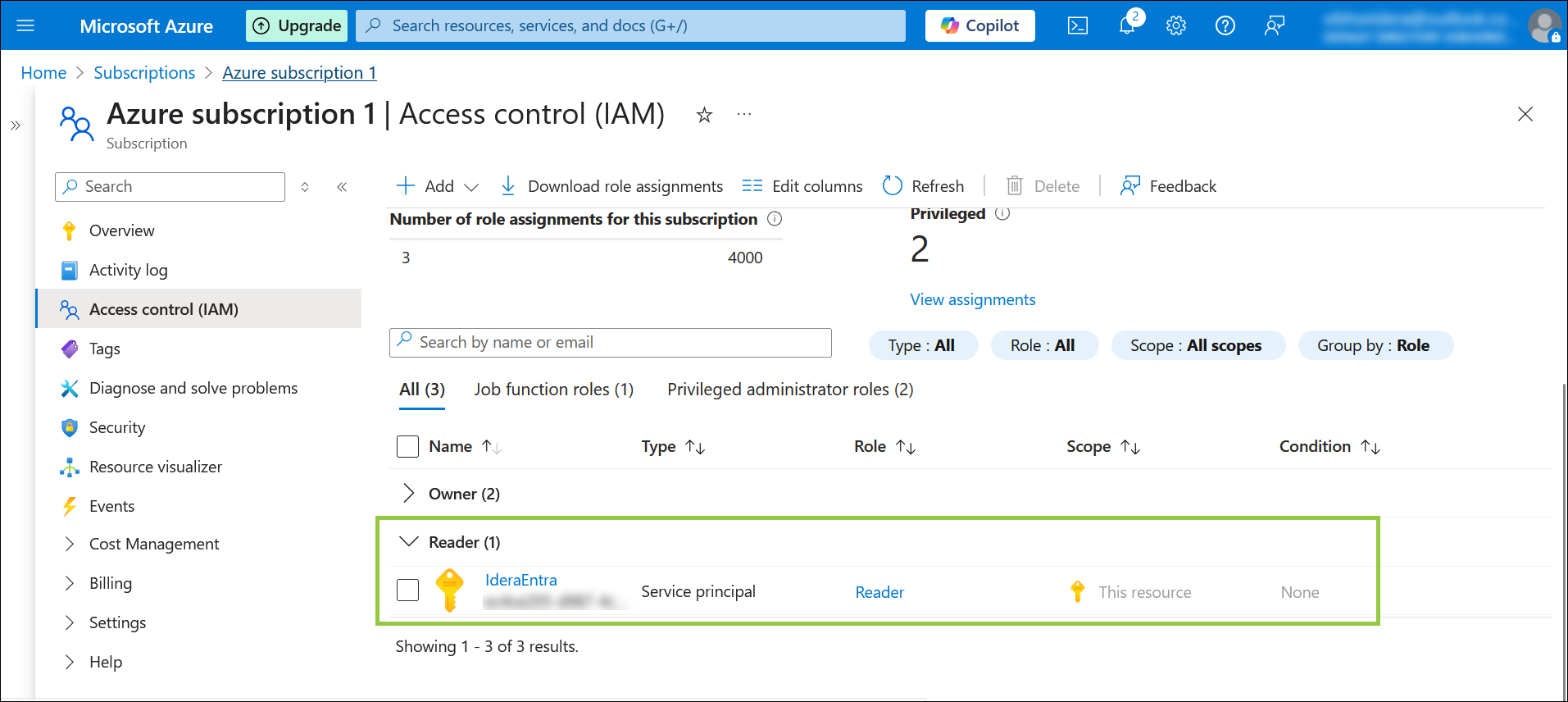
If you have already created your Owned App, select it, and the Overview page will display the Client ID.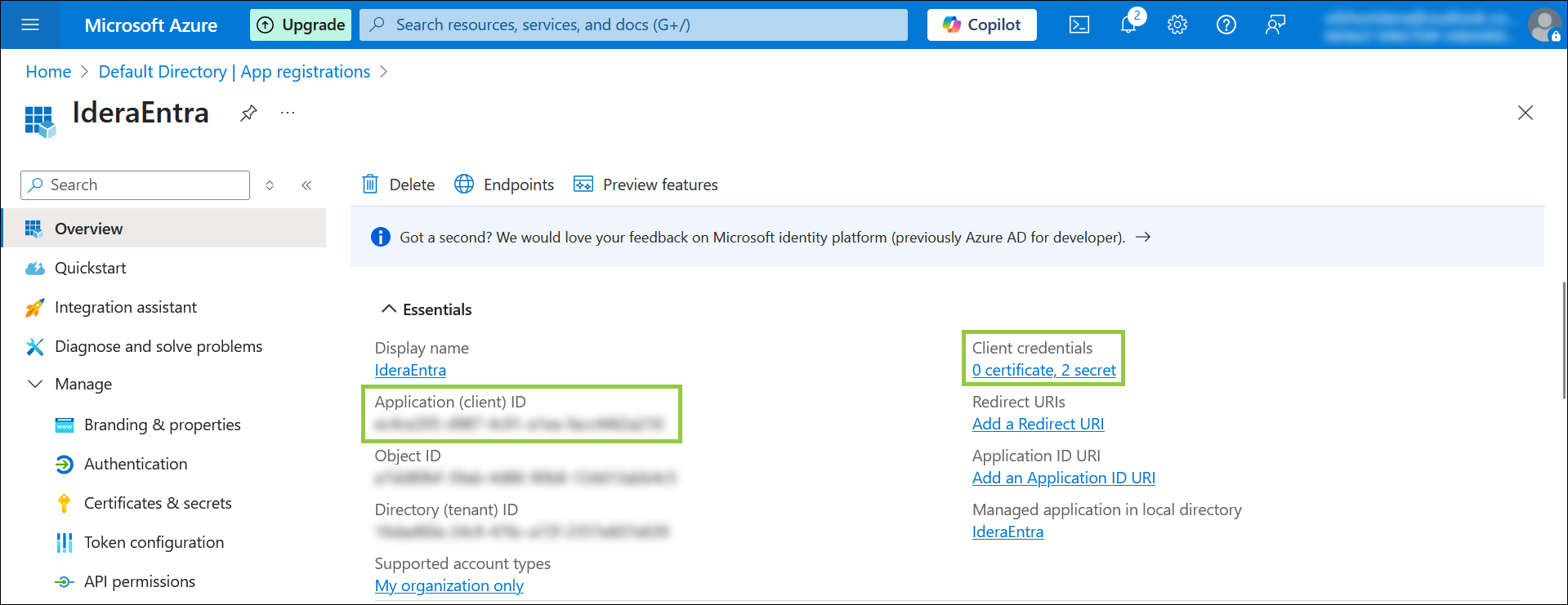
Copy and save it.
Click the secret hyperlink to obtain your Secret value if you have already created it. In case you need a secret value, you can create a new one.
Copy and save your Secret Value.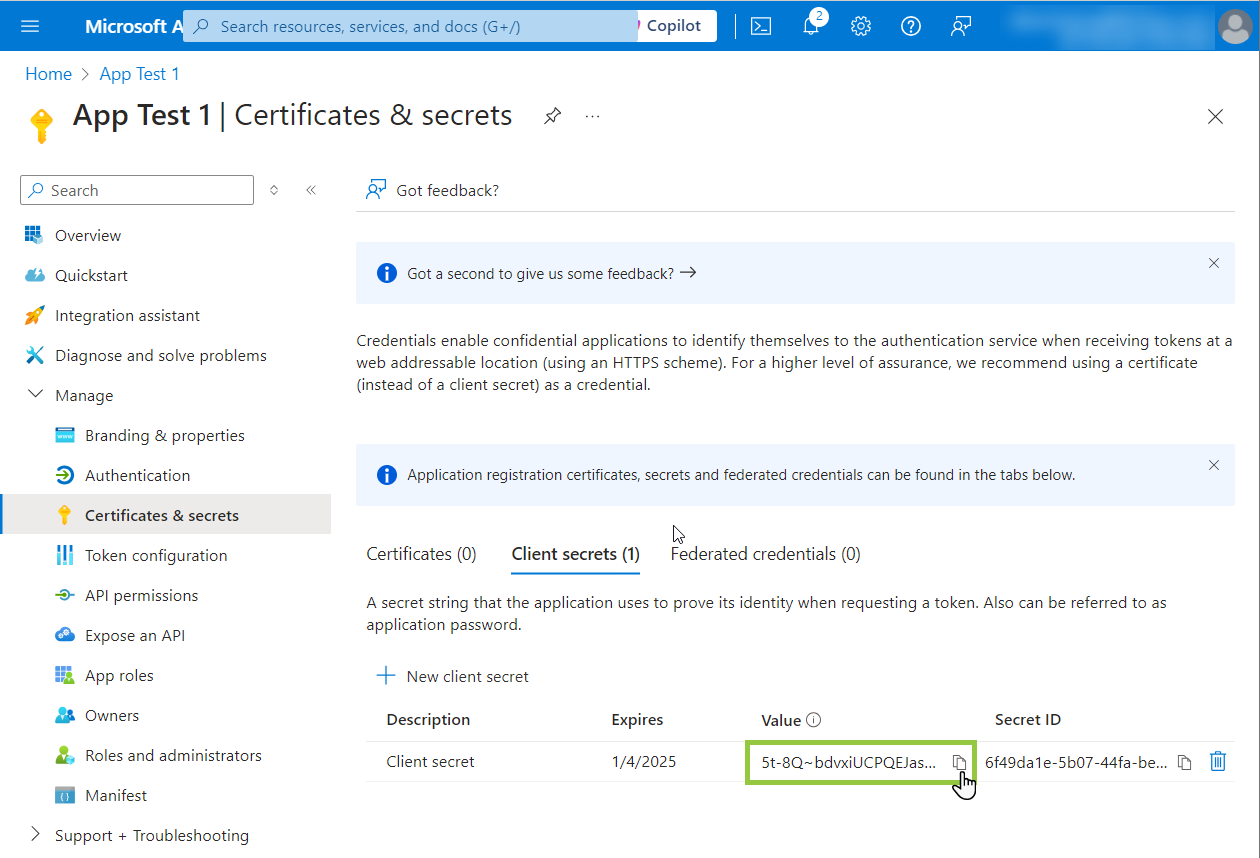
In case you do not have the Secret ID or you have lost it, follow the steps below:
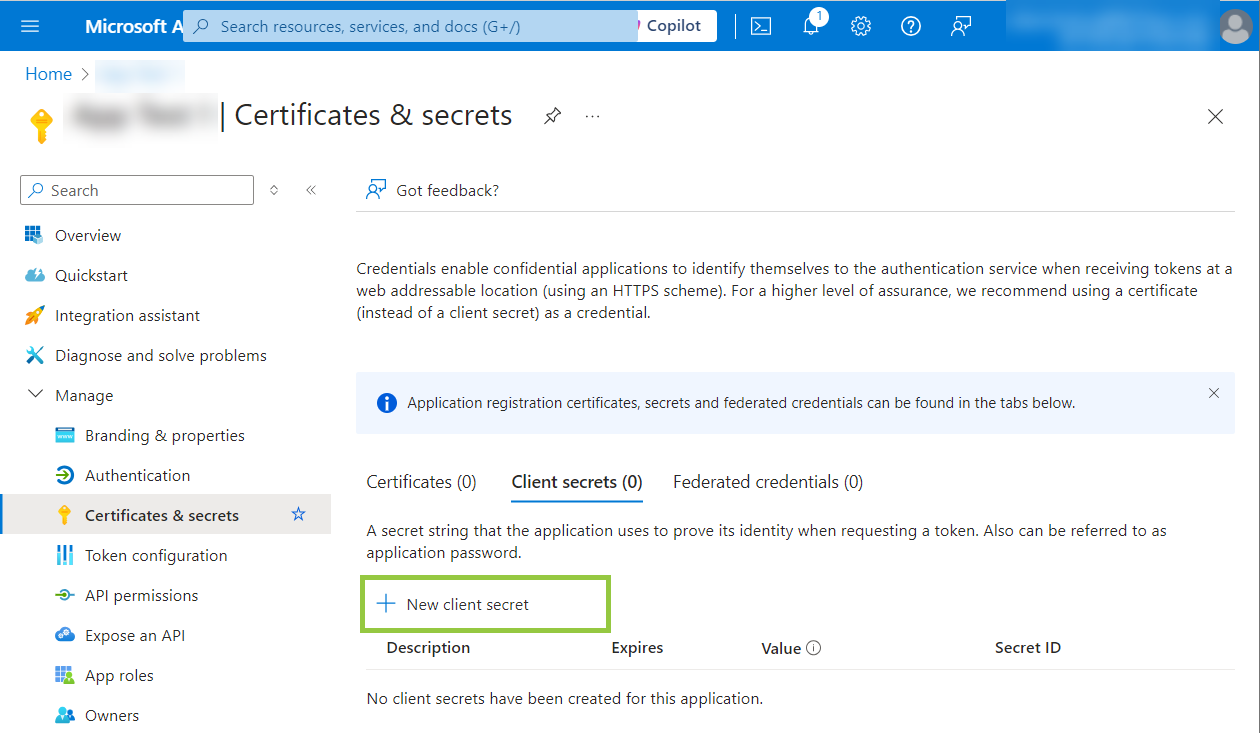
You must save the Secret value once you create the Client Secret; otherwise, the next time you log in to the Azure Portal to check this value, it will be masked. If you lost or did not save the Secret value and you need it, create a new Client Secret and use the new Secret value instead. |