| This guide was written for all versions of RED below 10.6, while still applicable to RED 10.6+, in RED 10.6 we added Extensible Authentication which enables scriptable authentication workflows which can be configured in RED Connections and triggered at a configurable expiry interval, please review this section for more details. This feature provides complete control over the authentication process, adds secure storage of additional connection string tokens and allows for the creation of authentication workflows which are not otherwise handled by RED and/or vendor ODBC drivers directly. |
Follow Snowflake setup instructions here: Key-pair authentication and key-pair rotation | Snowflake Documentation
If optionally storing password and private key file within the DSN, then it’s best to create a ‘USER’ DSN rather than ‘SYSTEM’ DSN otherwise anyone on this system will be able to connect using this DSN.
Providing key file password in the DSN and saving it will store the key file password in plain text in the registry.
Authenticator should be set to ‘SNOWFLAKE_JWT’
Example from Snowflake ODBC driver version 3.10
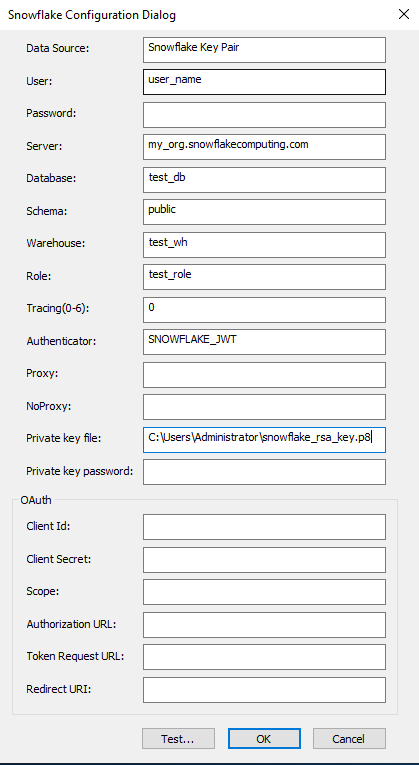
User: your snowflake user
Password: your Private Key Password (for encrypted key files)
Connection String: dsn=$DSN$;user=$USER$;priv_key_file_pwd=$PASSWORD$;
The connection property ‘PRIV_KEY_FILE’ will be taken from the DSN, this is why it is a good idea to create a ‘USER’ level DSN so that each user on the system can have a different private key file (and pwd).
Without the Advanced Connect feature, added in RED 9.0 and RED 10.2, your only option is to enter all the details into your DSN’s, including the user, key file and key file password. Then in RED your Snowflake connections would only populate the User name field as the rest of the connection attributes will be taken from the DSN.
Snowflake MFA authentication is designed for browser based applications, but it can be used for other applications such as RED also. This method of authentication can not be used via the Scheduler as it requires user interaction.
Authenticating with MFA requires a second ‘factor’ in the authentication process, for RED applications this second factor should be an ‘Authenticator App’ which will either supply a Time-Based One Time Password (TOTP) or require you to accept a push notification on your mobile device.
If using this form of authentication with RED it is recommended that the Snowflake Account Level Parameter to allow caching of the MFA token is enabled, this prevents the user having to keep entering a new TOTP each time a connection is made. Without client MFA caching enabled RED UI connections to Snowflake would be practically unusable due to the frequency of MFA requests.
To allow MFA caching set this account parameter:
ALTER ACCOUNT SET ALLOW_CLIENT_MFA_CACHING = TRUE; |
When connecting to an MFA TOTP enabled Snowflake DSN you would need to supply the TOTP concatenated on to the end of the password, this requires an additional connection attribute 'passcodeInPassword=on' which you can not enter into the DSN dialog, therefore you can not create the initial connection to Snowflake using the built in Snowflake DSN Test function unless you added this parameter to the registry for the DSN. If using Duo push MFA method you do not need this attribute.
Set the DSN Authenticator to ‘username_password_mfa’
Example from Snowflake ODBC driver version 3.10
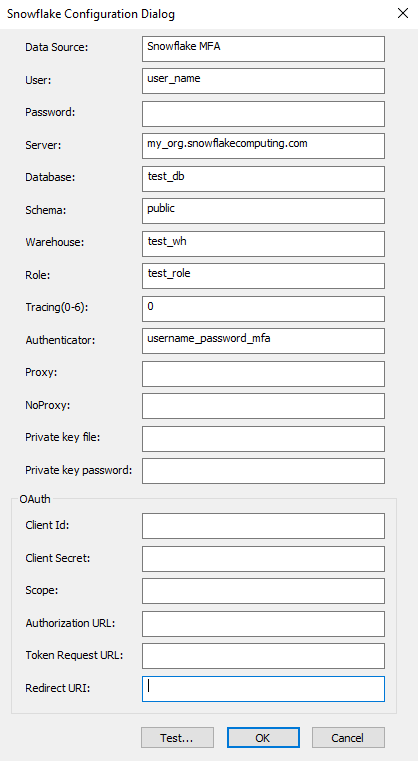
| In RED 10.6 we added Extensible Authentication which provides an example workflow for Snowflake MFA, please review this section for more details. |
User: your snowflake user
TOTP based MFA:
Password: your password + your TOTP (MFA code)
Connection String: dsn=$DSN$;user=$USER$;pwd=$PASSWORD$;passcodeInPassword=on;
Duo Push Notification
Password: your password
Connection String: dsn=$DSN$;user=$USER$;pwd=$PASSWORD$;
The connection property ‘authentication=username_password_mfa’ will be taken from the DSN, but this could also be entered in the connection string.
For TOTP the initial authentication process would be, when you are ready to browse a Snowflake connection in RED UI you would enter your password along with the currently active TOTP from your authenticator app appended to your password, once connected if the ALLOW_CLIENT_MFA_CACHING = TRUE on your organization's account you will not need to provide a new TOTP for a few hours on the same device.
MFA is not really feasible without the Advanced Connect feature since Legacy Connect requires shared credentials in RED, but if you only have a single user working with RED then you can follow this workaround:
Without the Advanced Connect feature, added in RED 9.0 and RED 10.2, your only option is to enter all the details into your DSN’s. Then in RED your Snowflake connections would populate the User name and optionally Password fields (if not entered in DSN) as the rest of the connection attributes will be taken from the DSN.
Since the Snowflake connection attribute 'passcodeInPassword=on' can not be entered in the DSN and we are not using Advanced Connect in RED, you would need to add this to the registry for this DSN.
If using TOTP based MFA, then the password field, as mentioned earlier, would need to contain the password and the current TOTP from your authenticator app when first using the connection within the RED session.
Programmatic Access Tokens can be created for a user which provide a way to connect that doesn’t require MFA, in this method a token is generated for the account and is then used in the password field of Snowflake connections.
All you need to do for PAT is simply provide your user and in the password field your PAT
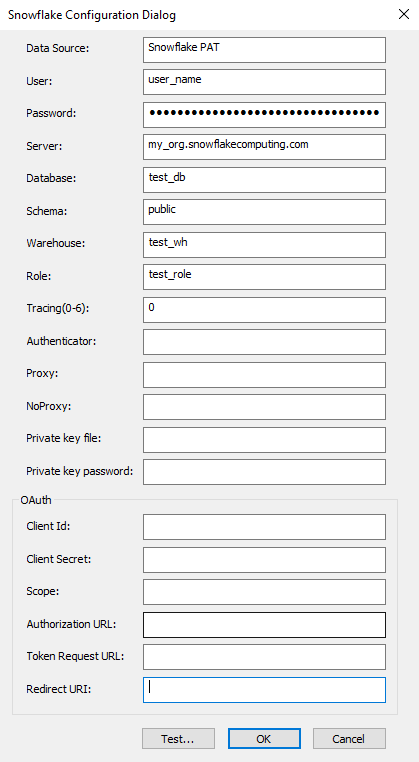
User: your snowflake user
Password: your PAT
Connection String: dsn=$DSN$;user=$USER$;pwd=$PASSWORD$;
Without the Advanced Connect feature, added in RED 9.0 and RED 10.2, your only option is to enter the PAT directly into the DSN (or registry), USER DSN preferred. The PAT can’t be entered into the RED UI password field due to the length restrictions of the field when using Legacy Connect.
In RED you would only optionally enter the User name field, password should be left blank and will be picked up by the settings stored in the DSN.