For each Azkaban Web and Executor Server instance:
Stop the Windows services and/or Linux processes for each Web and Exec server.
Perform backups of the following:
Your Azkaban metadata repository
azkaban.local.properties
for each Web and Exec server
Any other configuration files if you have customized them
Run the installer targeting the existing Azkaban install locations:
Merge any customizations back in from your earlier backups.
Start the Azkaban Web and Executor services and/or Linux processes.
When you choose to upgrade either the Scheduler or the Executor, the installer will make a copy of any properties and configuration files that could have custom settings. These copies are stored on a folder called 'Backup-<timestamp>' in the ‘WEB_SERVER’ and ‘EXEC_SERVER’ folders. The backup includes these files:
You can also manually backup these files for each Web Server and Executor Server being upgraded.
The backup of the
azkaban.local.properties
file will be useful to open while you run the installer so you can apply the correct settings to the installer fields.
On the RED installation folder, run RedSchedulerInstaller.exe to start the upgrade process, follow the interactive installer wizard. Please note the RedSchedulerInstaller.exe must be run using the same user that the Azkaban services are run under.
Hold down Shift and right click on RedSchedulerInstaller.exe and select “run as different user” then enter the Azkaban service user credentials if you are currently logged in as another user. |
For scripted upgrades, the Linux upgrade method described later can also be used on Windows. |
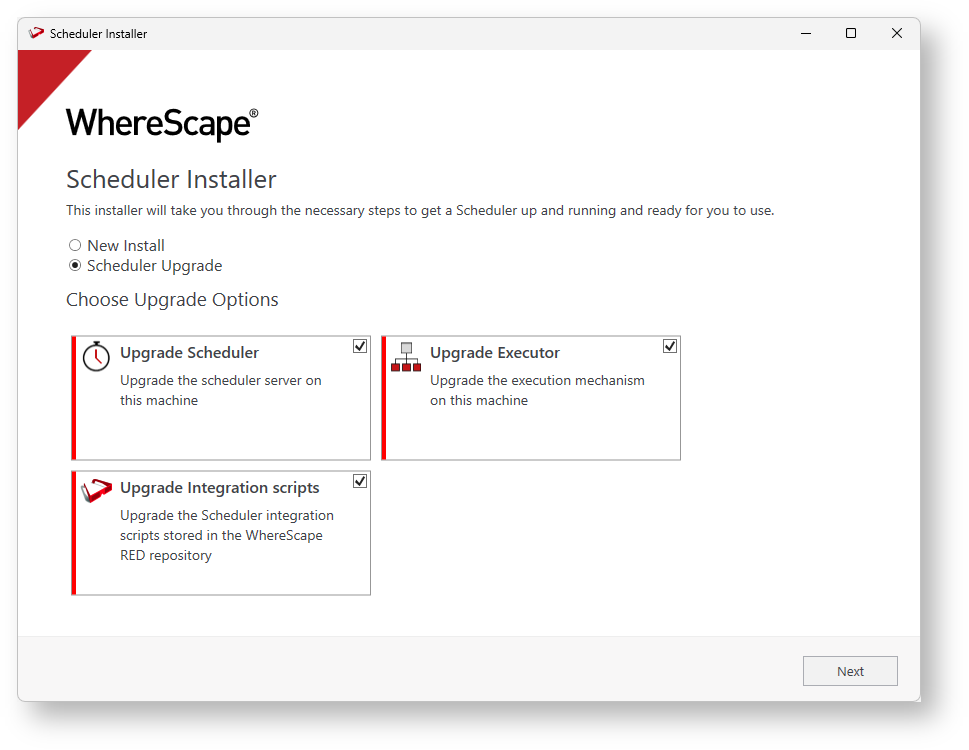

azkaban.local.properties and will show it on the summary window.
azkaban.local.properties
and users file as required before starting up your services again.Like RED, Azkaban is comprised of two distinct parts, the application and the metadata. Some releases may only require one or the other to be upgraded so please refer to the important upgrade messages in the release notes to determine the upgrade requirements.
Upgrade the Azkaban Metadata
Upgrade the Azkaban Web Server
Upgrade one or more Azkaban Executor Servers
It is recommended you perform backups of the following so that any customizations can be merged back in after the upgrade:
Your Azkaban metadata repository
azkaban.local.properties
for each Web and Exec server
Any other configuration files if you have customized them
Ensure the Web Server service or process is stopped.
Perform the Azkaban metadata install by executing the below commands in your command shell in Linux or Windows.
AZ_DB_USER=myuser
AZ_DB_PWD=mypwd
|
Ensure the Web Server service or process is stopped.
The original response file for each Web and Executor server should still exist in each server's install directory, this can be reused to reapply the same settings as before. If reusing this response file it is important to compare this with the latest version as occasionally new fields are added to the response file for new features, a change in response file fields should be signaled by the important upgrade messages in the release notes. If you have removed or deleted this file then a new one will need to be reconstructed. See the Azkaban Installation section for answer file examples. |
|
|
Ensure the Executor Server service or process is stopped.
|
|
Post-install you need to manually merge any customizations to the azkaban.local.properties and users file as required before starting up your services again.
For Windows: Open Services in Windows and restart each Web and Executor service
Some releases add improvements to the shipped Azkaban integration scripts, any such changes will be signaled in the release notes.
Due to specific environmental customizations users may have made to these scripts they are not upgraded automatically, instead you need to extract them from the installation folder and review and merge the changes to your existing scripts as required.
The shipped scheduler integration scripts are described below:
wsl_scheduler_publish
- publishes job metadata to Azkaban
wsl_scheduler_lookup
- retrieves the tags of all active Azkaban Executors
wsl_scheduler_dashboard
- opens the Azkaban Web Server dashboard
wsl_scheduler_profile_maintenance - script for maintaining the scheduler profileTo upgrade any of these scripts follow this process:
wsl_scheduler_publish
under your Host Script objects.
<RED install directory>\Administrator\Scripts\
|
If you installed RED to a different location than when the Azkaban services were created, then you'll need to update the ImagePath key in the registry for each Azkaban service.
For example:
Registry location:
Computer\HKEY_LOCAL_MACHINE\SYSTEM\ControlSet001\Services\WsAzkabanExec_red1001_db
Key: ImagePath
Value: "C:\Program Files\WhereScape\RED\10001-230606-005456\WslSchedulerService.exe" --type="Exec" --scheduler-dir="C:\temp\azkaban\red1001_db" --start-service=true --service-name="WsAzkabanExec_red1001_db"