
In the following sections, reference is made to a selected block of text. A selected block of text is a normal window selection where the text in question is highlighted. Normally achieved by holding down the left mouse button and moving the cursor.
WhereScape RED includes a procedure editor that allows the maintenance of the various procedures, functions, and packages within the data warehouse. The editor is invoked by double-clicking on a procedure name in the left pane or by right-clicking on the procedure name and selecting Edit the Procedure.
This section discusses some of the features of the procedure editor which includes the following:
A procedure can be compiled by selecting the Compile > Compile Procedures menu option. Refer to Procedure Compilation for details.
In the following sections, reference is made to a selected block of text. A selected block of text is a normal window selection where the text in question is highlighted. Normally achieved by holding down the left mouse button and moving the cursor.
The Tab character inserts four spaces into the text. A Shift+Tab removes four spaces.
The normal Windows cut, copy, paste, and delete functions are available either through the toolbar or via the right mouse pop-up menu.
A selected block of text can be indented by four spaces by depressing the Tab character. Each tab will indent by a further four spaces. A Shift+Tab removes four spaces from the front of each line in the selected block.
A selected block of text can be turned into a comment by right-clicking and selecting Comment. The editor places two dashes '--' at the front of each line in the selected block. In the same way, a block of text can be uncommented by choosing the Uncomment option.
During the editing process it is possible to pop up a window containing other procedural code. This window allows cut and paste operations. In such a way it can be used as a work area or as a source of code. Select the Tools > View Procedure or Template menu option to bring the viewer window up. A dialog will appear as follows:
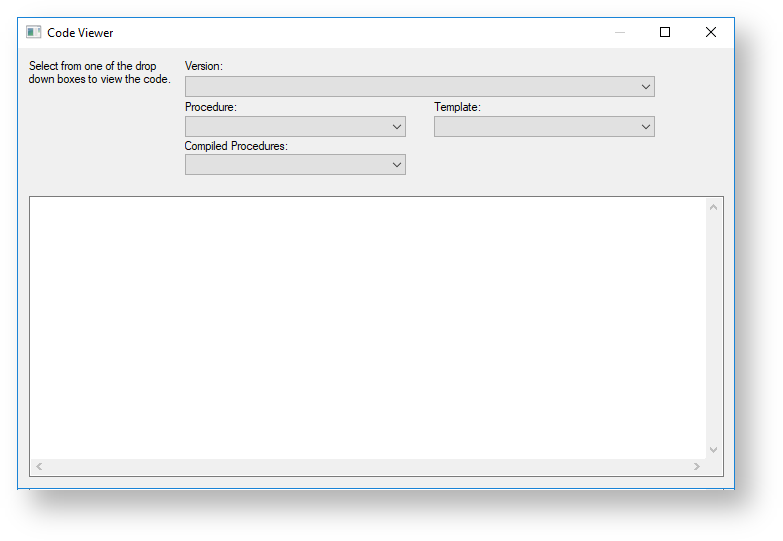
There are a number of drop-down list boxes to choose from. Once an item is selected, the viewer loads the code and moves to the right side of the edit window. The various options are:
Once an item is chosen, the viewer appears on the right side of the editor window. The viewer or the main editor window can receive the focus by clicking the mouse within the appropriate window.
Code can be cut from one window and pasted into the other. Any changes made in the viewer window cannot be saved. An example of an active view window is as follows:

Editing, deleting, or compiling Locked for Edit or opened procedures/scripts
|