Procedure objects in RED, including Procedures, SQL Blocks and Functions, are typically executed via the Table they are associated with, using that Table's Execute or Process menu options. Action Processing Scripts at either the Table or Procedure level are required when executing procedures and therefore it is important to have generated the appropriate Action Processing Script for the object you are running the Procedure for. Procedure objects of type Procedure and Function must have been compiled before they can be run. The Block sub-type does not require compilation.
For procedure-based Update, Custom, Post Load or Post Export routines the Action Processing Script associated with the table object must contain the code to execute the procedure and return the results. Generally, table action processing scripts are generated by default (via templates) for tables when a relevant change is made that will affect the action script. It is important to ensure your action script is generated if you have added a procedure based routine to the object.
Update, Custom, Post Load, and Post Export procedures should be executed via the parent object’s context menu.
Standalone procedures require their own Action Processing Scripts to be manually generated (or an existing script selected) via the Procedure Properties - Action Processing tab. Once a Procedure object has an Action Script associated it can be run directly through the procedure object context menu or via the Procedure Editor window.
The results of the procedure execution are displayed in the main builder results window. The result code and result message is displayed, as well as any additional messages.
Procedure execution failures via the RED UI are typically reported back to the results pane with appropriate error messaging so it is important to read the message carefully to determine the problem.
Procedures, SQL Blocks and Functions are executed via Action Processing Scripts which in turn are executed via the RED Scheduler Utilities java based plugin. This plugin establishes a JDBC based connection to the RED metadata in order to retrieve the metadata relating to the Action Script and Procedure, therefore it is important to check that on your RED metadata repository connection you have all the Database, Port and Server fields set appropriately.
Problem: RED might appear to hang if any of Database, Port and Server fields in the RED Metadata Repository connection are incorrect. This is due to the sceduler-util.jar connection resilience feature, wherein it retires connections instead of failing. This is a known issue which will be resolved in a later release.
Resolution: Kill the scheduler-util.jar java process and correct the Database, Port and Server fields before continuing.
Problem: The sceduler-util.jar was unable to resolve the work directory path of the runtime connection associated to the action script.
Resolution: Ensure the work directory specified in the associated windows runtime connection has a valid path with a trailing back slash.
Problem: The Action Script was unable to connect to the target connection.
Resolution: Double check that you can browse your target connection in RED UI, if not you may need to adjust your user, pwd or connection string for that connection in RED.
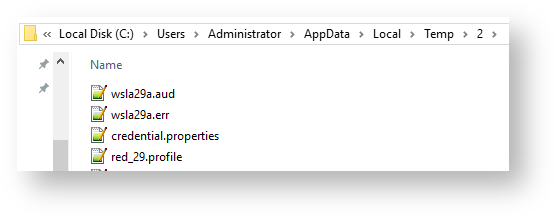
When RED executes the RED Scheduler Utilities java based plugin for procedure execution it creates temporary files in the Windows User's Temp directory, usually it is not necessary to view these files and they are removed automatically after each run. But if for some reason you need to view them these are the file names to look out for:
The "red_<sequence>.profile" file is the current in-memory profile of RED at execution time which contains the encrypted credentials for the connection objects in RED.
The "credential.properties" file contains the minimum properties for the scheduler-util.jar to start up and execute the procedure, block or function. The file will contain these properties:
wherescape.red.meta.schema=red
wherescape.job.workdir=C:\\Users\\ADMINI~1\\AppData\\Local\\Temp\\2
wherescape.red.bindir=C:\\Program Files\\WhereScape\\RED
wherescape.repository.driver=org.postgresql.Driver
wherescape.repository.url=jdbc:postgresql://REDSERVER:5435/red_repo_db?currentSchema=red
wherescape.red.profileFile:C:\\Users\\ADMINI~1\\AppData\\Local\\Temp\\2\\red_29.profile
Note: The work directory of the Action Script's associated script connection will contain the action script and audit logs for the action script execution.