
or use the toggle button:

Once displayed, there are two modes for diagram display; standard and detailed. To switch between displays, select File > Detail Diagram / Standard Diagram.
or use the toggle button:
A diagram can be saved either as a meta file or as a jpeg image. If saved as a metafile, it can be subsequently reloaded and re-edited.
A jpeg cannot be reloaded into WhereScape RED. |
The diagram can be saved by selecting File > Save As ...
By default, the diagram is saved as a meta file. |
If a diagram has been saved as a metafile, it can be reloaded. To reload a saved meta file, switch to diagrammatic view and then select the menu option File > Load Diagram. A window is displayed which enables you to choose a Windows metafile (*.wmf). If the metafile had previously been saved from WhereScape RED then the diagram is loaded. 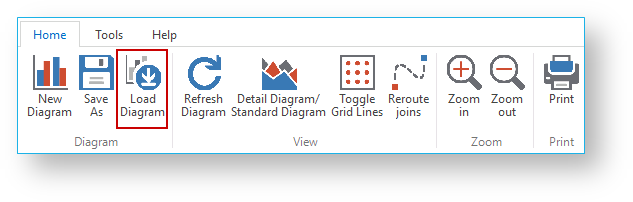
A diagram can be printed by selecting File > Print ...
Once a diagram has been displayed, it can be refreshed by choosing Tools > Refresh Diagram or by pressing F5.
A job can be created from a Source diagram or a Joins diagram.
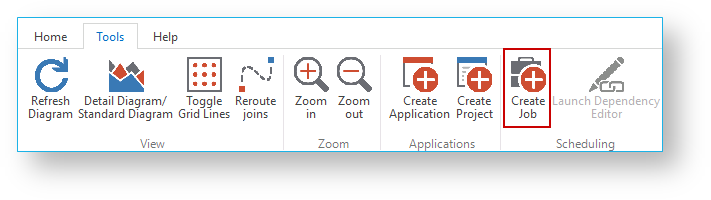

An application can be created from a Source diagram or a Joins diagram.


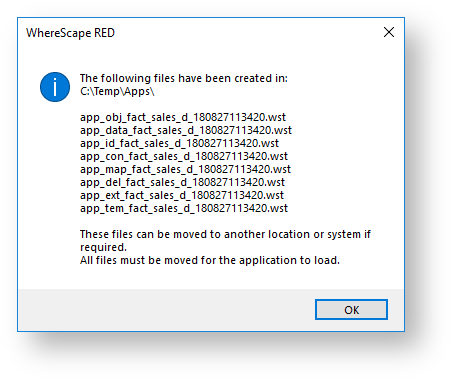
A project can be created from a Source diagram or a Joins diagram.


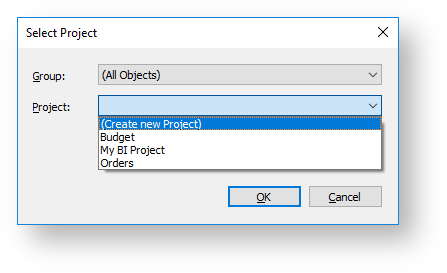
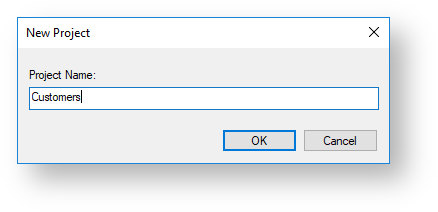

The objects in the diagram are moved into the selected project.
If the Include Associated Objects check box is selected, all associated procedures, scripts, and indexes are included. This option is selected by default.
If the Retain selected Group and Project as the defaults check box is selected, the selected Group and Project are retained as the defaults. This option is selected by default.