- Win64 OpenSSL v3.x.x for 64-bit systems
- Win32 OpenSSL v3.x.x for 32-bit (less common)
Snowflake Key Pair Authentication provides an enhanced security alternative to traditional username and password authentication.
This method relies on a public-private key pair, typically generated using OpenSSL, to establish secure connections.
Please go through snowflake documentation for more details https://docs.snowflake.com/en/user-guide/key-pair-auth
Follow the steps below to complete the Open SSL Setup
Invoke-WebRequest -Uri "https://slproweb.com/download/Win64OpenSSL-3_5_2.exe" -OutFile "$env:USERPROFILE\Downloads\Win64OpenSSL-3_5_1.exe"explorer "$env:USERPROFILE\Downloads"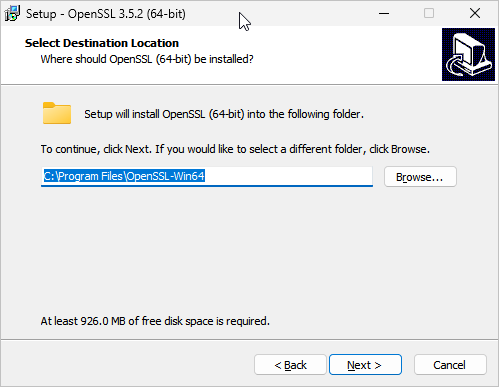
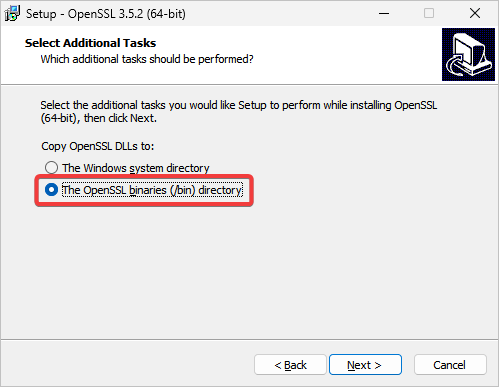
After a successful installation, add C:\Program Files\OpenSSL-Win64\bin to the Path variable in the system
environment variables.
Then check the installed Open SSL version by running the command below in the command prompt:
openssl genrsa 2048 | openssl pkcs8 -topk8 -inform PEM -out <private_key_filename.p8> -nocryptopenssl genrsa 2048 | openssl pkcs8 -topk8 -v2 des3 -inform PEM -out <private_key_filename.p8>
You can find the file at the same location where the command was executed. Use File Explorer to verify that the file has been created.
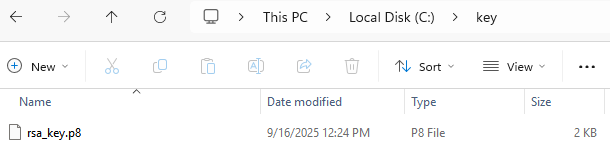
→ Private key is generated
Run the below command in cmd
openssl rsa -in rsa_key.p8 -pubout -out <public_key_filename.pub>

You can find the file at the same location where the command was executed. Use File Explorer to verify that the file has been created.
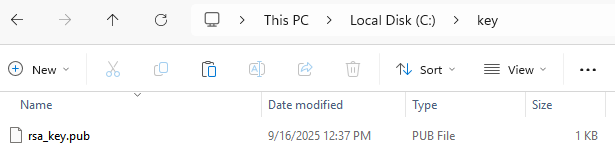
→ Public key is generated
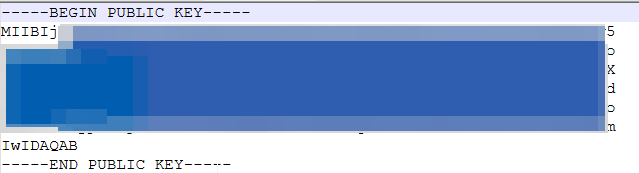
Open the public key file in the text editor. Copy only the key without line break