WhereScape Enablement Pack for Hive - RED 10
This is a guide to installing the WhereScape Enablement Pack for HIve for WhereScape RED10
Prerequisites for Target Database
Before you begin the following prerequisites must be met:
- Access to a Hive (Target Environment) with the following connectivity information:
- Server Name
- Database Name
- User Name
- Password
- Hive software installed
- Hive ODBC driver (64-bit)
- Add ODBC DSN for Hive Database
- Hive ODBC driver (64-bit)
- Python 3.11 or higher
- Select "Add Python 3.11 to PATH" from installation Window
- Pip Manager Install with command :
python -m pip install --upgrade pip
Installation Through Setup Wizard
Run Setup as administrator
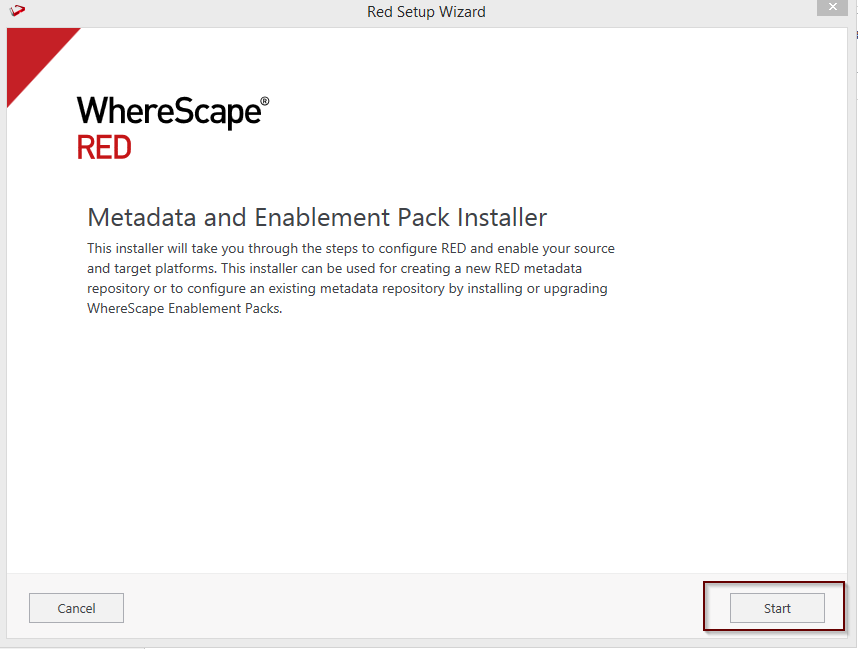
Create a new repository or upgrade an already existing repository.
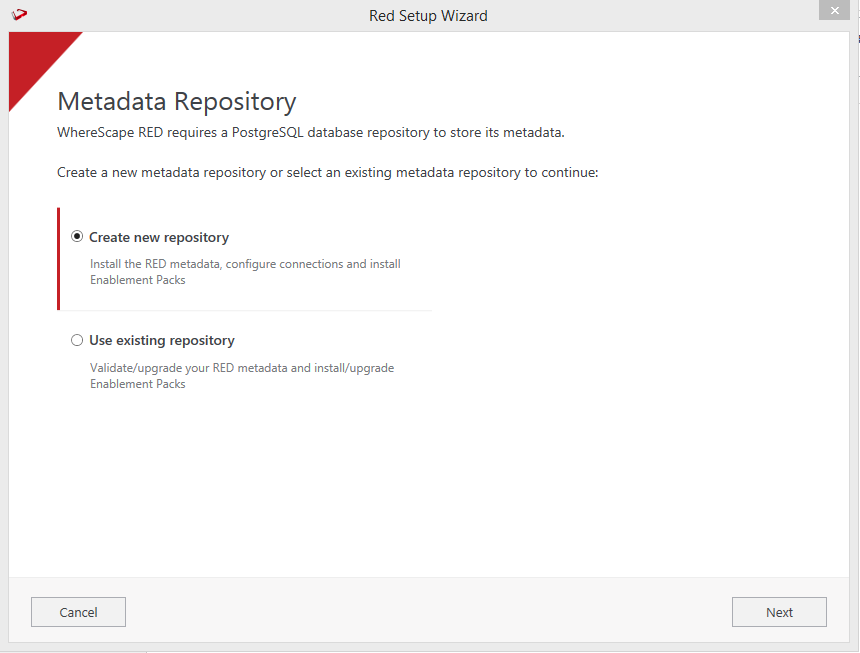
Select the created ODBC DSN, input login details, Connection String and then select "Validate". Press Next.
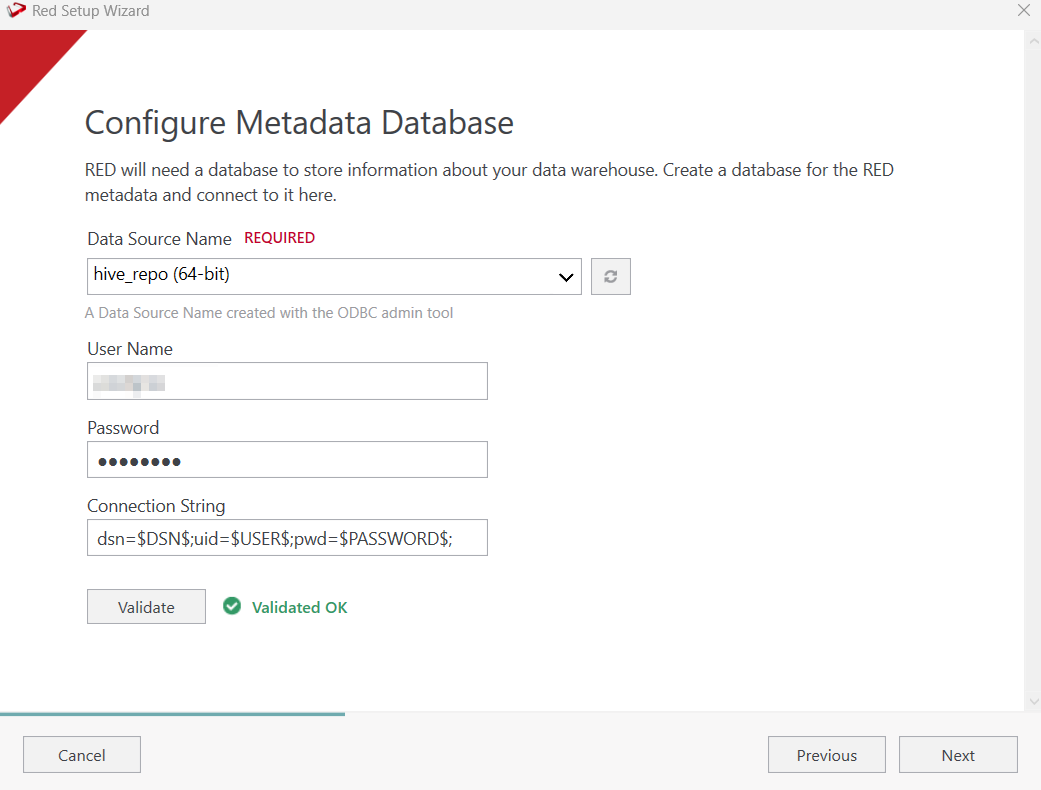
Select the directory that contains the unzipped Enablement Pack for installation. Press Next.
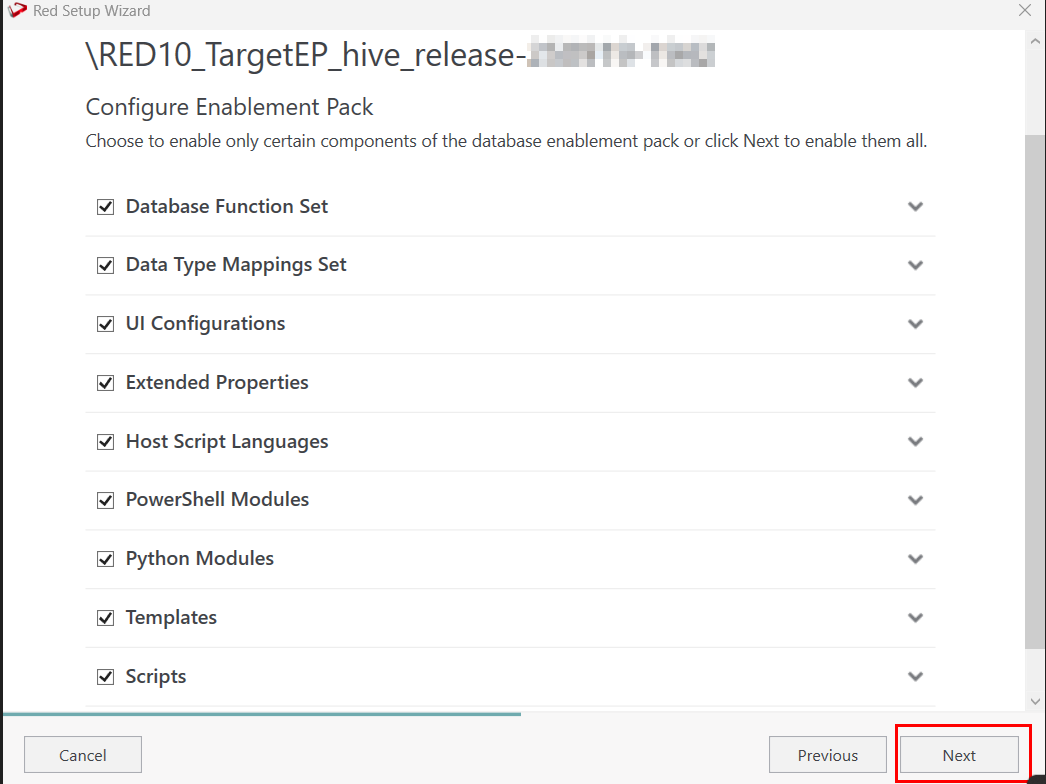
Using the check boxed list, include or exclude the components that are to be installed. Press Next.
Configure a target connection (example, Data Warehouse) and its target locations. Validate and press Add.
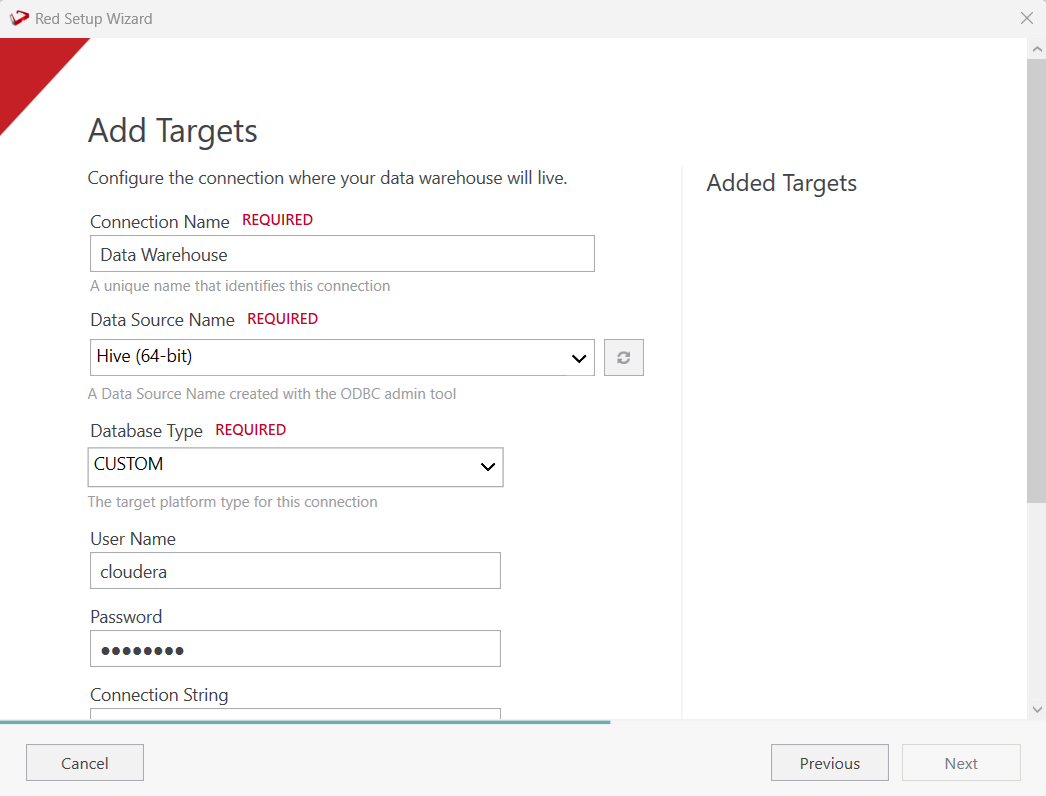
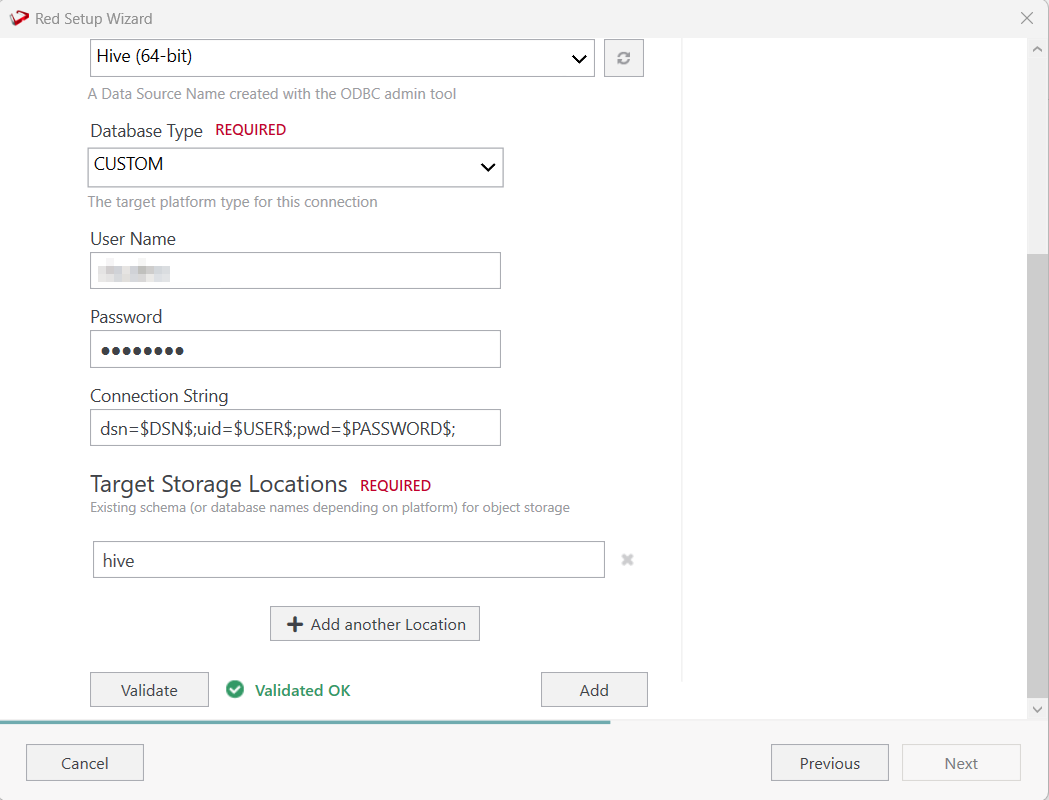
When done, press Add and then press Next to advance.
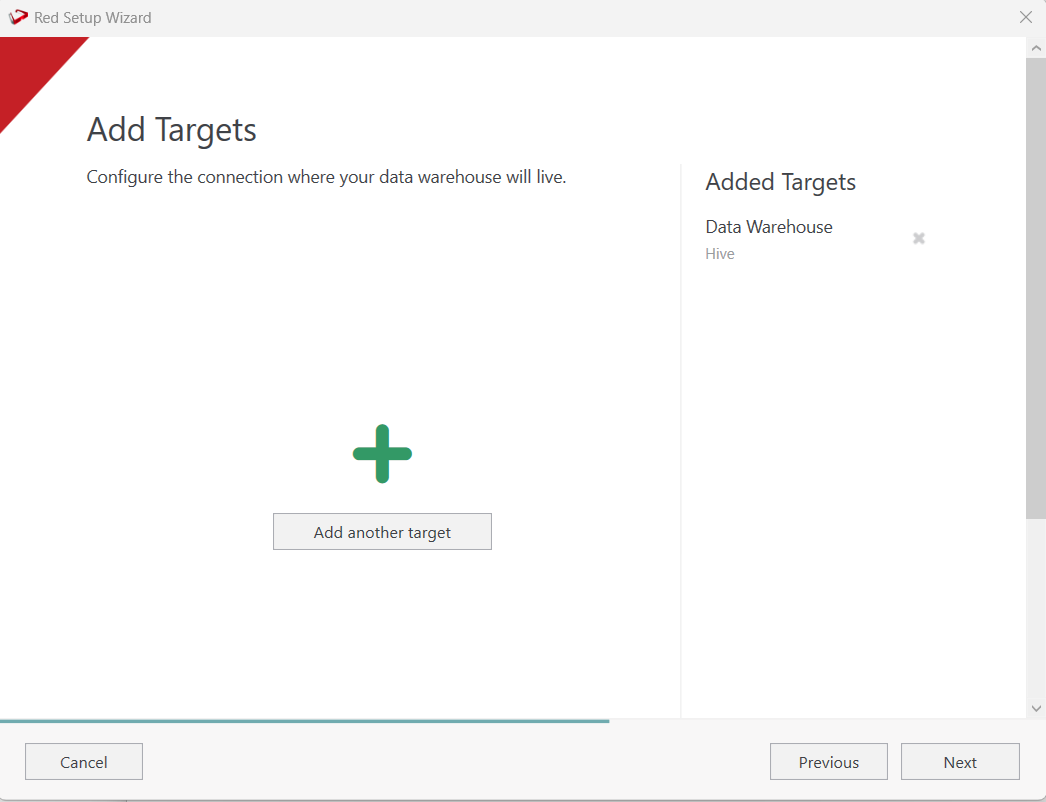
Configure a data source connection (optional) and its target locations. Validate and press Add. Press Next to advance.
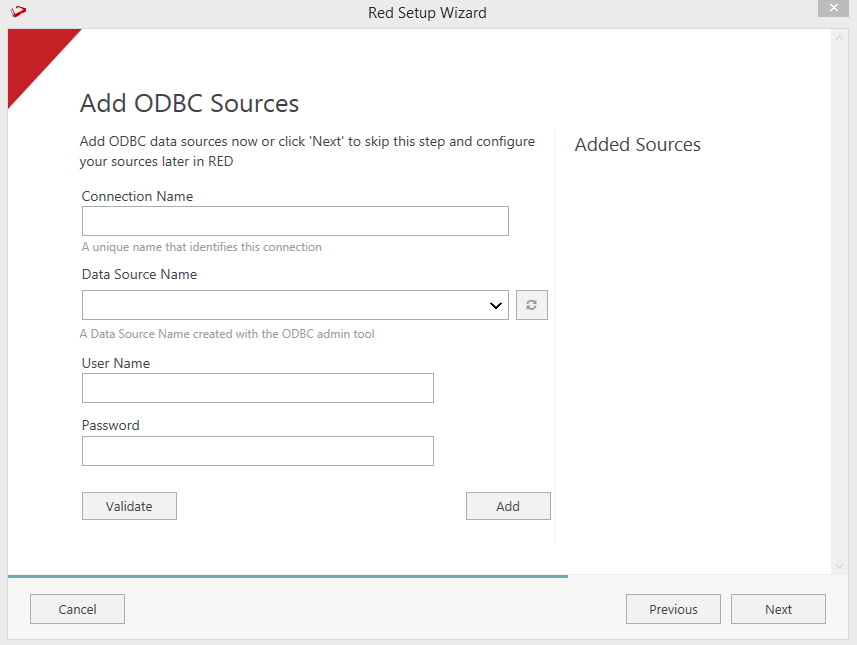
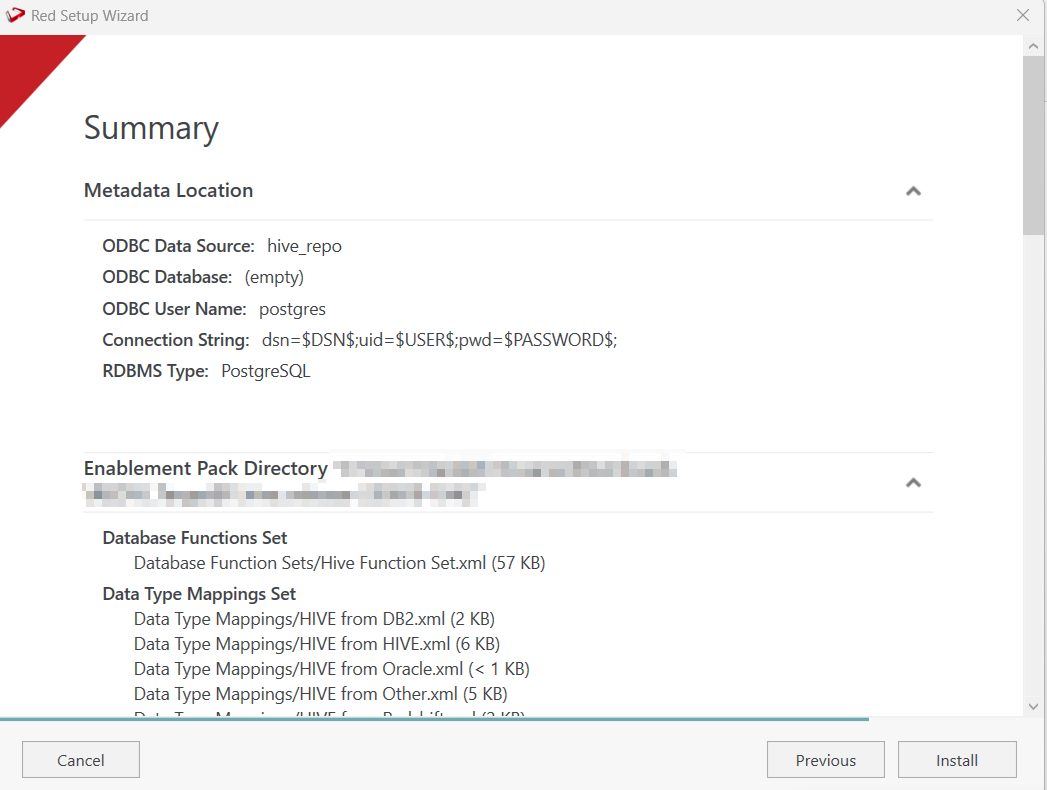
Review the installation summary and click Install.
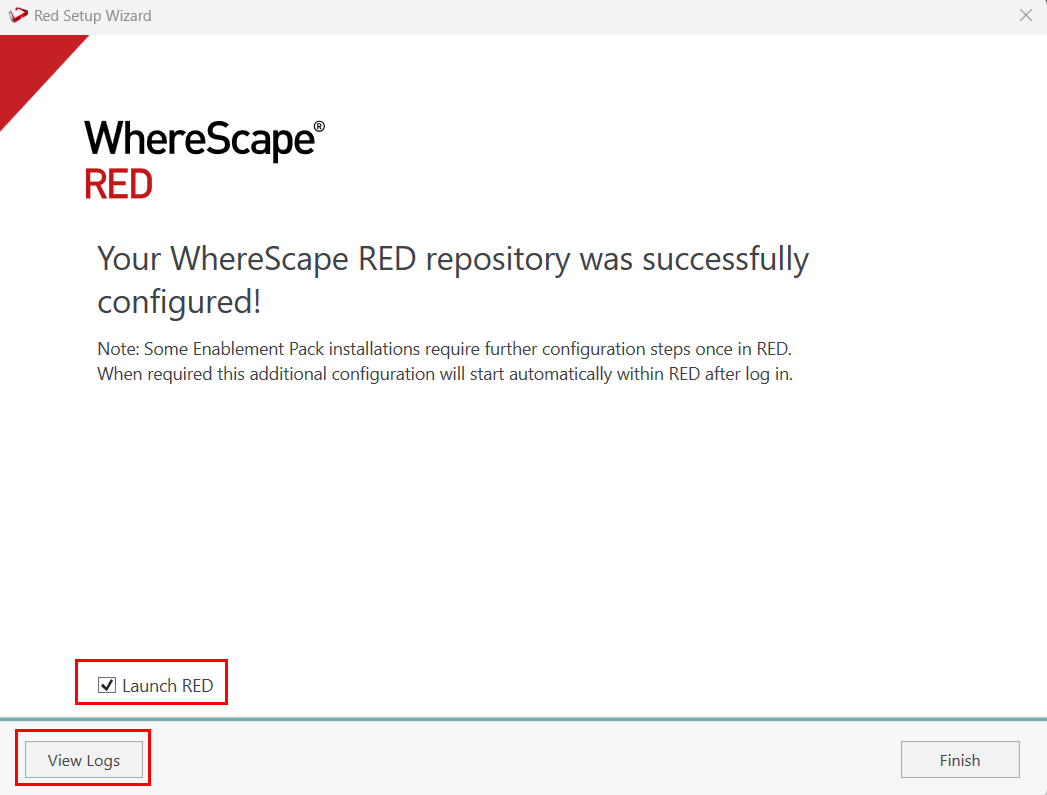
Clicking on the View Logs will take to the installation log. Click on Finish once the installation is completed successfully.
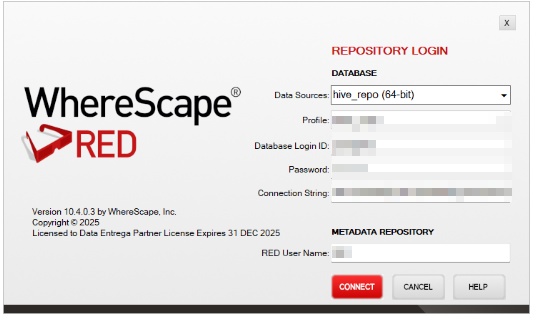
Login to WhereScape RED.
Note: There is a post-install script that will run at the first login to RED10 to complete the post setup wizard installation process. You will be directed to below PowerShell window which will give brief explanation about post installation process.
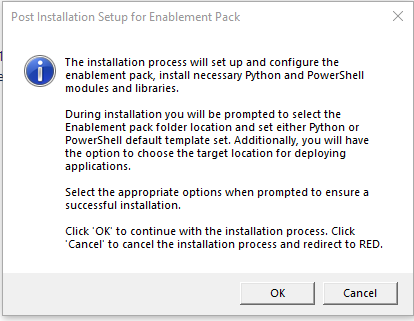
Press OK to start the post installation. If pressed Cancel installation will stop and user will be directed to RED.
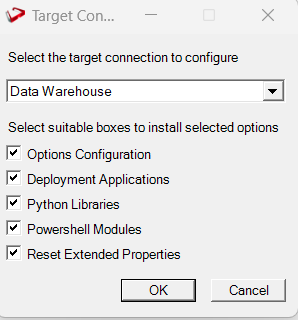
The user will be directed to the window below, where they have to select the target connection to be configured. Additionally, by deselecting the provided options, the user can choose not to install a particular option. "Reset Extended Properties" is deselected by default.
You will be directed to below PowerShell window. Provide the directory that contains unzipped Enablement Pack.
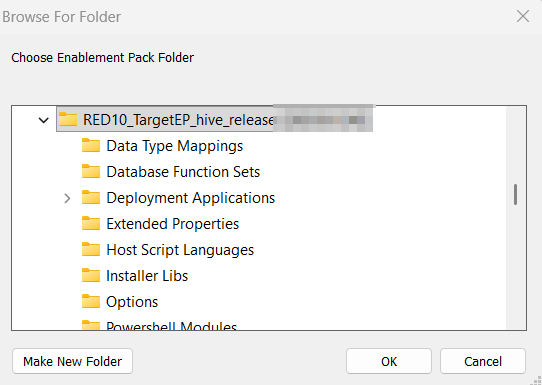
Press OK
The user will be directed to the window below, where they have to select if the user wants to create a new profile.
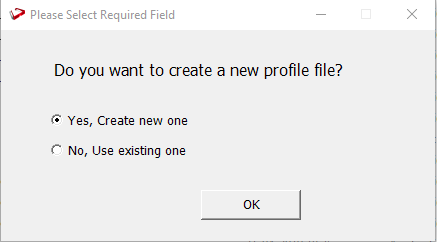
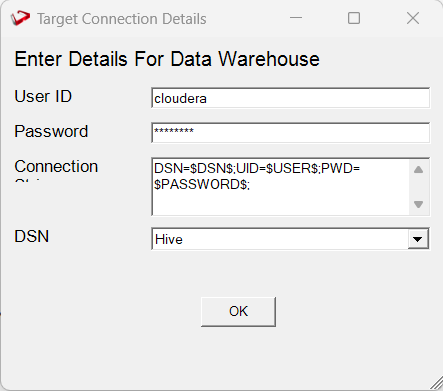
If the user selects 'Yes,' they must enter the data warehouse details. If the user selects 'No,' they must choose an existing profile file to use.
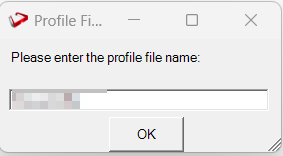
Enter the profile name
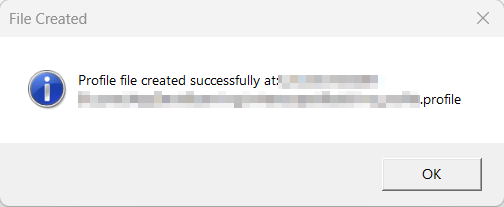
Profile gets created successfully.
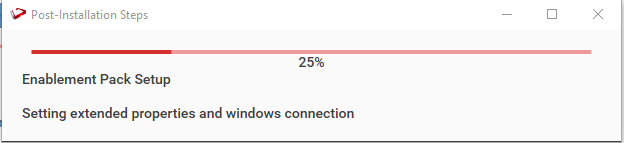
The progress bar will show the post installation progress.
User will have to choose the schema for the target setting that were provided. One pop up will come for setting default target for Date Dimension.
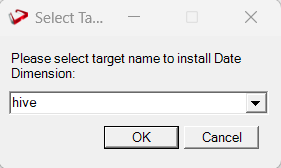
After selecting the target progress bar will show the progress for the installation and once it's completed, you will get the below pop up.
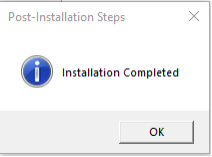
After pressing OK RED 10 will open automatically. User will need to restart RED once.
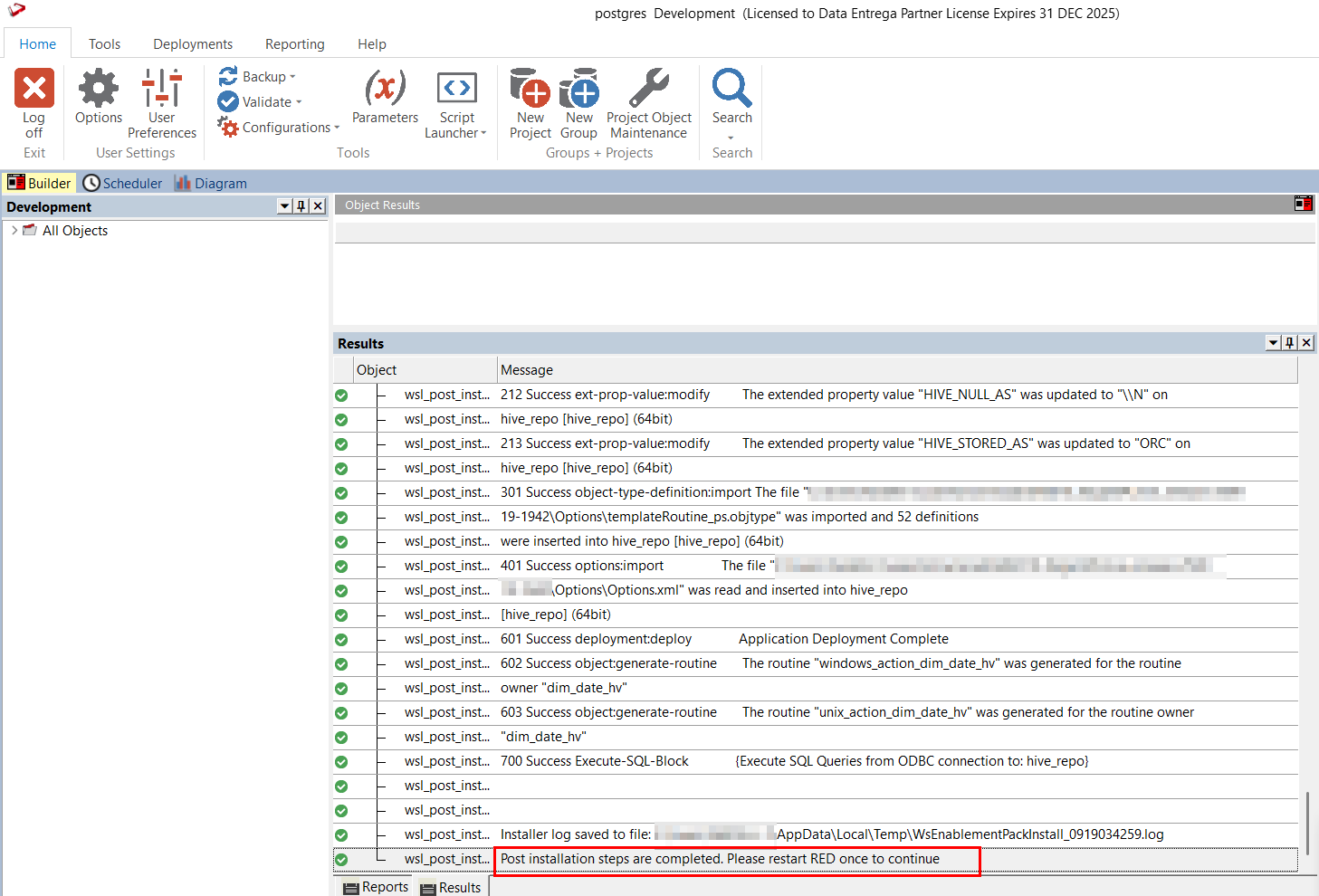
Post Install Steps - Optional
If you used the script 'Setup_Enablement_Pack.ps1' then the following optional post install steps are available
Configure Connections
There were two connections added that will optionally require your attention:
Below two are common for SQL Server
- Connection: 'Database Source System' - this connection was setup as an example source connection,
- open its properties and set it up for a source DB in your environment
- or you can remove it if not required
- Execute Update Procedure for dim_date_hv to Initialize Date Dimension for Target
- Connection: Data Warehouse('Hive') - this connection was setup as per parameters provided in Setup Wizard
- open its properties and check extended properties tab, set it up for JDBC URL and JDBC DRIVER
Troubleshooting and Tips
Run as Administrator
Press the Windows Key on your keyboard and start typing cmd.exe, when the cmd.exe icon shows up in the search list right click it to bring up the context menu, select "Run As Administrator"
Now you have an admin prompt navigate to to the folder where you have unpacked your WhereScape Red Enablement Pack to using the 'cd' command:
C:\Windows\system32> cd <full path to the unpacked folder>
Run Powershell (.ps1) scripts from the administrator prompt by typing the Powershell run script command, for example:
C:\temp\EnablementPack>Powershell -ExecutionPolicy Bypass -File .\Setup_Enablement_Pack.ps1
Notes: In the event you cannot bypass the Powershell execution policy due to group policies you can instead try "-ExecutionPolicy RemoteSigned" which should allow unsigned local scripts.
Windows Powershell Script Execution
On some systems Windows Powershell script execution is disabled by default. There are a number of workarounds for this which can be found by searching the term "Powershell Execution Policy".
Here is the most common workaround which WhereScape suggests, which does not permanently change the execution rights:
Start a Windows CMD prompt as Administrator, change directory to your script directory and run the WhereScape Powershell scripts with this command:
cmd:>Powershell -ExecutionPolicy Bypass -File .\<script_file_name.ps1>
Restarting failed scripts
Some of the setup scripts will track each step and output the step number when there is a failure. To restart from the failed step (or to skip the step) provide the parameter "-startAtStep <step number>" to the script.
Example:
Powershell -ExecutionPolicy Bypass -File .\<script_file_name.ps1> -startAtStep 123
Tip: To avoid having to provide all the parameters again you can copy the full command line with parameters from the first "INFO" message from the beginning of the console output.
If a valid RED installation can not be found
If you have RED 10.x or higher installed but the script (Setup_Enablement_Pack.ps1) fails to find it on you system then you are most likely running PowerShell (x86) version which does not show installed 64-bit apps by default. Please open a 64-bit version of Powershell instead and re-run the script.