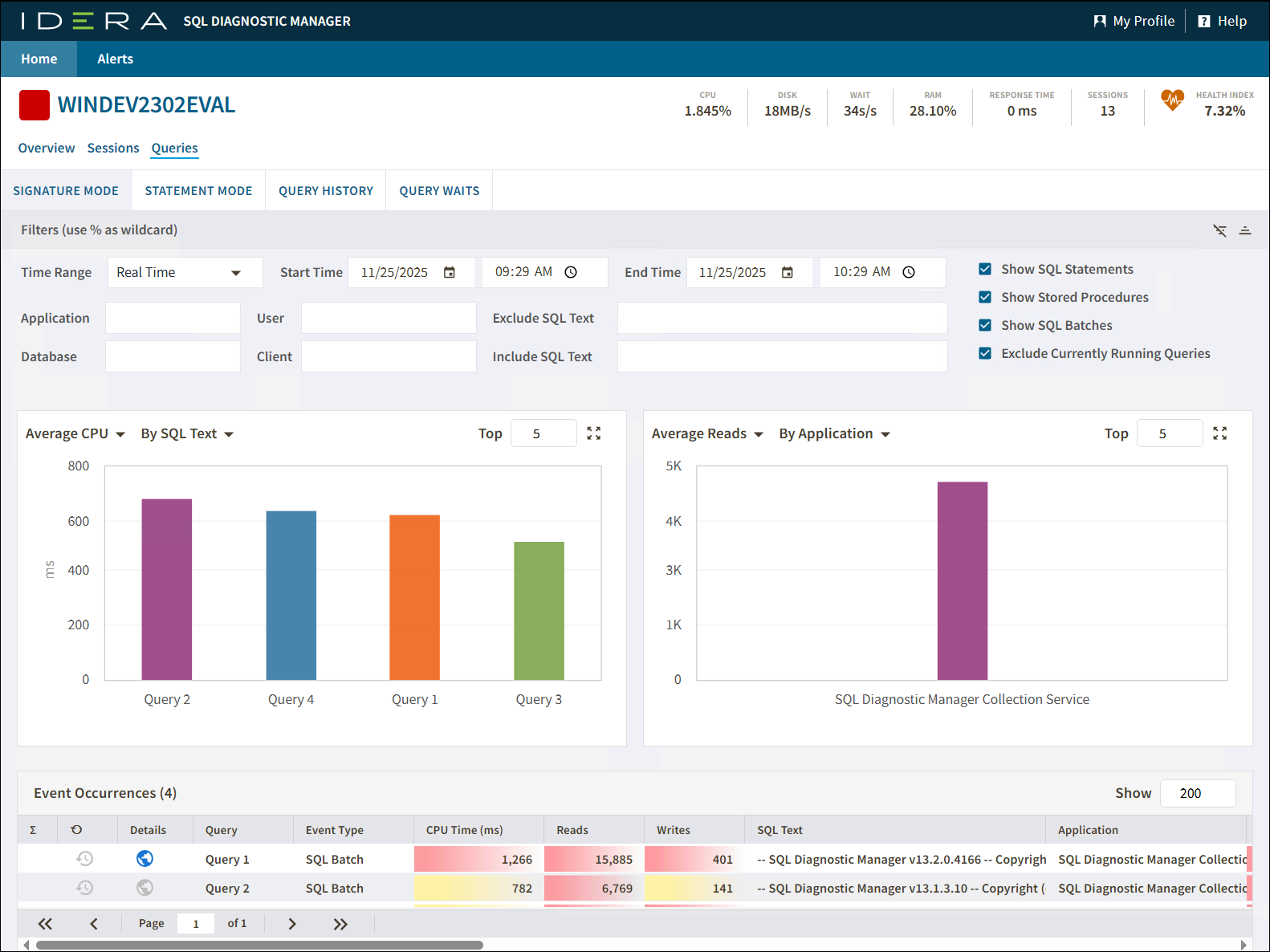
Use the Queries tab of the single instance dashboard to quickly view the results of queries running on your SQL Server instance. The Queries tab contains the following tabs:
The Signature Mode tab helps you to monitor your SQL Server instances. To do so, you can choose one or more of the diagnostic statistics metrics:
You can configure the columns displayed in the Listing view by clicking the option icon, hovering the mouse over the column option, and choosing the metrics of your interest.
Besides displaying diagnostic statistics of the monitored SQL Server instance, the Lisinting view allows you to perform the following actions:
The Sessions view presents ways of filtering your session instance information using the following options:
To monitor the session's server status in a frame of time use the time range filter. Modify the start and end time and date according to your needs.
To monitor your sessions by type, you can click on one of the next options to display data:
To filter specific criteria by column, select a column, click on the icon next to the icon's name, select the Filter option, and select or type the searching criteria.
When using the Column filter, consider that each column has its own selection criteria. |
The Session tab allows you to get a detailed summary of each session. To check the session details, double-click on a specific session and the following window will pop up.
In the Session Details window, you will find session data regarding:
The Statement Mode tab gives you a graphic status session report containing the following charts :
The Response Time chart displays the response time (in milliseconds) it takes a Select SQL statement to go to the SQL Server instance and back. This chart indicates the current speed and congestion of the network as well as the speed with which the SQL Server processes small queries.
The Blocked Sessions chart lists all the Blocked Sessions, Lead Blockers, and Total Deadlocks for the selected SQL Server instance. This allows you to easily view blocks as they occur.
The Lock Statistics chart displays all the lock object statistics, helping you to pinpoint, correct, or reschedule automated applications that cause extensive row, table, or database locking. The chart includes the following objects.
The Query History tab gives you a graphic status session report containing the following charts :
The Response Time chart displays the response time (in milliseconds) it takes a Select SQL statement to go to the SQL Server instance and back. This chart indicates the current speed and congestion of the network as well as the speed with which the SQL Server processes small queries.
The Query Waits tab gives you a graphic status session report containing the following charts :
The Response Time chart displays the response time (in milliseconds) it takes a Select SQL statement to go to the SQL Server instance and back. This chart indicates the current speed and congestion of the network as well as the speed with which the SQL Server processes small queries.
|