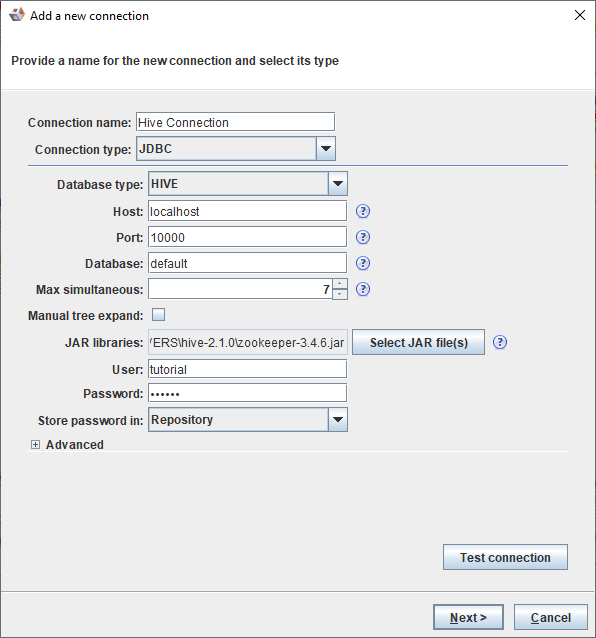
The following screen illustrates a typical Hive JDBC connection:
Fields | Description | |
|---|---|---|
Connection name | Enter a name for the connection. | |
Connection type | Select JDBC from the drop-down list. | |
Database type | Select HIVE from the drop-down list. | |
Host | Enter the host name or IP address. | |
Port | Enter the Port for the conenction. The port can be found in the C:\WINDOWS\system32\drivers\etc\services or /etc/services file. It can also be inspected through the command netstat -an or 'netstat -b. netstat -b requires running the Command Prompt as an Administrator. | |
Database | Type the Hive database name. | |
Max simultaneous | Set the maximum number of simultaneous connections 3D will open to the system. | |
Manual tree expand | Select the checkbox to manually expand and load the database and host connections tree, instead of automatically drilling down the tree. | |
JAR libraries | Select the Hive jar file from the JDBC-DRIVERS directory.
| |
User | Enter the username for connecting to the specific database. | |
Password | Enter the password for connecting to the specific database. | |
Store password in | Select one of the following options if you choose to save or not to save your password:
| |
Test connection | Click the button to ensure the entered parameters are correct. |