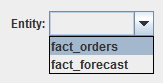
Show pivot table from the Workflow pane. The Create pivot table dialog is displayed.
Pivot tables must be allowed in the category settings. |
- Data source connections lists the connections that data will be sampled to create the pivot table.
- Sample size is the total number of rows your pivot table will have.

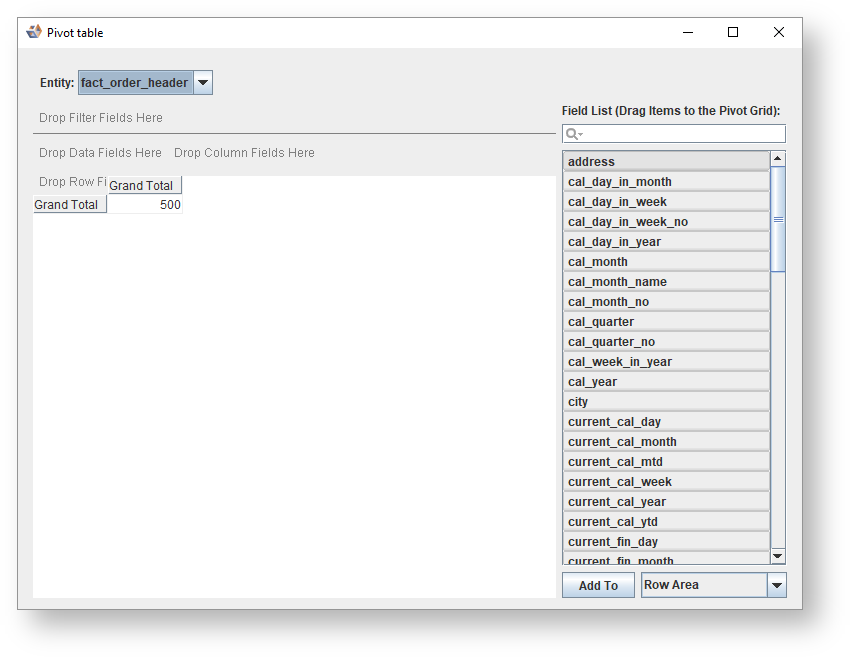
- The Entity combo box displays the fact table being used as the source for the pivot table.
- The Field List contains all the fields in the fact table which you can drag into the Drop Fields Here areas above the pivot table to construct the pivot table.
- You can also add a field by selecting it in the list, selecting the area to add it to in the combo box below the Field List and pressing Add To.
- To search for a field enter its name into the search box above the Field List.