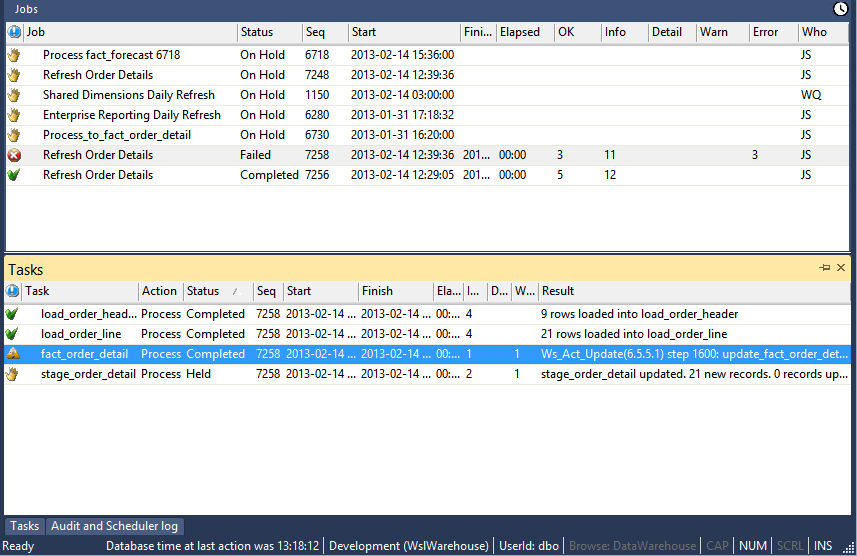
Restarting a job can only be done via the Azkaban Scheduler Dashboard as there is no current integration for this via the RED UI.
To restart a failed job run in the Azkaban Scheduler Dashboard, navigate to the Executions of the job and select the latest failed execution which you would like to restart.
Before restarting a job, it is possible to edit the status of the job tasks so that only certain tasks will be run again or be skipped over.
To run a task again
View the job tasks by double-clicking on the failed job. The tasks will be displayed in the bottom pane.
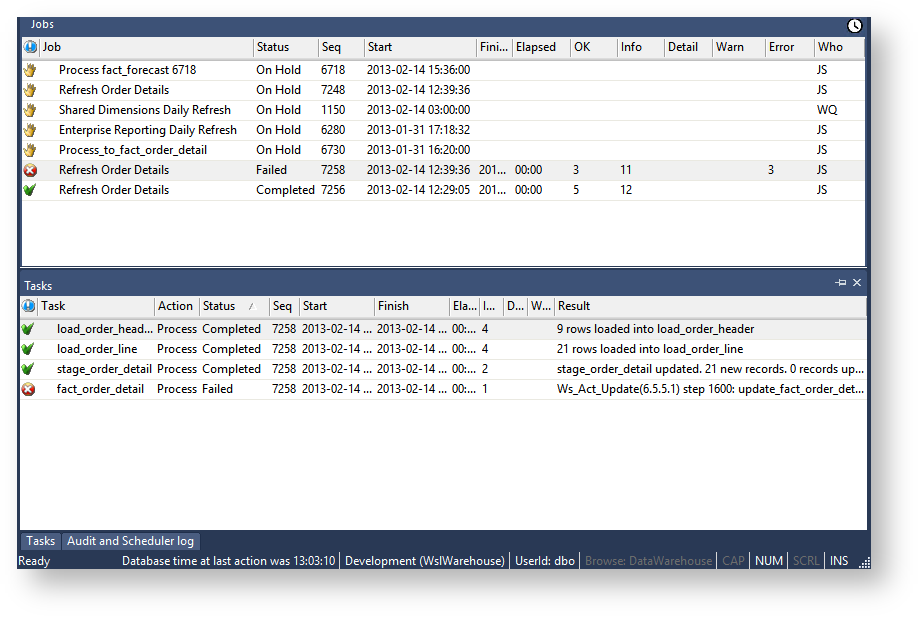
To rerun a task, right-click the completed task and select Change to On Hold

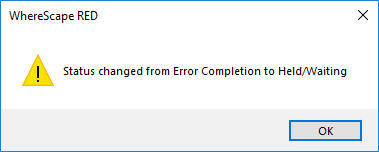
Click OK on the message dialog.
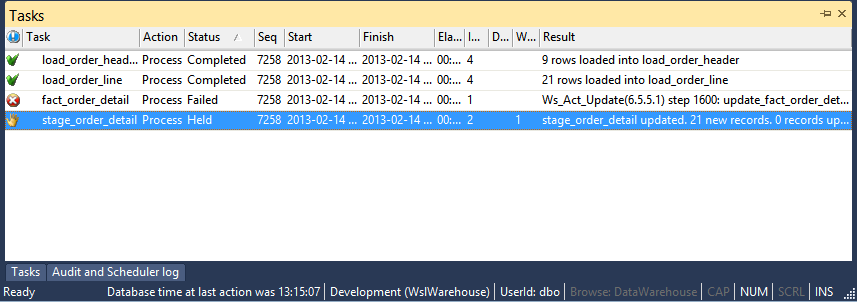
Double-click on the job again to display the tasks. You will see that the selected task now has a status of Held and will thus be rerun when you restart the job.
To skip over a task
View the job tasks by double-clicking on the failed job. The tasks will be displayed in the bottom pane.
To skip over a task, right-click the task and select Change to Completed.
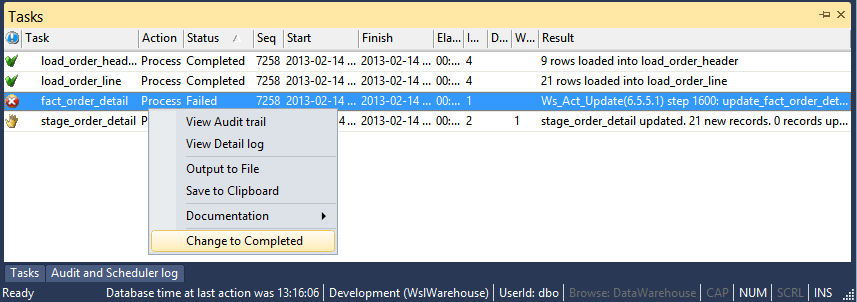
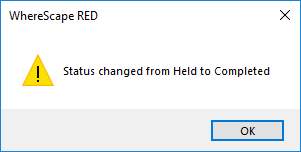
Click OK on the message dialog.
Double-click the job again to display the tasks. The selected task now has a status of Completed and will thus be skipped when you restart the job.