Restarting a job can only be done via the Azkaban Scheduler Dashboard as there is currently no integration point for this action via the RED UI.
To restart a failed job run in the Azkaban Scheduler Dashboard, navigate to the Executions of the job and select the latest execution which you would like to restart.
Note: only the latest execution can successfully be restarted and it must be in a failed state, since the RED Job Plugin expects the job to be in a failed state in the metadata, rather than failed aborted or successfully completed. Restarting from any other state will result in a failure to find the Job run record.
Now select the 'Prepare Execution' button as shown:
Next you are presented with the 'Execute Flow' screen which will show the graph of the tasks int eh flow, if you click execute now the flow will be restarted and the Job will be restarted from the last failure, thus skipping the already successful tasks.
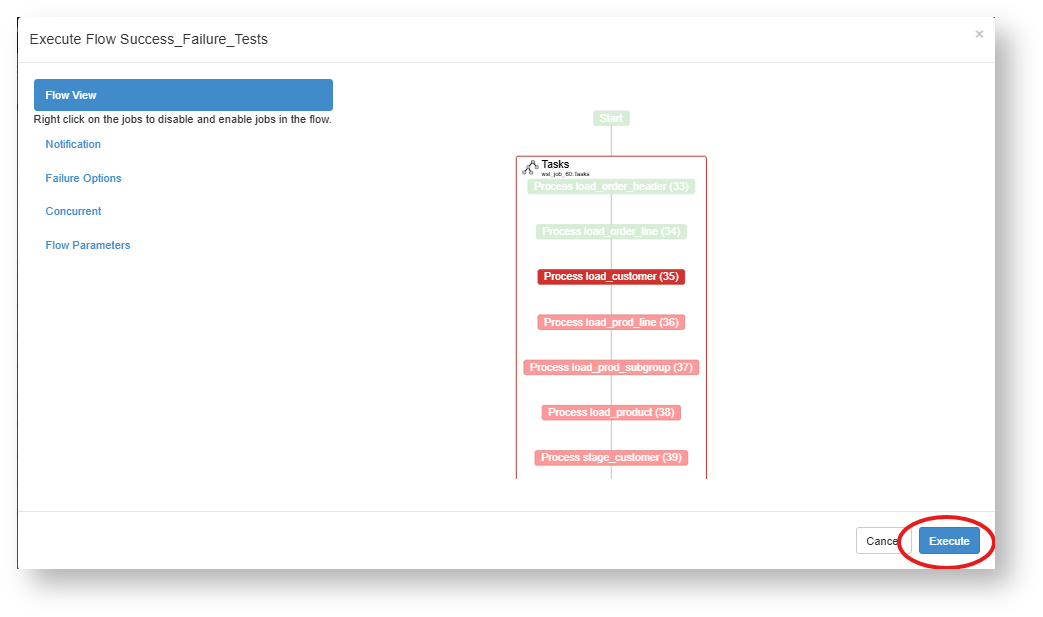
Before restarting a job, it is possible to edit the status of the job tasks so that only certain tasks will be run again or be skipped over.
View the job tasks by double-clicking on the failed job. The tasks will be displayed in the bottom pane.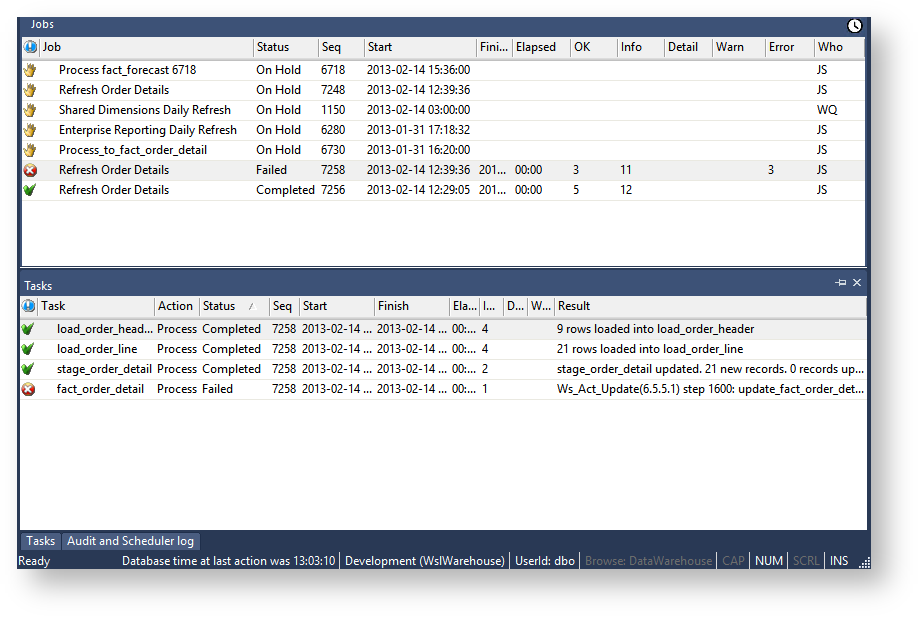
To rerun a task, right-click the completed task and select Change to On Hold
Click OK on the message dialog.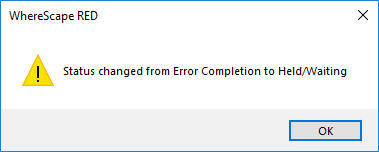
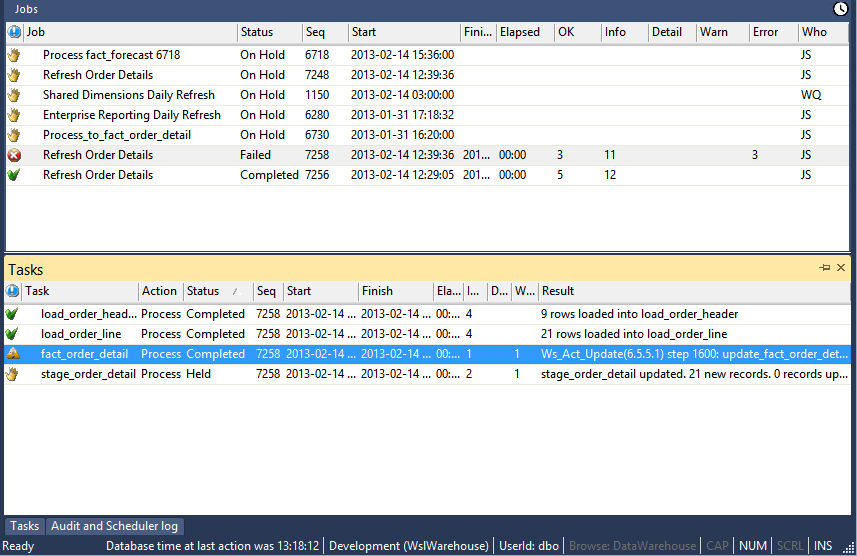
Double-click on the job again to display the tasks. You will see that the selected task now has a status of Held and will thus be rerun when you restart the job.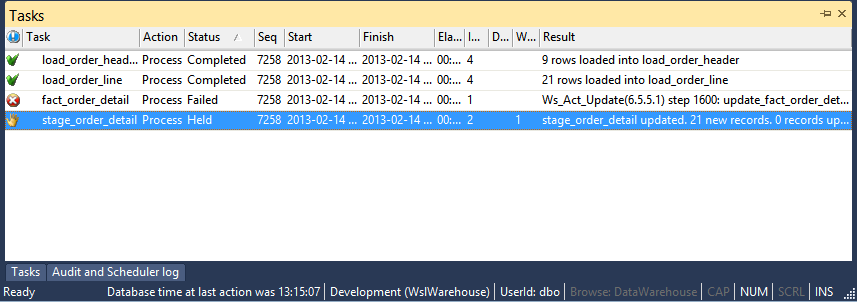
View the job tasks by double-clicking on the failed job. The tasks will be displayed in the bottom pane.
To skip over a task, right-click the task and select Change to Completed.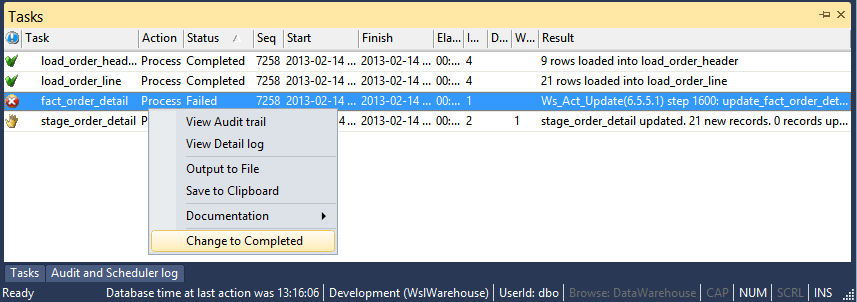
Click OK on the message dialog.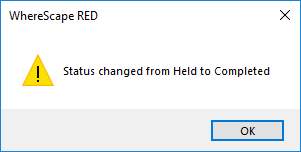
Double-click the job again to display the tasks. The selected task now has a status of Completed and will thus be skipped when you restart the job.