The Query Monitor Signature Mode and Statement Mode views contain two tools that help you with query, schema, and index optimization. The AI Powered Query Optimization and AI Powered Schema & Index Optimization buttons give you the ability to use the power of AI to review and optimize your queries, schema, and index within seconds. In addition, the AI Optimization History tab displays the results of your queries, including the responses from your completed optimization sessions.
Enable or disable AI features
Managing the AI features in SQL DM involves global configuration, permissions activation, and finally individual user consent for optimum security.
Global configuration
Your admin first must enable the feature globally using the management service config file SQLdmManagementService.exe.Config.

To enable AI optimization tools globally
- Navigate to your SQL DM installation folder, locate the SQLdmManagementService.exe.Config file, and then open it in a text editor, such as Notepad.
- Find enableAIFeatures, and then change it from false to true.
When this feature is set to false, all AI features including buttons and the history tab are disabled for all users, overriding any subsequent user-level permissions. When set to true, AI access is then governed by the Application Security settings. |
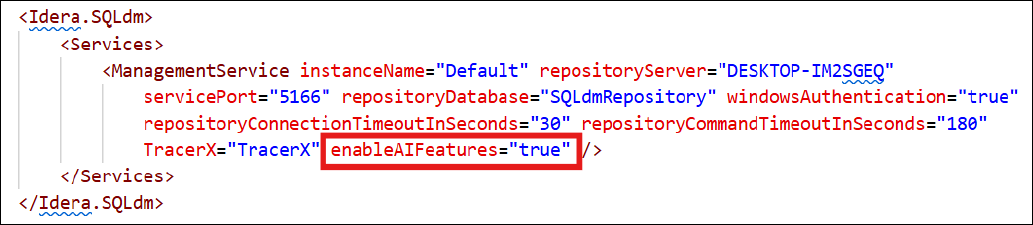
- Open Services, and then restart SQLdmManagementService.
- Open SQL DM, and then navigate to the Queries tab to verify that the AI Powered Query Optimization and AI Powered Schema & Index Optimization buttons are available and that the AI Optimization History tab is active.

To disable AI optimization tools globally
- Repeat the same steps from the previous task, but change enableAIFeatures from true to false. Remember to restart the SQLdmManagementService for your changes to take effect.
Permissions activation
- Your admin then must allow each user access to the AI features by managing permissions in the Administration > Application Security page. The AI Access checkbox must be selected for a user to access these features. Note that this checkbox already may be checked when the user is initially added to the application. In the Add Permission Wizard, in the Specify Permission page, checking Grant AI Access gives the user account the AI features access when added.
Individual user consent
- Next, the each user must agree to the AI Features Terms and Conditions upon attempting to use any of the AI features within SQL DM. A dialog box appears when you click either on the now-enabled AI buttons. Read to the bottom of the AI Feature Terms and Conditions dialog box, check I agree to the Terms and Conditions, and then click Accept to continue.