The Query Monitor Signature Mode and Statement Mode views contain two tools that help you with query, schema, and index optimization. The AI Powered Query Optimization and AI Powered Schema & Index Optimization buttons give you the ability to use the power of AI to review and optimize your queries, schema, and index within seconds. In addition, the AI Optimization History tab displays the results of your queries, including the responses from your completed optimization sessions.

Enable or disable AI features
Managing the AI features in SQL DM involves global configuration, permissions activation, and finally individual user consent for optimum security. Make sure you perform all three of the following actions:

Global configuration
Your admin first must enable the feature globally using the management service config file SQLdmManagementService.exe.Config.

To enable AI optimization features globally
- Navigate to your SQL DM installation folder, locate the SQLdmManagementService.exe.Config file, and then open it in a text editor, such as Notepad.
- Find enableAIFeatures, and then change it from false to true.
When this feature is set to false, all AI features including buttons and the history tab are disabled for all users, overriding any subsequent user-level permissions. When set to true, AI access is then governed by the Application Security settings. |
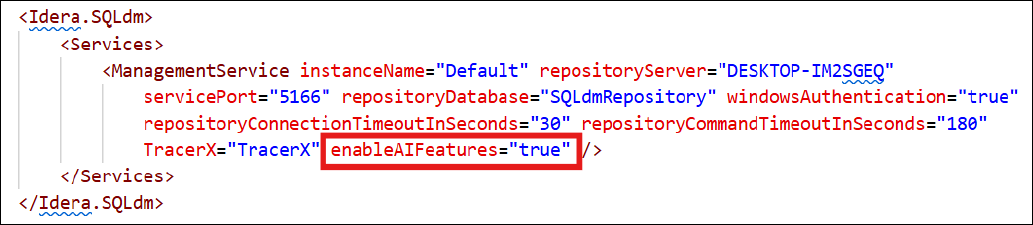
- Open Services, and then restart SQLdmManagementService.
- Open SQL DM, and then navigate to the Queries tab to verify that the AI Powered Query Optimization and AI Powered Schema & Index Optimization buttons are available and that the AI Optimization History tab is active.

To disable AI optimization features globally
- Repeat the same steps from the previous task, but change enableAIFeatures from true to false. Remember to restart the SQLdmManagementService for your changes to take effect.
Permissions activation
Your admin must allow each user access to the AI features by managing permissions in the Application Security page or when creating a new user account.
To activate/deactivate AI features on a per-user basis using Application Security
- Using an administrator account, go to Administration > Application Security.
- Click Enable Application Security, and then click Yes. All users now should have a check in the AI Access box.
- If you want to deactivate access for an individual user, clear the AI Access checkbox on the row for that user account.
You cannot activate or deactivate AI access from system administrator user accounts. |
The AI Access checkbox already may be checked when the user is initially added to the application. In the Specify Permission page if the Add Permission Wizard, checking Grant AI Access gives the user account the AI features access when added.
To activate/deactivate AI features on a per-user basis using the Permission Properties wizard
- Using an administrator account, go to Administration > Application Security.
- Click on the row for the user account that you want to update, and then click Edit in the toolbar. SQL DM displays the Permission Properties dialog box containing information for that user account.
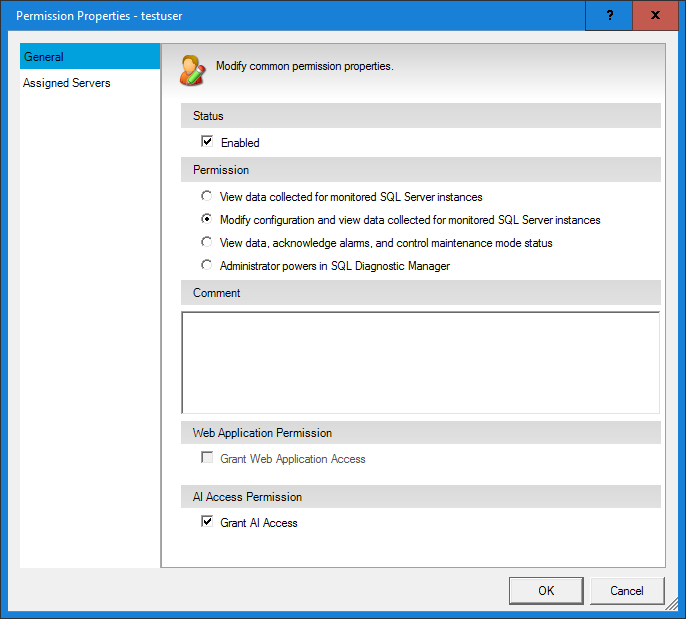
- On the General tab, check the Grant AI Access box, and then click OK.
To add AI feature access to a new user account
- Using an administrator account, go to Administration > Application Security.
- Click on the row for the user account that you want to update, and then click Add in the toolbar. SQL DM displays the Add Permission wizard.
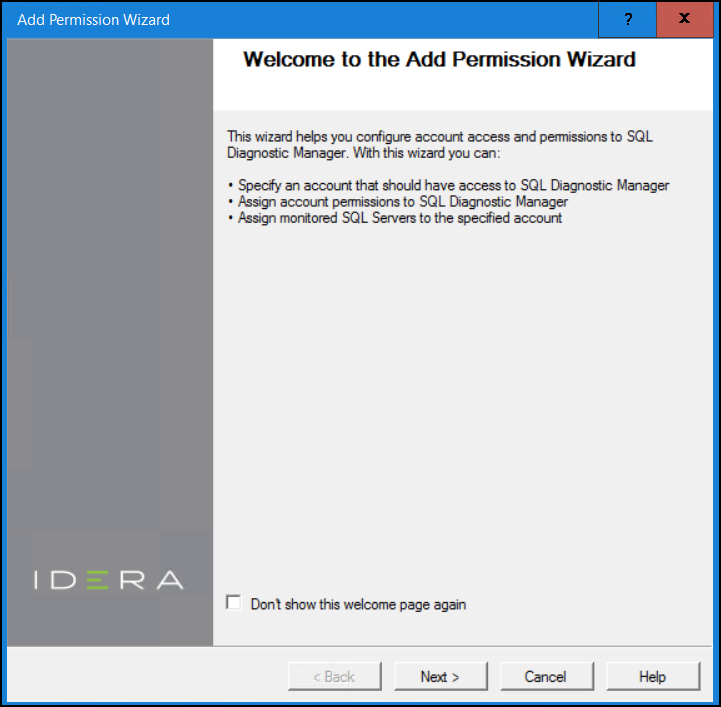
- Review the text on the first page, and then click Next. The wizard displays the Add a login page.
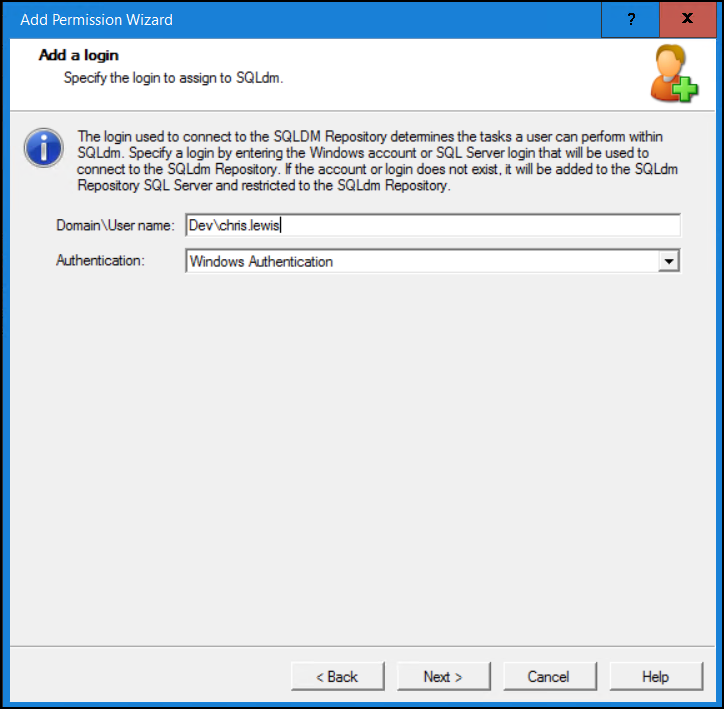
- Verify the domain and user name, and make sure you have the correct authentication method selected before clicking Next. The wizard displays the Specify Permission page.
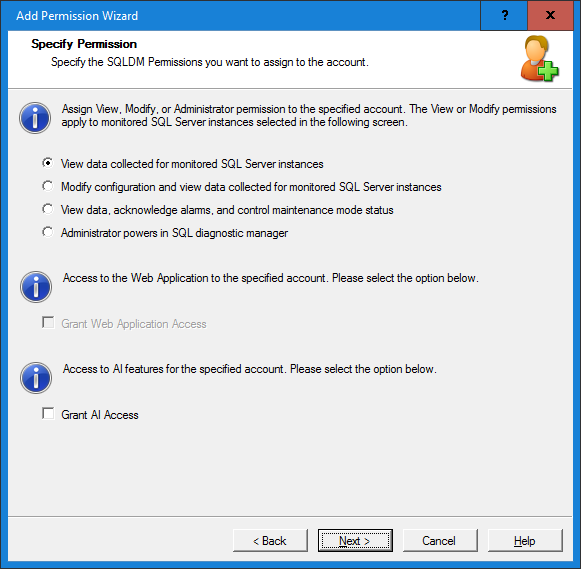
- Check the Grant AI Access box, and then click Next. This checkbox is not selected by default.
- Complete the wizard to add the user account.
Individual user consent
Finally, each user must agree to the AI Features Terms and Conditions upon attempting to use any of the AI features within SQL DM. This dialog box appears only the first time the user attempts to use one of the AI features after they are enabled. Subsequent uses of the AI features do not require additional acceptance.
To agree to the AI features terms and conditions on an individual user level
- Click either the AI Powered Query Optimization or AI Powered Schema & Index Optimization buttons for the first time after the AI features are enabled. SQL DM displays the AI Feature Terms and Conditions dialog box.
- Read the contents of the agreement, scrolling to the bottom as you read. Note that the agreement checkbox and Accept button are disabled until you scroll to the bottom of the content.
- Once you read all of the terms and conditions, check I agree to the Terms and Conditions, and then click Accept to continue.
Using AI Powered Query Optimization
Use the AI Powered Query Optimization feature to optimize a single, problematic SQL query to reduce execution time based on your current schema and index structure.
>>>IMAGES
- and select a single query to optimize from the Event Occurrences table. Note that the selection must be an SQL statement as SQL Query Optimization currently does not support batch statements. Select the appropriate query, and then click Accept Selection. The AI Optimization Request Approval dialog appears. Review the provided schema before sending the information to AI, and then click Approve Submission.
- SQL DM then sends the content for optimization and displays the AI Query Optimization Results dialog. It takes a moment for the process to complete, and until then, the AI Optimization Results area is blank. Once complete, the AI Response appears, displaying the Summary, SQL Code, and the Rollback Code so you can go back on the changes if necessary. Use the copy and paste functions to use the displayed code. Click Close when done.
Using AI Powered Schema & Index Optimization
Use the AI Powered Schema & Index Optimization feature to generate optimal index structures for a set of queries (up to five) to minimize cumulative execution time across all queries.
>>>IMAGES
- and select up to five queries from the Event Occurrences table. All queries must be form the same database. Note that your selections must be SQL statements as batch statements are not supported. Click Accept Selection. The AI Schema & Index Optimization: Statement Approval dialog appears. Click Accept Selected Statements to extract the schema. The AI Optimization Request Approval dialog appears. Review the provided schema before sending the information to AI, and then click Approve Submission.
- SQL DM then sends the content for optimization and displays the AI Schema & Index Optimization Results dialog. It takes a moment for the process to complete, and until then, the AI Optimization Results area is blank. Once complete, the AI Response appears, displaying the Summary, SQL Code, and the Rollback Code so you can go back on the changes if necessary. Use the copy and paste functions to use the displayed code. Click Close when done.