In this step, you will use Integrator Studio to define a Service and add an entry for your service and server function iiiFN03 name.
- Open Integrator Studio and select Services and right-click to define a New Service.
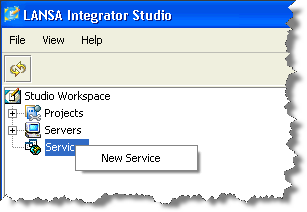
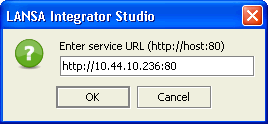
- Define the service URL and Port. If you are using a local Windows web server and JSM server this could be http://localhost:80.
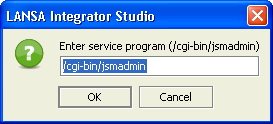
- Select OK on the next dialog to accept the name of the JSM administration program. If you are running with a Windows Server, you will add .exe to jsmadmin.
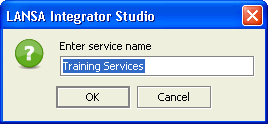
- Enter a name for the service. This name is internal to Integrator Studio and does not need to be unique. You do not need to use your initials iii.
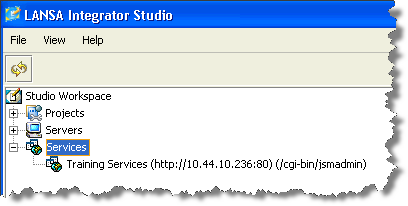
- You are returned to the Studio workspace. Expand Services to see your new service definition
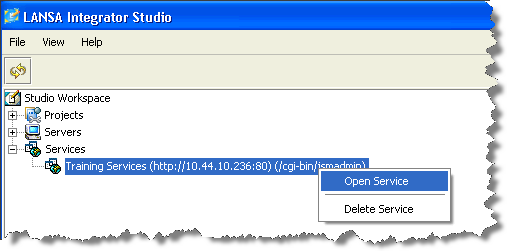
- Select the service and using the right mouse menu select Open Service.
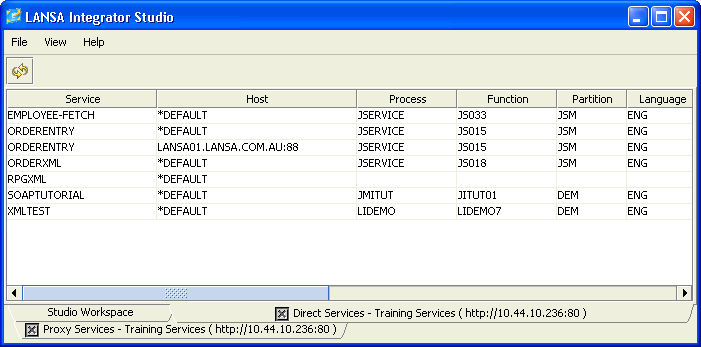
- The entries shown will depend on what services (if any) have been defined for the JSM Server you are using.
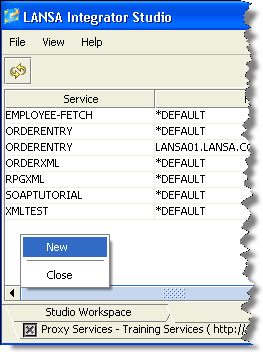
- Right-click on white space and select New.
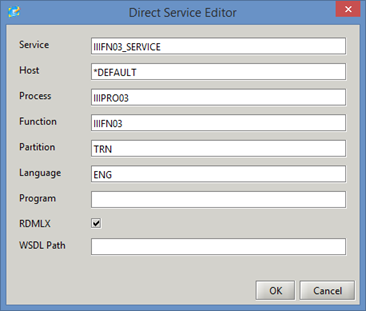
- Enter suitable values for your process, function and partition as shown. Select the RDMLX check box, and click OK.
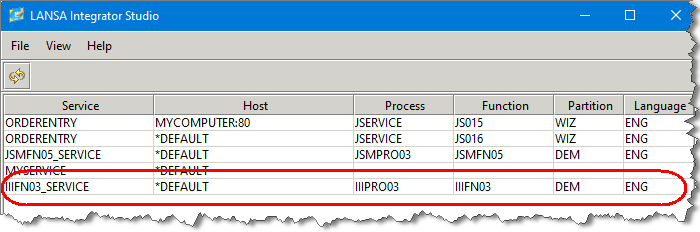
- You will return to the Direct Services tab and your new entry will be shown:
- If your service is using a Windows web server and JSM server, file DC_W29.txt has been updated. If you are using an IBM i JSM server, file DC@W29 in library DCXJSMLIB (or your equivalent) will have been updated. The User Agent will now be able to call this service and it will resolve to a call to your function iiiFN03.