In this step you will create a new layout weblet. You will see that the "create new layout weblet" function provides a default layout. You will remove much of this content and replace it with code based on the test layout which you created in Step 1.
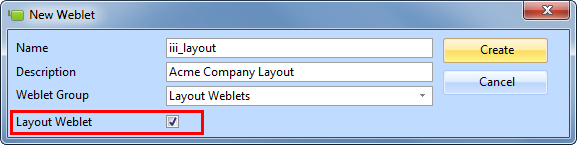
1. Use the New / Weblet dialog to create a layout weblet.
Name: iii_layout
Description: Acme Company Layout
Weblet Group: Layout Weblets
Select the Layout Weblet checkbox.
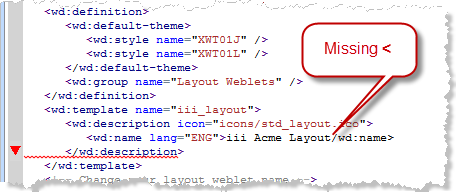
2. As you edit the XSL, the syntax will be checked, and any errors highlighted, for example:
3. Delete the inline style declaration <style></style>. Delete the style tags and everything between them.
This block of code begins, and occupies 29 lines:
<style type="text/css">
#lpage_container {
4. Towards the end of the XSL there are 7 <xsl:templates. . .> blocks of code, which need to be deleted.
They begin below the main template <xsl:template name="iii_layout:. . . . .</xsl:template> definition:
<xsl:template match="/lxml:data"> <xsl:template match="/lxml:data" mode="content.sidebar1"> <xsl:template match="/lxml:data" mode="content.sidebar2"> <xsl:template match="/lxml:data" mode="content.header"> <xsl:template match="/lxml:data" mode="content.navigation"> <xsl:template match="/lxml:data" mode="content.footer"> <xsl:template match="/lxml:data" mode="content.hidden">
Delete from the lines listed, up to and including their end tag </xsl:template>.
Note: Make sure you do not delete the </xsl:transform> at the end of the document.
5. Save your changes.
6. Find the code shown below and mark it for retention by adding the comment lines shown around it.
New code is highlighted in red, italic.
Hint: Search (Ctrl+F) for the first line shown using lpage_content_column. The other lines shown follow immediately after this.
<!-- KEEP -->
and