In this step you will identify the different views of the Work with Active Jobs screen as variants, so that your script can handle the view being shown.
1. Enter the Variant name Status for the first view.
2. Add the Status column heading to the screen definition.
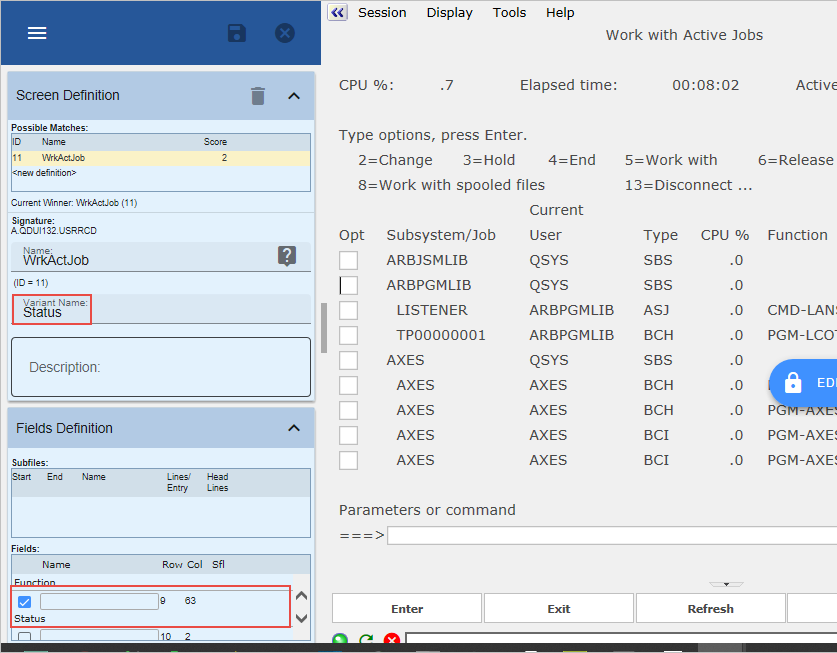
3. Click the Save button on the tab.
4. Press F11 on the Work with Active jobs screen to display the next view.
5. Add the Elapsed column heading to the screen definition.
6. Name of the screen WrkActJob – remember the names are case sensitive and must match - and the Variant name Elapsed.
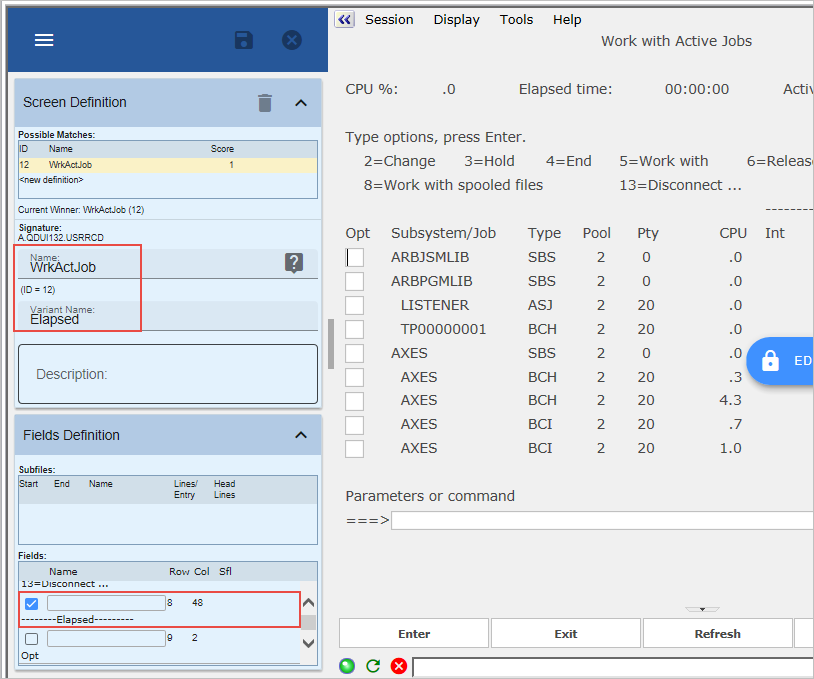
7. Click on the Save button on the Screens tab.
8. Press F11 on the Work with Active jobs screen to display the next view.
9. Add the Threads column heading to screen definition by checking the field corresponding to the title ---- Threads ----.
10. Enter the Variant name Threads.
11. Click on the Save button on the tab.
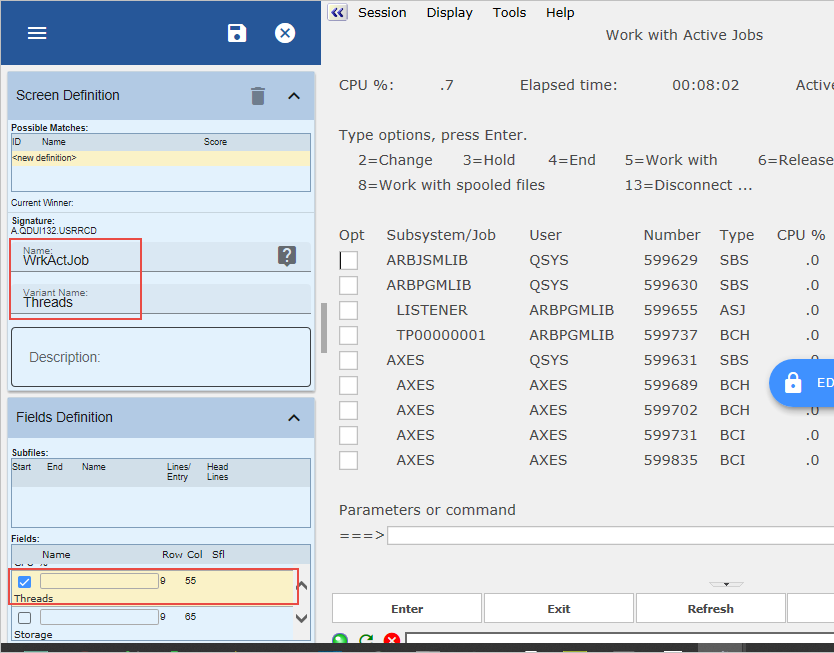
12. Press F11 to verify the different views have variant names.
13. Do a partial save of the RAMP definition.
Next create an application and business object you can use to snap the Work with Active Jobs screen into the Framework:
14. Use the Instant Prototyping Assistant (from Tools on the ribbon) to create a new application IBM i Server:
- Create business object Active Jobs
- Associate a Details command handler with Active Jobs.
- Create application IBM i Server
- Add Active Jobs to the new application.
15. Display the properties of Active Jobs, delete the filter and make Details a business object command.
16. Save and restart the Framework and start RAMP Tools.
17. In RAMP Tools associate the WrkActJob screen with the Details command handler of the Active Jobs business object.
18. Disable the Cancel key and button.
19. Select the Session option SESSION_D to execute the destination screen in a separate session.
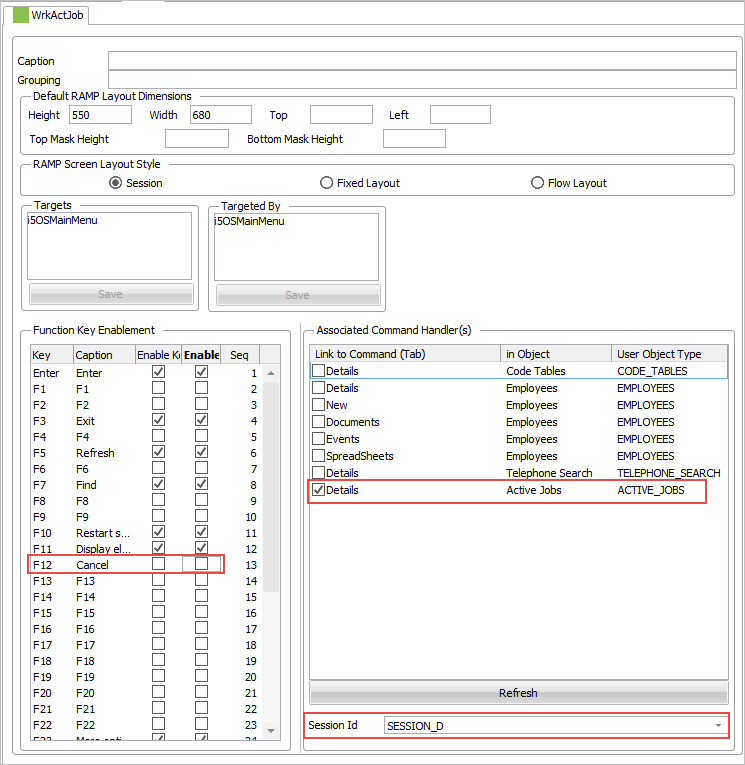
20. Do a partial save of the RAMP definition.