This guide provides step-by-step instructions for configuring Windows Authentication for an Azure SQL Managed Instance. It outlines the prerequisites and the process to enable secure and seamless authentication using Windows credentials.
Azure Managed Instance Domain Authentication
Prerequisites:
- Azure Subscription.
- Azure Resource Group.
- Azure Managed Instance.
Authentication set up:
- In the Azure portal, navigate to the Managed Instance.
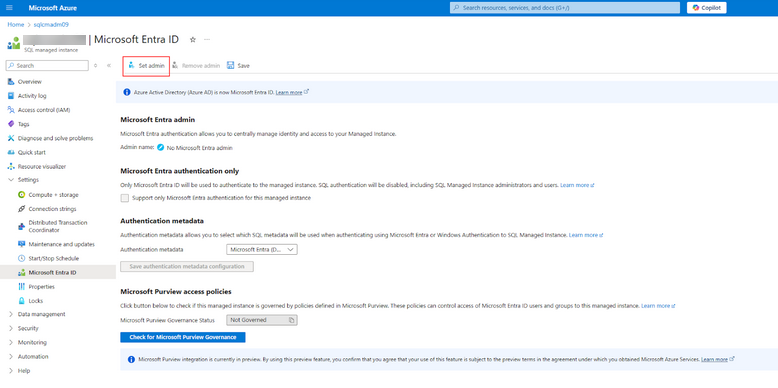
- Under Settings, find the Microsoft Entra ID tab.
- Click the Set Admin button and specify a user which has Directory Readers role.
- Save the configuration using the Save button.
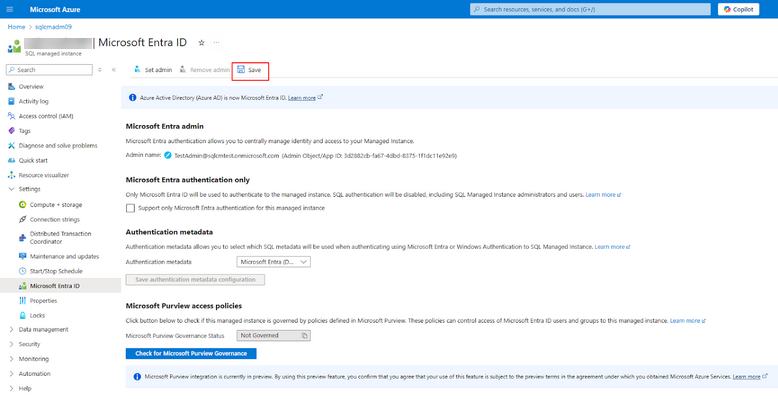
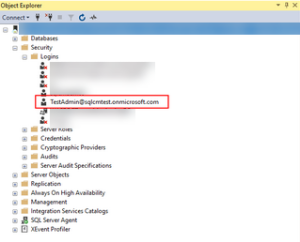
This should automatically add this user to the SQL Managed Instance Logins list.
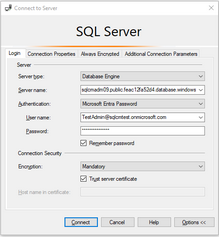
Once this is done, the user should be able to log in to the Managed Instance via SQL Server Management Studio (SSMS) using the Microsoft Entra Password authentication option.
- After this step, other domain accounts can be added to the Managed Instance directly from the SQL Server running the following query:
CREATE LOGIN [TestUser@yourdomain.com] FROM EXTERNAL PROVIDER;
For further information, please refer to this Microsoft article.