You can use the aXes Designer to freely redesign your 5250 screens. You can move and hide content, change labels, apply styles and use visual elements such as lines and group boxes.
Using aXes eXtensions, you can also display your content as drop-downs, calendar drop-downs, check boxes or radio buttons and add new elements such as buttons, images, tooltips, hyperlinks and Google maps.
You will notice that what you can do with aXes eXtensions partly overlaps with what you can do with, for example, special field handlers. It is up to you which of these approaches you adopt to enhance your screens.
Objectives
- Learn how to use aXes Designer to redesign your screen.
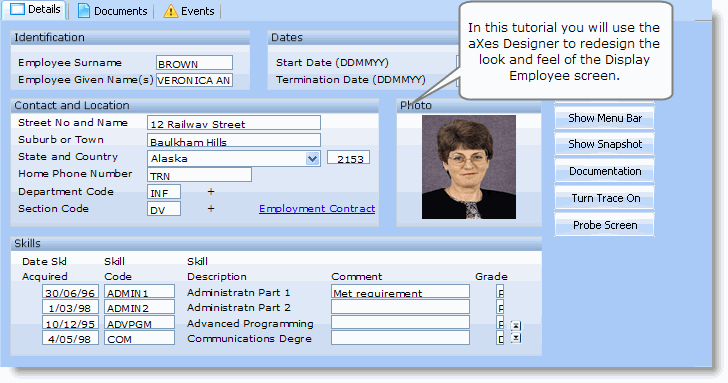
To achieve this objective, you will complete the following steps:
- RAMP-WINAD04 Step 1. Get Started with aXes Designer
- RAMP-WINAD04 Step 2. Set up Styles
- RAMP-WINAD04 Step 3. Hide Repetitive Information
- RAMP-WINAD04 Step 4. Add a Tooltip
- RAMP-WINAD04 Step 5. Add a Drop-Down
- RAMP-WINAD04 Step 6. Organize Fields inside Group Boxes
- RAMP-WINAD04 Step 7. Hide Function Keys and Add a Picture
- RAMP-WINAD04 Step 8. Add a Hyperlink
- RAMP-WINAD04 Step 9. Test the Redesigned Screen
- RAMP-WINAD04 Step 10. Remove the Screen Customization
Before You Begin
In order to complete this tutorial, you must have completed the core tutorials RAMP-TS001 - RAMP-TS015.