In this step, you will add code in the form Create_Instance event to populate the combo box.
1. Your code will add entries from the table xDepartments to ComboBox1. Add code to perform the following:
Clear list ComboBox1 Select fields xDepartmentCode and xDepartmentDescription from table xDepartments Add entry to list ComboBox1 EndSelect
Your code should look like the following:
Evtroutine Handling(#com_owner.CreateInstance) Set Com(#com_owner) Caption(*component_desc) Clr_List Named(#ComboBox1) Select Fields(#xDepartmentCode #xDepartmentDescription) From_File(xDepartments) Add_Entry To_List(#ComboBox1) Endselect Endroutine
The CLR_LIST statement is not strictly needed, since this logic will be executed once only, each time the form is executed. It is good coding practice to clear a list before adding entries.
2. Compile and test your form.
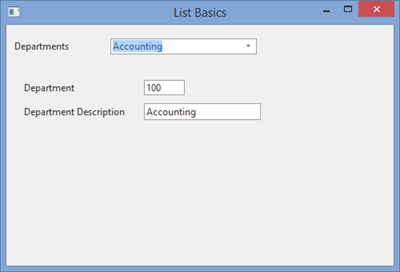
3. Click on the drop down button to see the first 8 entries. The combo box's DropDownCount property controls how many entries are shown. A Scroll bar enables other entries to be selected.
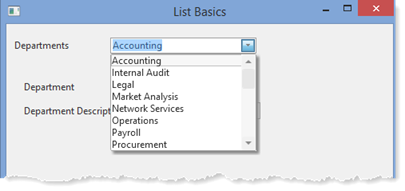
The list is displayed in the sequence that entries were loaded. In this case they were loaded in department code sequence (xDepartmentCode). You will look later at how entries in a list can be sorted. One solution could be to add an index to the table xDepartments in xDepartmentDescription sequence and use this index to load the combo box.
4. Select a different department. Once again note that the form fields are populated from the selected list row.